Your Browsing History
Meet Your Seller
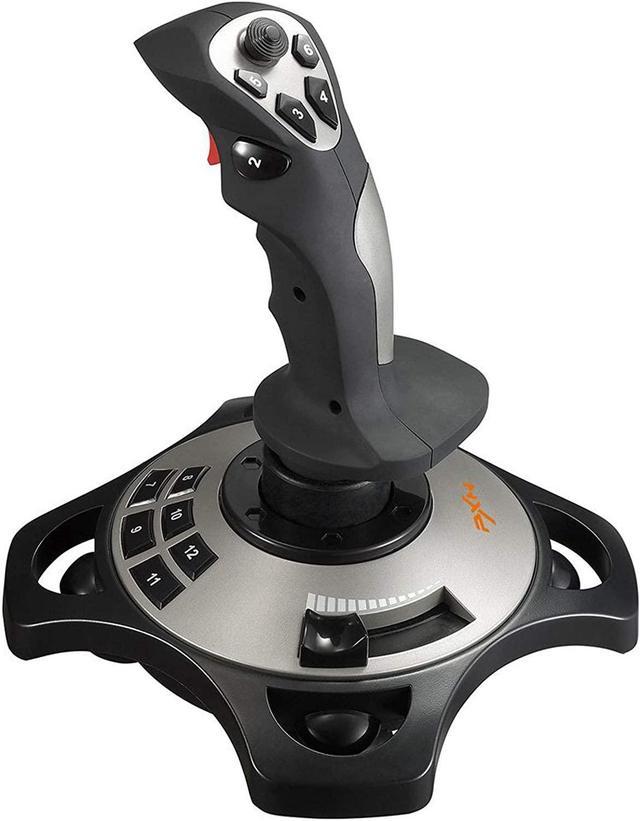
2113PRO PC Joystick USB Gaming Flight Simulator Controller Flight Stick
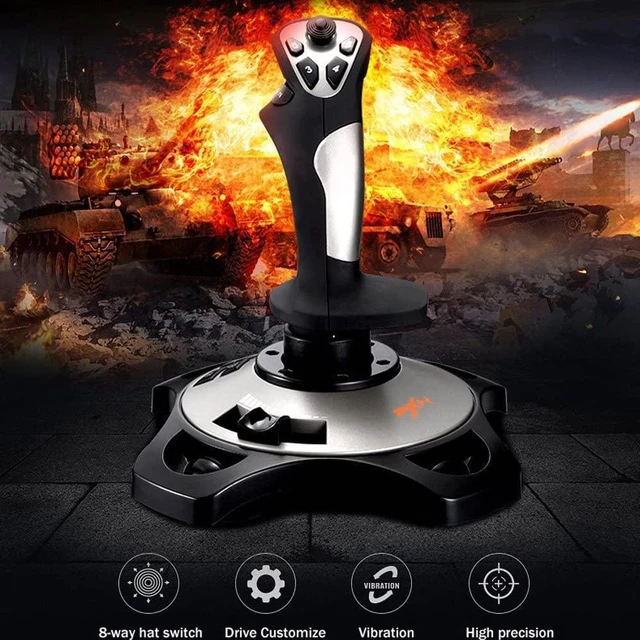
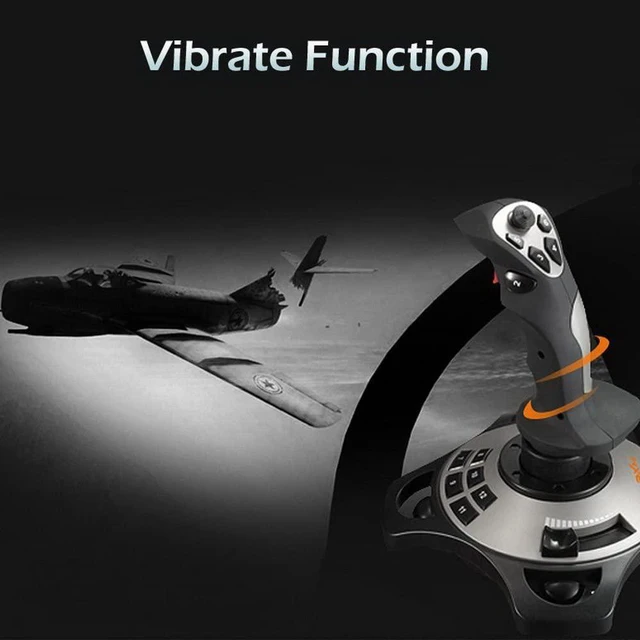
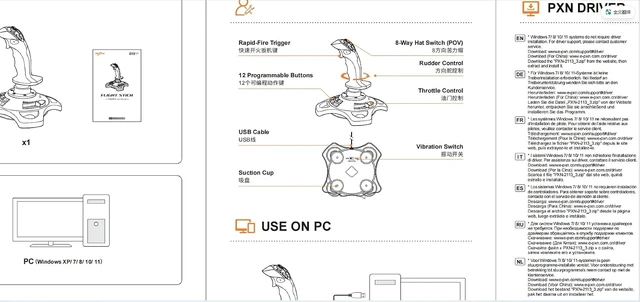
- With Vibration FunctionThis flight stick is ONLY for PC/Computer and ONLY compatible with Windows 7/8/10/11 (Mac/ computers/ devices/PS3/PS4/PS5/Xbox One/Switch not supported).2113 PRO gaming joystick for pc will never let you down with realistic fly experience. Compatible with many flight joystick pc games: World of Tanks,World of Warplanes,War Thunder,Assault Horizon, Flight Simulator,X Plane 10,etc. Vibration Switch is at the bottom,please switch toON.If less than 20%,you will almost not feel the vibration.Please set the vibration strength in the driver to 50% or higher for this joystick pc flight simulator.
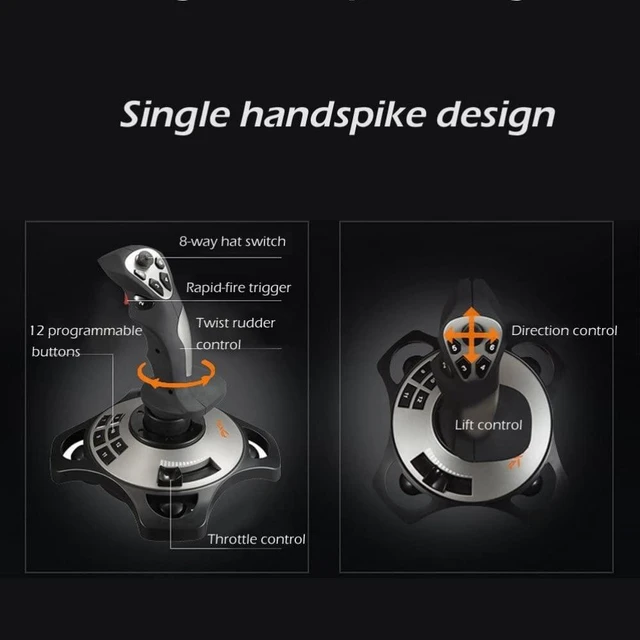
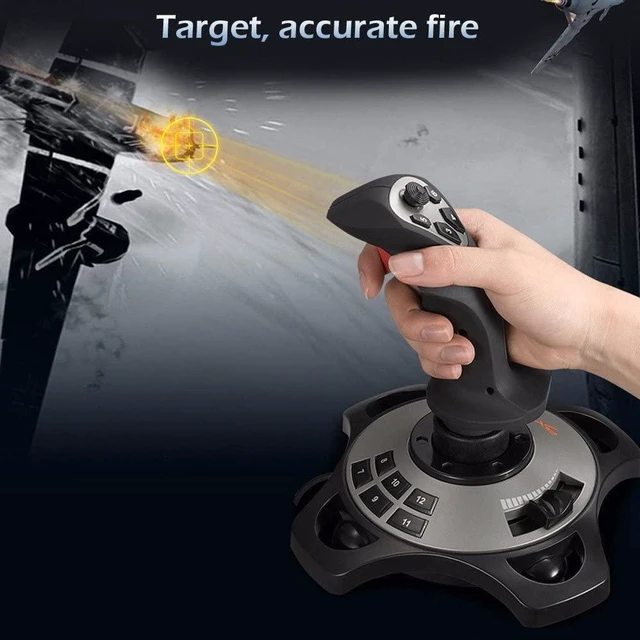
- Immersive Fly Experience for Your Flying DreamYou can make the right moves with rapid fire trigger,4 axis controlling,8-Way hat switch and 12 programmable buttons of this computer joystick for gaming pc flight.Advanced software,Support various custom adjustment and keyboard mapping,enjoy exciting joystick flight simulator controls for pc games now!
+
+
Overview
Specs
Reviews
Any questions? Our AI mode will help you find out quickly.
Try me now
FAQ:Q1:Why doesn't it work on my pc/Xbox? A: It is ONLY for PC and Windows 7/8/10/11(Not for Mac/ devices/Xbox).Please turn on pc First and then connect with this joystick.If not,some pc may not identify it. Q2: How to install the driver? A: No need to install the driver and can play games directly.If you need driver,please find "Installation" section in manual or follow below steps: 1:Visit official websiteSupportDriverFind -2113PRO driver to download. 2:Extract the driver and install. 3:Plug joystick into PC USB port,pc will identify new hardware and install automatically. 4:Play games or set the joystick in driver.The drive can test and calibrate the pc flight joystick.
Comfortable to Hold, Agile to OperateThis usb joystick for pc is with a solid and smooth feeling,very comfortable.Four power-grip suction cups at the bottom of this pc joystick for flight simulator pc games,they can fix firmly and easily when the table is smooth.Precise throttle control,Ergonomic design,Single hand control full function with this flight joystick for pc games.(Note:Force Feedback/Minecraft/Asphalt 8/Ace Combat 7 not supported).This Flight simulation pc controller with Friendly and Easy-to-Reach Customer Service.If any problem,please contact us directly(Contact Seller),Fengying will reply within 12 hours.
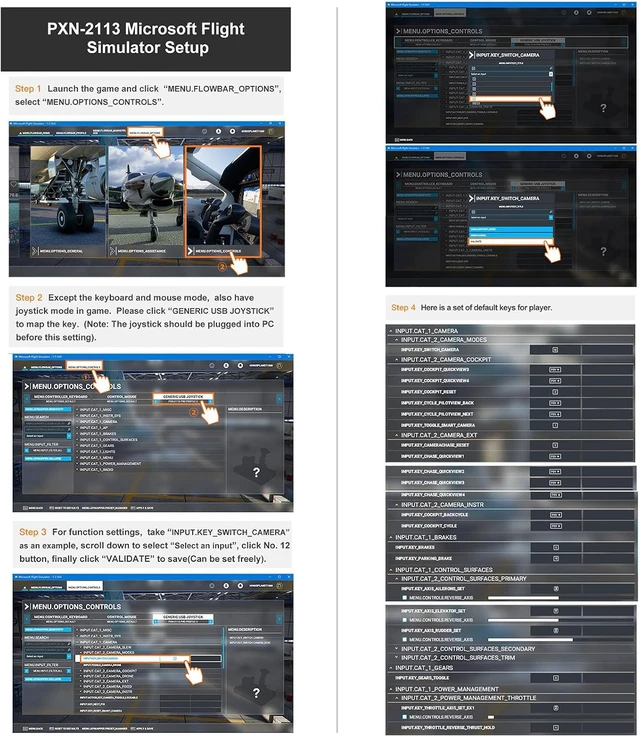
Setup Guide for Flight SimulatorFor 2113 flight sim joystick pc setup in Flight Simulation,please refer to below images and follow below steps: Step 1: Launch the game and click"MENU.FLOWBAR_ OPTIONS",selectMENU.OPTIONS CONTROLS". Step 2: Except the keyboard and mouse mode, also have joystick mode in game.Please clickGENERIC USB JOYSTICK" to map the key. (Note:The joystick should be plugged into PC before this setting). Step 3: For function settings,take INPUT.KEY_ _SWITCH_ CAMERA"as an example,scroll down to selectSelect an input",click No.12 button,finally clickVALIDATEto save.
Comfortable to Hold, Agile to OperateThis usb joystick for pc is with a solid and smooth feeling,very comfortable.Four power-grip suction cups at the bottom of this pc joystick for flight simulator pc games,they can fix firmly and easily when the table is smooth.Precise throttle control,Ergonomic design,Single hand control full function with this flight joystick for pc games.(Note:Force Feedback/Minecraft/Asphalt 8/Ace Combat 7 not supported).This Flight simulation pc controller with Friendly and Easy-to-Reach Customer Service.If any problem,please contact us directly(Contact Seller),Fengying will reply within 12 hours.
Setup Guide for Flight SimulatorFor 2113 flight sim joystick pc setup in Flight Simulation,please refer to below images and follow below steps: Step 1: Launch the game and click"MENU.FLOWBAR_ OPTIONS",selectMENU.OPTIONS CONTROLS". Step 2: Except the keyboard and mouse mode, also have joystick mode in game.Please clickGENERIC USB JOYSTICK" to map the key. (Note:The joystick should be plugged into PC before this setting). Step 3: For function settings,take INPUT.KEY_ _SWITCH_ CAMERA"as an example,scroll down to selectSelect an input",click No.12 button,finally clickVALIDATEto save.



Warranty & Returns
Warranty, Returns, And Additional Information
Warranty
- Please contact the Seller directly for warranty information. Warranty information may also be found on the Manufacturer's website.
- CONTACT
Return Policies
- Return for refund within: 30 days
- Return for replacement within: 30 days
- This item is covered by DingPeak Smart Tech Return Policy
Manufacturer Contact Info
- For a directory of all our manufacturers, please click below.
- Manufacturers Directory
LOADING...