Your Browsing History
Meet Your Seller
M.2 NVMe SSD Enclosure Adapter, 10Gbps SATA & M.2. NVMe Dual Bay Offline Clone USB-C Adapters Supports 3.5"/2.5" SATA SSD, Type-C Standalone Clone Duplicator
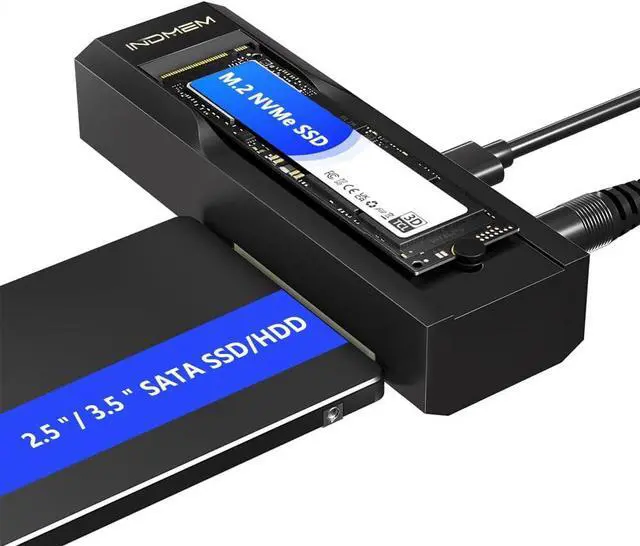
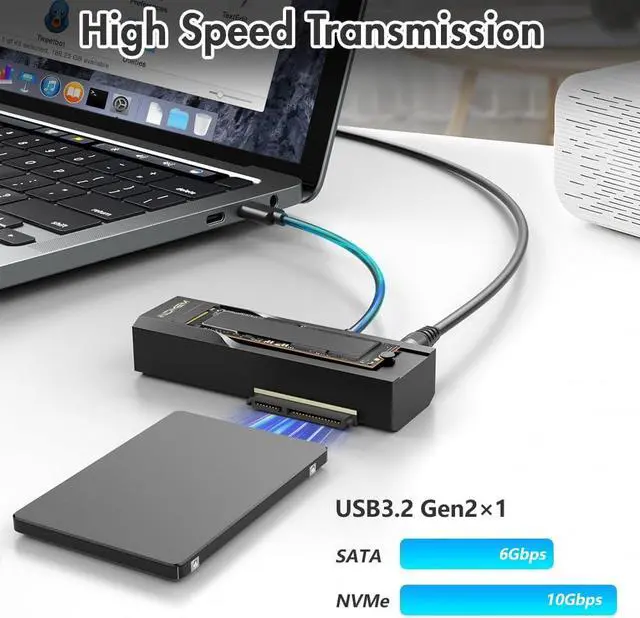
- 10Gbps M.2 SSD EnclosureThis SDD external hard drive enclosure supports SATA 6Gbps and NVMe 10Gbps ultra-fast transfer speeds, has USB 3.2 Gen2 and is backward compatible with USB 3.1 and USB 3.0. This NVMe Reader Adapter uses a USB-C interface for stable and efficient data transmission.
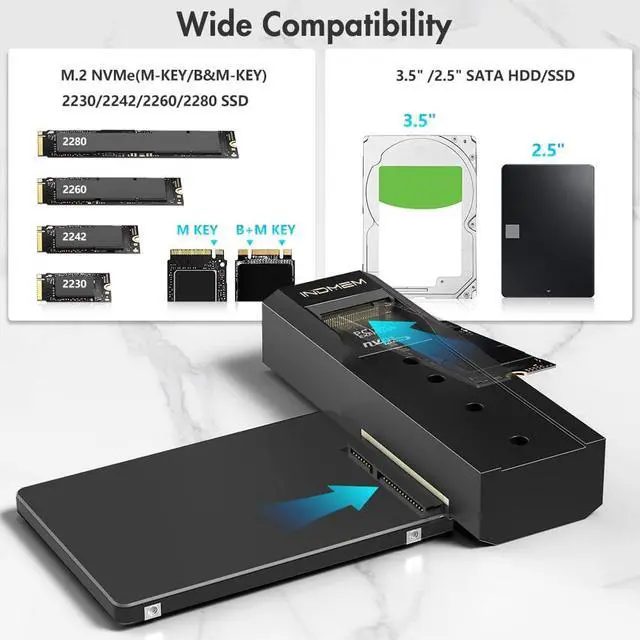
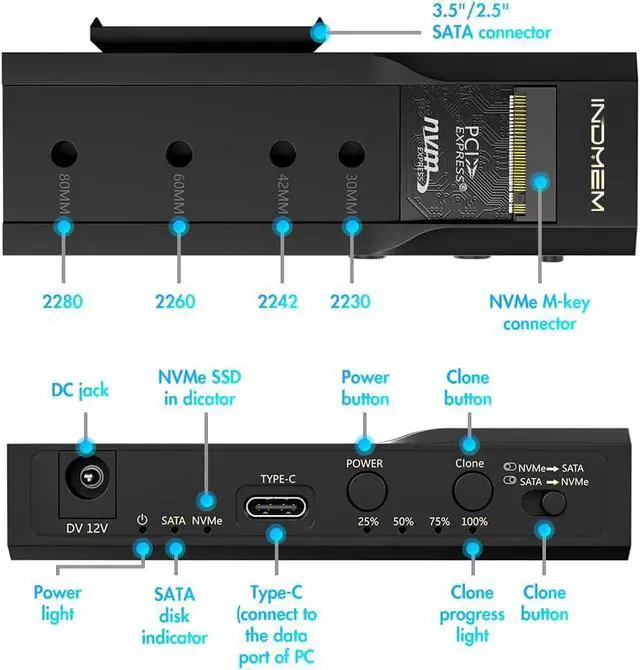
- High CompatibilityOur nvme to usb adapter supports a wide range of hard drives, including M.2 NVMe(M-KEY/B&M-KEY) 2230/2242/2260/2280 SSDs and 3.5"/2.5" SATA HDDs/SSDs, offering versatile storage solutions for your needs. This cloner can be use for migtating SSD drives to m.2 sata drives for new hardware upgrades.
- Tool-Free NVMe SSD USB AdapterThe M.2 enclosure reader is so easy to use without any tools and no driver required. The enclosure function allows the hard disks inserted into the two interfaces to be used independently or simultaneously without affecting each other.
+
+
Overview
Specs
Reviews
Any questions? Our AI beta will help you find out quickly.
Try me now
Support M. 2 NVME to SATA SSDs Whether you use an M. 2 NVMe SSD or SATA drive, this m. 2 nvme ssd enclosure has you covered. Plug and play, no driver required to achieve bidirectional cloning. Great for office workers/gaming movie lovers and users with multiple different hard drives.
Compact DesignThe compact design makes it easy to carry, ensuring maximum performance wherever you go. Take advantage of the high-speed data transfer capabilities of our dual-disk hard drive duplicator to save time, improve work efficiency, and make you more efficient.
NoteIf it is used SSD, you can find the new drive on computer, read & write normally. If it is new SSD, need to initialize, partition, format firstly before. So if it clones a drive and your new PC does not BOOT check the drive format of the old hard drive and make sure its not MBR. Your new motherboard will not work with MBR formatting and tell you there is no bootable OS but it will show you your drive
USB 3.2 Gen 2 M. 2 NVMe SATA SDD Enclosure
Whether you are using M. 2 or SATA hard drive, this M. 2 hard drive enclosure can meet your needs, plug and play, no driver required, compatible with M. 2 PCIe/NVMe SSD and SATA (NGFF) SSD in size 2242/2260/2280, also compatible with 2.5 -inch SATA SSD and HDD
This SSD enclosure supports SATA 6Gbps and NVMe 10Gbps ultra-fast transfer speeds with USB 3.2 Gen2 and is backward compatible with USB 3.1 and USB 3.0. This NVMe card reader adapter uses the USB-C interface for stable and efficient data transfer.
How to use the Hard Drive Reader
SATA SSD Installation
Align the 2.5 or 3.5 hard drive interface with the product's SATA interface and push it in parallel.
M. 2 NVMe Installation
Install the silicone plug first, insert the hard drive into the M. 2 NVMe slot at an angle of 45°, and adjust the silicone plug to secure the hard drive.
Connect the power supply
Plug the power supply into the DC port and connect the data cable to the TYPE-C port (the other end should be connected to the computer port)
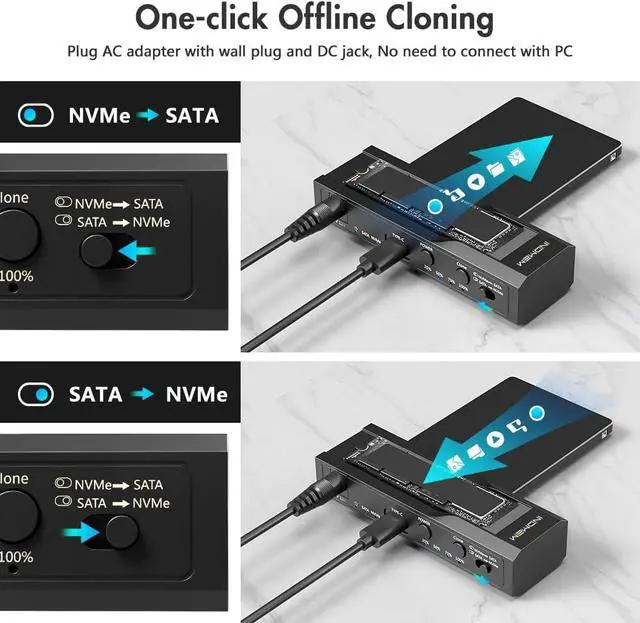
Bidirectional cloning
M. 2 NVMe Adapter can clone SATA and SSD can clone NVMe when working.
LED indicator light-- Easy to observe the working status
Manually select the clone mode--Supports two-way cloning of SATA SSD and M. 2 NVMe SSD
How to use it?
NVMe to SATA
Select the CLONE mode, make sure the capacity of the target drive is lager than or equal to the source drive. Connect the power supply, turn on the POWER switch, the power light ups, than two drive indicators light up.
SATA to NVMe
Press and hold the CLONE button for 5 seconds until the progress LEDs start flashing, release the CLONE button, wait approximately 1 second and than click the Clone button once, the clone progress lights will begin with the 25%/50%/75%/100% illuminating in turn.
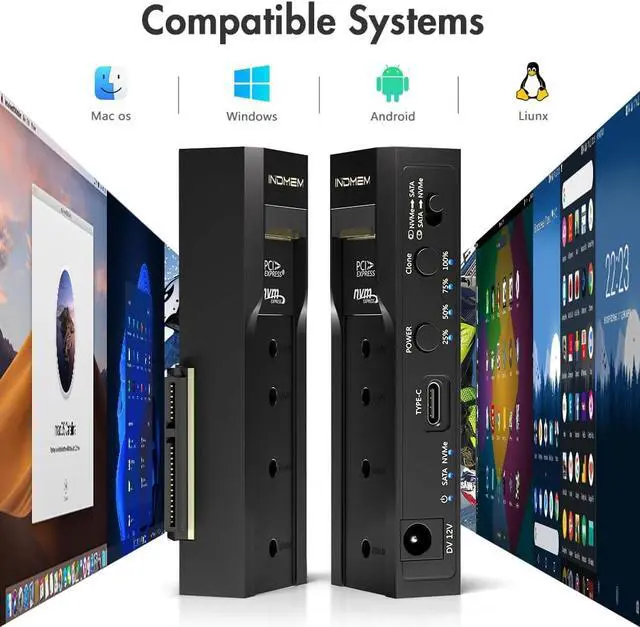
Compatible with Mac os/Windows/Liunx/Android
Small and Portable, Can be Used in All Aspects of Life

Compact DesignThe compact design makes it easy to carry, ensuring maximum performance wherever you go. Take advantage of the high-speed data transfer capabilities of our dual-disk hard drive duplicator to save time, improve work efficiency, and make you more efficient.
NoteIf it is used SSD, you can find the new drive on computer, read & write normally. If it is new SSD, need to initialize, partition, format firstly before. So if it clones a drive and your new PC does not BOOT check the drive format of the old hard drive and make sure its not MBR. Your new motherboard will not work with MBR formatting and tell you there is no bootable OS but it will show you your drive
USB 3.2 Gen 2 M. 2 NVMe SATA SDD Enclosure
Whether you are using M. 2 or SATA hard drive, this M. 2 hard drive enclosure can meet your needs, plug and play, no driver required, compatible with M. 2 PCIe/NVMe SSD and SATA (NGFF) SSD in size 2242/2260/2280, also compatible with 2.5 -inch SATA SSD and HDD
This SSD enclosure supports SATA 6Gbps and NVMe 10Gbps ultra-fast transfer speeds with USB 3.2 Gen2 and is backward compatible with USB 3.1 and USB 3.0. This NVMe card reader adapter uses the USB-C interface for stable and efficient data transfer.
How to use the Hard Drive Reader
SATA SSD Installation
Align the 2.5 or 3.5 hard drive interface with the product's SATA interface and push it in parallel.
M. 2 NVMe Installation
Install the silicone plug first, insert the hard drive into the M. 2 NVMe slot at an angle of 45°, and adjust the silicone plug to secure the hard drive.
Connect the power supply
Plug the power supply into the DC port and connect the data cable to the TYPE-C port (the other end should be connected to the computer port)
Bidirectional cloning
M. 2 NVMe Adapter can clone SATA and SSD can clone NVMe when working.
LED indicator light-- Easy to observe the working status
Manually select the clone mode--Supports two-way cloning of SATA SSD and M. 2 NVMe SSD
How to use it?
NVMe to SATA
Select the CLONE mode, make sure the capacity of the target drive is lager than or equal to the source drive. Connect the power supply, turn on the POWER switch, the power light ups, than two drive indicators light up.
SATA to NVMe
Press and hold the CLONE button for 5 seconds until the progress LEDs start flashing, release the CLONE button, wait approximately 1 second and than click the Clone button once, the clone progress lights will begin with the 25%/50%/75%/100% illuminating in turn.
Compatible with Mac os/Windows/Liunx/Android
Small and Portable, Can be Used in All Aspects of Life
Warranty & Returns
Warranty, Returns, And Additional Information
Warranty
- Please contact the Seller directly for warranty information. Warranty information may also be found on the Manufacturer's website.
- CONTACT
Return Policies
- Return for refund within: 30 days
- Return for replacement within: 30 days
- This item is covered by MINGPIN YOUCHUANG E-COMMERCE LIMITED Return Policy
Manufacturer Contact Info
- For a directory of all our manufacturers, please click below.
- Manufacturers Directory
LOADING...