Your Browsing History
Meet Your Seller
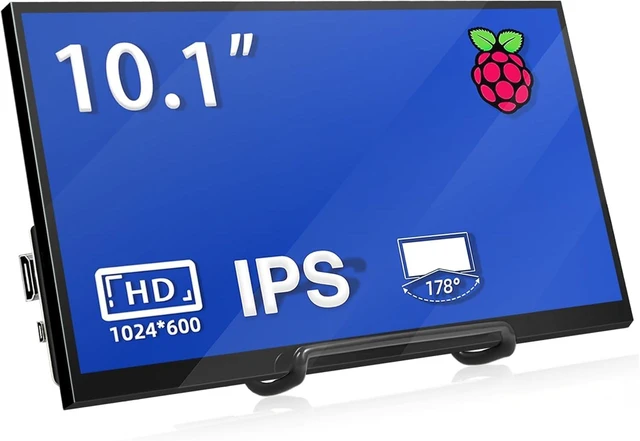
10.1 Inch Raspberry Pi Screen HDMI Monitor 1024x600 LCD Display 16:9 IPS Screen for Raspberry Pi 5/4/3/2/B/B+ Win11/10/8/7, Free-Driver, Non-Touch
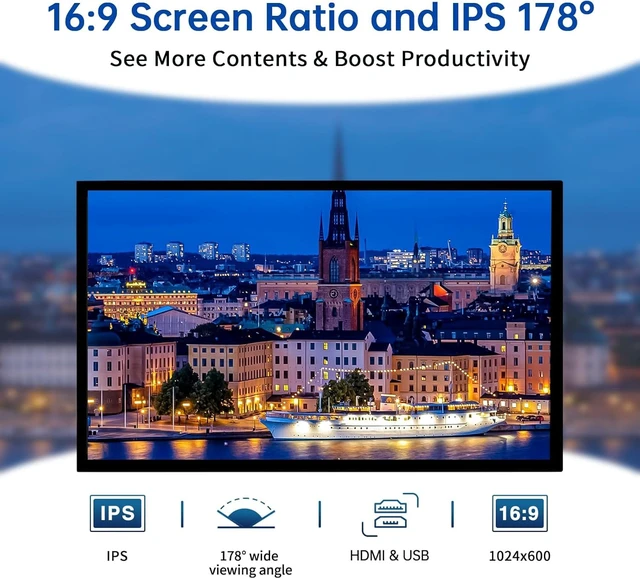
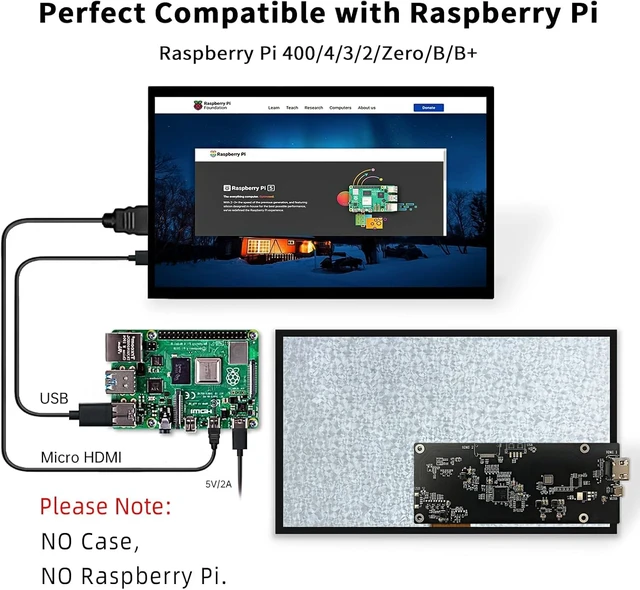
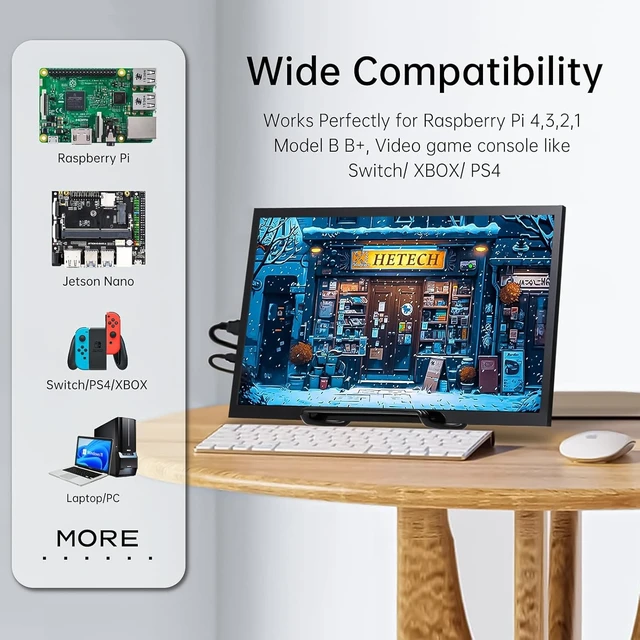
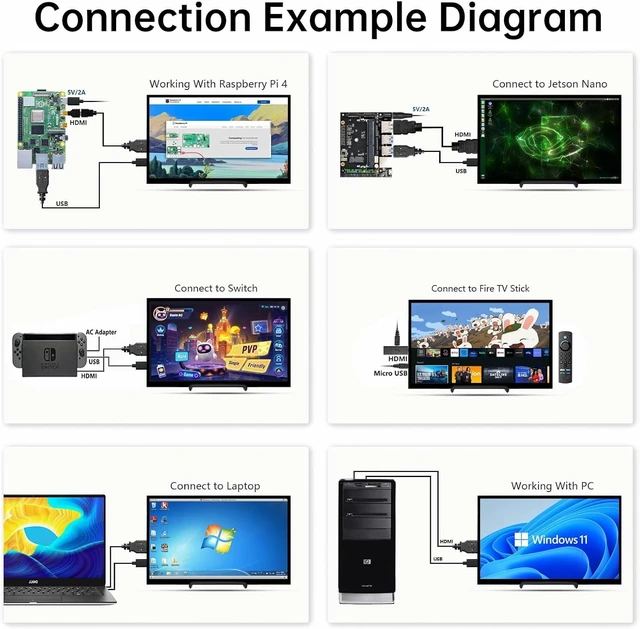
- Raspberry Pi Monitor -- 10.1 inch Raspberry Pi display equipped with an IPS panel and HD 1024*600 high resolution, ensuring the monitor delivers more precise color restoration, exquisite picture quality and richer color. 178° viewing angles are more ideal for work and for reviewing on-screen with multiple people in the room. The 10.1'' monitor adopts tempered glass and a full bonding process. Plug-n-play Raspberry Pi Display -- Simply connect the screen to the device via the HDMI interface and power the USB port to achieve display, with no need to install any driver. The screen resolution can also be adjusted according to the user's requirements. More Application HDMI Monitor -- Broadly you can use it with your Raspberry Pi 4/3/2/1/3B+/BB, Banana Pi. Windows 7/8/10 PC, Microsoft, TV. Video game console like NS Switch/XBOX. Other devices or systems like Retro Pi, NOOBS, Debian, Ubuntu and Kodi are all supported. Note: The attached HDMI cable is only applicable to devices with a standard HDMI interface. If you need to use it for Raspberry Pi 4, please buy a Micro-HDMI-HDMI Cable. This screen does not come with a case, but with a bracket. Three Display Modes for Laptop -- Duplicate mode, extend mode and second screen mode. Each mode has different use effects, bringing convenience and leisure to your work and life. Right click display settings on your laptop desktop, and then select three different usage modes in the multi display settings bar according to your needs. Go and ge
+
+
Overview
Specs
Reviews
Any questions? Our AI mode will help you find out quickly.
Try me now
Raspberry Pi Monitor -- 10.1 inch Raspberry Pi display equipped with an IPS panel and HD 1024*600 high resolution, ensuring the monitor delivers more precise color restoration, exquisite picture quality and richer color. 178° viewing angles are more ideal for work and for reviewing on-screen with multiple people in the room. The 10.1 '' monitor adopts tempered glass and a full bonding process. Plug-n-play Raspberry Pi Display -- Simply connect the screen to the device via the HDMI interface and power the USB port to achieve display, with no need to install any driver.
The screen resolution can also be adjusted according to the user's requirements. More Application HDMI Monitor -- Broadly you can use it with your Raspberry Pi 4/3/2/1/3B+/BB, Banana Pi. Windows 7/8/10 PC, Microsoft, TV. Video game console like NS Switch/XBOX. Other devices or systems like Retro Pi, NOOBS, Debian, Ubuntu and Kodi are all supported.
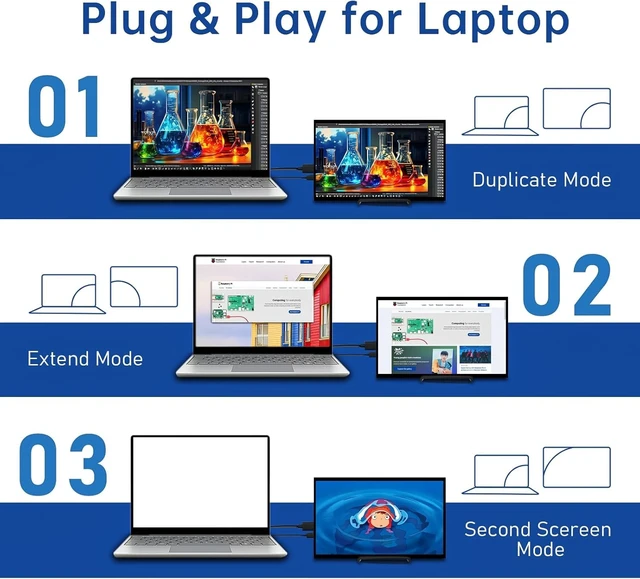
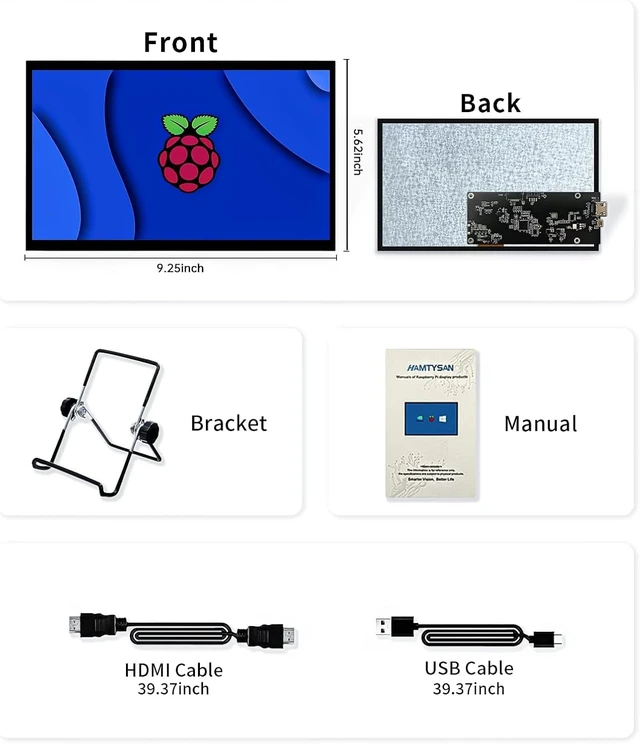
Note: The attached HDMI cable is only applicable to devices with a standard HDMI interface. If you need to use it for Raspberry Pi 4, please buy a Micro-HDMI-HDMI Cable. This screen does not come with a case, but with a bracket. Three Display Modes for Laptop -- Duplicate mode, extend mode and second screen mode. Each mode has different use effects, bringing convenience and leisure to your work and life. Right click display settings on your laptop desktop, and then select three different usage modes in the multi display settings bar according to your needs. Go and get a second monitor now and feel a different experience.
Note: Do not support all Macbook models

The screen resolution can also be adjusted according to the user's requirements. More Application HDMI Monitor -- Broadly you can use it with your Raspberry Pi 4/3/2/1/3B+/BB, Banana Pi. Windows 7/8/10 PC, Microsoft, TV. Video game console like NS Switch/XBOX. Other devices or systems like Retro Pi, NOOBS, Debian, Ubuntu and Kodi are all supported.
Note: The attached HDMI cable is only applicable to devices with a standard HDMI interface. If you need to use it for Raspberry Pi 4, please buy a Micro-HDMI-HDMI Cable. This screen does not come with a case, but with a bracket. Three Display Modes for Laptop -- Duplicate mode, extend mode and second screen mode. Each mode has different use effects, bringing convenience and leisure to your work and life. Right click display settings on your laptop desktop, and then select three different usage modes in the multi display settings bar according to your needs. Go and get a second monitor now and feel a different experience.
Note: Do not support all Macbook models
Warranty & Returns
Warranty, Returns, And Additional Information
Warranty
- Please contact the Seller directly for warranty information. Warranty information may also be found on the Manufacturer's website.
- CONTACT
Return Policies
- Return for refund within: 30 days
- Return for replacement within: 30 days
- This item is covered by Anunirny Return Policy
Manufacturer Contact Info
- For a directory of all our manufacturers, please click below.
- Manufacturers Directory
LOADING...