Your Browsing History
Meet Your Seller
MacBook Docking Station Dual Monitor 4K@60Hz for MacBook Pro/Air M4/M5 Macbook Pro Stand USB C Dock with 2 HDMI, Gigabit Ethernet, 3 USB 10Gbps, SD/TF, Audio, PD for Home & office, Black
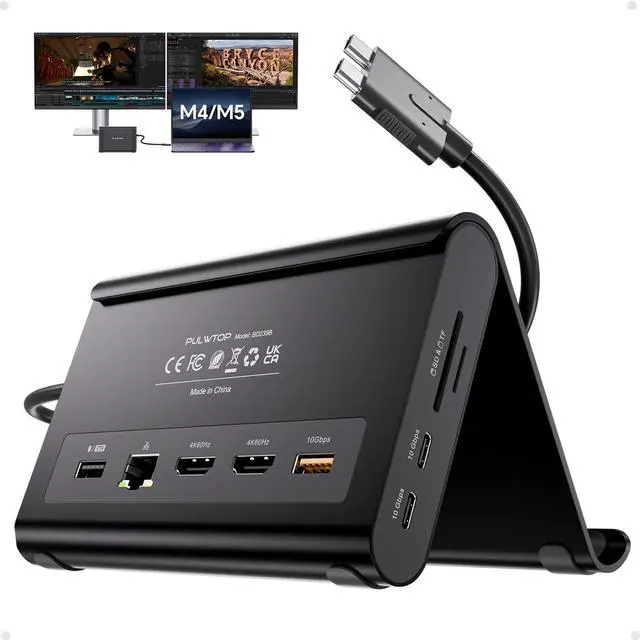
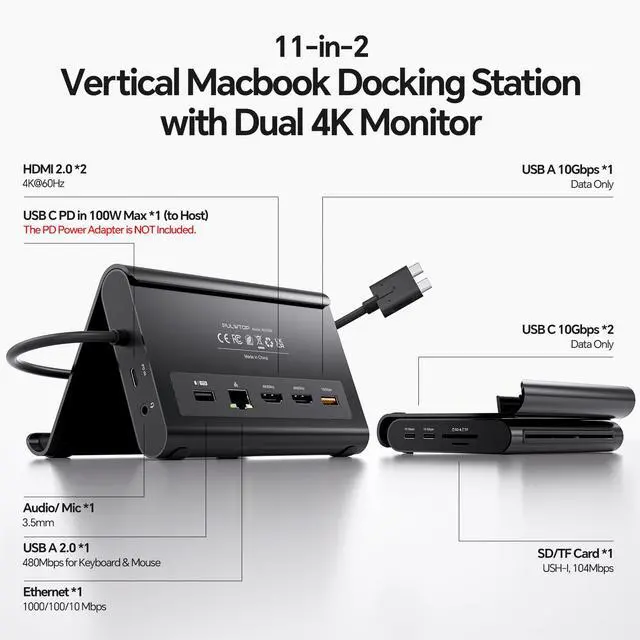
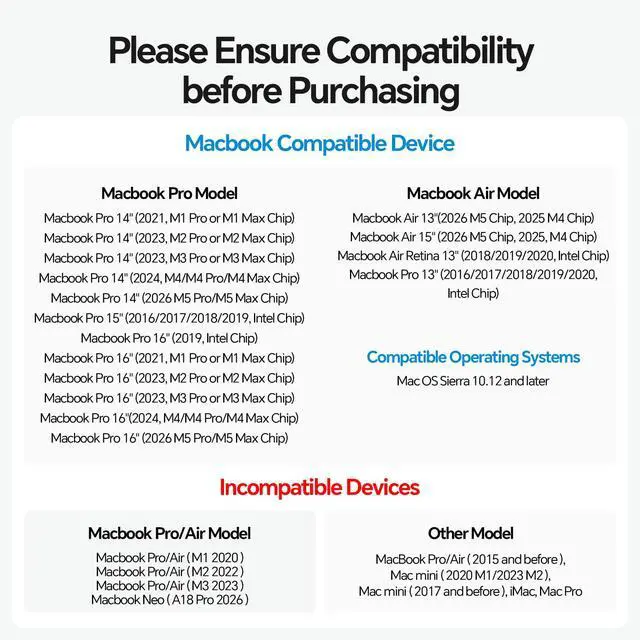
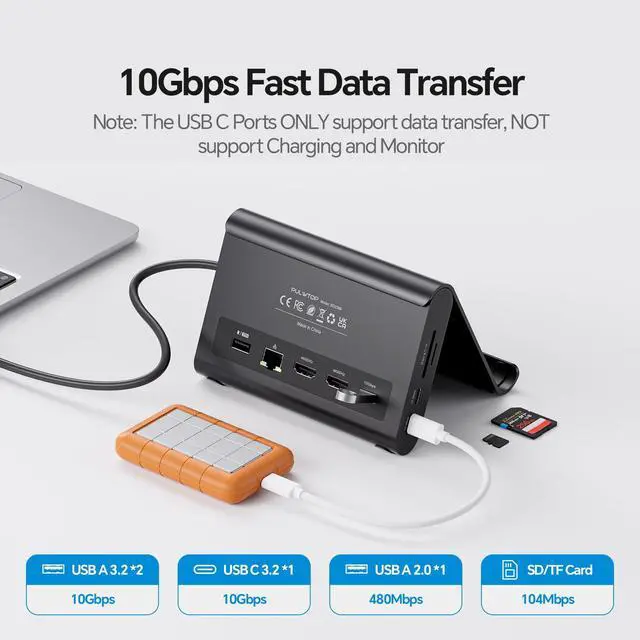
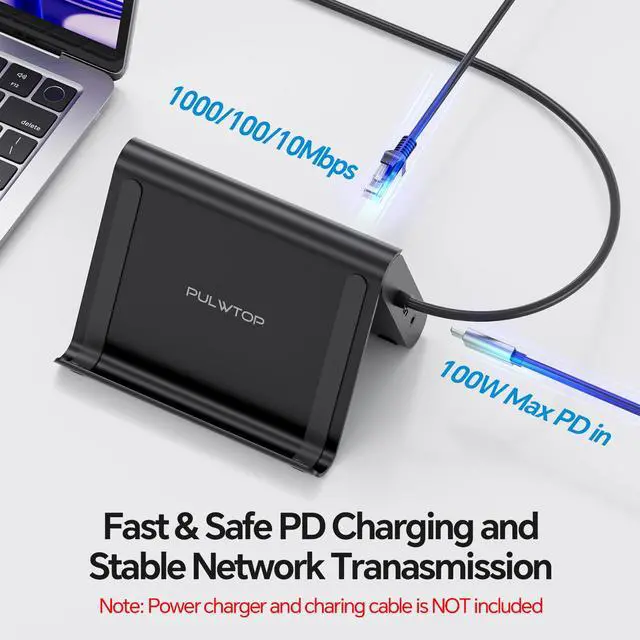
- 2-in-1 Stand & Dock Combo This MacBook Pro docking station serves as both a sturdy stand and a multi-port hub. Lift your laptop, tablet, or phone for improved ergonomics and airflow while gaining essential ports: 2× HDMI 4K@60Hz, 2× USB-C 10Gbps, 1× USB-A 10Gbps, 1× USB-A 2.0, SD/TF, 3.5mm audio, and Gigabit Ethernet. Supports 100W PD pass-through. The power adapter is not included. 4K Dual Monitor for MacBook Docking Station Enjoy clear 4K@60Hz output with this MacBook Pro docking station. It supports dual-monitor output for up to 2× 4K@60Hz displays. Whether watching movies, attending meetings, or multitasking, it handles these tasks with ease. Compatibility for MacBook This dual-monitor Mac docking station is designed for MacBook Pro/Air 2016-2026 with Intel, M1M5 Pro/Max, and M4/M5 base chips. It is not compatible with M1/M2/M3 MacBook base chips for dual-display use. It is not compatible with MacBook Neo A18 Pro, Windows, or Chrome. High-Speed Data Transfer, 100W PD & Gigabit Ethernet This MacBook dock includes 2× 10Gbps USB-C ports, 1× 10Gbps USB-A port, plus 1× USB-A 2.0 port for a mouse or keyboard. Charge via 100W Power Delivery with an adapter and enjoy stable wired Gigabit Ethernet. This MacBook Pro dock provides speed, reliability, and all-in-one connectivity. Steps for Clamshell Mode 1. Go to Applications > Utilities on your MacBook and open Terminal. 2. Enter the command: `sudo pmset -a disablesleep 1`, then press Enter. 3. Enter the administrator p
+
+
Overview
Specs
Reviews
Any questions? Our AI mode will help you find out quickly.
Try me now
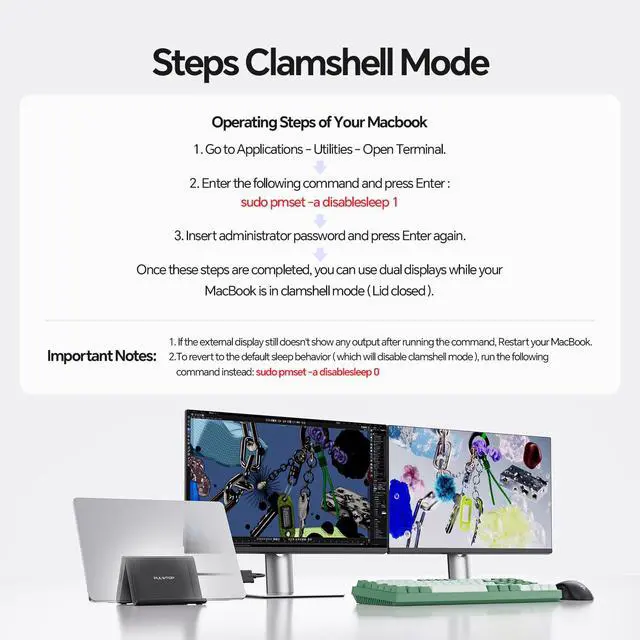
2-in-1 Stand & Dock Combo This MacBook Pro docking station serves as both a sturdy stand and a multi-port hub. Lift your laptop, tablet, or phone for improved ergonomics and airflow while gaining essential ports: 2× HDMI 4K@60Hz, 2× USB-C 10Gbps, 1× USB-A 10Gbps, 1× USB-A 2.0, SD/TF, 3.5 mm audio, and Gigabit Ethernet. Supports 100W PD pass-through. The power adapter is not included. 4K Dual Monitor for MacBook Docking Station Enjoy clear 4K@60Hz output with this MacBook Pro docking station. It supports dual-monitor output for up to 2× 4K@60Hz displays. Whether watching movies, attending meetings, or multitasking, it handles these tasks with ease. Compatibility for MacBook This dual-monitor Mac docking station is designed for MacBook Pro/Air 2016-2026 with Intel, M1M5 Pro/Max, and M4/M5 base chips. It is not compatible with M1/M2/M3 MacBook base chips for dual-display use. It is not compatible with MacBook Neo A18 Pro, Windows, or Chrome. High-Speed Data Transfer, 100W PD & Gigabit Ethernet This MacBook dock includes 2× 10Gbps USB-C ports, 1× 10Gbps USB-A port, plus 1× USB-A 2.0 port for a mouse or keyboard. Charge via 100W Power Delivery with an adapter and enjoy stable wired Gigabit Ethernet. This MacBook Pro dock provides speed, reliability, and all-in-one connectivity. Steps for Clamshell Mode 1.
Go to Applications > Utilities on your MacBook and open Terminal. 2.
Enter the command: `sudo pmset -a disablesleep 1`, then press Enter. 3. Enter the administrator password and press Enter again. You can use dual displays while your MacBook is in clamshell mode with the lid closed. Important Notes 1. If the external display does not show output after running the command, restart your MacBook. 2. To restore the default sleep behavior, which disables clamshell mode, run
this command instead: `sudo pmset -a disablesleep 0`

Go to Applications > Utilities on your MacBook and open Terminal. 2.
Enter the command: `sudo pmset -a disablesleep 1`, then press Enter. 3. Enter the administrator password and press Enter again. You can use dual displays while your MacBook is in clamshell mode with the lid closed. Important Notes 1. If the external display does not show output after running the command, restart your MacBook. 2. To restore the default sleep behavior, which disables clamshell mode, run
this command instead: `sudo pmset -a disablesleep 0`
Warranty & Returns
Warranty, Returns, And Additional Information
Warranty
- Please contact the Seller directly for warranty information. Warranty information may also be found on the Manufacturer's website.
- CONTACT
Return Policies
- Return for refund within: 30 days
- Return for replacement within: 30 days
- This item is covered by QiPing Global Store Return Policy
Manufacturer Contact Info
- For a directory of all our manufacturers, please click below.
- Manufacturers Directory
LOADING...