Your Browsing History
Meet Your Seller
MacBook Docking Station Dual Monitor 4K@60Hz with M.2 NVMe SSD Enclosure Vertical USB C Laptop Stand Dock for MacBook M5/M4 Pro/Max, 2 HDMI, PD, USB A/C 10Gbps, Ethernet, Space-Saving - Gray
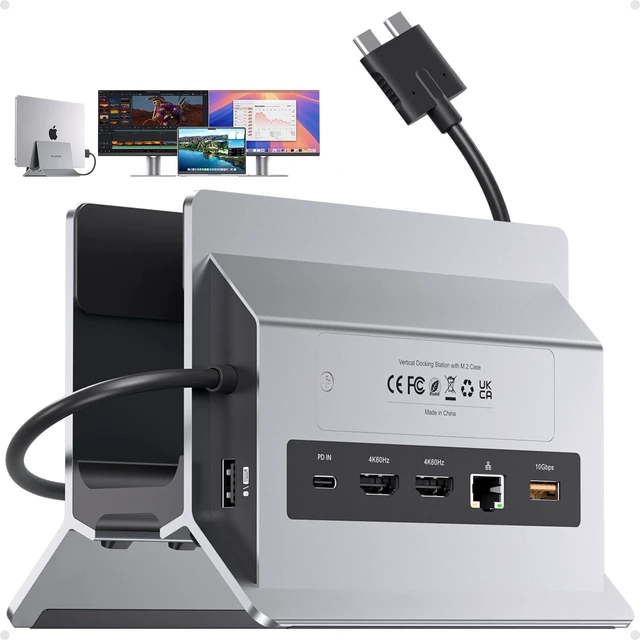
- 10-in-2 Docking Station One Dock Does It All: This MacBook Pro dual-monitor docking station combines 10 essential functions in one compact device: an M.2 NVMe SSD enclosure (10Gbps), vertical laptop stand, dual 4K@60Hz HDMI, 100W PD 3.0 charging, 10Gbps USB-C data, 10Gbps USB-A data, Gigabit Ethernet RJ45, USB 2.0 port, and SD/TF card slot. Eliminates the need for multiple adapters and accessories. Designed for Your MacBook: Connect 2 external displays via dual HDMI ports for 4K@60Hz visuals. This MacBook dock works with Intel-chip MacBook Pro/Air 13"-16" (2016-2020), as well as MacBook models with M1 Pro/Max chips, M2 Pro/Max chips, M3 Pro/Max chips, M4 / M4 Pro/Max chips, and M5 / M5 Pro/Max chips. It is not for M1/M2/M3 base chips, MacBook Neo, Windows, or iPad. Supports 4TB M.2 SSD Expansion: Expand your MacBook storage by up to 4TB with the built-in M.2 NVMe SSD slot. Supports 2230/2242/2260/2280 sizes at 10Gbps transfer speed. Perfect for video editors, music producers, or data analysts who need extra-fast storage without external drives. Notes: 1. SSD is not included. 2. Does not support SATA SSDs or SSDs with heat sinks. 3. If your SSD is new, format it to "exFAT" or "APFS." Vertical MacBook Stand - Declutter Your Desk: This USB-C dual-monitor docking station elevates your MacBook Pro/Air, freeing desk space for dual monitors and a keyboard. Its open design allows passive cooling during long work sessions. Ideal for a home office, dorm, or corporate workspace. How t
+
+
Overview
Specs
Reviews
Any questions? Our AI mode will help you find out quickly.
Try me now
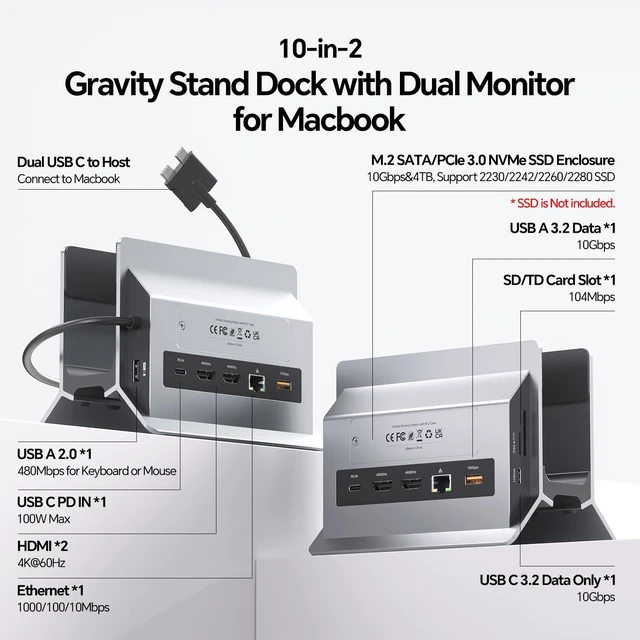
10-in-2 Docking Station One Dock Does It All: This MacBook Pro dual-monitor docking station combines 10 essential functions in one compact device: an M. 2 NVMe SSD enclosure (10Gbps), vertical laptop stand, dual 4K@60Hz HDMI, 100W PD 3.0 charging, 10Gbps USB-C data, 10Gbps USB-A data, Gigabit Ethernet RJ45, USB 2.0 port, and SD/TF card slot. Eliminates the need for multiple adapters and accessories.
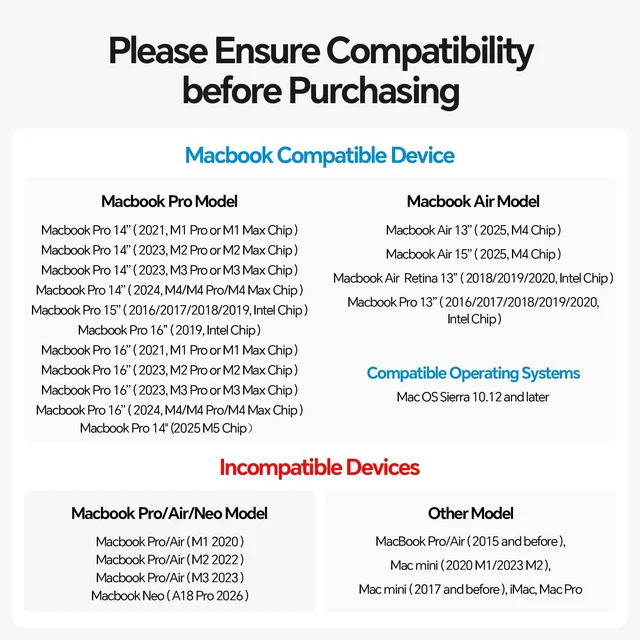
Designed for Your MacBook: Connect 2 external displays via dual HDMI ports for 4K@60Hz visuals. This MacBook dock works with Intel-chip MacBook Pro/Air 13"-16" (2016-2020), as well as MacBook models with M1 Pro/Max chips, M2 Pro/Max chips, M3 Pro/Max chips, M4 / M4 Pro/Max chips, and M5 / M5 Pro/Max chips. It is not for M1/M2/M3 base chips, MacBook Neo, Windows, or iPad. Supports 4TB M.
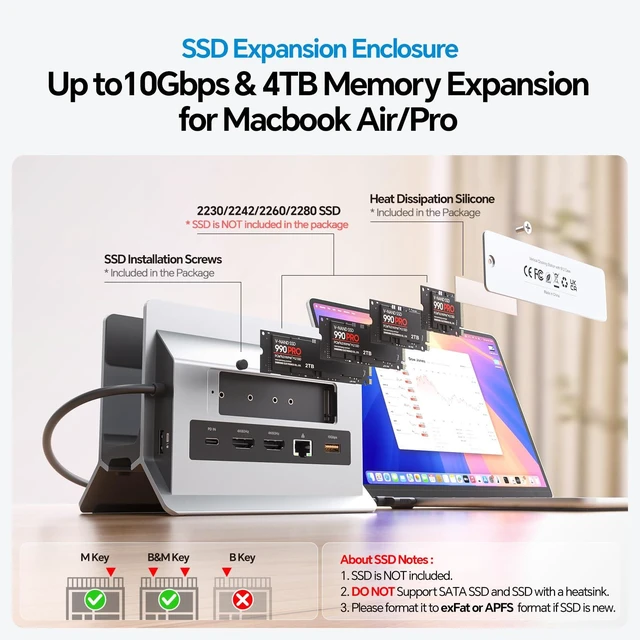
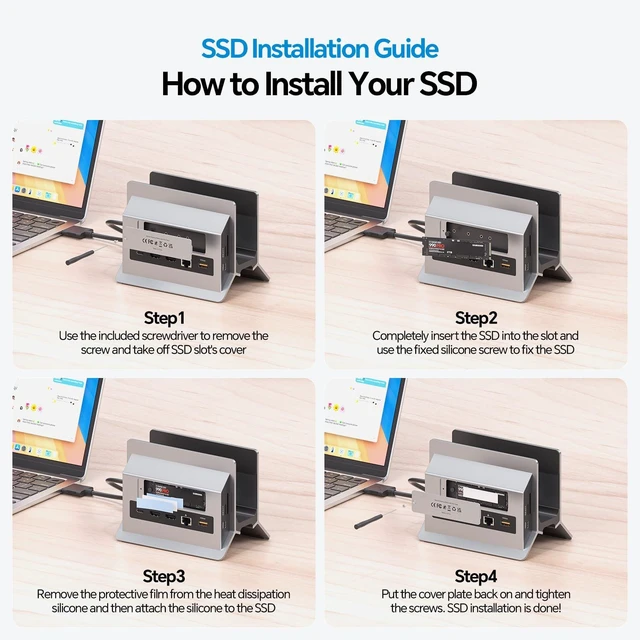
2 SSD Expansion: Expand your MacBook storage by up to 4TB with the built-in M. 2 NVMe SSD slot. Supports 2230/2242/2260/2280 sizes at 10Gbps transfer speed. Perfect for video editors, music producers, or data analysts who need extra-fast storage without external drives.
Notes: 1. SSD is not included.
2. Does not support SATA SSDs or SSDs with heat sinks.
3. If your SSD is new, format it to "exFAT" or "APFS. " Vertical MacBook Stand -
Declutter Your Desk: This USB-C dual-monitor docking station elevates your MacBook Pro/Air, freeing desk space for dual monitors and a keyboard. Its open design allows passive cooling during long work sessions. Ideal for a home office, dorm, or corporate workspace. How to
Enable Clamshell Mode:
1. Set the MacBook not to sleep automatically.
2. Connect a mouse to wake the MacBook at any time.
3. Connect a 65W+ PD adapter to the PD IN port. Gigabit Ethernet and 10Gbps
Data Transfer: The Gigabit Ethernet port on this Mac docking station provides stable wired internet for Zoom, gaming, or large file downloads. The 10Gbps USB-C/A ports let you transfer 4K videos or back up files in seconds. A dedicated USB 2.0 port keeps your keyboard and mouse lag-free.
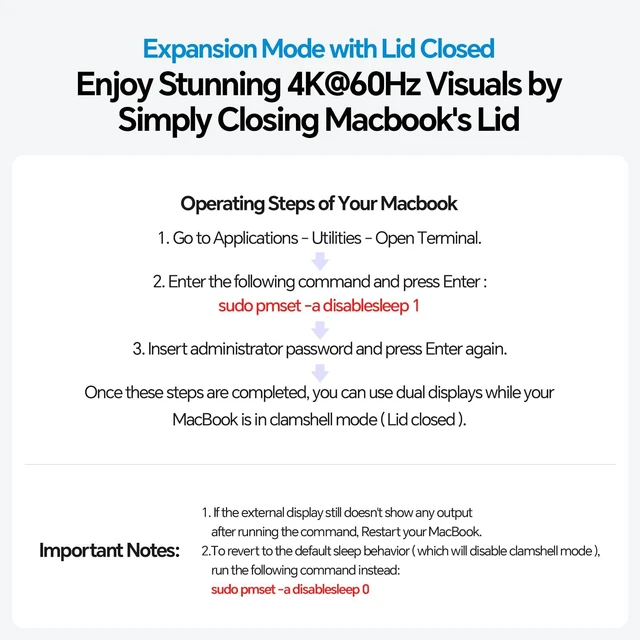
Clamshell Mode Setup:
1. Open Terminal in MacBook Applications > Utilities.
2. Type the following command and press
Enter: sudo pmset -a disablesleep 1
3. Enter your administrator password and press Enter again.
4. Your MacBook is ready for dual displays with the lid closed.
Notes:
1. If the external display does not work, restart your MacBook.
2. To revert to default sleep behavior and disable clamshell mode, run: sudo pmset -a disablesleep 0

Designed for Your MacBook: Connect 2 external displays via dual HDMI ports for 4K@60Hz visuals. This MacBook dock works with Intel-chip MacBook Pro/Air 13"-16" (2016-2020), as well as MacBook models with M1 Pro/Max chips, M2 Pro/Max chips, M3 Pro/Max chips, M4 / M4 Pro/Max chips, and M5 / M5 Pro/Max chips. It is not for M1/M2/M3 base chips, MacBook Neo, Windows, or iPad. Supports 4TB M.
2 SSD Expansion: Expand your MacBook storage by up to 4TB with the built-in M. 2 NVMe SSD slot. Supports 2230/2242/2260/2280 sizes at 10Gbps transfer speed. Perfect for video editors, music producers, or data analysts who need extra-fast storage without external drives.
Notes: 1. SSD is not included.
2. Does not support SATA SSDs or SSDs with heat sinks.
3. If your SSD is new, format it to "exFAT" or "APFS. " Vertical MacBook Stand -
Declutter Your Desk: This USB-C dual-monitor docking station elevates your MacBook Pro/Air, freeing desk space for dual monitors and a keyboard. Its open design allows passive cooling during long work sessions. Ideal for a home office, dorm, or corporate workspace. How to
Enable Clamshell Mode:
1. Set the MacBook not to sleep automatically.
2. Connect a mouse to wake the MacBook at any time.
3. Connect a 65W+ PD adapter to the PD IN port. Gigabit Ethernet and 10Gbps
Data Transfer: The Gigabit Ethernet port on this Mac docking station provides stable wired internet for Zoom, gaming, or large file downloads. The 10Gbps USB-C/A ports let you transfer 4K videos or back up files in seconds. A dedicated USB 2.0 port keeps your keyboard and mouse lag-free.
Clamshell Mode Setup:
1. Open Terminal in MacBook Applications > Utilities.
2. Type the following command and press
Enter: sudo pmset -a disablesleep 1
3. Enter your administrator password and press Enter again.
4. Your MacBook is ready for dual displays with the lid closed.
Notes:
1. If the external display does not work, restart your MacBook.
2. To revert to default sleep behavior and disable clamshell mode, run: sudo pmset -a disablesleep 0
Warranty & Returns
Warranty, Returns, And Additional Information
Warranty
- Please contact the Seller directly for warranty information. Warranty information may also be found on the Manufacturer's website.
- CONTACT
Return Policies
- Return for refund within: 30 days
- Return for replacement within: 30 days
- This item is covered by QiPing Global Store Return Policy
Manufacturer Contact Info
- For a directory of all our manufacturers, please click below.
- Manufacturers Directory
LOADING...