

Your Browsing History

- Free 30-day Returns
$459.99

Meet Your Seller

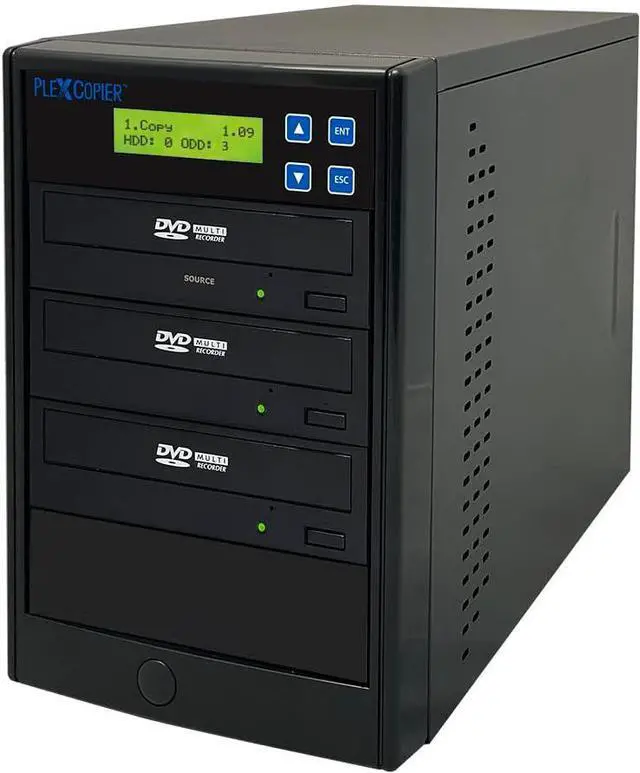

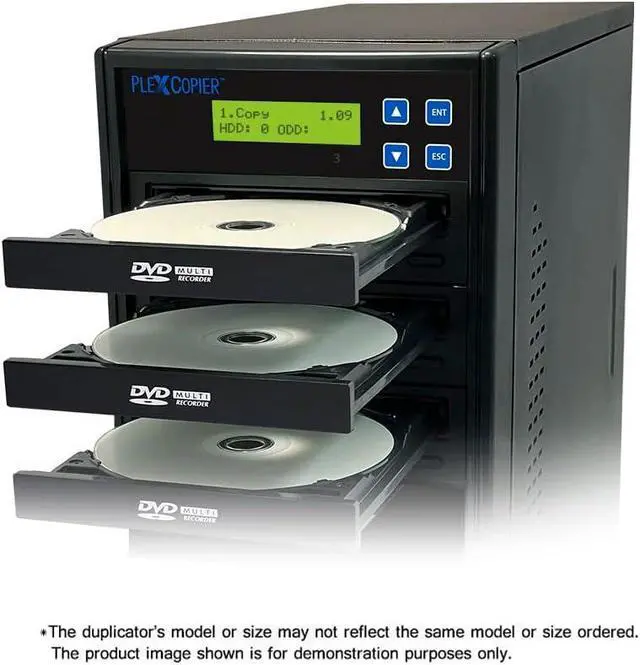


24X 1 to 2 CD DVD M-Disc Supported Duplicator Copier Tower with Free Copy Protection
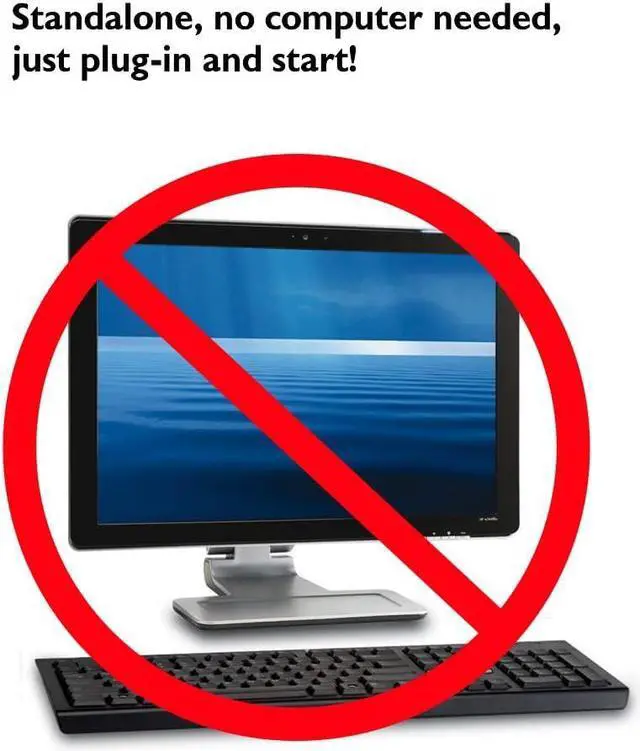
- [Complete Standalone Operation] No PC required to operate the duplicator. [Lifetime Support] Comes with LIFETIME FREE TECH SUPPORT plus 1 year parts and labor warranty.
- [FREE Copy Protection] Able to create FREE copy protected DVD Video copies using OPTODISC MID media from an original master. [Uses Top Grade Components] Unit offers certified UL and TUV compliant power supply as well as the industries top SATA DVD Duplication Grade burner/writer drives, ensuring the highest quality and reliability.
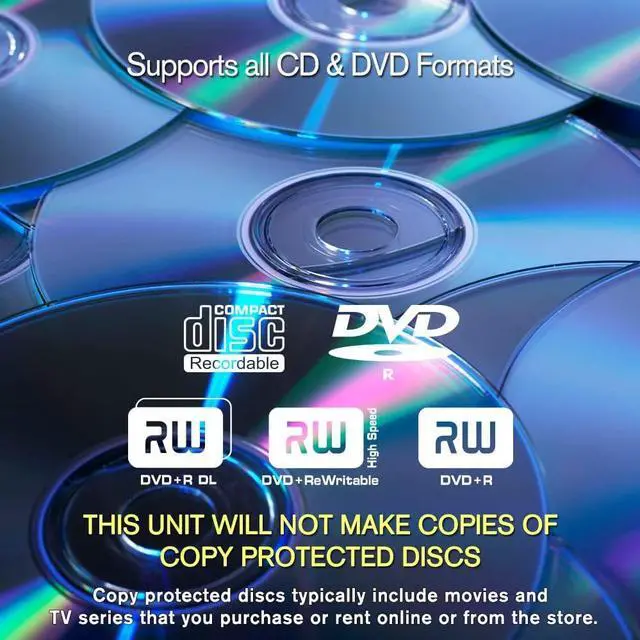
- [Supports Max Write Speed] Up to 24x DVD Write Speed, 52x CD-R Write Speed, with default max caps for selected medias to give optimal burning capability
- [Supports M-Disc DVD Format] Able to record on to 1000 year archival grade M-Disc media
- [Wont Copy Encrypted Discs] The duplicator will not copy any discs that are encrypted with copy protection.
+
+
Overview
Reviews

Any questions? Our AI mode will help you find out quickly.
Try me now
The unique CopyLock Software can embed a proprietary CPS copy protection encryption into any DVD video master through a PC, which will produce a VCP or FREE OCP protected image file. The difference between the VCP and FREE OCP formats is that the VCP requires a license dongle in order to add the protection onto both 4.7GB SL DVD and 8.5GB DL DVD discs and the FREE OCP does not require any licenses as long as true OptoDisc MID media are used during the duplication process and it can only be used on 4.7GB SL DVD. The added cost for the VCP allows you to use any media youd like and works on DVD+R DL media, while the OCP has no added costs as long as you use OptoDisc manufactured media.
How the FREE OCP Copy Protection Works:
1. Load the supplied CopyLock software onto a suitable PC and take your DVD video master disc or file and use the copy protection software application to make an OCP master image file; follow the steps of the software to embed the copy protection onto the master content.
2. Burn the OCP file onto a master disc or transfer the new OCP image file from the PC onto an enabled duplicator via USB/Copy Connect or LAN/Network connectivity if available
3. Load blank DVD recordable discs with the OptoDisc MID into the duplicators writer drive(s) then place the OCP master disc into the top reader tray or locate the transferred OCP image file through the duplicators menu keys from the internal hard drive if available
4. Initiate the copy process and when the finished discs are all successfully copied, these discs will have the secure copy protection already embedded.
How the VCP Format Copy Protection Works:
1. Load the supplied CopyLock software onto a suitable PC and plug in the CPS USB dongle with activated licenses into your PC's USB socket.
2. Take your DVD video master disc or file and by utilizing the special CPS application, follow the steps to embed the copy protection onto the master content.
3. Burn the VCP file onto a master disc or transfer the new VCP image file from the PC onto a CPS supported duplicator via USB/Copy Connect or LAN/Network connectivity if available
4. Load blank DVD recordable discs into the duplicator's writer drive(s) then then place the VCP master disc into the top reader tray or locate the transferred VCP image file through the duplicator's menu keys from the internal hard drive if available
5. Initiate the copy process and when the finished discs are all successfully copied, these discs will have the secure copy protection already embedded.
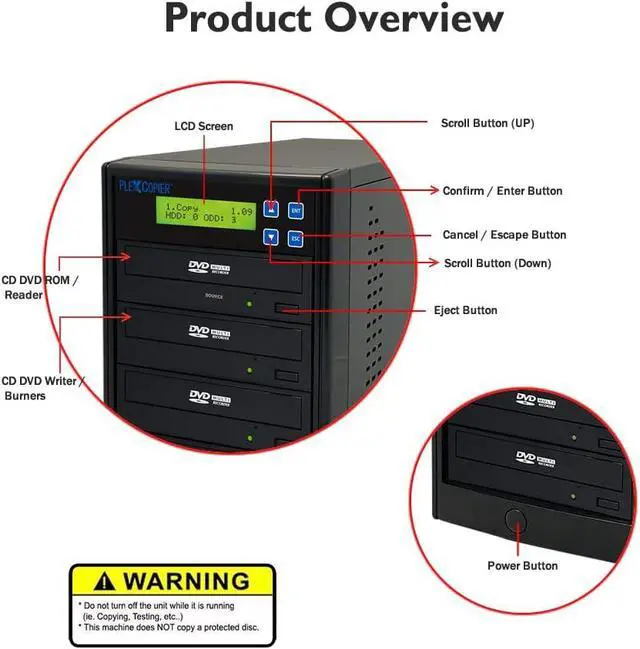
Simply load the master disc in the top drive tray and the blank discs into the remaining drive trays, then after all the trays are detected as closed, the copy process will begin automatically.
All PlexCopier Duplicators are fully Standalone with no computer connections.That way you're not reliant on having a computer available and it prevents the possibility of any malware or spyware getting embedded on your content.
The PlexCopier comes in many sizes to meet your duplication needs All PlexCopier duplicators are equipped with free CopyLock software and the ability to create free copy protected DVD videos. How to add Copy Protection: Easy No Hassle Duplication AutoCopy Benefits of the PlexCopier Series of Duplicators Standalone
How the FREE OCP Copy Protection Works:
1. Load the supplied CopyLock software onto a suitable PC and take your DVD video master disc or file and use the copy protection software application to make an OCP master image file; follow the steps of the software to embed the copy protection onto the master content.
2. Burn the OCP file onto a master disc or transfer the new OCP image file from the PC onto an enabled duplicator via USB/Copy Connect or LAN/Network connectivity if available
3. Load blank DVD recordable discs with the OptoDisc MID into the duplicators writer drive(s) then place the OCP master disc into the top reader tray or locate the transferred OCP image file through the duplicators menu keys from the internal hard drive if available
4. Initiate the copy process and when the finished discs are all successfully copied, these discs will have the secure copy protection already embedded.
How the VCP Format Copy Protection Works:
1. Load the supplied CopyLock software onto a suitable PC and plug in the CPS USB dongle with activated licenses into your PC's USB socket.
2. Take your DVD video master disc or file and by utilizing the special CPS application, follow the steps to embed the copy protection onto the master content.
3. Burn the VCP file onto a master disc or transfer the new VCP image file from the PC onto a CPS supported duplicator via USB/Copy Connect or LAN/Network connectivity if available
4. Load blank DVD recordable discs into the duplicator's writer drive(s) then then place the VCP master disc into the top reader tray or locate the transferred VCP image file through the duplicator's menu keys from the internal hard drive if available
5. Initiate the copy process and when the finished discs are all successfully copied, these discs will have the secure copy protection already embedded.
Simply load the master disc in the top drive tray and the blank discs into the remaining drive trays, then after all the trays are detected as closed, the copy process will begin automatically.
All PlexCopier Duplicators are fully Standalone with no computer connections.That way you're not reliant on having a computer available and it prevents the possibility of any malware or spyware getting embedded on your content.
The PlexCopier comes in many sizes to meet your duplication needs All PlexCopier duplicators are equipped with free CopyLock software and the ability to create free copy protected DVD videos. How to add Copy Protection: Easy No Hassle Duplication AutoCopy Benefits of the PlexCopier Series of Duplicators Standalone
Warranty & Returns
Warranty, Returns, And Additional Information
Warranty
- Please contact the Seller directly for warranty information. Warranty information may also be found on the Manufacturer's website.
- CONTACT
Return Policies
- Return for refund within: 30 days
- Return for replacement within: 30 days
- This item is covered by Zhanfu Technology Co., Limited Return Policy
Manufacturer Contact Info
- For a directory of all our manufacturers, please click below.
- Manufacturers Directory
LOADING...