



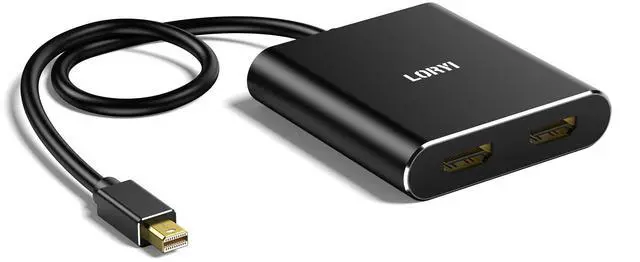
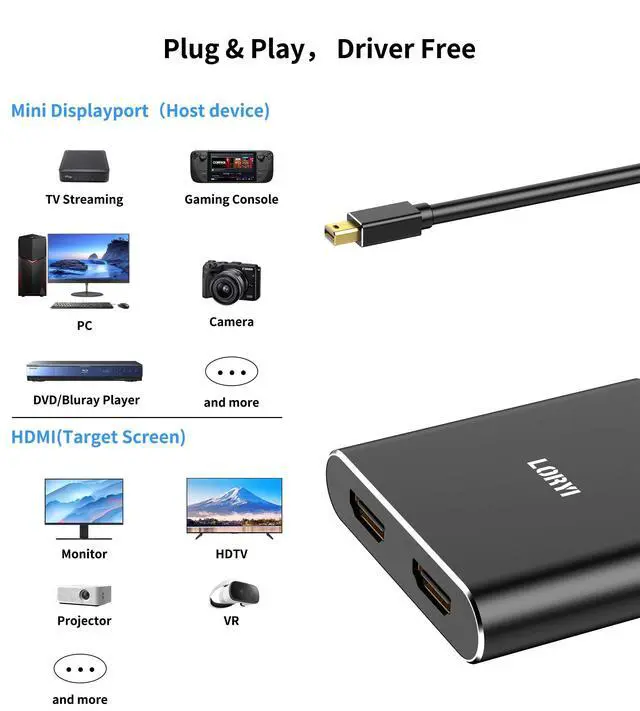
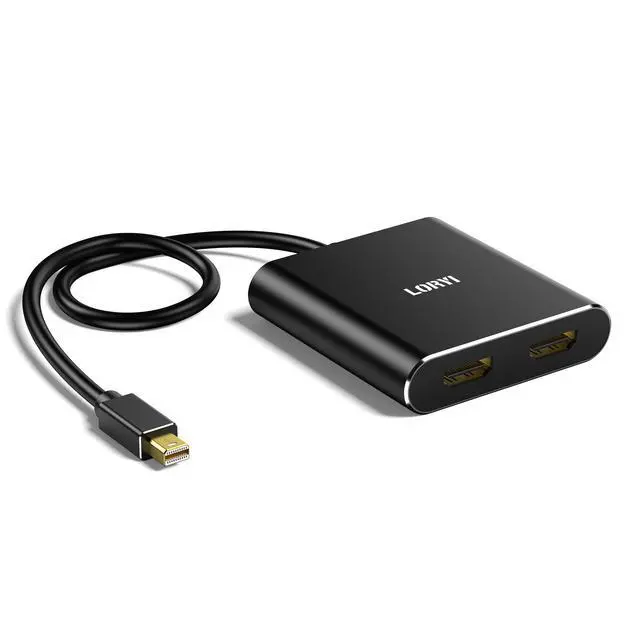


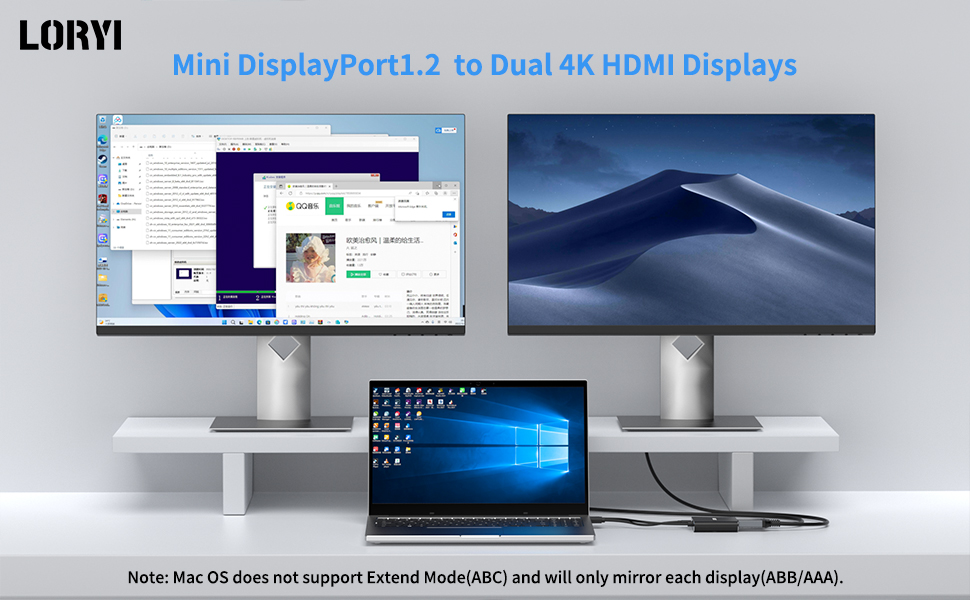
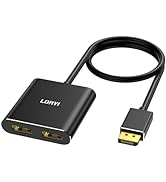
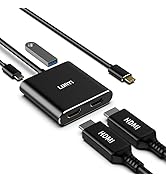
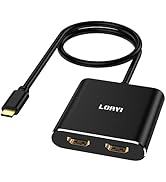
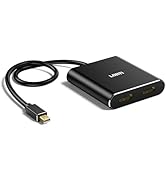
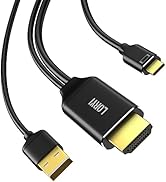
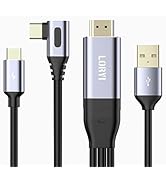
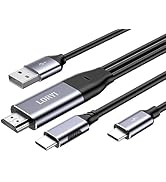
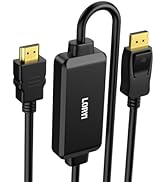
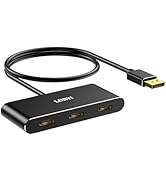
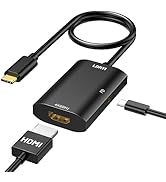
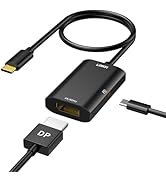
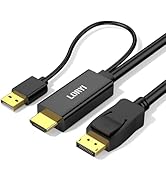
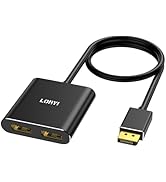
Product Name: Mini DisplayPort 1.2 to Dual HDMI Adapter
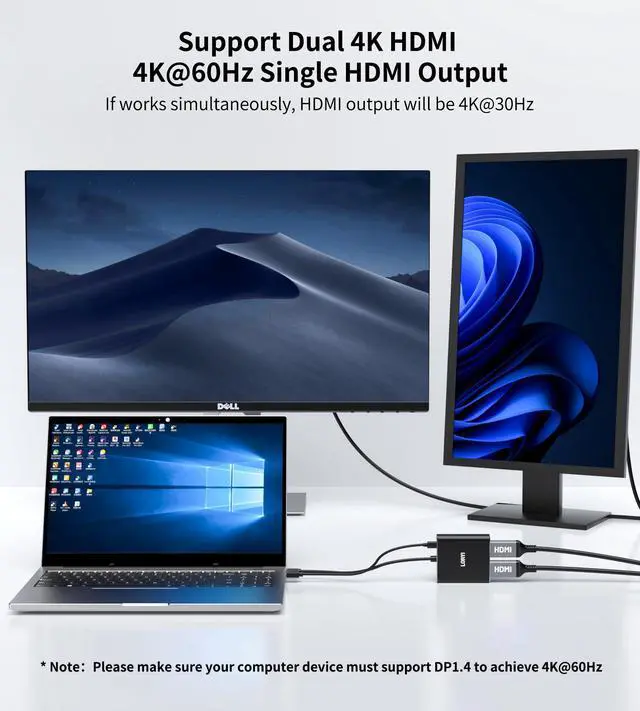
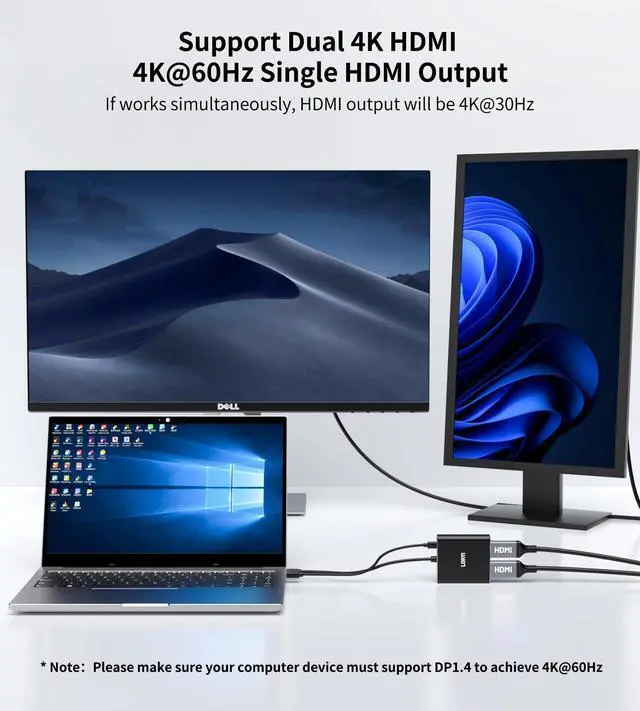
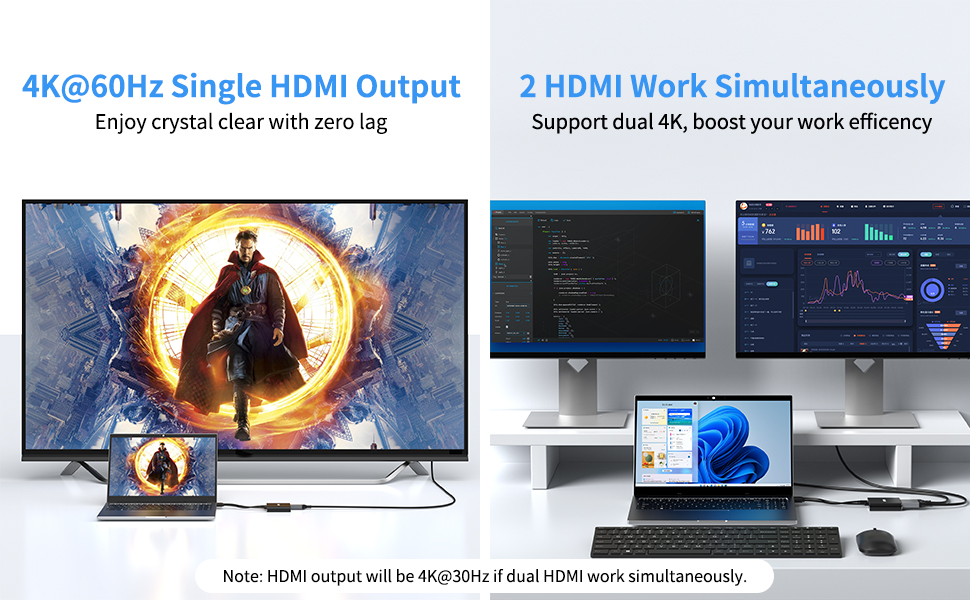
Resolution: Single output 4K@60Hz; Dual output 4K HDMI monitors
Length: Approximately 1.5ft
Color: Black
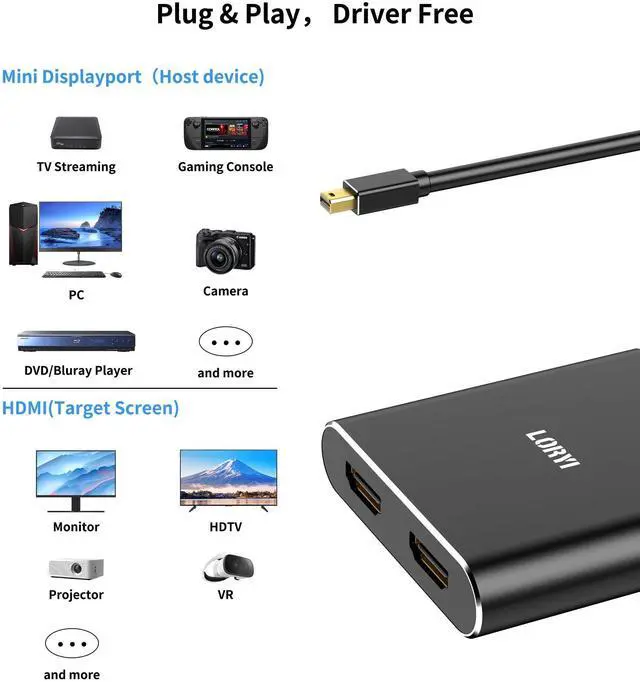
Plug: Mini DisplayPort male to HDMI female
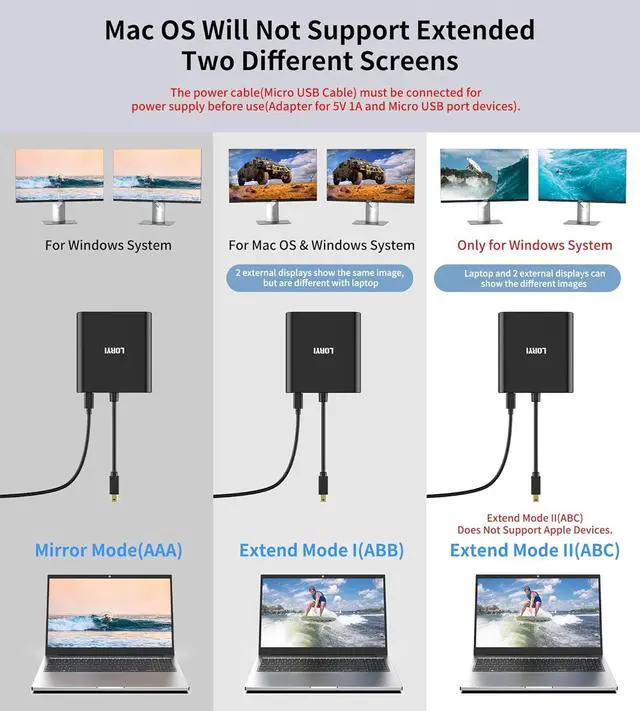
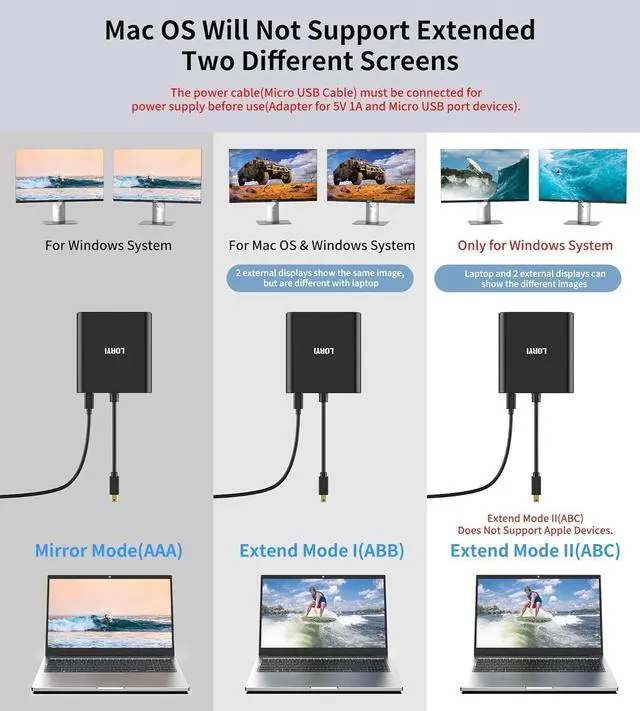
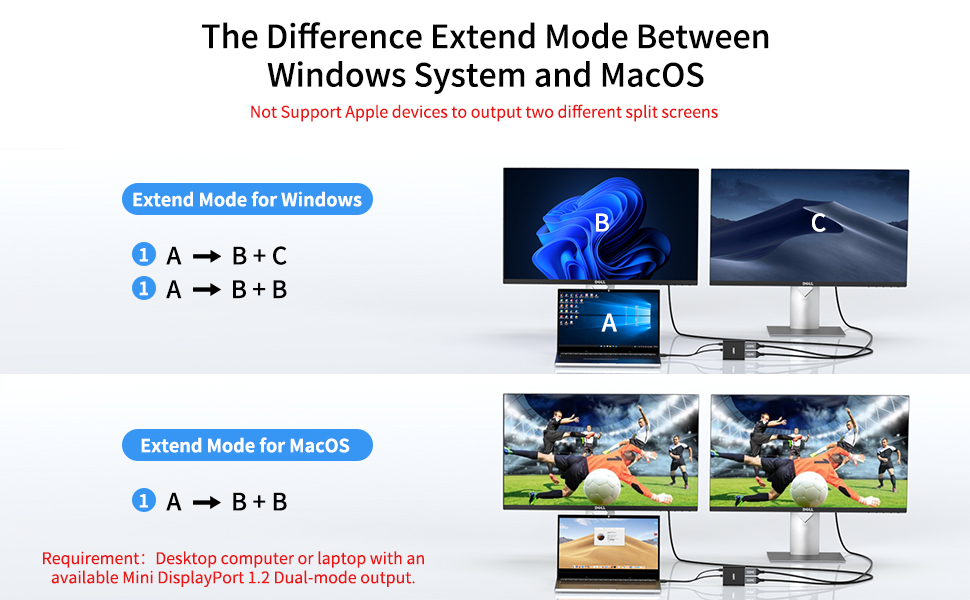
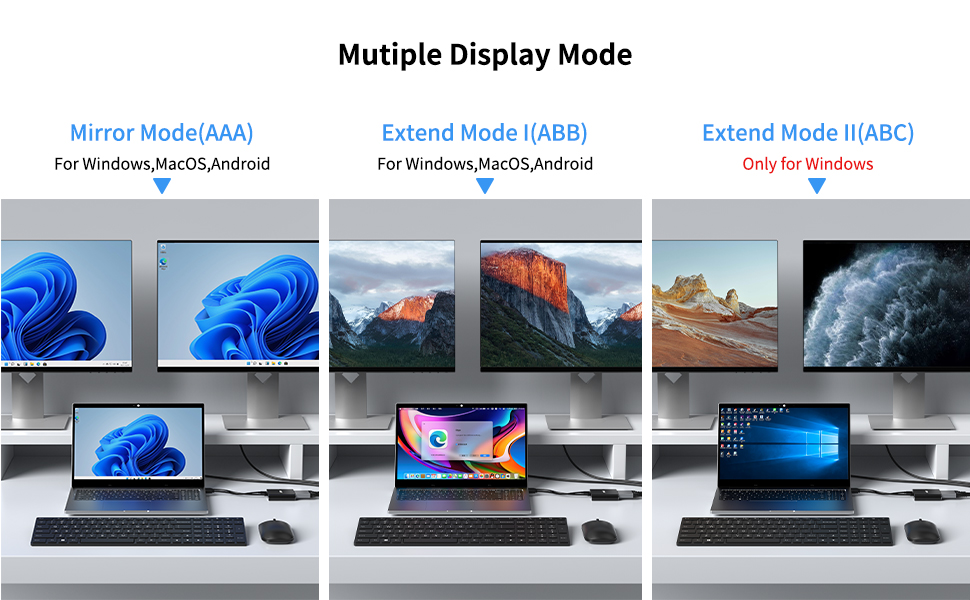
Supported Modes: Mirror Mode and Extended Mode
Usage Tips:
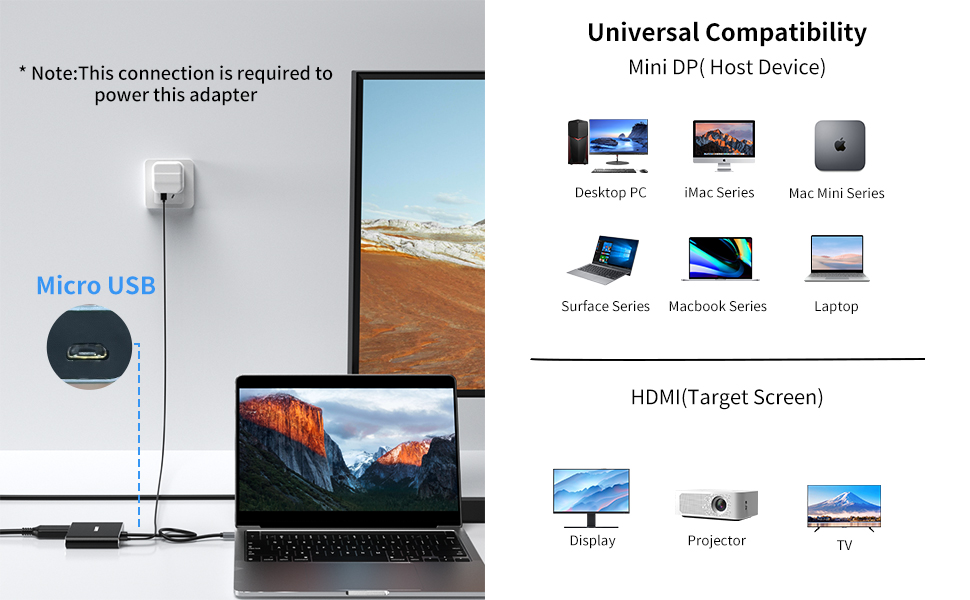
- This Mini DisplayPort to HDMI hub needs to be connected via a micro USB cable to supply power to the built-in chipset. You can connect the included micro USB cable to a 5V 1A adapter or to the USB 3.0 port on your PC.
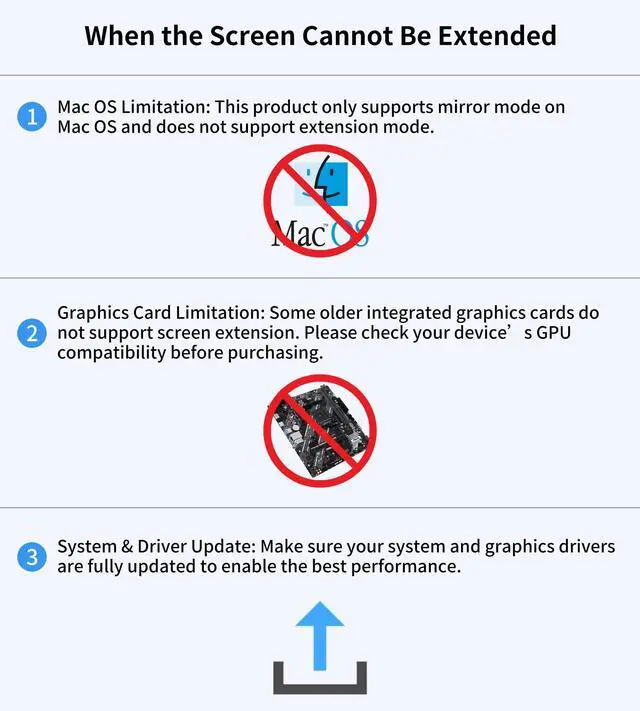
- Mac OS/iPad OS only supports SST mode and does not support ABC Extended Mode.
- To achieve dual 4K performance, please ensure that your desktop computer or laptop supports Mini DisplayPort 1.2 Dual-Mode output.
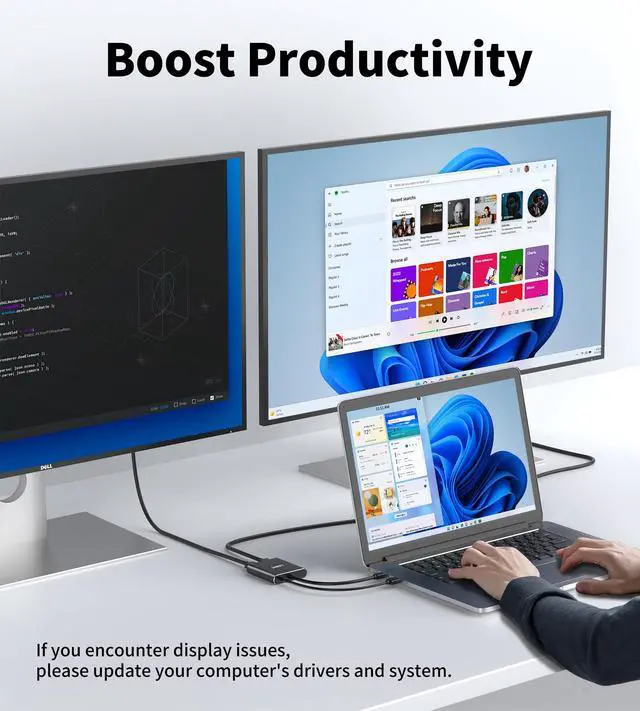
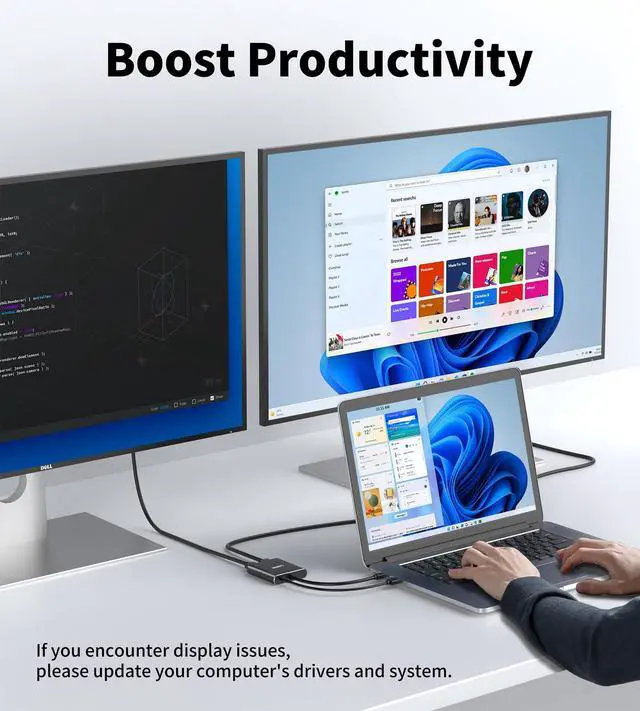
- If you encounter display issues, please update your computer's drivers and system.
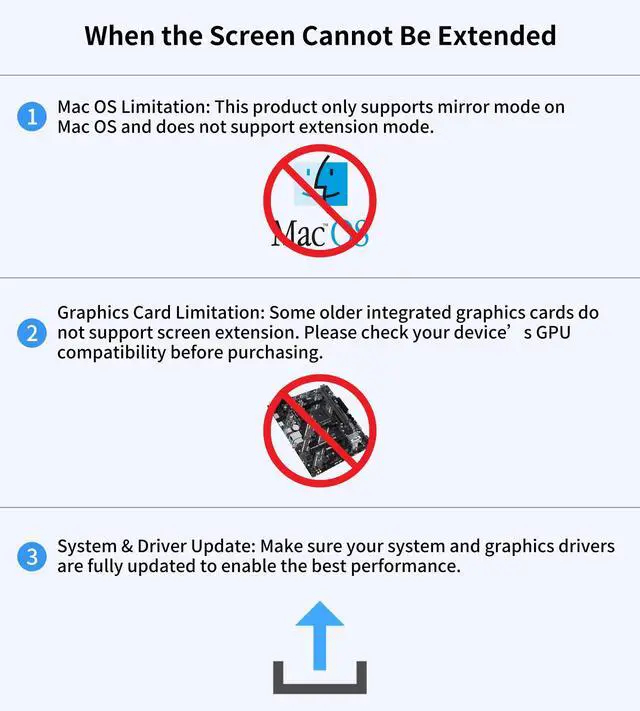
- Some older versions of integrated graphics may only support mirror mode or may be incompatible.
Frequently Asked Questions (FAQ)
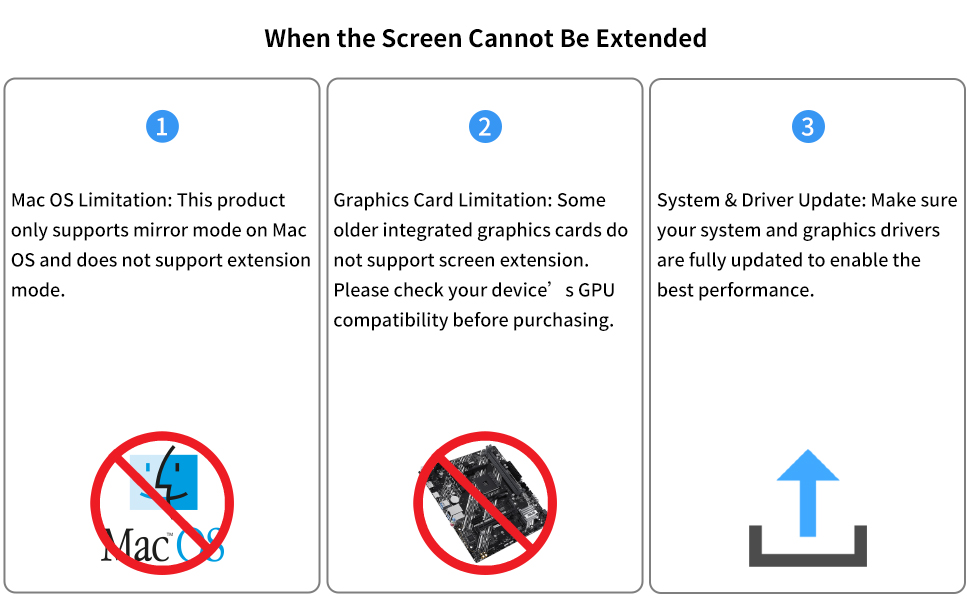
Q: Why can’t I extend my screen?A: Please ensure you are not using macOS. This product only supports mirror mode on macOS and does not support extended mode.
Q: How can I check if this product is compatible with my computer?A: Please make sure your computer has a Mini DisplayPort and that it is DP 1.2 or higher. Some older machines with an LPT (Line Print Terminal) interface may have outdated GPUs and will not work with this product.
Q: What should I do if the product does not display or does not work?A: Please try updating your system and graphics drivers, and ensure you have connected the included power cable.
Q: Can I use this product with a hub or docking station?A: This product cannot be connected to any hub, docking station, or adapter; doing so may result in no display output.
Q: How can I set my monitors to mirror or extend mode on my computer?
A: After connecting your computer to external displays, go to your Display Settings. You can choose whether the second screen should duplicate (mirror) your main screen or extend your desktop. To adjust this:
Start > Settings > System > Display > Multiple displays, then select your preferred option.(See the image below for details. The red box highlights the newly added section.)

Product Name: Mini DisplayPort 1.2 to Dual HDMI Adapter
Resolution: Single output 4K@60Hz; Dual output 4K HDMI monitors
Length: Approximately 1.5ft
Color: Black
Plug: Mini DisplayPort male to HDMI female
Supported Modes: Mirror Mode and Extended Mode
Usage Tips:
- This Mini DisplayPort to HDMI hub needs to be connected via a micro USB cable to supply power to the built-in chipset. You can connect the included micro USB cable to a 5V 1A adapter or to the USB 3.0 port on your PC.
- Mac OS/iPad OS only supports SST mode and does not support ABC Extended Mode.
- To achieve dual 4K performance, please ensure that your desktop computer or laptop supports Mini DisplayPort 1.2 Dual-Mode output.
- If you encounter display issues, please update your computer's drivers and system.
- Some older versions of integrated graphics may only support mirror mode or may be incompatible.
Frequently Asked Questions (FAQ)
Q: Why can’t I extend my screen?A: Please ensure you are not using macOS. This product only supports mirror mode on macOS and does not support extended mode.
Q: How can I check if this product is compatible with my computer?A: Please make sure your computer has a Mini DisplayPort and that it is DP 1.2 or higher. Some older machines with an LPT (Line Print Terminal) interface may have outdated GPUs and will not work with this product.
Q: What should I do if the product does not display or does not work?A: Please try updating your system and graphics drivers, and ensure you have connected the included power cable.
Q: Can I use this product with a hub or docking station?A: This product cannot be connected to any hub, docking station, or adapter; doing so may result in no display output.
Q: How can I set my monitors to mirror or extend mode on my computer?
A: After connecting your computer to external displays, go to your Display Settings. You can choose whether the second screen should duplicate (mirror) your main screen or extend your desktop. To adjust this:
Start > Settings > System > Display > Multiple displays, then select your preferred option.(See the image below for details. The red box highlights the newly added section.)
Splitter
USB C Monitor
Adapter
