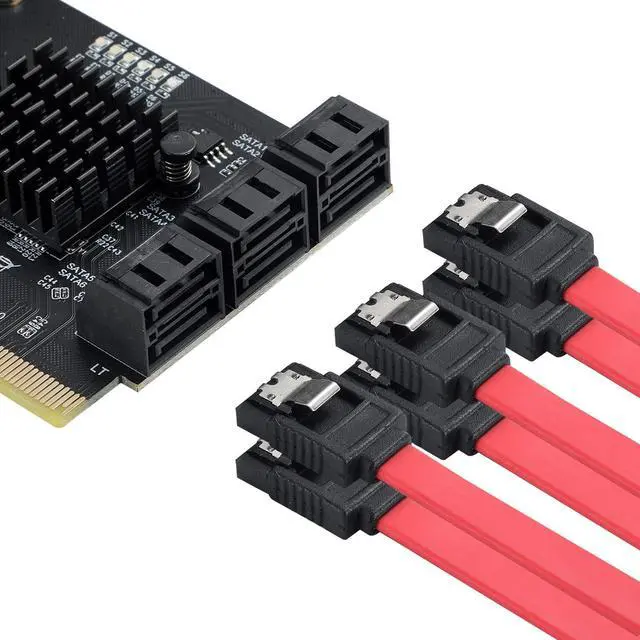
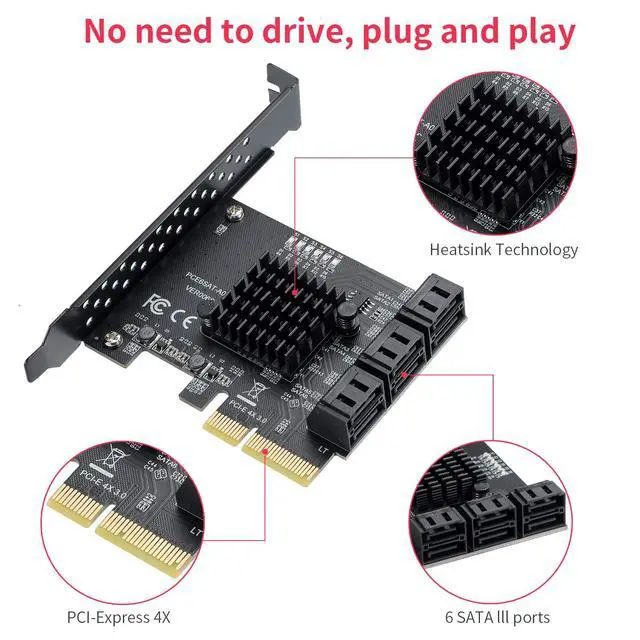
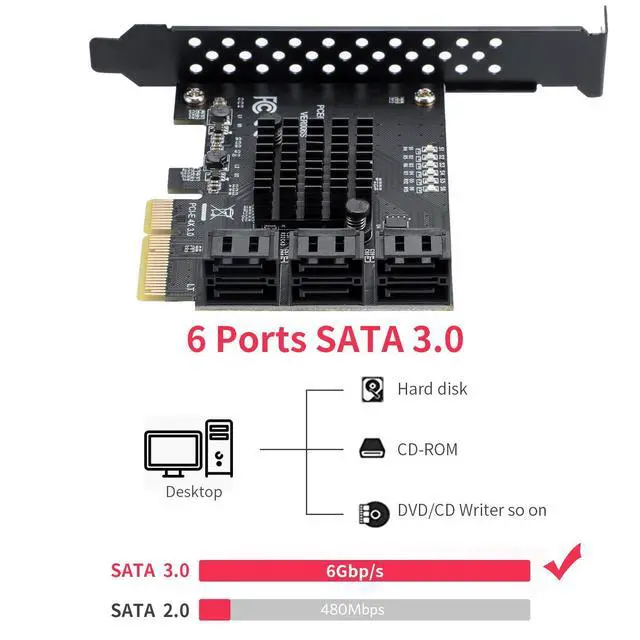
Product description PCE6SAT-A01 Name PCI-E 4X to SATA 3.0 6-Port Expansion Card Main Controller Chip ASMedia ASM1166 Input Interface PCI-E 4X / 8X / 16X (Recommended to use under PCI-E 3.0 for higher speeds) Output Interface SATA Ports Transfer Rate 6Gbps Supported Systems Windows XP / Windows 10 / 8 / 7 / Vista / 2003 / 2008 / Ubuntu 2U Case Support, including Low-Profile Bracket SATA Control Mode AHCI PCI-E GEN3 PCI-E 3.0 Chip Architecture The maximum speed in a PCI-E 3.0 slot is 500-550 MB/s. The maximum speed in a PCI-E 2.0 slot is 380-450 MB/s.
When used in a PCI-E 1.0 slot, the speed is only 200-300 MB/s. (Please contact your motherboard manufacturer to find out which PCI-E versions are supported. ) ASMedia ASM1166 The chip supports SATA port multipliers and NCQ, optimizes queues when accessing multiple devices, and thus reduces bandwidth pressure. LED Status Indicator The blue light is on when the hard drive is inserted and flashes when data is being read, allowing you to monitor the hard drive's operating status at any time. 6-Port Expansion Card The SATA 3.0 interface is fully backward compatible with SATA 2.0 (3 Gbit/s) and SATA 1.0 ( 1.5 Gbit/s) devices.
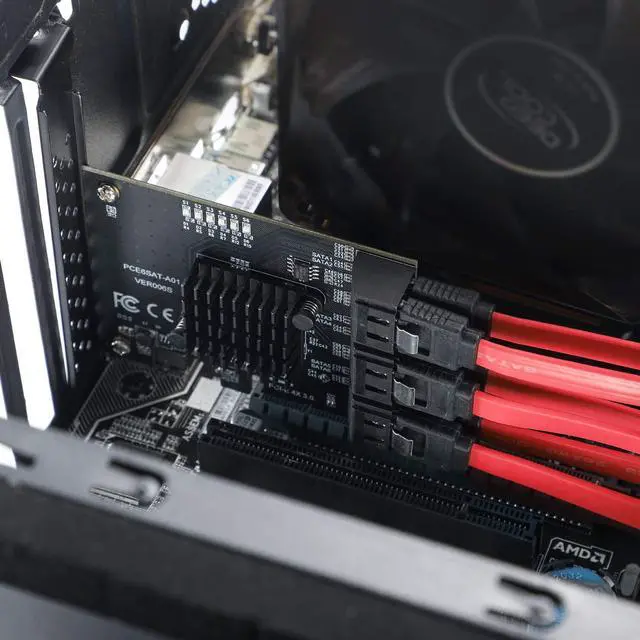
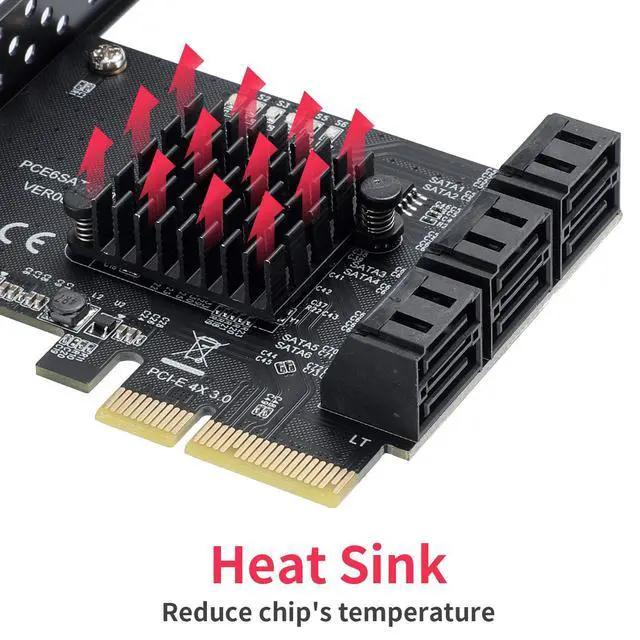
Heatsink Design The highly efficient heatsink design of the SATA expansion card ensures that the temperature remains under control during data transfer. System support and compatible slots Compatible with Windows XP / 2003 / 7 / 8 / 10 / NAS / Linux OS. SATA controller PCI-E x4 interface compatible with 4x/8x/16 slots SATA Power Splitter Adapter Cable The SATA power splitter cable overcomes the limitation on the number of SATA devices, such as SSD drives or SATA optical drives, that can be installed in the system based on the available PSU power connectors. The cable saves the cost of upgrading the power supply to connect additional SATA drives.
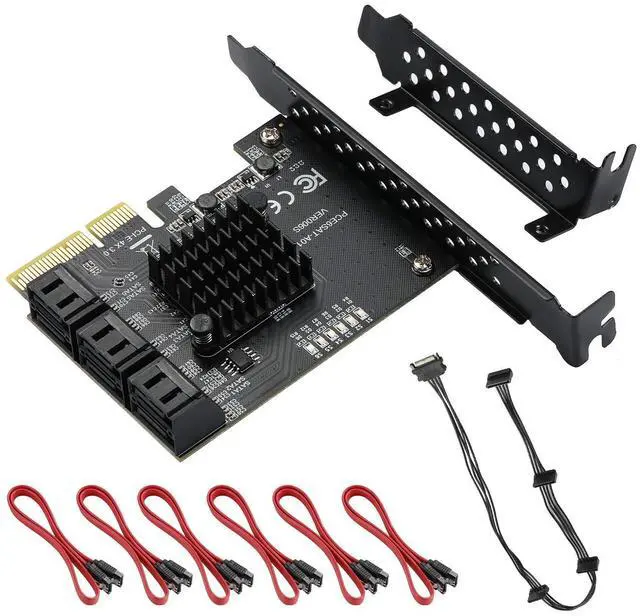
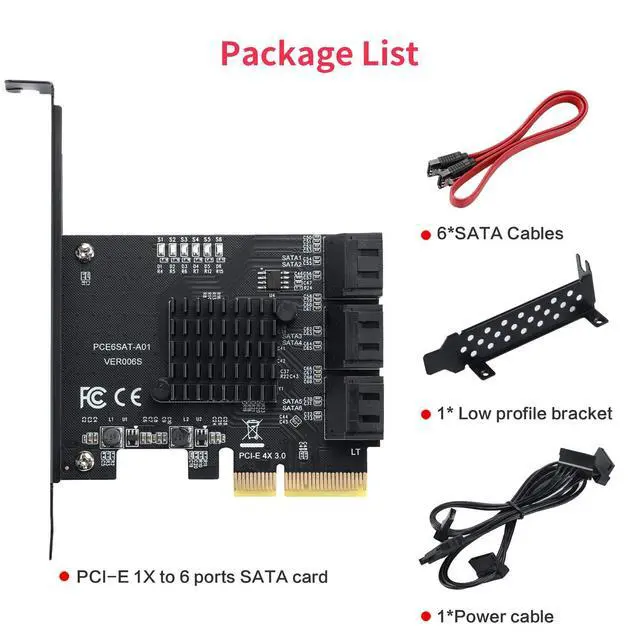
Package Contents 1 x PCI Express 6-Port 4X Card 6 x SATA Cables 1 x 15-Pin SATA Power Splitter Cable 1 x Low-Profile Bracket Connection Conditions and Solutions for System Drive and PCIe-to-SATA 3.0 Adapter Card The SATA interface mode of the PCIe-to-SATA 3.0 adapter is AHCI mode. If you want to connect the system drive to the expansion card, the prerequisite is that your system drive was installed in AHCI mode when the system was installed on the motherboard. Otherwise, the system cannot be booted via our adapter card. If you confirm that the system drive was installed in AHCI mode on the motherboard's SATA interface, you can insert the drive directly into the expansion card, then enter the motherboard BIOS and set the system drive as the first boot device.
If both of the above conditions are met but the system still cannot start or continuously restarts, this may be due to a conflict between the motherboard's drive interface and our adapter card. The solution is to enter the motherboard BIOS, set the motherboard's drive interface option to Disabled, save, and restart the system to successfully boot.





 here!
here!