













Tips before using TF card
This camera supports micro TF cards up to 128GB in FAT32 format. Please insert or remove the memory card when the camera is powered off.
1. Turn off the camera and insert your micro SD card. The camera will only check if a card is used when booting up.
2. Turn on your camera. Open the APP. If you haven't made the Wi-Fi connection to pair your account with the camera yet, please make the Wi-Fi connection before the following steps.
3. Please click on the preview image of your camera to enter the live view interface.
4. Please click the setting button on the top right (the gear icon) to enter the setting interface.
5. Select the "SD Card Setting" tab.
6. Then, you can find the "Format" button in the "memory card" interface.
Please restart (not reset) the camera after a format.
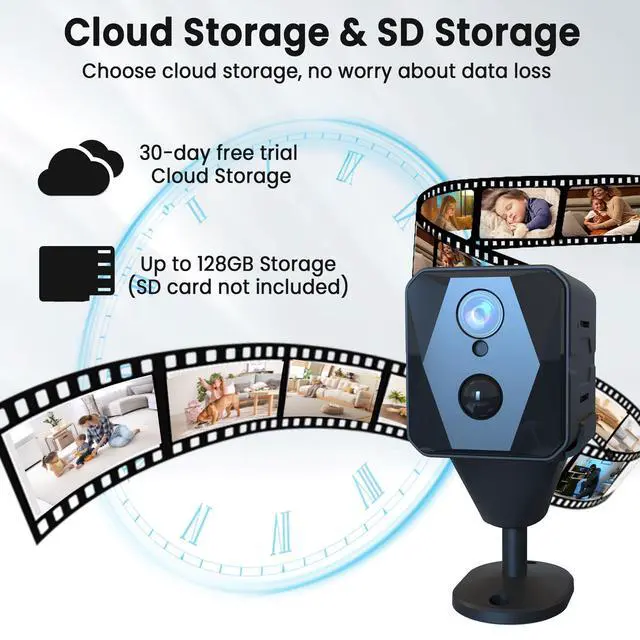
Two Storage Methods


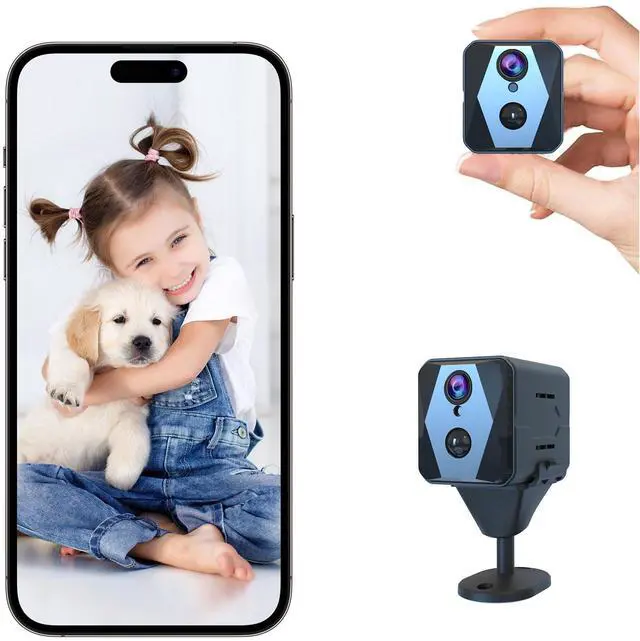
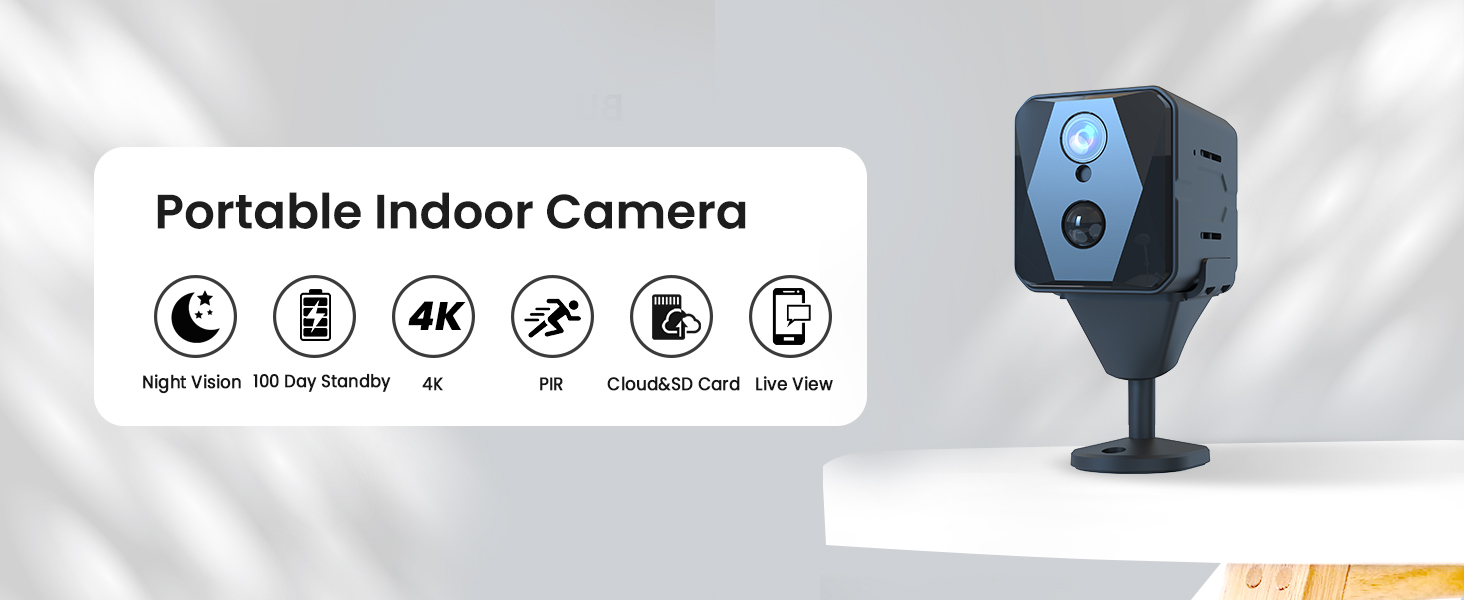
High-definition camera to meet daily needs
- We offer 30 days of free cloud storage.
- Alternatively, if you don't want to subscribe to cloud storage, you can use your own TF card.
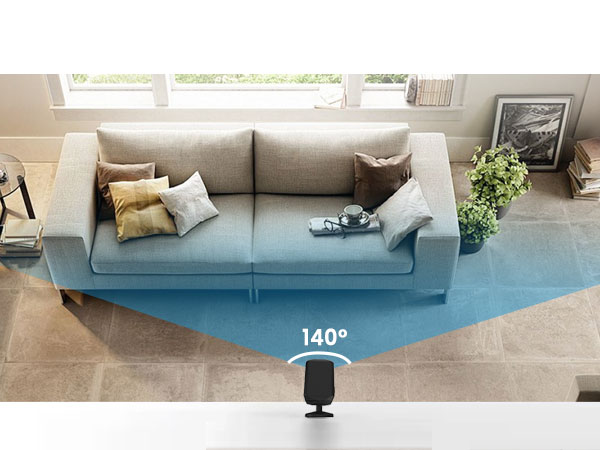


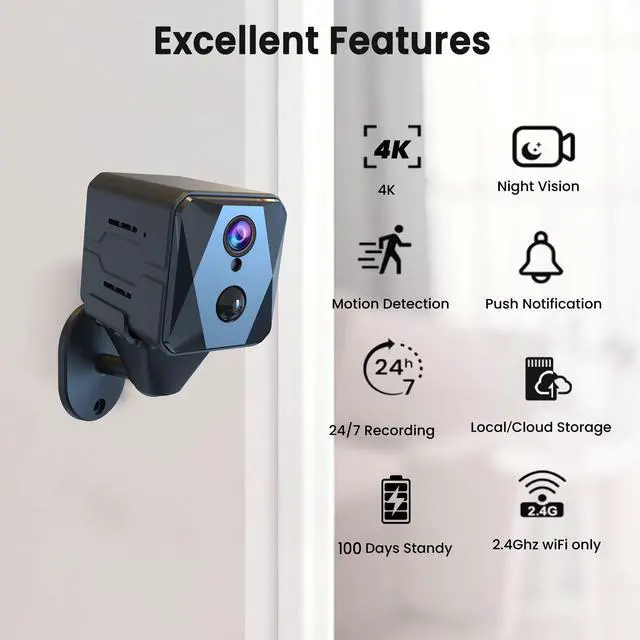
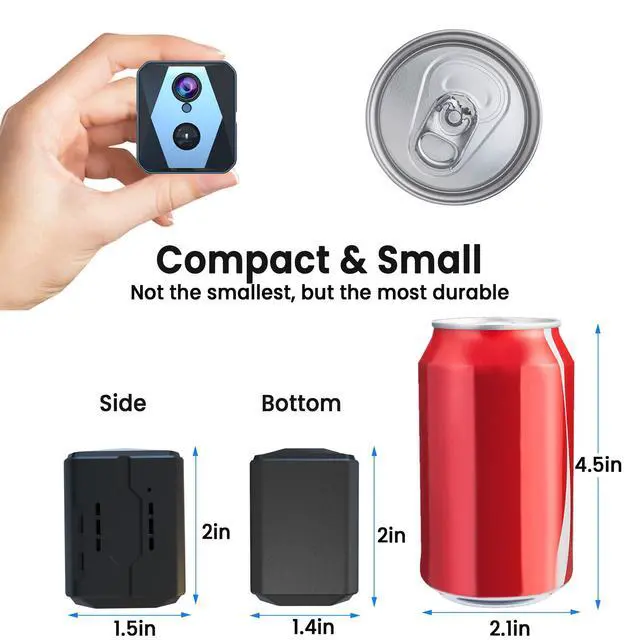
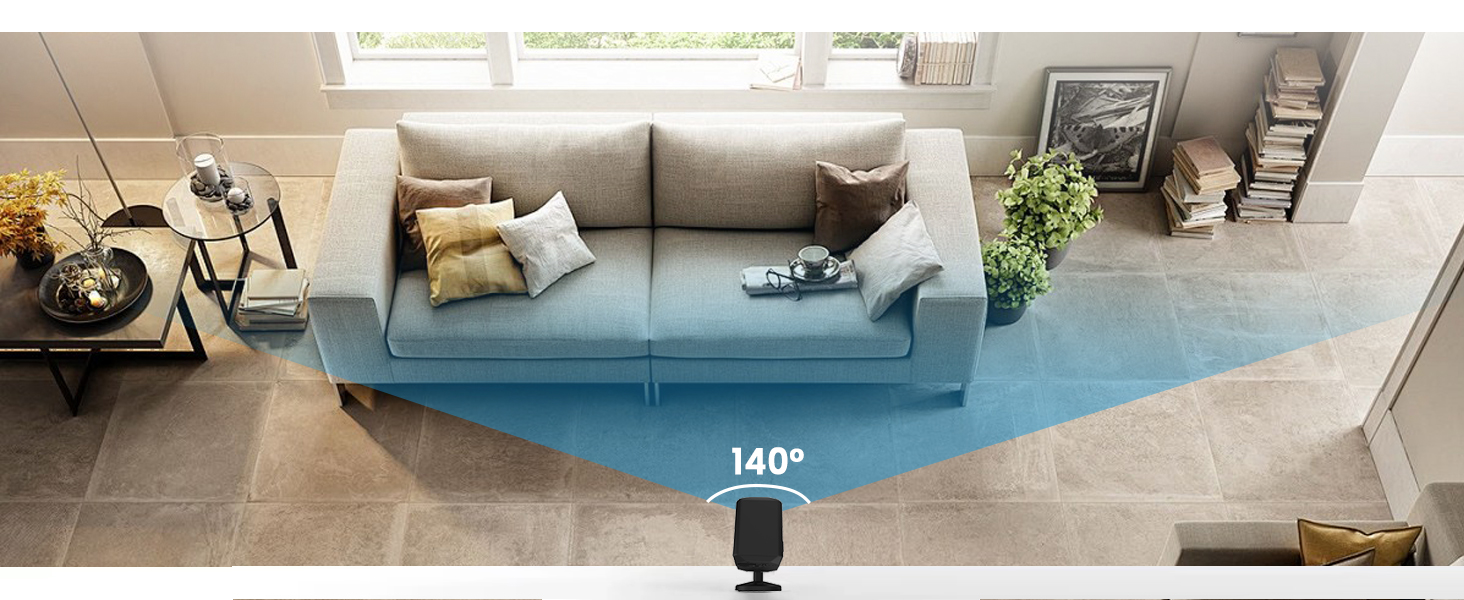
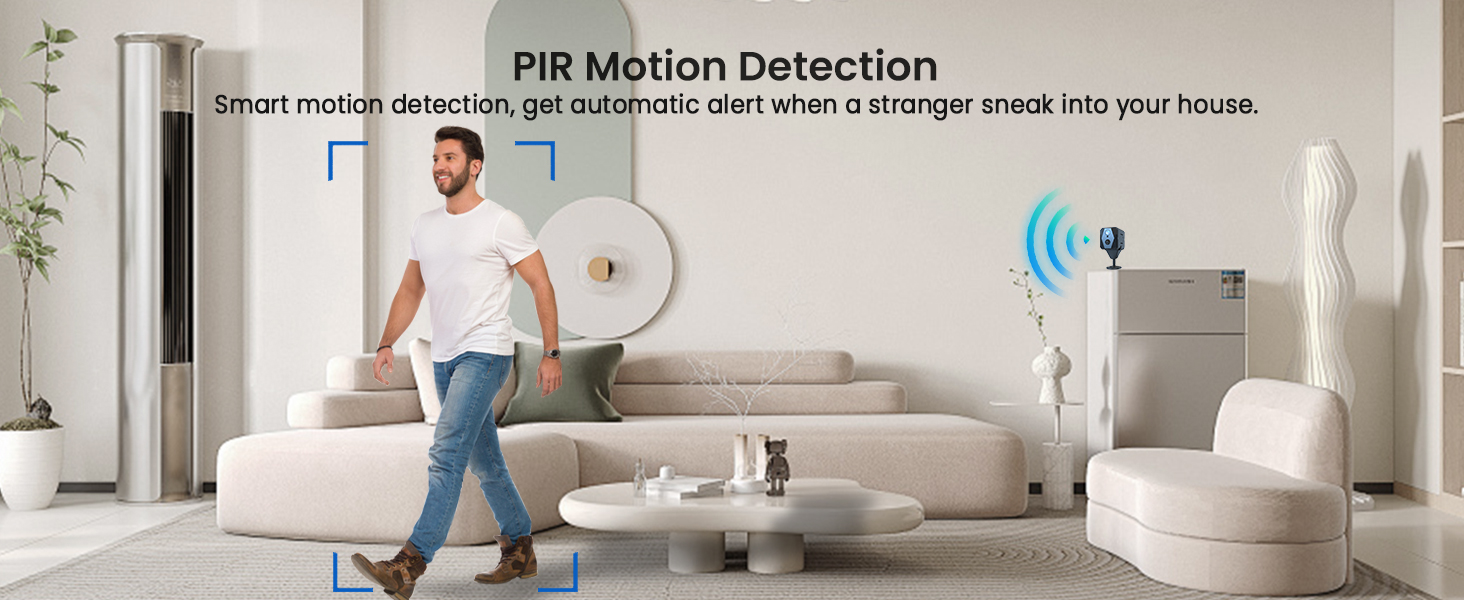
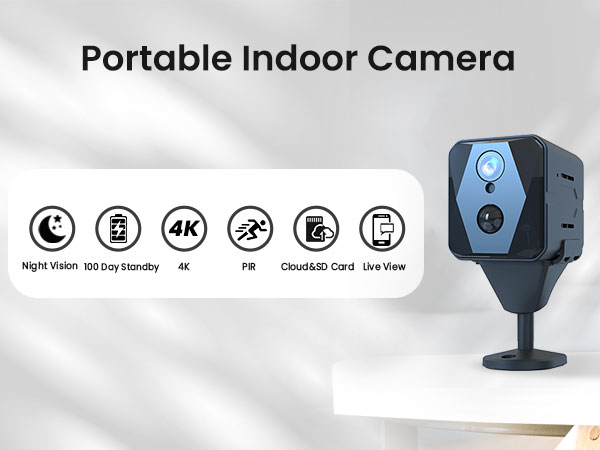
Compact Size & Precise Detection & Advanced Night Vision
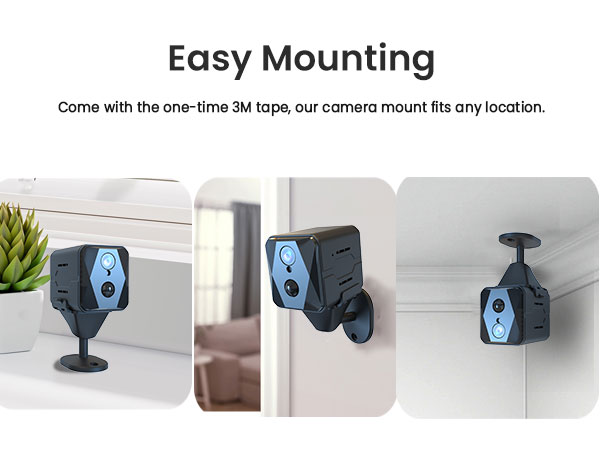
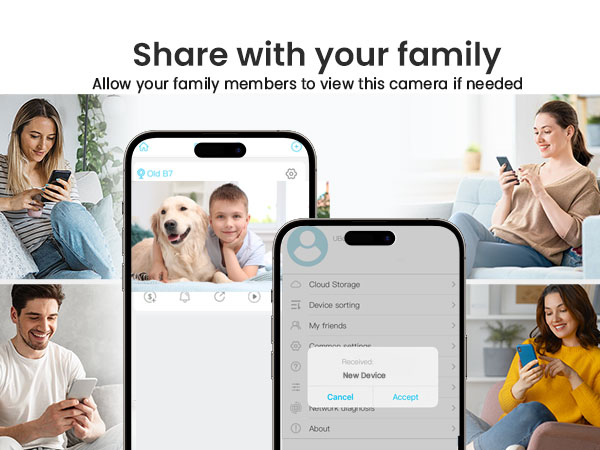
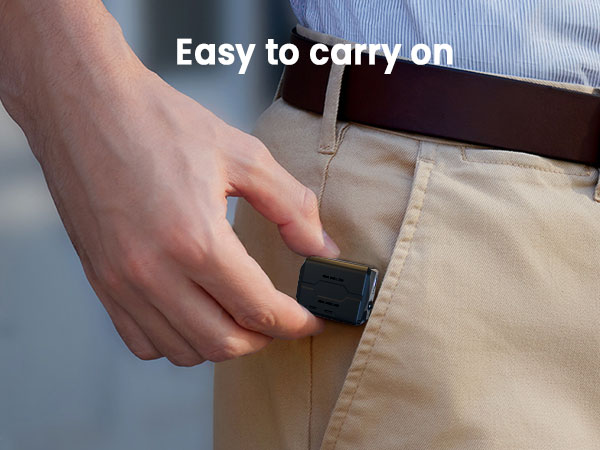
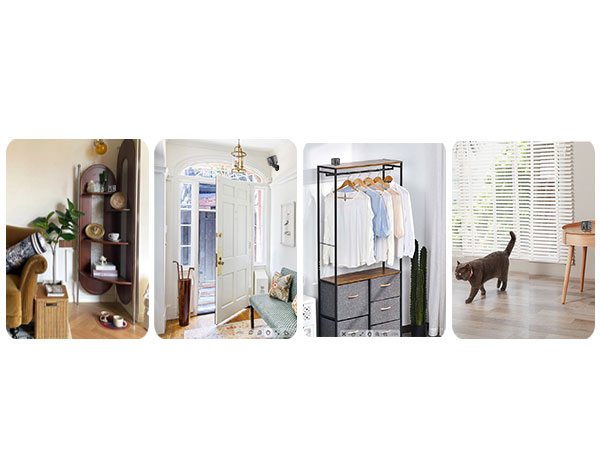
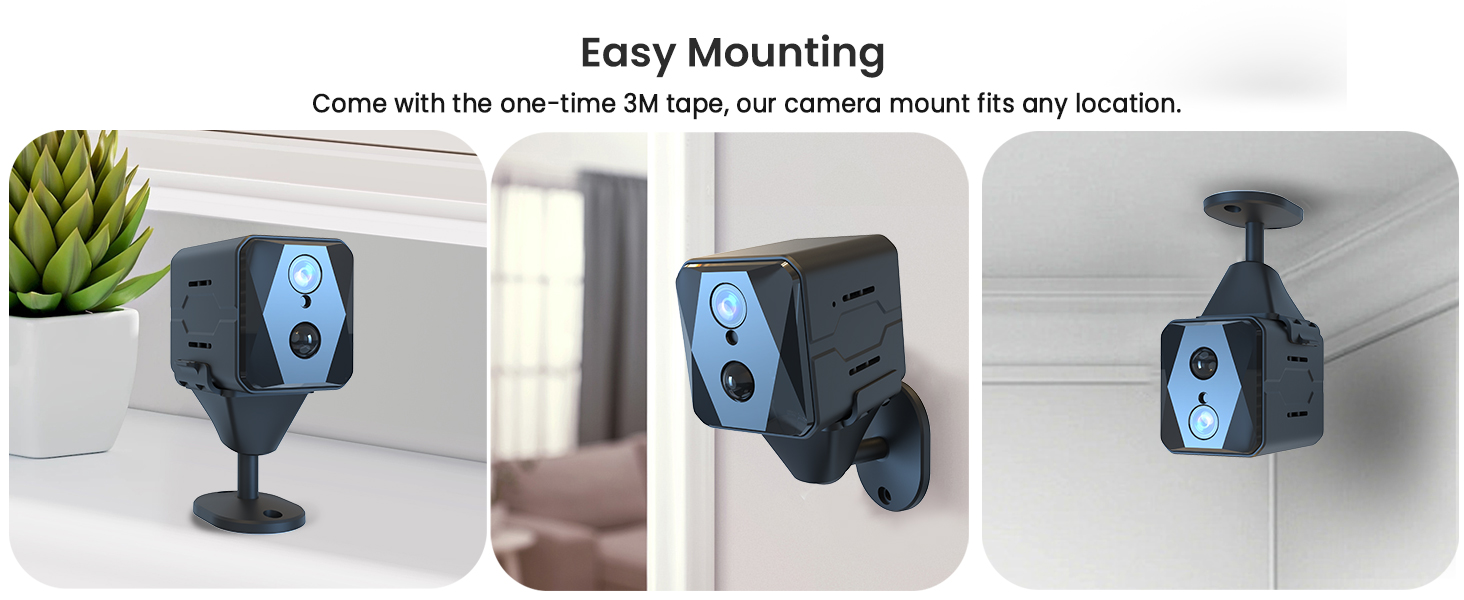
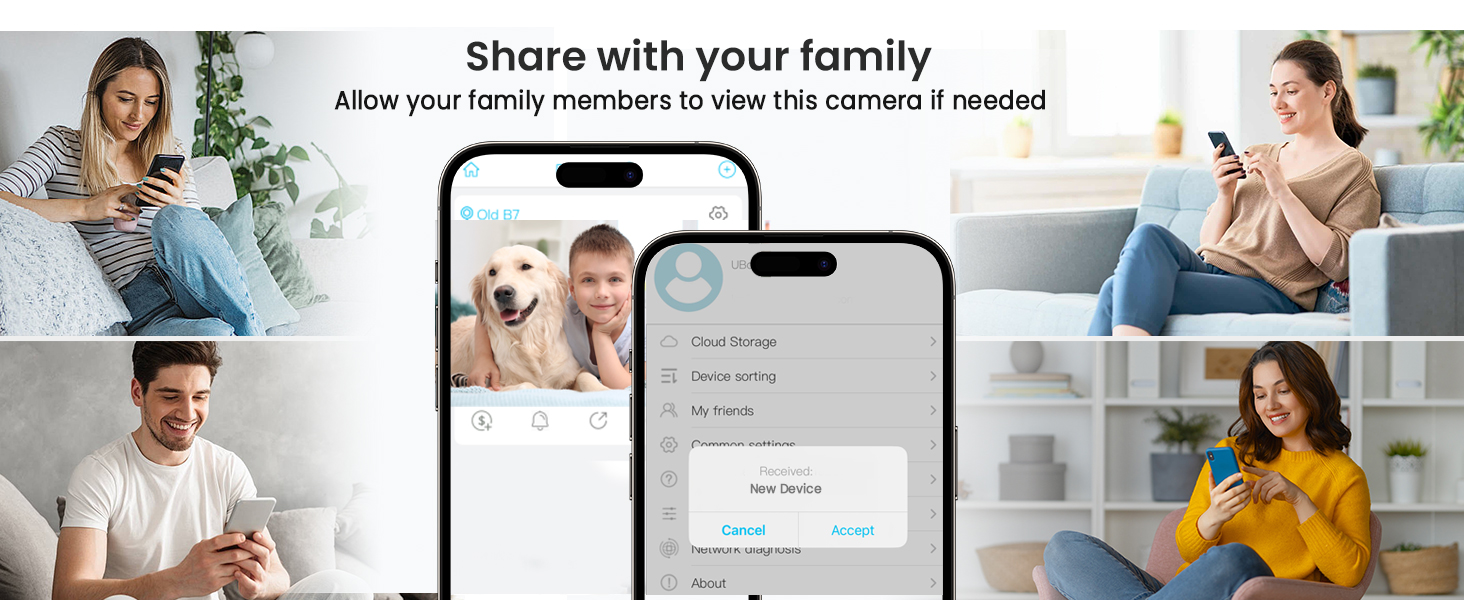
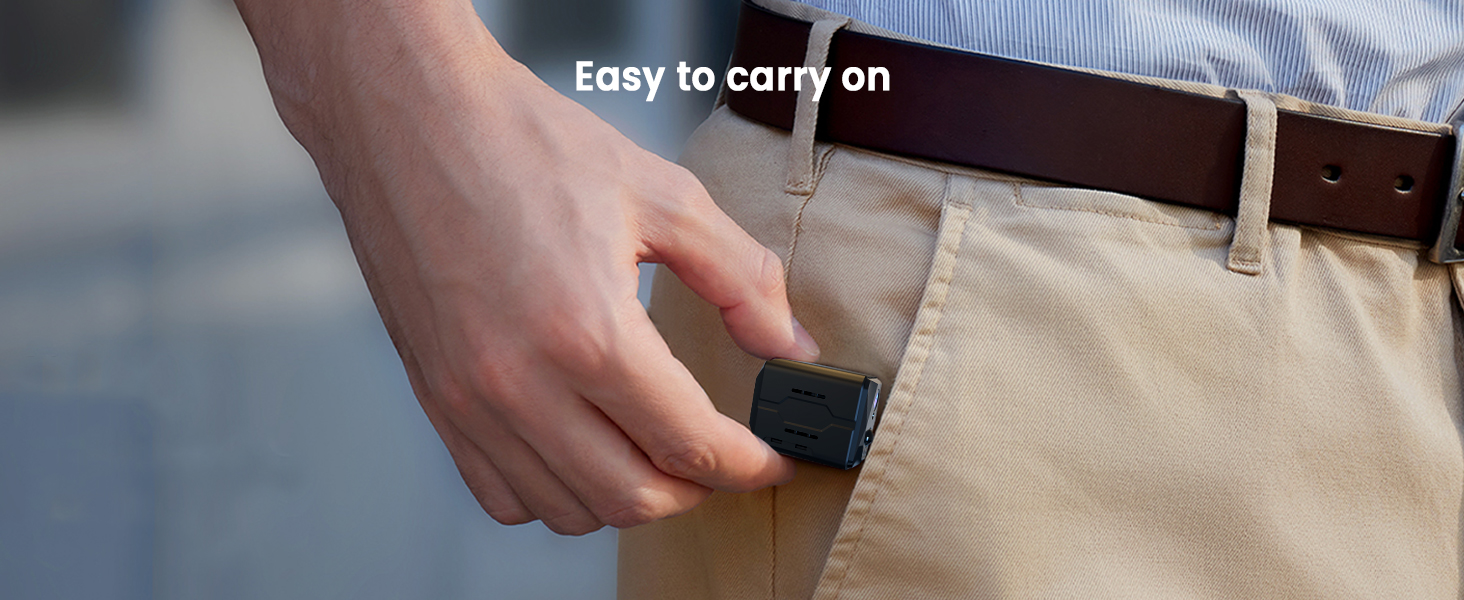
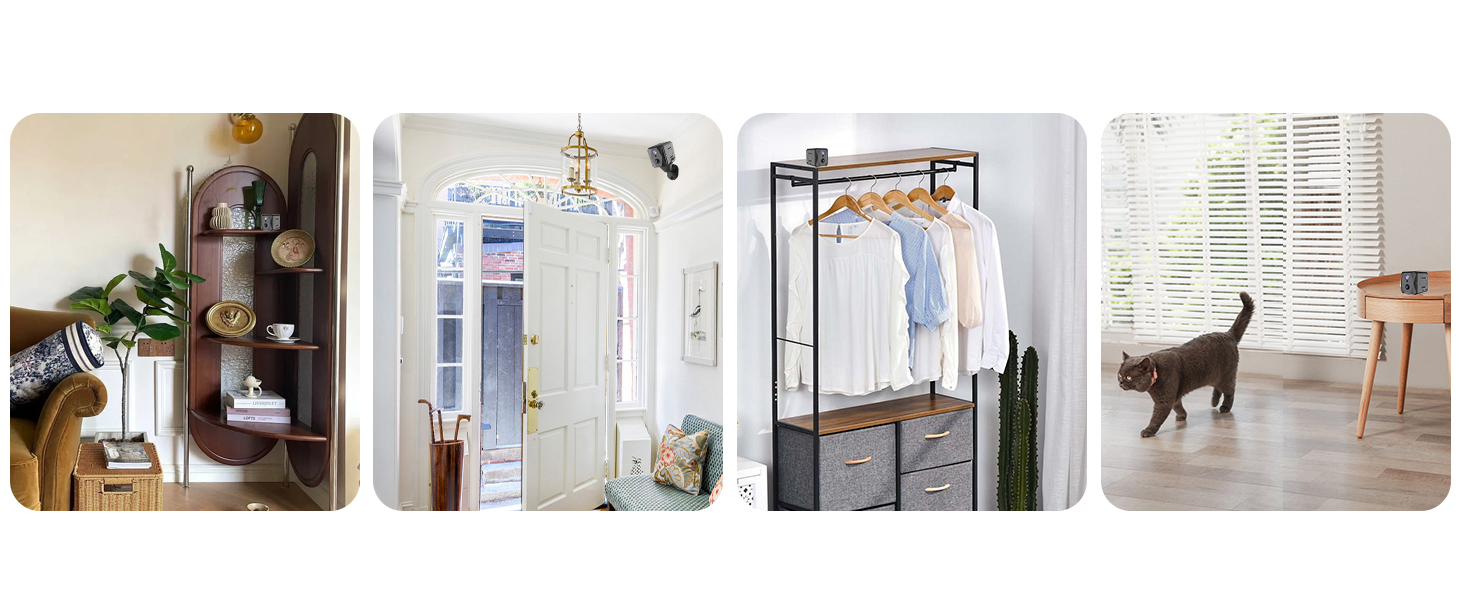
Installation & Sharing & Portable


Tips before using TF card
This camera supports micro TF cards up to 128GB in FAT32 format. Please insert or remove the memory card when the camera is powered off.
1. Turn off the camera and insert your micro SD card. The camera will only check if a card is used when booting up.
2. Turn on your camera. Open the APP. If you haven't made the Wi-Fi connection to pair your account with the camera yet, please make the Wi-Fi connection before the following steps.
3. Please click on the preview image of your camera to enter the live view interface.
4. Please click the setting button on the top right (the gear icon) to enter the setting interface.
5. Select the "SD Card Setting" tab.
6. Then, you can find the "Format" button in the "memory card" interface.
Please restart (not reset) the camera after a format.