


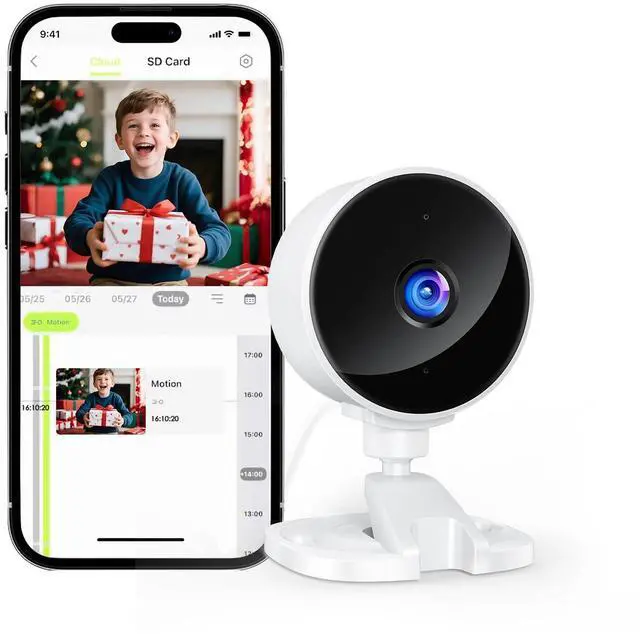
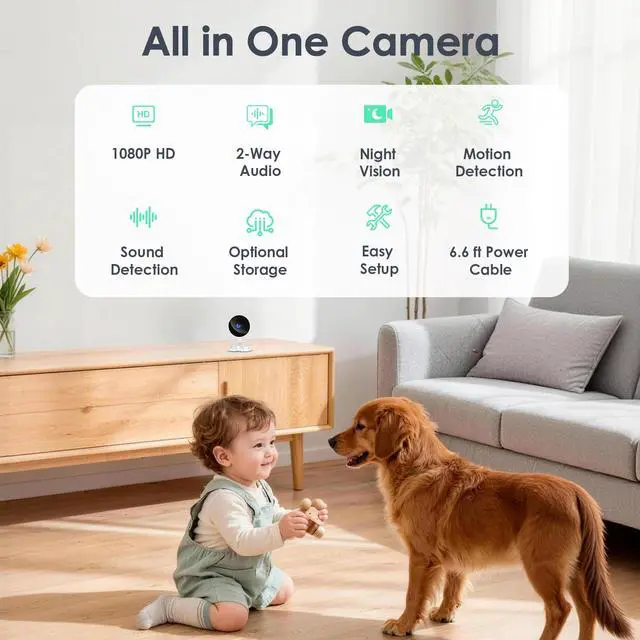
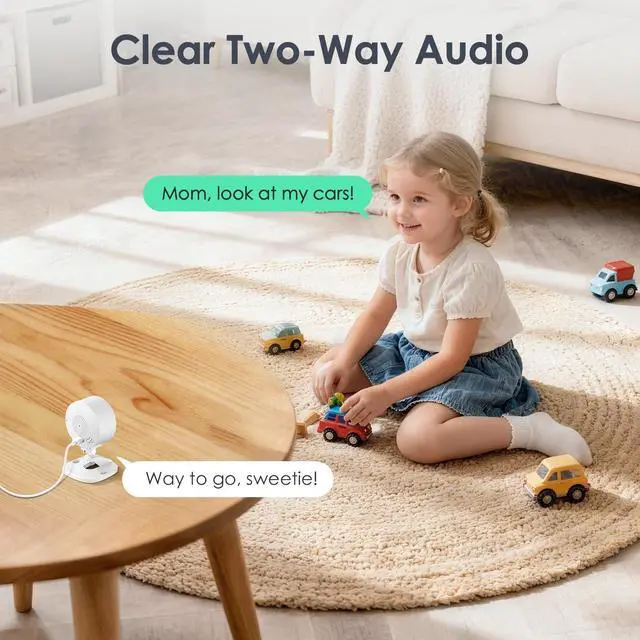
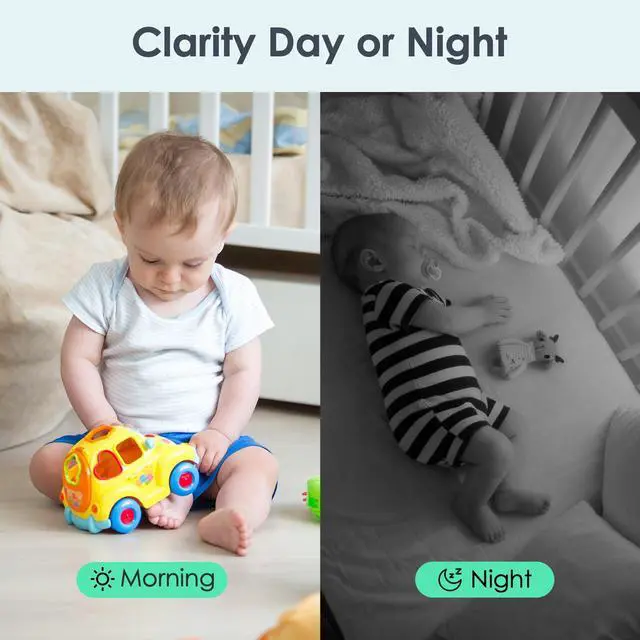
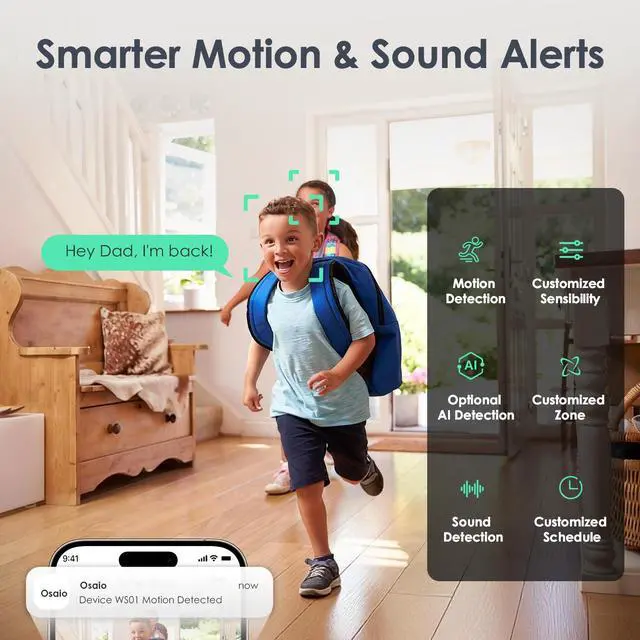



Smart Security, Effortless Control


Unable to connect the camera to Wi-Fi during setup?
1. Turn on the phone's Wi-Fi &BT, then connect to a 2.4GHz Wi-Fi
2. Download the Osaio app to connect to the WS01 camera
3. Place the camera near your router
4. Check if the indicator light flashes red twice per second. If not, reset the camera
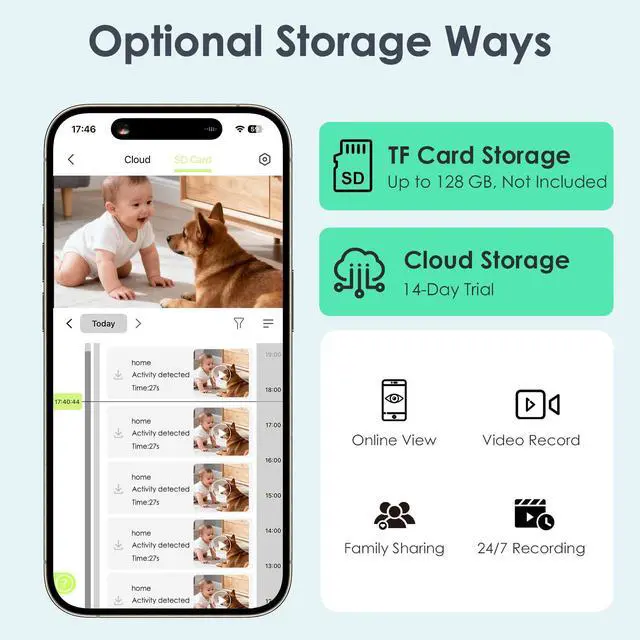
Are both storage methods freely selectable?
Local Storage: Supports 128GB Card Storage (Not Included)
Cloud Storage: You can enjoy a 14-day free trial of cloud storage. After 14 days, you can choose to continue your subscription or cancel it.
How to cancel cloud subscription?
1. Select the camera on the Osaio app's Camera page
2. Tap the settings button in the top-right corner
3. Locate Storage and disable the cloud storage service
How do I use it with Alexa?
Make sure Osaio and Alexa are installed
If you are using an Android phone, go to Settings?Apps?Osaio?Open by default, turn on “Allow opening supported links”, then tap “Add link” and select the link
Enable the Osaio in the Alexa app
If you need assistance, please contact:
Open the Osaio app, tap “Me,” then tap “About” to find the contact information.
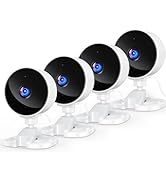
Yoton WS01 Indoor Camera
 1-pack |  2-pack |  4-pack |
|---|---|---|
2-Way Audio Support | 2-Way Audio Support | 2-Way Audio Support |
Night Vision Black-and-white screen | Night Vision Black-and-white screen | Night Vision Black-and-white screen |
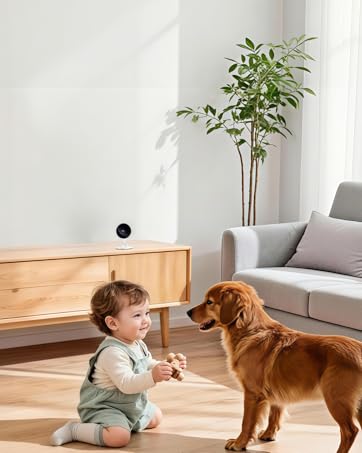
Suitable for Home Safety, Child Safety, Pet Monitoring | Suitable for Home Safety, Child Safety, Pet Monitoring | Suitable for Home Safety, Child Safety, Pet Monitoring |
WS01 Indoor Camera Details


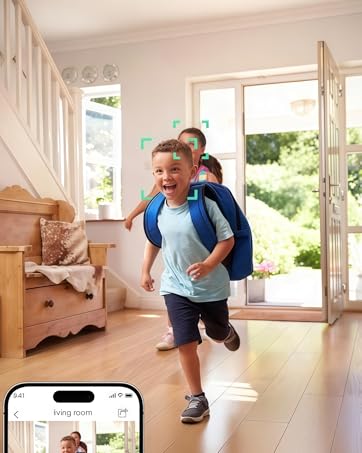
Smart Security, Effortless Control


Unable to connect the camera to Wi-Fi during setup?
1. Turn on the phone's Wi-Fi &BT, then connect to a 2.4GHz Wi-Fi
2. Download the Osaio app to connect to the WS01 camera
3. Place the camera near your router
4. Check if the indicator light flashes red twice per second. If not, reset the camera
Are both storage methods freely selectable?
Local Storage: Supports 128GB Card Storage (Not Included)
Cloud Storage: You can enjoy a 14-day free trial of cloud storage. After 14 days, you can choose to continue your subscription or cancel it.
How to cancel cloud subscription?
1. Select the camera on the Osaio app's Camera page
2. Tap the settings button in the top-right corner
3. Locate Storage and disable the cloud storage service
How do I use it with Alexa?
Make sure Osaio and Alexa are installed
If you are using an Android phone, go to Settings?Apps?Osaio?Open by default, turn on “Allow opening supported links”, then tap “Add link” and select the link
Enable the Osaio in the Alexa app
If you need assistance, please contact:
Open the Osaio app, tap “Me,” then tap “About” to find the contact information.
Yoton WS01 Indoor Camera
WS01 Indoor Camera Details
| Field of view | 88° diagonal |
|---|---|
| Camera resolution | 1080p |
| Camera frame rate | 15fps |
| Size | 6.50*7.00*9.00cm |
| Weight | 57g (camera only) |
| Electrical Rating | Plug-in. 100-240V, 50/60Hz |
| Wi-Fi Connectivity | 2.4GHz, 802.11b/g/n |
| App | Osaio(Not compatible with other apps) |
| Minimum phone requirements | iOS 10.0, Android 5.0 |
| Audio | 2-way audio |
| Included in the box | WS01 Indoor Camera; Instruction Manual; Power Adapter; Charging Cable; Wall Mounting Kit |
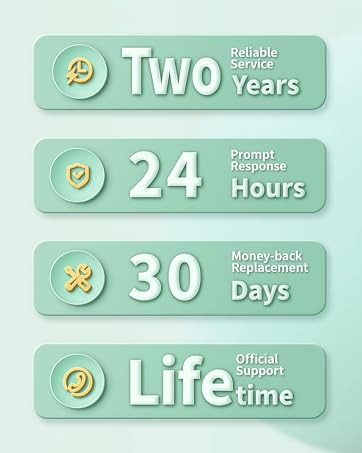
| After-sales Service | 2 Years |
| Cloud video storage | 14-day Free Trial |
| Local Storage | Supports SD cards up to 128GB (not included in product packaging) |
With innovative technology that cares, we transform “seeing” into “protecting,” ensuring that no matter the distance, you and everything you cherish remain just a glance apart.
Yoton Indoor Security Camera
