• $180.99
  • Free 30-day Returns
  • Ships from China.

    Shipped by Cloudless Clear

    Price alert
    Shop it at NeweggBusiness.

    Meet Your Seller

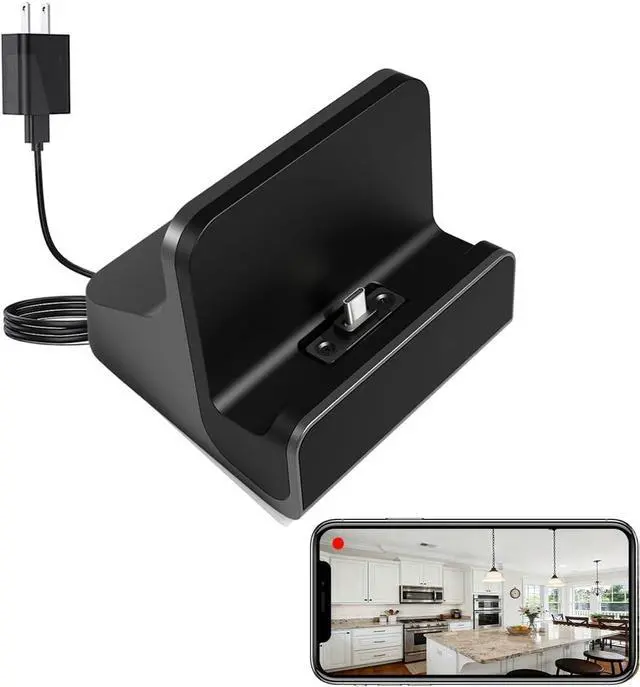
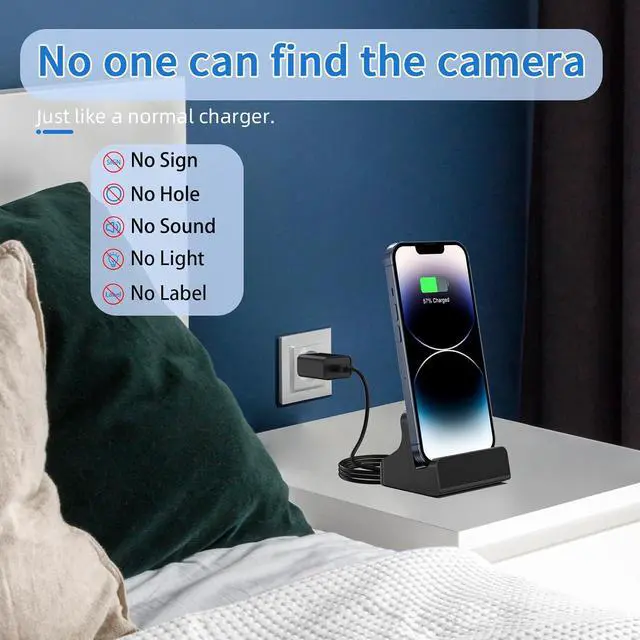
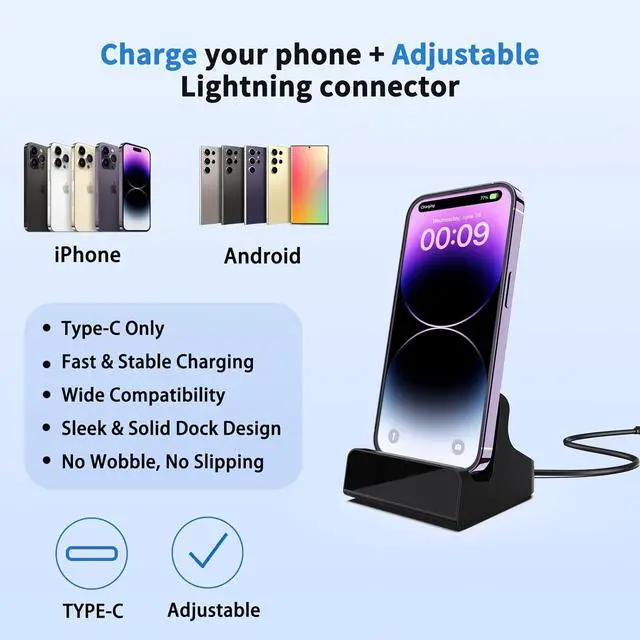
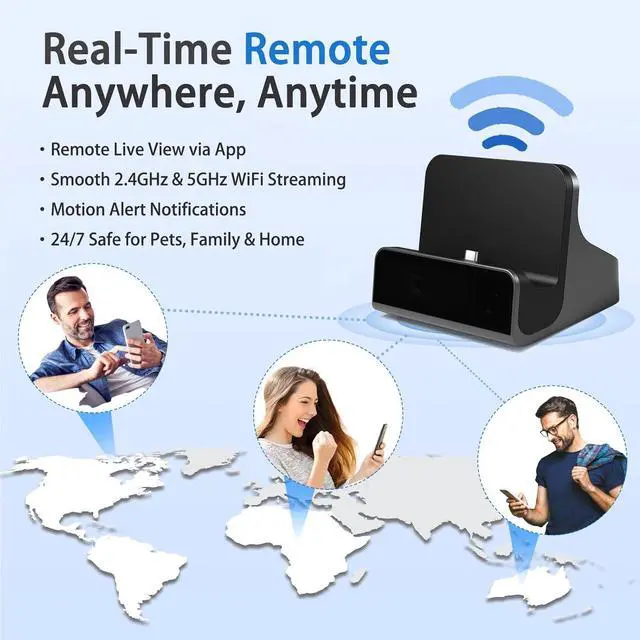
    Phone Charger Hidden Camera 2.4G & 5G Wireless 170° Wide Angle Motion Detection/APP Remote/Night Vision/APP Remote View/SD Storage for Home/Office Security.

    • Clear 2K HD Image QualityThis hidden spy camera delivers crystal-clear 2K video with more detail than 1080P. Infrared night vision activates automatically in low light, and the 170° wide-angle lens ensures broad coverageperfect for a spy camera in any setting.
    • Dual-Band WiFi ConnectivityThis phone charger camera supports both 2.4GHz and 5GHz WiFi bands, allowing for quick setup and stable remote viewing through the LizviePro app.
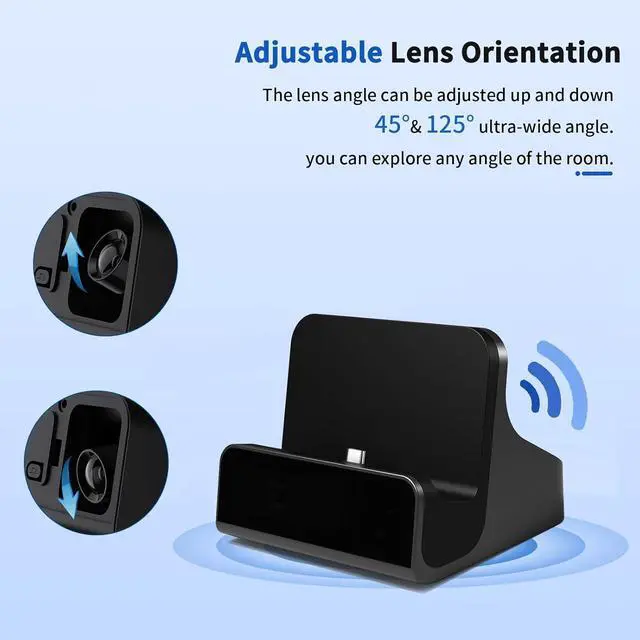
    • Adjustable 170° View with Auto Night VisionPhone charger hidden cameras Lens adjusts to 110° front + 30° up + 30° down. Automatically activate the night vision function according to the changes in light conditions.Set before use to fit your space.
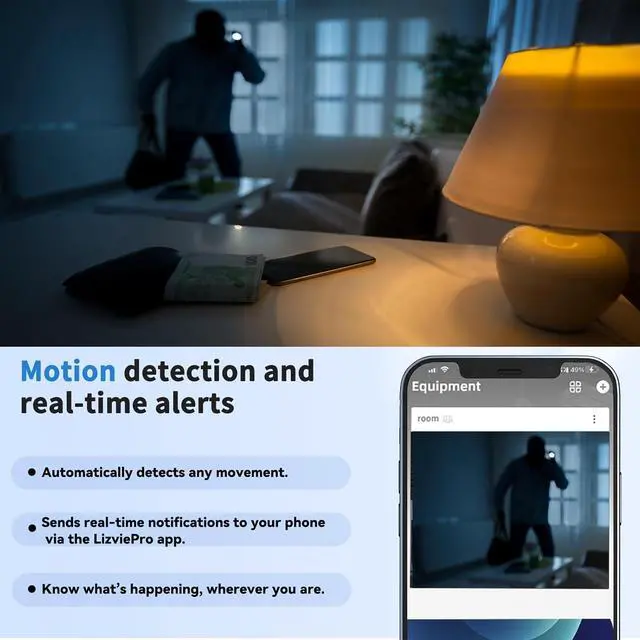
    • Motion Alerts & Expandable StorageGet real-time alerts when motion is detected with this hidden camera. Insert a micro SD card (not included) to enable continuous loop recording and reliable footage storage.
    • Our hidden spy camera includes strong privacy features, allowing you to set an exclusive passwo
    +
    +
    Overview
    Reviews

    Any questions? Ask CelesteSM will help you find out quickly.

    Step 1: Remove the Protective Film
    Before use, gently peel off the protective film covering the lens to ensure a clear image.
    Step 2: Power On the Device
    Plug the device into a 110V outlet and wait 3060 seconds for it to boot up. The device will emit a wireless network signal named BLink-XXXX.
    Step 3: Connect via Phones WiFi Settings
    On your phone, open WiFi settings, find and connect to BLink-XXXX. Default password: 0123456789. No Internet message is normal just ensure the connection is successful.
    Step 4: Open the App
    Launch the Lizvie Pro app. The device will appear automatically and take you to the viewing screen.
    Step 5: Connect to Home WiFi
    After about 10 seconds, a prompt will appear. Select your 2.4GHz home WiFi, enter the password, and complete the setup.
    Important: Pairing with your home router is required for remote viewing functionality.(If no prompt appears, go to Settings > Network Information in the app.)
    Step 6: Ready to Use
    You can now access the device remotely, receive motion alerts, and manage settings via your phone.

    Warranty & Returns

    Warranty, Returns, And Additional Information

    Warranty

    • Please contact the Seller directly for warranty information. Warranty information may also be found on the Manufacturer's website.
    • CONTACT

    Return Policies

    Manufacturer Contact Info

    LOADING...