• $180.99
  • Free 30-day Returns
  • Ships from China.

    Shipped by Cloudless Clear

    Price alert
    Shop it at NeweggBusiness.

    Meet Your Seller

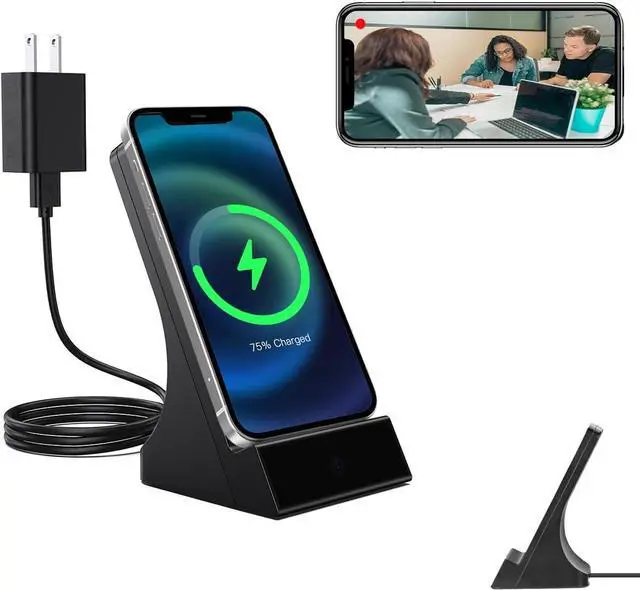
    Hiddeen Camera Charger Phone Camera Charger, 1080P HD with Night Vision and Motion Detection Live View 24/7 Loop SD Storage Hidden Cam for Office/Pet/Baby Home Security Idoor.

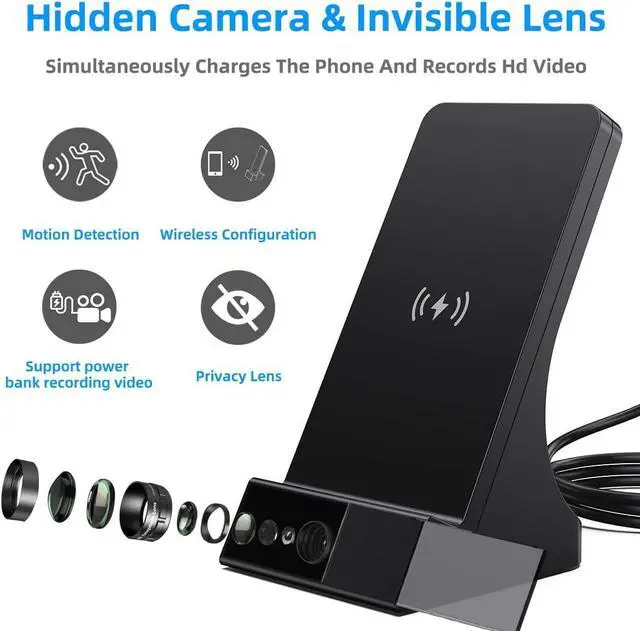
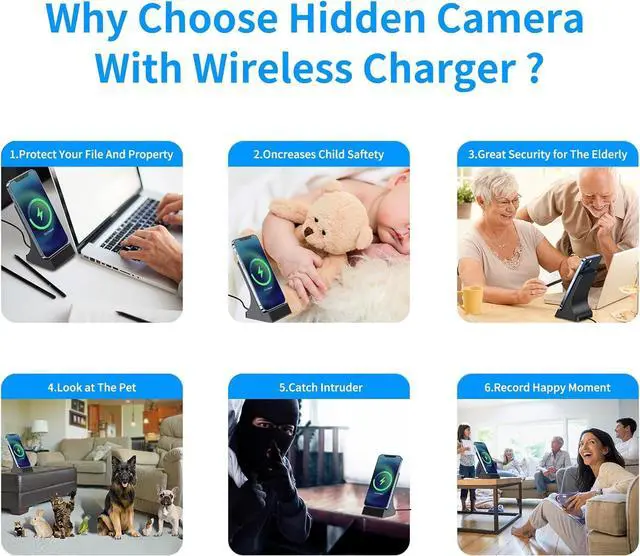
    • Wireless charge & Invisible lens: Three layers of optical lens, Its camouflage makes it hard for the human eye to see that this is a hidden camera. This phone charger camera can charge phones that support wireless charging at any time
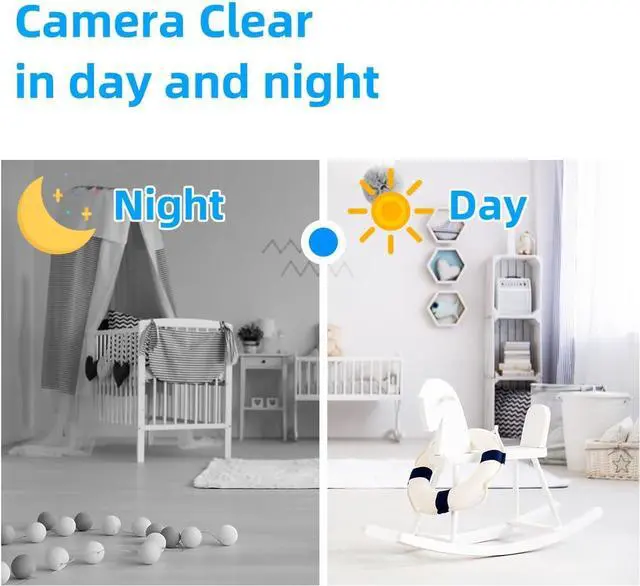
    • Night Vision & 120° Wide Angle1080P HD lens, built-in 5 infrared lights. Phone charger camera can be set to automatically open the night vision mode, paired with a 110° wide-angle lens and night vision capability, delivering clear and expansive views day or night to effectively minimize surveillance blind spots
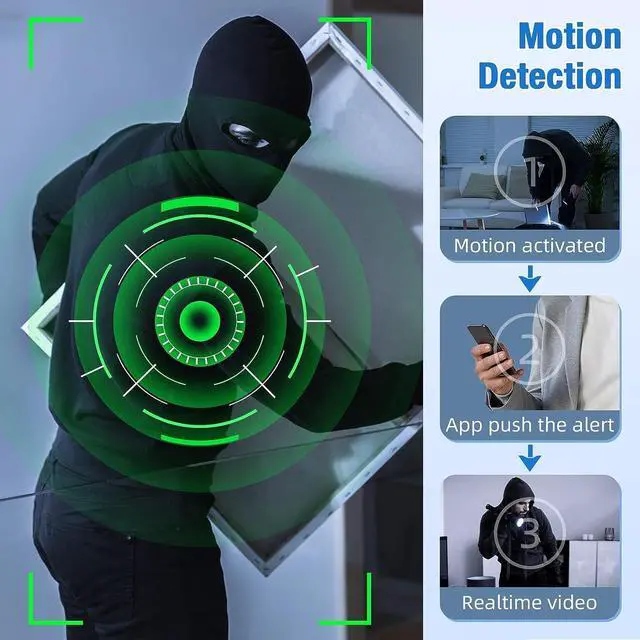
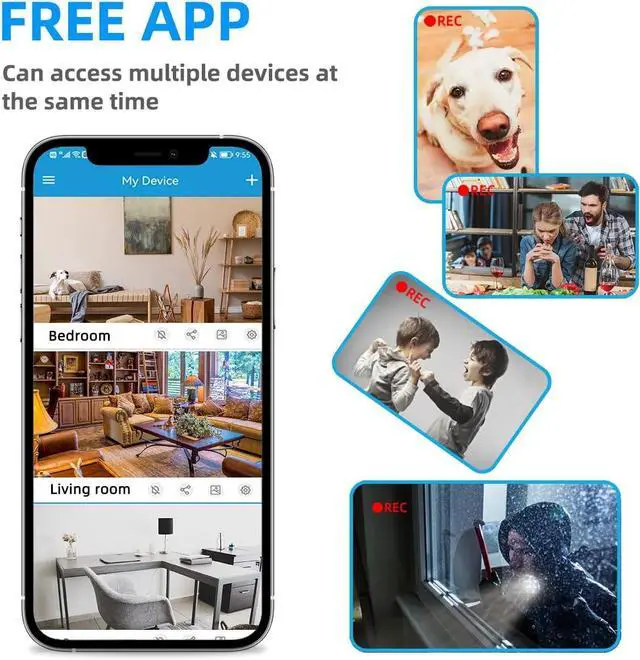
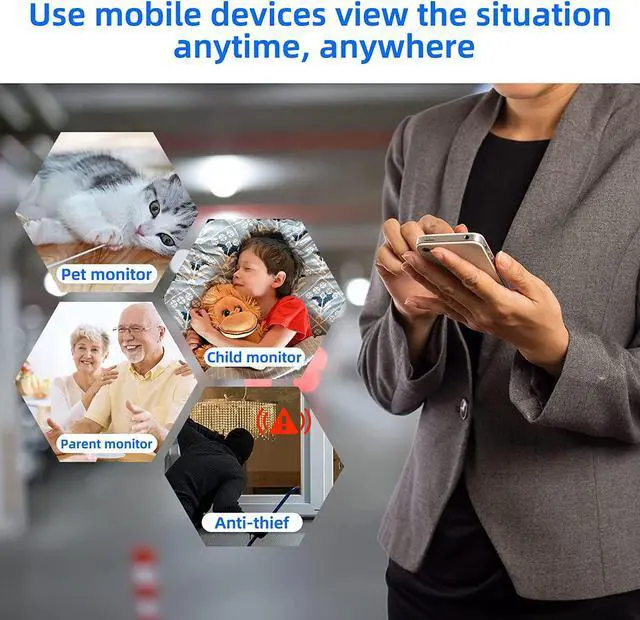
    • Motion Detect & Loop StorageHidden camera phone charger supports 2.4G WiFi connection.The device paired with the home router can be accessed at any time through the APP. With the motion detection function, when the screen appears suspicious, the APP will send an alarm notification. keeping your video files private without using cloud services. Simple setup and operation. SD cardNot included storage supports new files overwriting old files( u
    +
    +
    Overview
    Reviews

    Any questions? Ask CelesteSM will help you find out quickly.

    Step 1: Power On the Device
    Plug the device into a 110V outlet and wait 3060 seconds for it to start. The device will create a WiFi signal named BLink-XXXX.
    Step 2: Connect via Phones WiFi Settings
    On your phone, go to WiFi settings, find and connect to BLink-XXXX.
    Default password: 0123456789
    Its normal if you see No Internet just confirm the connection is successful.
    Step 3: Open the App
    Launch the Lizvie Pro app. Your device will appear and automatically open the live view page.
    Step 4: Link to Home WiFi
    Wait about 10 seconds for a prompt. Select your 2.4GHz home WiFi, enter your password, and complete the connection.
    (If no prompt appears, go to Settings > Network Information inside the app.)
    Step 5: Setup Complete
    You can now check the live view remotely, receive motion alerts, and customize settings from your phone.
    How to Use (Quick Setup Guide)

    Warranty & Returns

    Warranty, Returns, And Additional Information

    Warranty

    • Please contact the Seller directly for warranty information. Warranty information may also be found on the Manufacturer's website.
    • CONTACT

    Return Policies

    Manufacturer Contact Info

    LOADING...