• $180.99
  • Free 30-day Returns
  • Ships from China.

    Shipped by Cloudless Clear

    Price alert
    Shop it at NeweggBusiness.

    Meet Your Seller

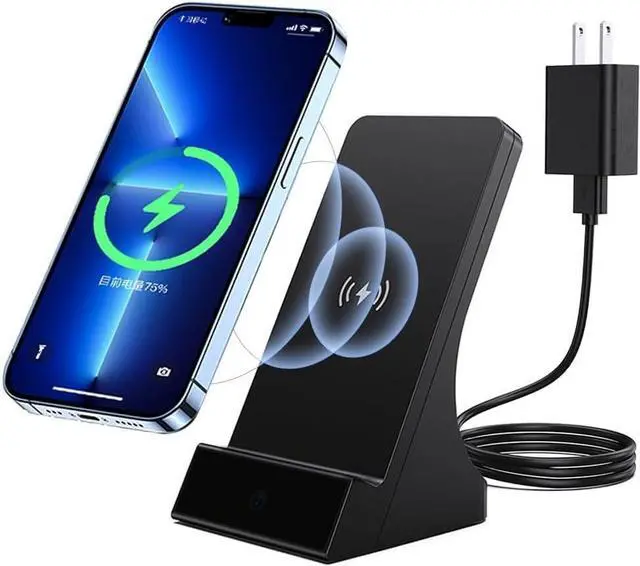
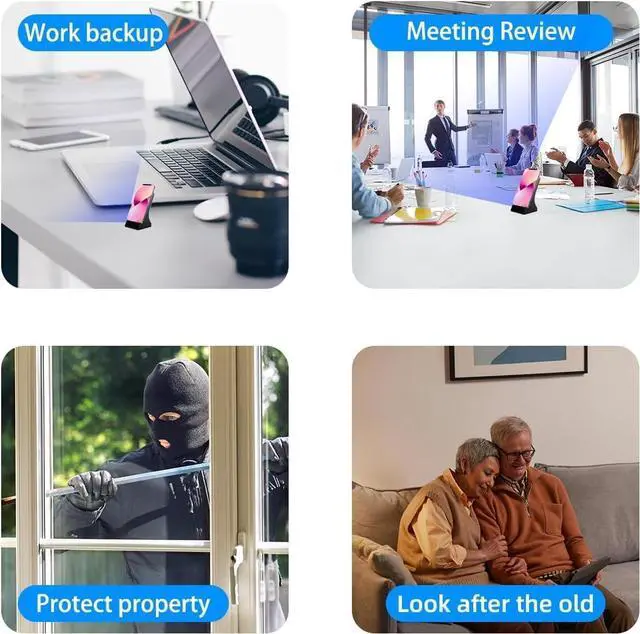
    Wireless Phone Charger Camera,WiFi Hidden Camera Charger with Motion Detection, Free APP Remote Control, 24/7 Night Vision, Nany Cam for Office/Indoor Safety.

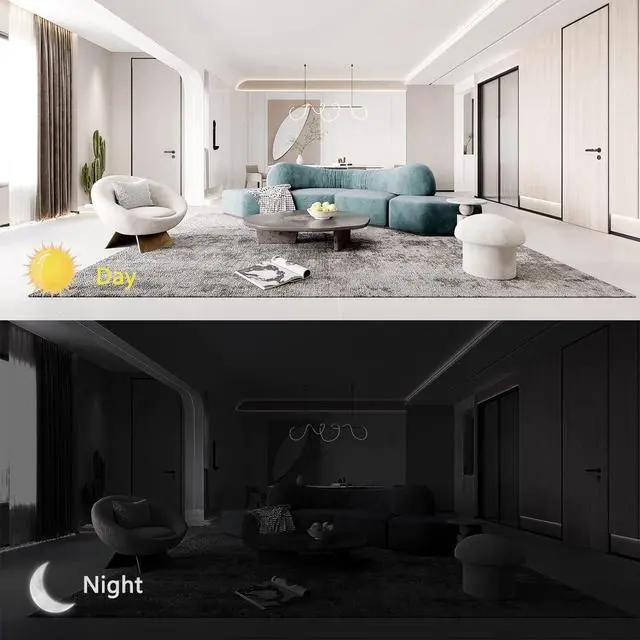
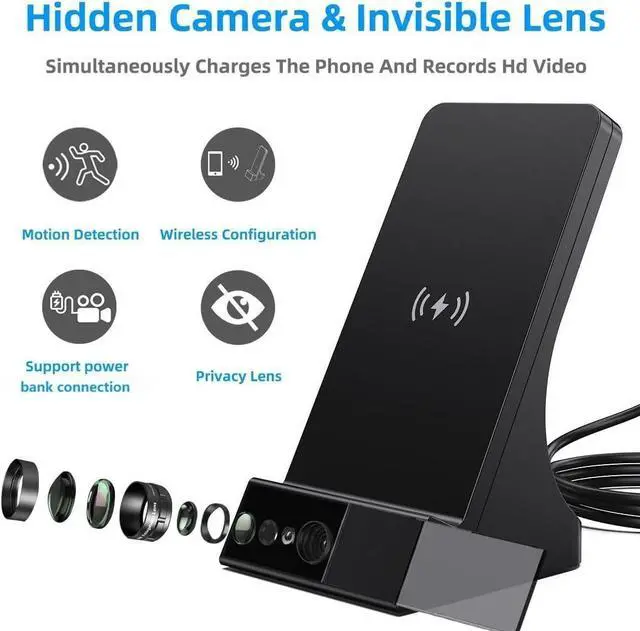
    • 1080P HD Visuals & Night View: Enjoy clear 1080P definition with the phone charger hidden camera. A 110° wide lens helps capture a broader view, while the hidden camera charger dock provides visibility even under low-light conditions.
    • 2-in-1 Charger : The phone charger spy camera combines everyday charging with an extra function. Supporting up to 5W wireless phone charging, this hidden camera phone charger fits naturally into home or office spaces.
    • Simple Setup with Local Storage: Compatible with Micro SD cards up to 256GB (not included), the hidden camera phone charger makes saving content convenient. Easy to install and designed for daily use.
    • Hidden design: This wireless charger camera integrates its lens inside the body, ensuring a compact and natural look. The hidden camera charger dock style keeps your desk tidy and uncluttered.
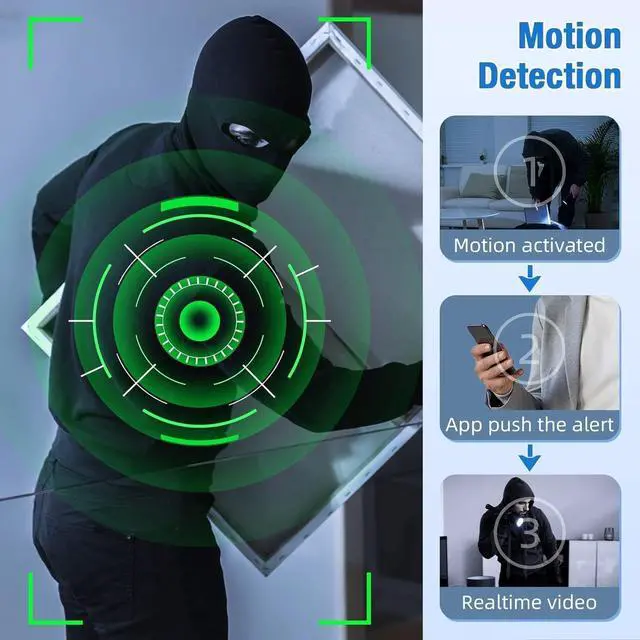
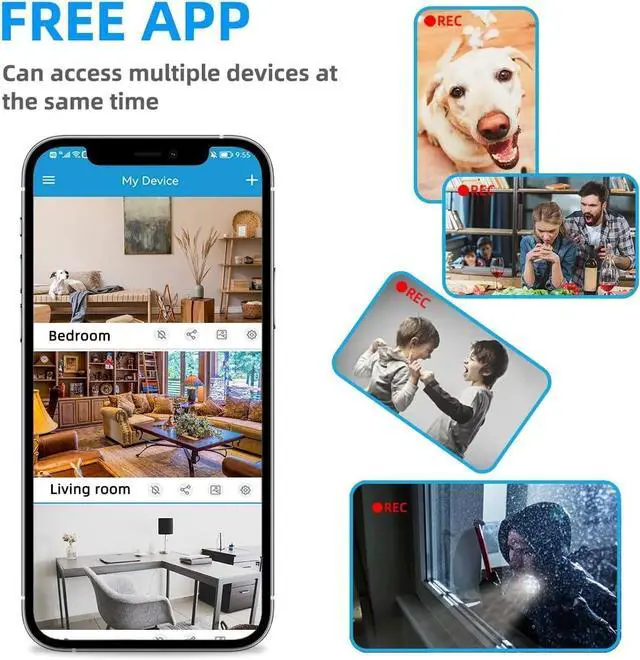
    • WiFi Connection & Motion Alerts: Connect the spy camera phone charger via WiFi and receive instant app notifications when motion is detected. Stay u
    +
    +
    Overview
    Reviews

    Any questions? Ask CelesteSM will help you find out quickly.

    Step 1: Power On the Device
    Plug the device into a outlet and wait 3060 seconds for it to boot up. The device will emit a wireless network signal named BLink-XXXX.
    Step 2: Connect via Phones WiFi Settings
    On your phone, open WiFi settings, find and connect to BLink-XXXX. Default password: 0123456789. No Internet message is normal just ensure the connection is successful.
    Step 3: Open the App
    Launch the Lizvie Pro app. The device will appear automatically and take you to the viewing screen.
    Step 4: Connect to Home WiFi
    After about 10 seconds, a prompt will appear. Select your 2.4GHz home WiFi, enter the password, and complete the setup.
    Important: Pairing with your home router is required for remote viewing functionality.(If no prompt appears, go to Settings > Network Information in the app.)
    Step 5: Ready to Use
    You can now access the device remotely, receive motion alerts, and manage settings via your phone.
    How to Use (Quick Setup Guide)

    Warranty & Returns

    Warranty, Returns, And Additional Information

    Warranty

    • Please contact the Seller directly for warranty information. Warranty information may also be found on the Manufacturer's website.
    • CONTACT

    Return Policies

    Manufacturer Contact Info

    LOADING...