Your Browsing History
Meet Your Seller
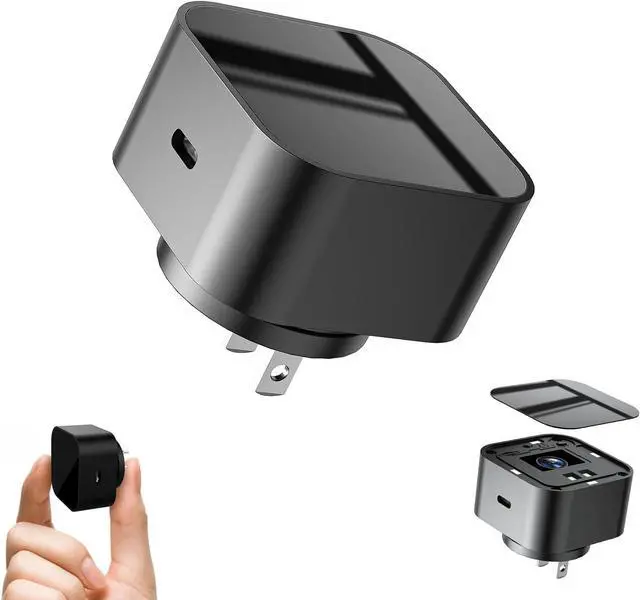
USB Charger Dock Hidden Camera, 1080P Spy Camera WiFi with Motion Detection, App Remote View, Free App Control, Ideal for Home, Office, Indoor or Outdoor Security
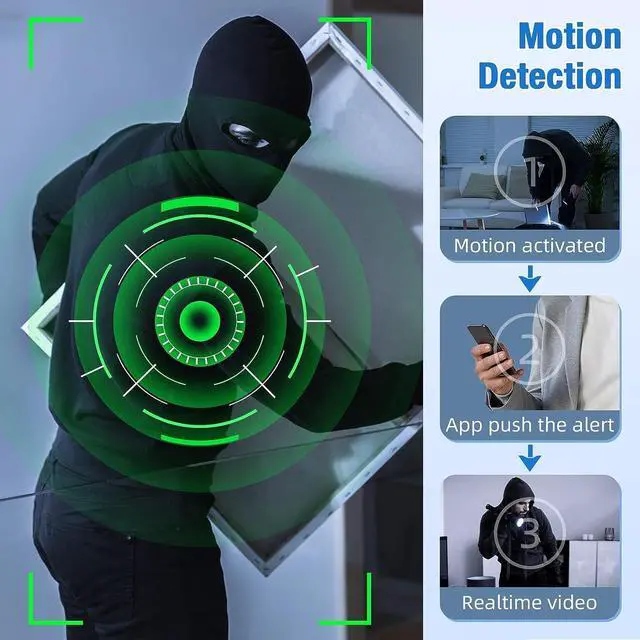
- Motion Detection Spy cameraThe hidden charger camera alerts you when motion is detected, helping you stay informed about activities in your home, office, or any indoor area.
- 1080P HD Phone Charger Spy Camera: This hidden cam charger clear 1080P visuals with a 170° wide-angle lens, covering more of your space for better indoor security and peace of mind.
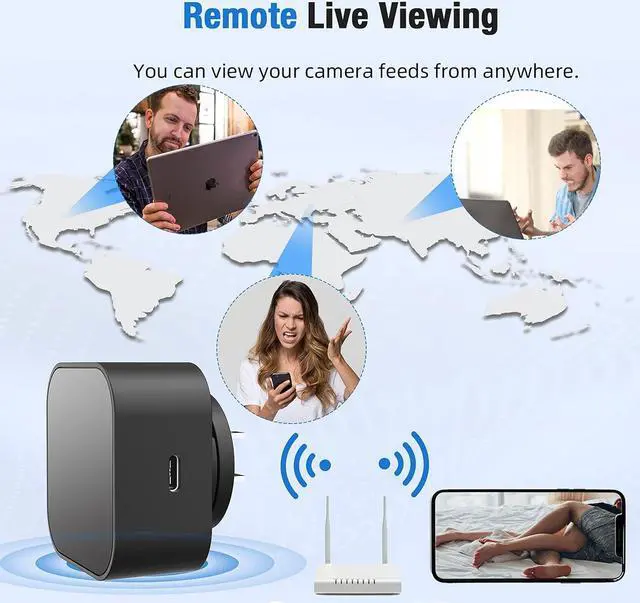
- Easy WiFi Connection Nanny Cam: Connect this nanny camera to 2.4G WiFi for smooth remote viewing via app, giving you quick access to your space anytime and anywhere.
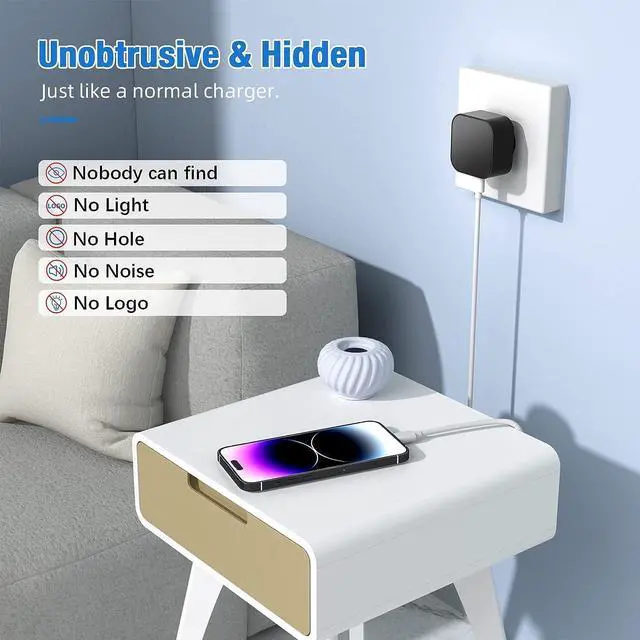
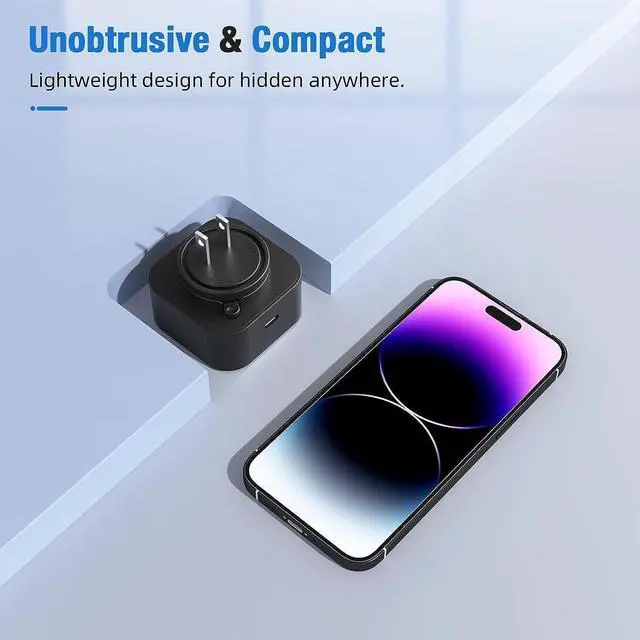
- Camera Phone Charger Dock with Stealth DesignThis phone charger dock hides the lens under a glass cover, with no visible lights or signs, keeping the camera completely unnoticed in any setting.
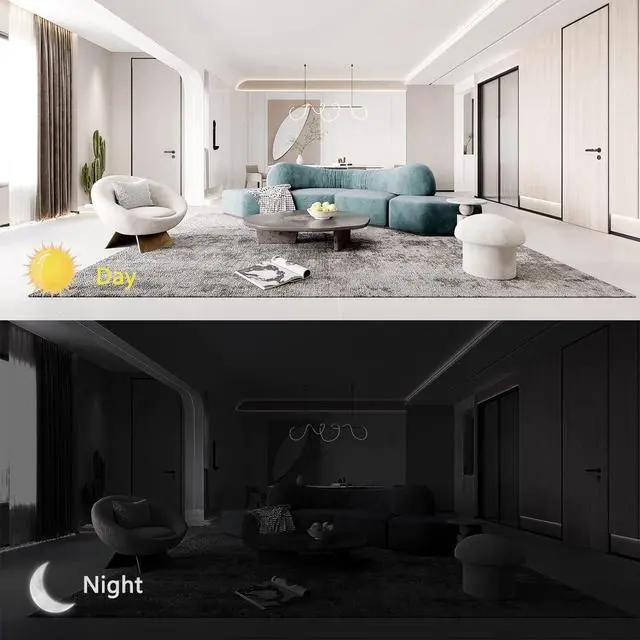
- Spy Cam with Night Vision & Storage Support The charger spy camera supports up to 256G SD card storage and offers clear images even at night, ideal for family safety and pet care monitoring.
+
+
Overview
Reviews
Any questions? Ask CelesteSM will help you find out quickly.
Try me now
Step 1: Remove the Protective Film
Before use, gently peel off the protective film covering the lens to ensure a clear image.
Step 2: Power On the Device
Plug the device into a outlet and wait 3060 seconds for it to boot up. The device will emit a wireless network signal named BLink-XXXX.
Step 3: Connect via Phones WiFi Settings
On your phone, open WiFi settings, find and connect to BLink-XXXX. Default password: 0123456789. No Internet message is normal just ensure the connection is successful.
Step 4: Open the App
Launch the Lizvie Pro app. The device will appear automatically and take you to the viewing screen.
Step 5: Connect to Home WiFi
After about 10 seconds, a prompt will appear. Select your 2.4GHz home WiFi, enter the password, and complete the setup.
Important: Pairing with your home router is required for remote viewing functionality.(If no prompt appears, go to Settings > Network Information in the app.)
Step 6: Ready to Use
You can now access the device remotely, receive motion alerts, and manage settings via your phone.
Warranty & Returns
Warranty, Returns, And Additional Information
Warranty
- Please contact the Seller directly for warranty information. Warranty information may also be found on the Manufacturer's website.
- CONTACT
Return Policies
- Return for refund within: 30 days
- Return for replacement within: 30 days
- This item is covered by Cloudless Clear Return Policy
Manufacturer Contact Info
- For a directory of all our manufacturers, please click below.
- Manufacturers Directory
LOADING...