Your Browsing History
Meet Your Seller
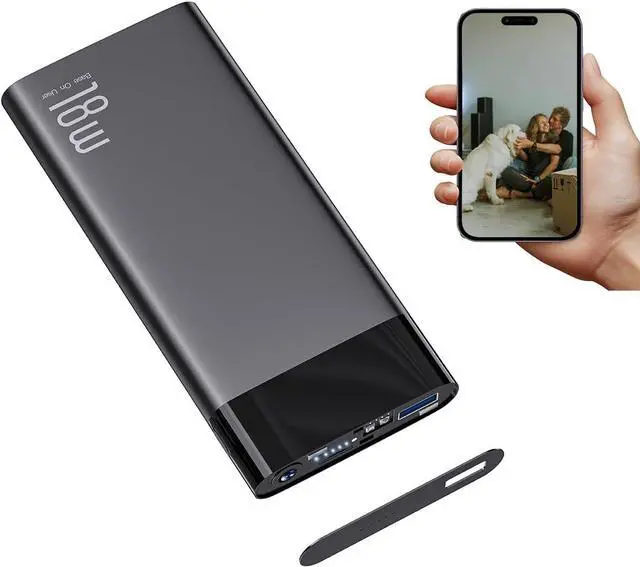
Hidden Camera, Portable USB Phone Charger Camera/Motion Detection Night Vision Remote Control Free App View Loop SD Storage for Simple, Reliable Use Indoor Home Security
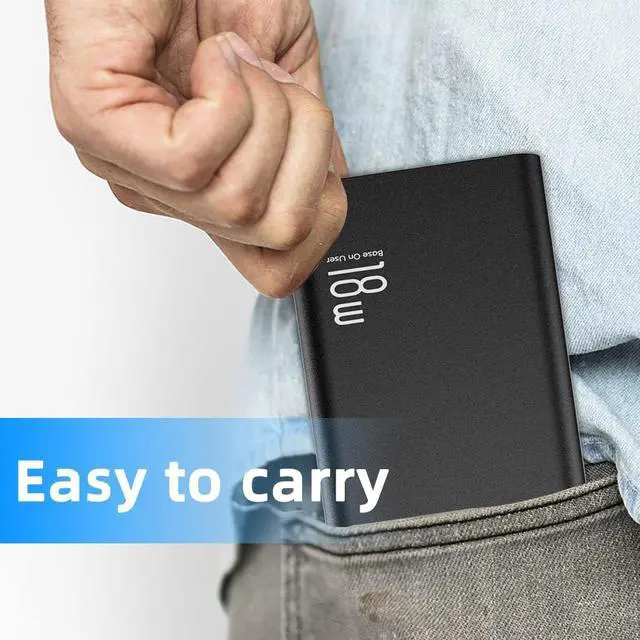
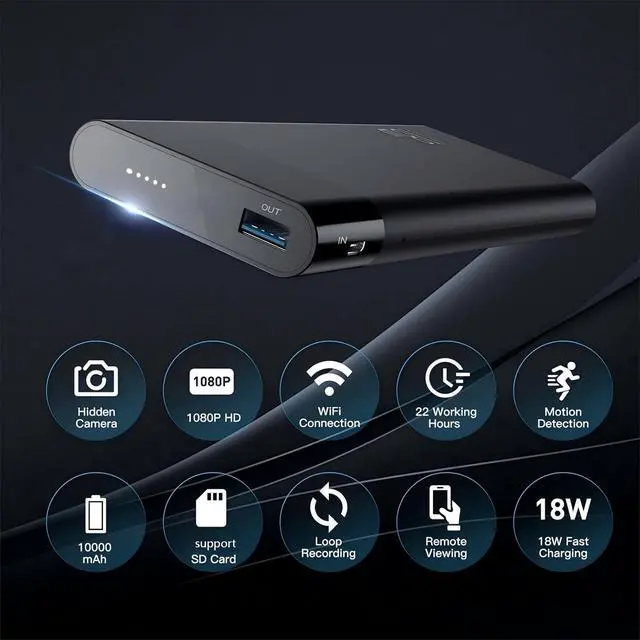
- Discreet Surveillance Design: Cleverly disguised as an everyday phone charger, this spy camera provides covert monitoring capabilities while blending seamlessly into any home or office environment, allowing you to keep watch without drawing attention
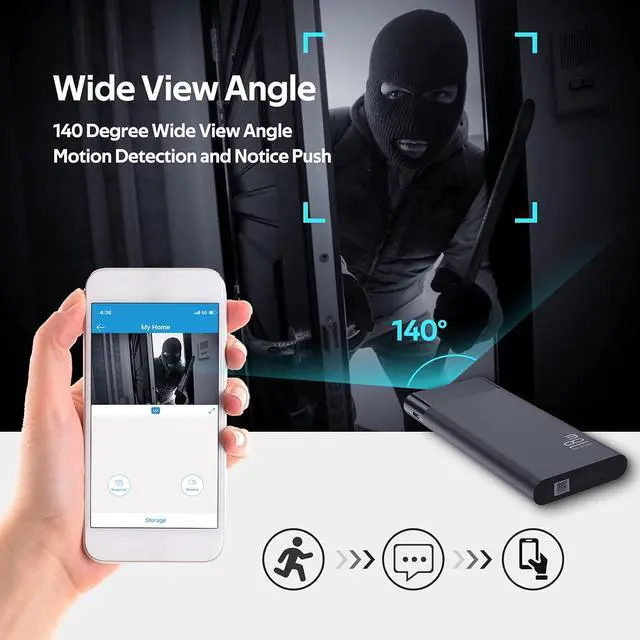
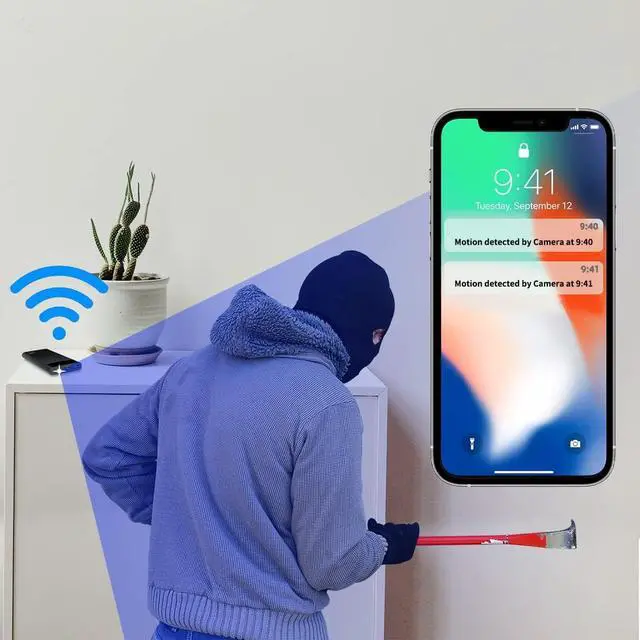
- Motion Detection Technology: Equipped with intelligent motion sensors that automatically trigger recording when movement is detected, ensuring you capture important events while conserving storage space and battery life for efficient surveillance
- Night Vision Capability: Features advanced infrared technology that enables clear video recording even in complete darkness, providing 24/7 monitoring protection for your home security needs regardless of lighting conditions
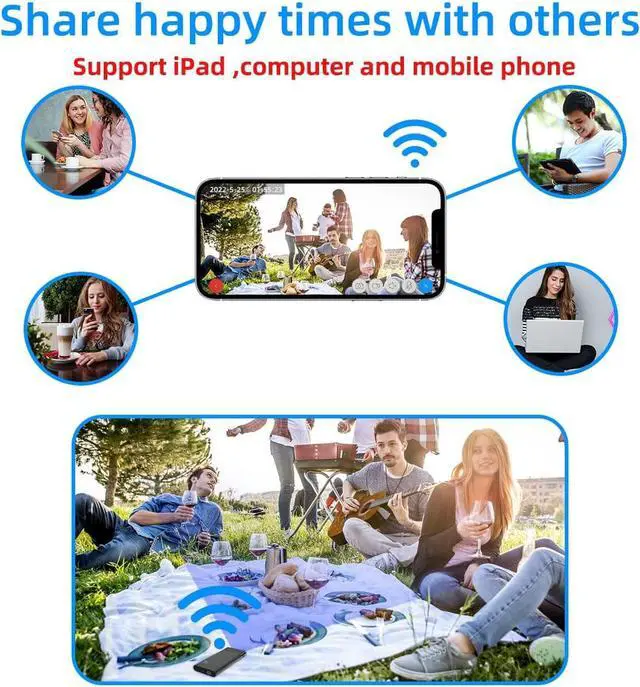
- Remote Mobile Access: Free companion app allows you to view live footage and recorded videos directly from your smartphone or tablet from anywhere, giving you real-time access to monitor your property while away from home
- Loop Recording Function: Supports SD card storage
+
+
Overview
Reviews
Any questions? Ask CelesteSM will help you find out quickly.
Try me now
Turn on the device: Power button press x 1Turn on the camera: Press the power button x 1.5s-3s (USB port, the fifth indicator light can be on), wait 40 seconds and the indicator light flashes to connect.Turn off Camera: Power button Press x 3sReset:quick press power button over 6 times Step 1: Charge the device Fully charge the device before first use. Step 2: Turn On the device
Press and hold the power button for 3-5 seconds to turn on the device. Wait 30-60 seconds for the device to start. The device will create a WiFi signal named "BLink-XXXX".Important: The camera only activates when the 5th indicator light turns on.
Step 3: Connect via Phone's WiFi Settings
On your phone, go to WiFi settings, find and connect to "BLink-XXXX".Default password: 0123456789. It's normal if you see "No Internet" just confirm the connection is successful.
Step 4: Open the App
Launch the Lizvie Pro app. Your device will appear and automatically open the live view page. If it does not appear, you will need to add it manually.
Step 5: Link to Home WiFi
Wait about 10 seconds for a prompt. Select your 2.4GHz home WiFi, enter your password, and complete the connection.(If no prompt appears, go to Settings > Network Information inside the app.)
Step 6: Setup Complete
You can now check the live view remotely, receive motion alerts, and customize settings from your phone.
How to turn on/off the camera
Warranty & Returns
Warranty, Returns, And Additional Information
Warranty
- Please contact the Seller directly for warranty information. Warranty information may also be found on the Manufacturer's website.
- CONTACT
Return Policies
- Return for refund within: 30 days
- Return for replacement within: 30 days
- This item is covered by Cloudless Clear Return Policy
Manufacturer Contact Info
- For a directory of all our manufacturers, please click below.
- Manufacturers Directory
LOADING...