• $180.99
  • Free 30-day Returns
  • Ships from China.

    Shipped by Cloudless Clear

    Price alert
    Shop it at NeweggBusiness.

    Meet Your Seller

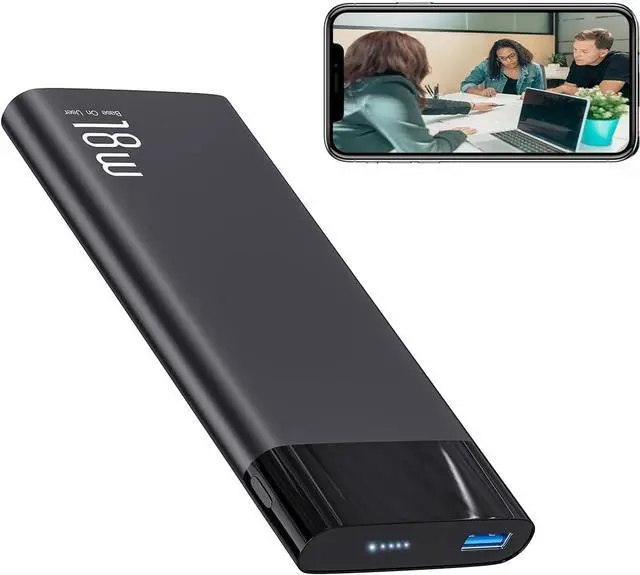
    Hidden Camera, Portable USB Cam with 1080P Motion Detection Alerts/SD Storage Surveillance Cam for Pet Home Security.

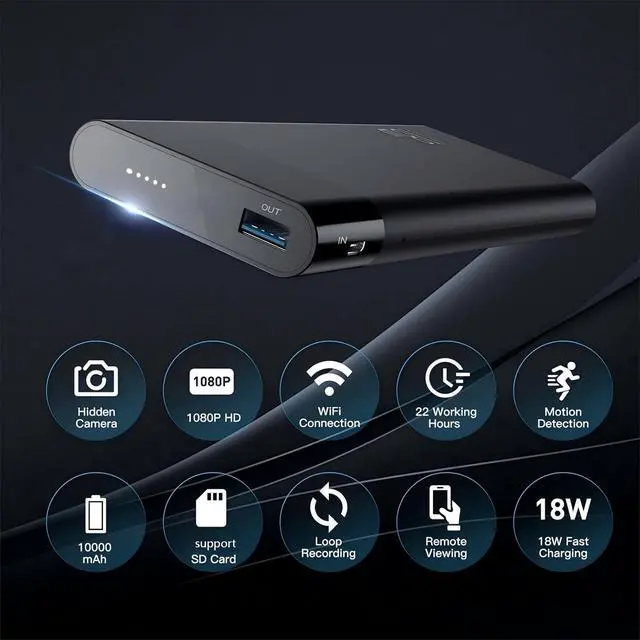
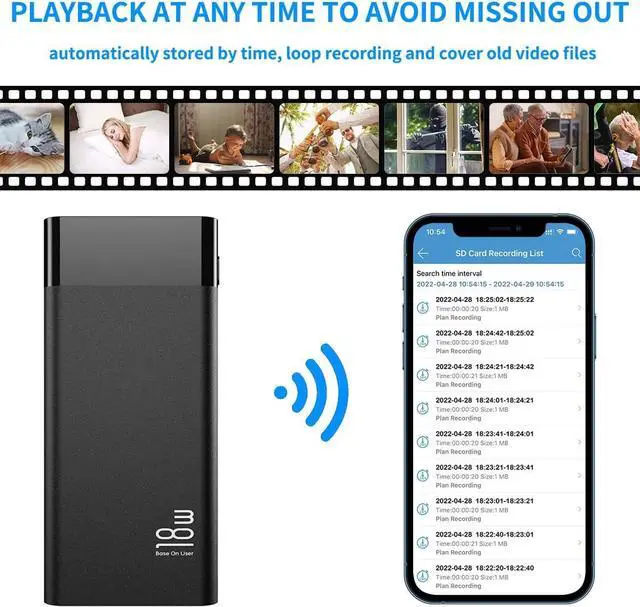
    • Rechargeable & Loop Recording Support: Built-in rechargeable power supports extended operation. Compatible with microSD cards (not included) and loop recording automatically overwrites older files for continuous use.
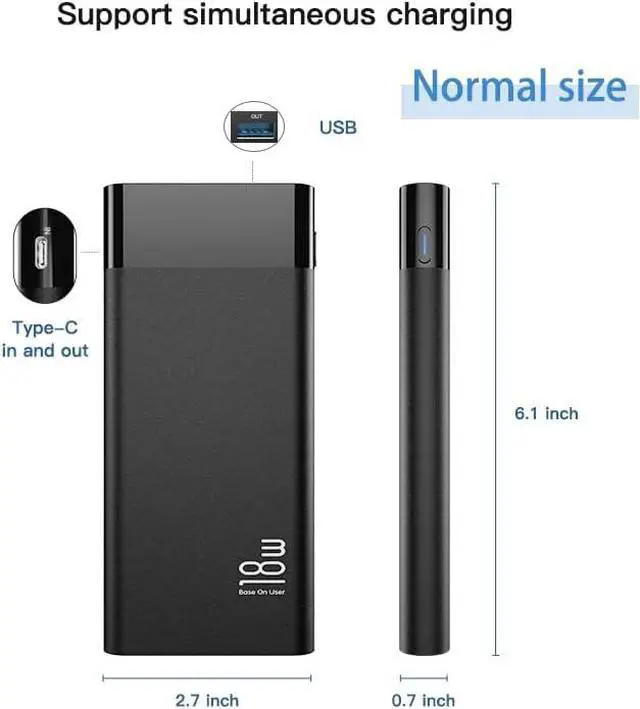
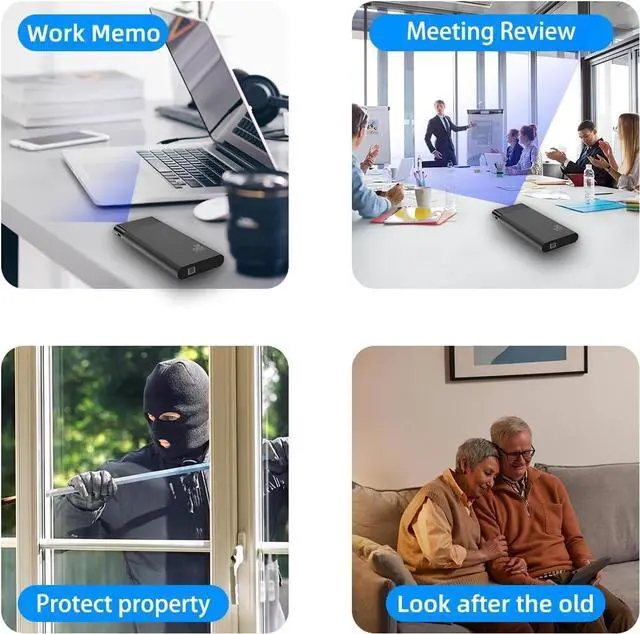
    • 2-in-1 with Built-In HD Camera: Designed to look and function like a regular Portable Camera, this device combines daily charging capability with integrated 1080P video recording, offering added peace of mind for home and personal use.
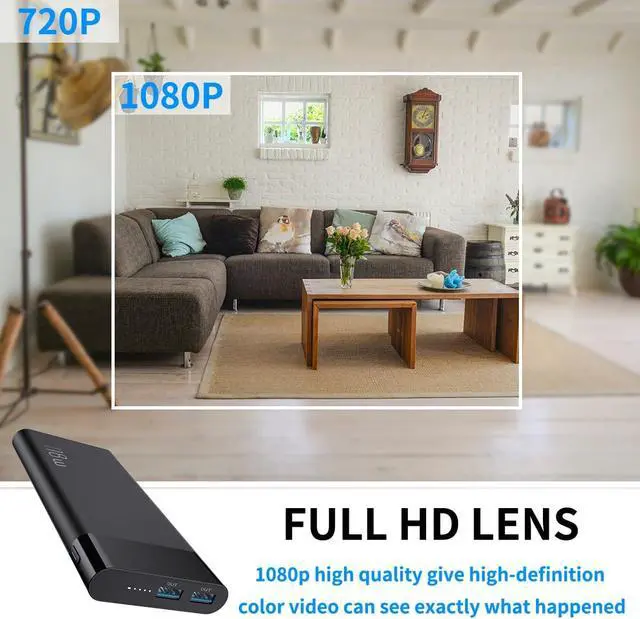
    • 1080P Full HD Video with Wide Viewing Angle: Captures clear, detailed video with a wide-angle lens to cover more of the room in a single frame, helping you stay aware of whats happening when youre away.
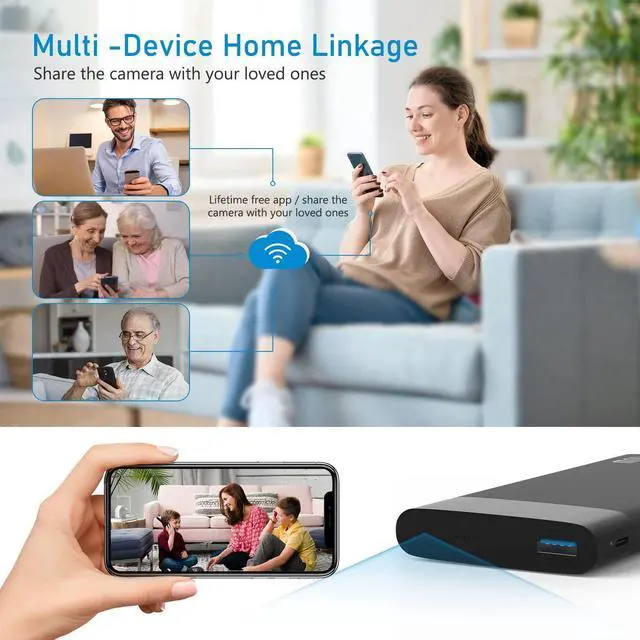
    • Smart Motion Detection & App Alerts: Automatically starts recording when motion is detected and sends instant notifications to your smartphone via the companion app, so you never miss important activity.
    • Wi-Fi Remote Viewing Anytime, Anywhere: Connects to 2.4GHz Wi-Fi and allows real-time viewing and playback through a free iOS & Andro
    +
    +
    Overview
    Reviews

    Any questions? Ask CelesteSM will help you find out quickly.


    Turn on the power bank: Power button press x 1Turn on the camera: Press the power button x 1.5s-3s (USB port, the fifth indicator light can be on), wait 40 seconds and the indicator light flashes to connect. Turn off Camera: Power button Press x 3s Reset:quick press power button over 6 times Step 1: Charge the Device Fully charge the device before first use.Step 2: Power On Press and hold the power button for 35 seconds to turn on the device. Wait 3060 seconds for it to initialize.A WiFi signal named BLink-XXXX will appear.
    Important: The camera activates only when the 5th indicator light turns on.
    Step 3: Connect via Phone WiFi Go to your phones WiFi settings and connect to BLink-XXXX. Default password: 0123456789. Its normal to see No Internet just make sure the connection is successful.
    Step 4: Open the App Open the Lizvie Pro app.The device will appear automatically and enter the live view. If it does not appear, please add it manually.
    Step 5: Connect to Home WiFi Wait about 10 seconds for the setup prompt.Select your 2.4GHz WiFi network, enter the password, and complete the connection.
    If no prompt appears: Go to Settings > Network Information in the app.
    Step 6: Setup Complete You can now:

    View live video remotelyReceive motion alertsAdjust settings through the app How to turn on/off the camera

    Warranty & Returns

    Warranty, Returns, And Additional Information

    Warranty

    • Please contact the Seller directly for warranty information. Warranty information may also be found on the Manufacturer's website.
    • CONTACT

    Return Policies

    Manufacturer Contact Info

    LOADING...