Your Browsing History
Meet Your Seller
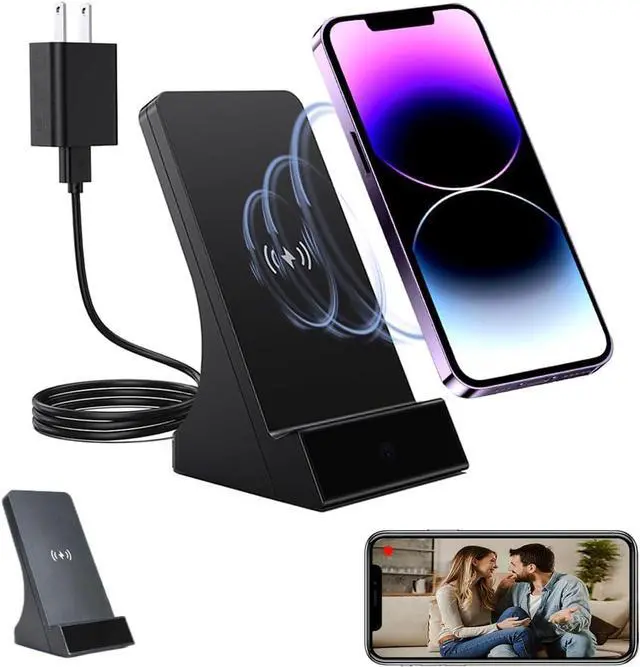
Phone Charger Cam, 1080P Wide-Angle Charger Dock, Night View, Motion Detection, Wireless Charging, Remote App View, for Home Security, Office, or Pets.
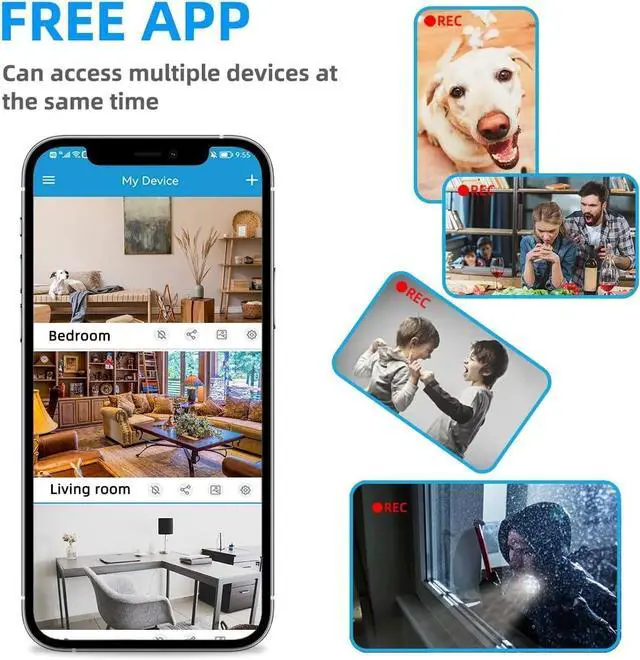
- Free App Control and WiFi Connectivity Connect via WiFi to manage settings directly through the free mobile appsimple setup with no monthly fees.
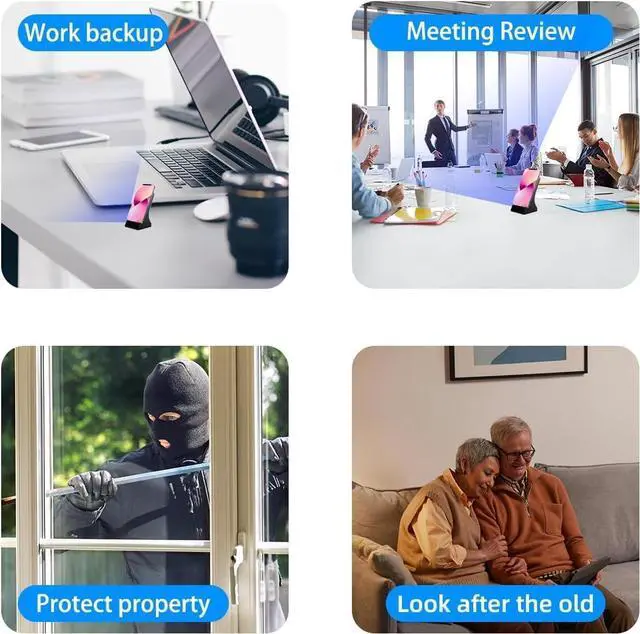
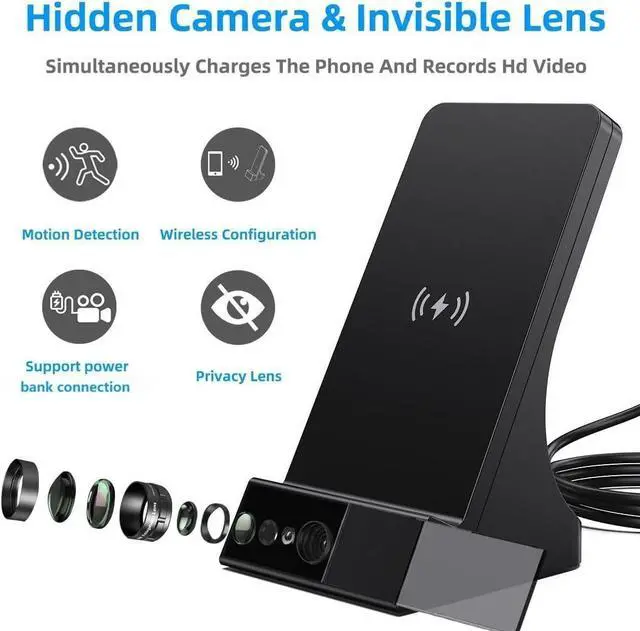
- Wireless Charging & Concealed design As a phone charger, its concealed lens blends seamlessly into any space without drawing attention. It not only charges your phone but also monitors home security.
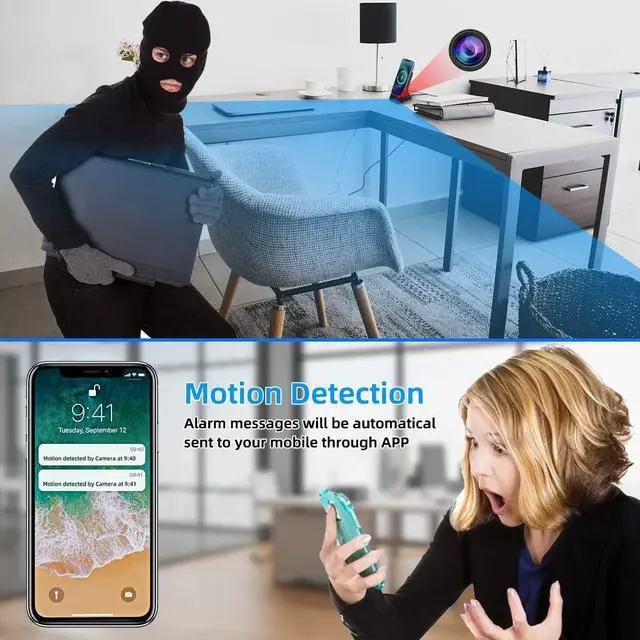
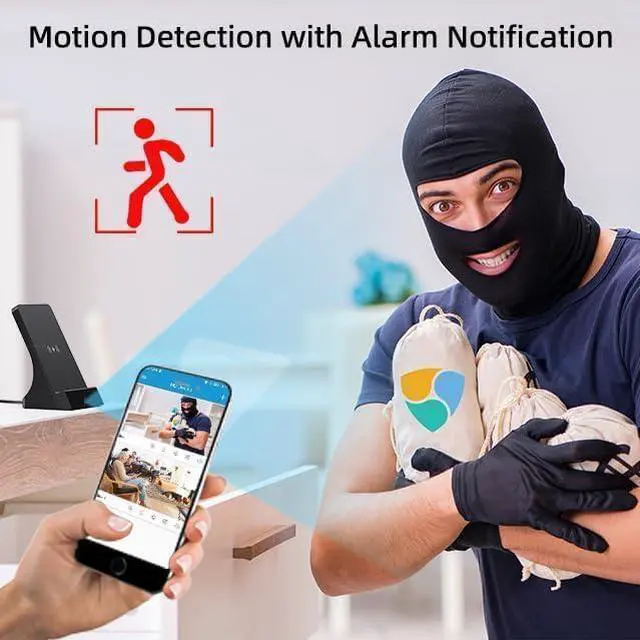
- Night Vision & Motion Detection Equipped with night vision and motion detection technology, the phone charger spy monitors moving objects and sends instant notifications via the app.
- Wide-Angle Coverage & 1080P The phone charger delivers 1080P full HD quality with a 120° wide-angle lens, capturing more indoor details for peace of mind.
- Local Storage and Multi-Function Expansion The hidden phone charger supports up to 256GB microSD card storage while simultaneously providing wireless phone charging (up to 5W power).
+
+
Overview
Reviews
Any questions? Ask CelesteSM will help you find out quickly.
Try me now
Step 1: Power On the Device
Plug the device into a outlet and wait 3060 seconds for it to boot up. The device will emit a wireless network signal named BLink-XXXX.
Step 2: Connect via Phones WiFi Settings
On your phone, open WiFi settings, find and connect to BLink-XXXX. Default password: 0123456789. No Internet message is normal just ensure the connection is successful.
Step 3: Open the App
Launch the Lizvie Pro app. The device will appear automatically and take you to the viewing screen.
Step 4: Connect to Home WiFi
After about 10 seconds, a prompt will appear. Select your 2.4GHz home WiFi, enter the password, and complete the setup.
Important: Pairing with your home router is required for remote viewing functionality.(If no prompt appears, go to Settings > Network Information in the app.)
Step 5: Ready to Use
You can now access the device remotely, receive motion alerts, and manage settings via your phone.
How to Use (Quick Setup Guide)
Warranty & Returns
Warranty, Returns, And Additional Information
Warranty
- Please contact the Seller directly for warranty information. Warranty information may also be found on the Manufacturer's website.
- CONTACT
Return Policies
- Return for refund within: 30 days
- Return for replacement within: 30 days
- This item is covered by Cloudless Clear Return Policy
Manufacturer Contact Info
- For a directory of all our manufacturers, please click below.
- Manufacturers Directory
LOADING...