• $180.99
  • Free 30-day Returns
  • Ships from China.

    Shipped by Cloudless Clear

    Price alert
    Shop it at NeweggBusiness.

    Meet Your Seller

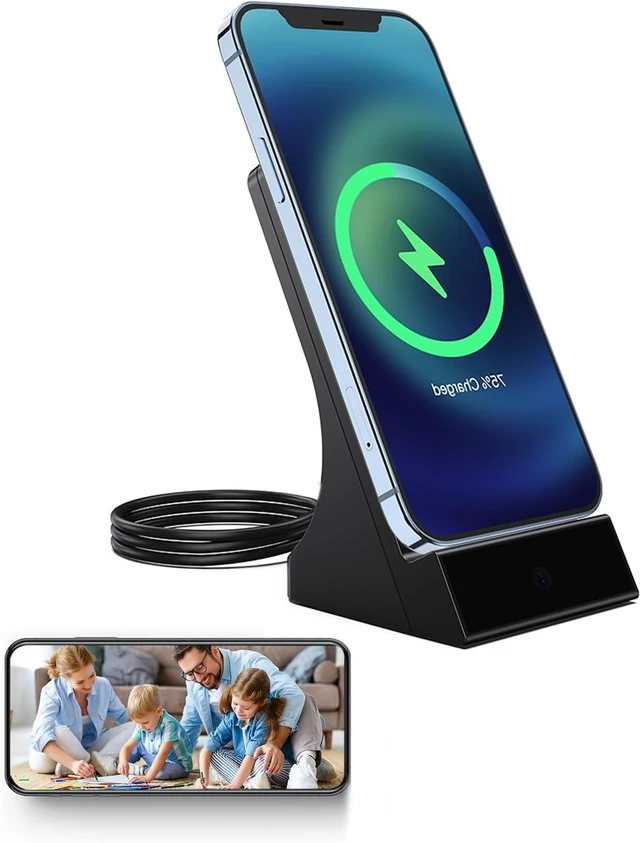
    Hidden Camera Phone Charger Spy Camera Dock, 2.4GHz WiFi

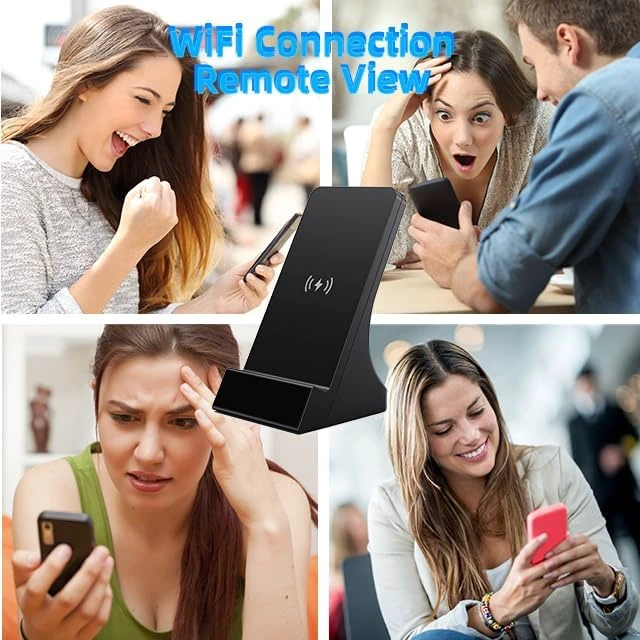
    • Remote Viewing, Automatic Night Vision, Motion Detection, Loop Storage, APP Control Android & IOS
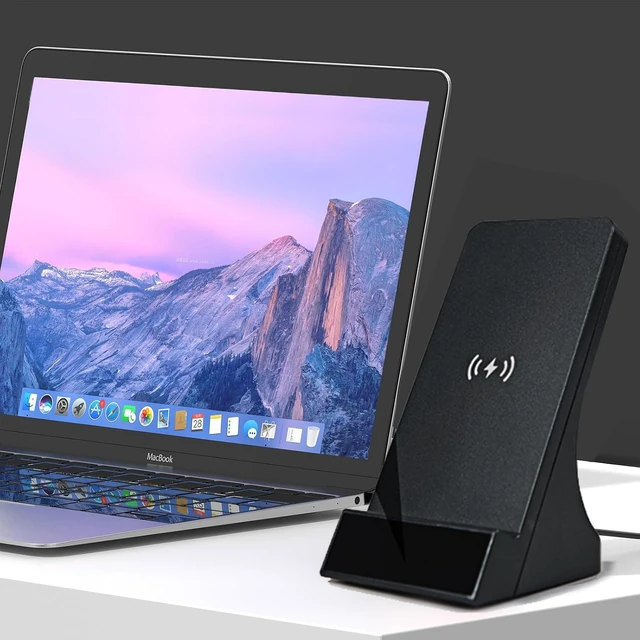
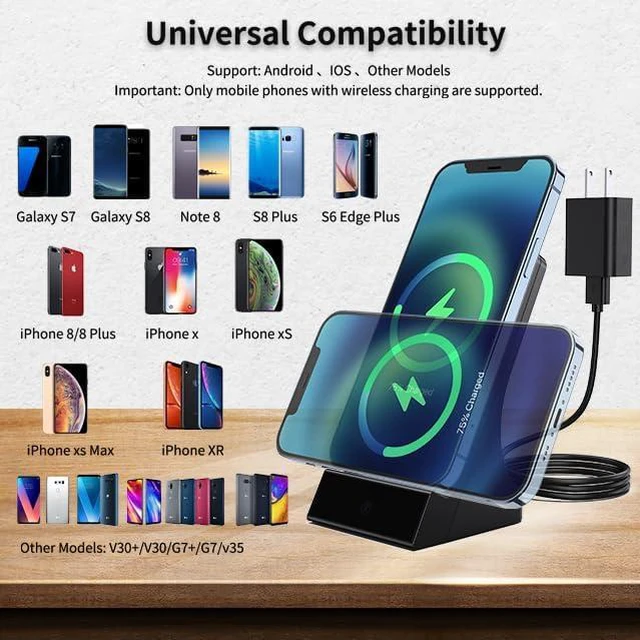
    • 3-in-1 Design - Hidden Camera + Wireless Charger + Phone Stand: Three functions in one sleek device. Wirelessly charge your phone, prop it up for hands-free viewing, and keep an eye on your space - all at the same time
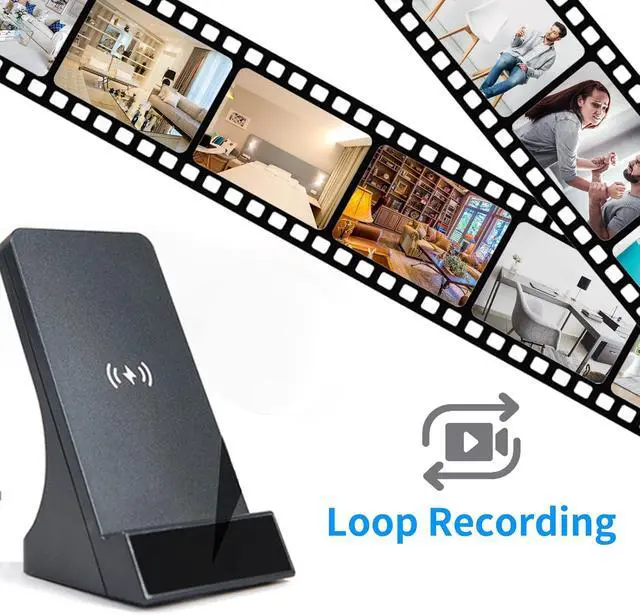
    • Remote Reviewing & Loop Recording: View live footage or play back recordings from anywhere using the free app. Save videos to a microSD card (not included), and loop recording automatically overwrites old files when space runs out. No monthly fees. No hassle
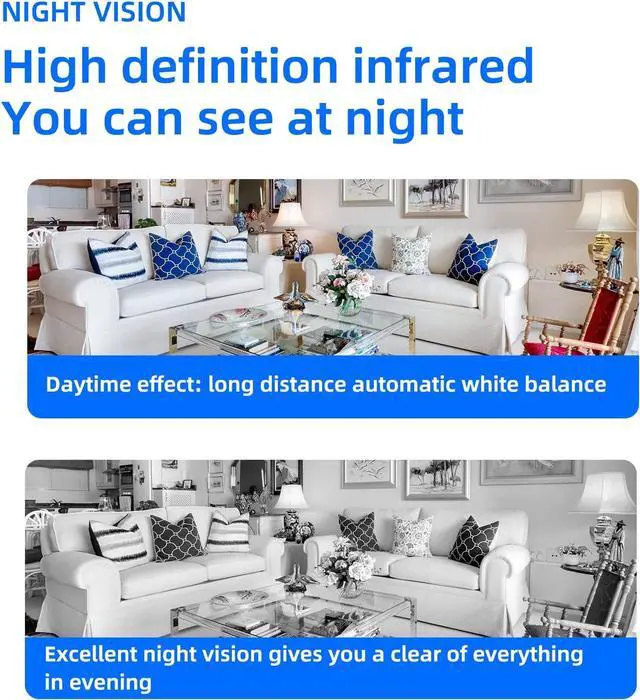
    • Automatic Night Vision Clear Views in the Dark: When the lights go out, the camera switches to night vision automatically. You'll get sharp, detailed footage even in total darkness. Daytime clarity, nighttime peace of mind
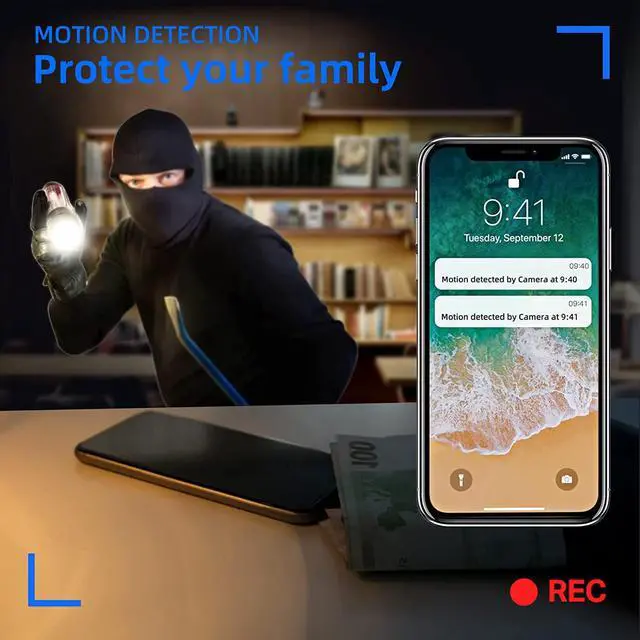
    • Motion Detection with Real-Time Alerts Always in the Know: The camera senses movement the moment it happens and sends an instant alert to your phone. Whether it's your baby waking up, your pet jum
    +
    +
    Overview
    Reviews

    Any questions? Ask CelesteSM will help you find out quickly.

    Step 1: Power On the Device
    Plug the device into a 110V outlet and wait 3060 seconds for it to start. The device will create a WiFi signal named BLink-XXXX.
    Step 2: Connect via Phones WiFi Settings
    On your phone, go to WiFi settings, find and connect to BLink-XXXX.
    Default password: 0123456789
    Its normal if you see No Internet just confirm the connection is successful.
    Step 3: Open the App
    Launch the Lizvie Pro app. Your device will appear and automatically open the live view page.
    Step 4: Link to Home WiFi
    Wait about 10 seconds for a prompt. Select your 2.4GHz home WiFi, enter your password, and complete the connection.
    (If no prompt appears, go to Settings > Network Information inside the app.)
    Step 5: Setup Complete
    You can now check the live view remotely, receive motion alerts, and customize settings from your phone.
    How to Use (Quick Setup Guide)

    Warranty & Returns

    Warranty, Returns, And Additional Information

    Warranty

    • Please contact the Seller directly for warranty information. Warranty information may also be found on the Manufacturer's website.
    • CONTACT

    Return Policies

    Manufacturer Contact Info

    LOADING...