






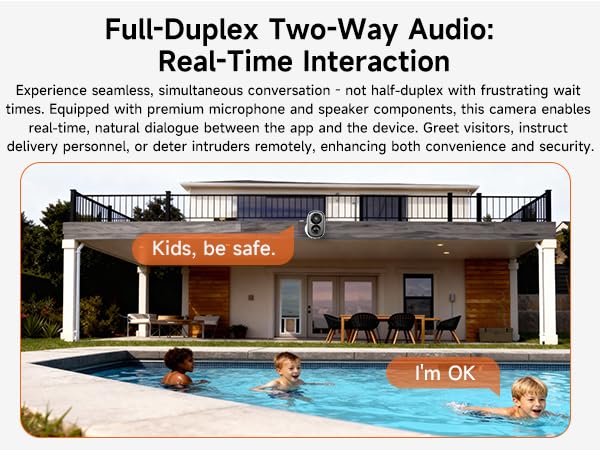
Two-way talk feature does not work.
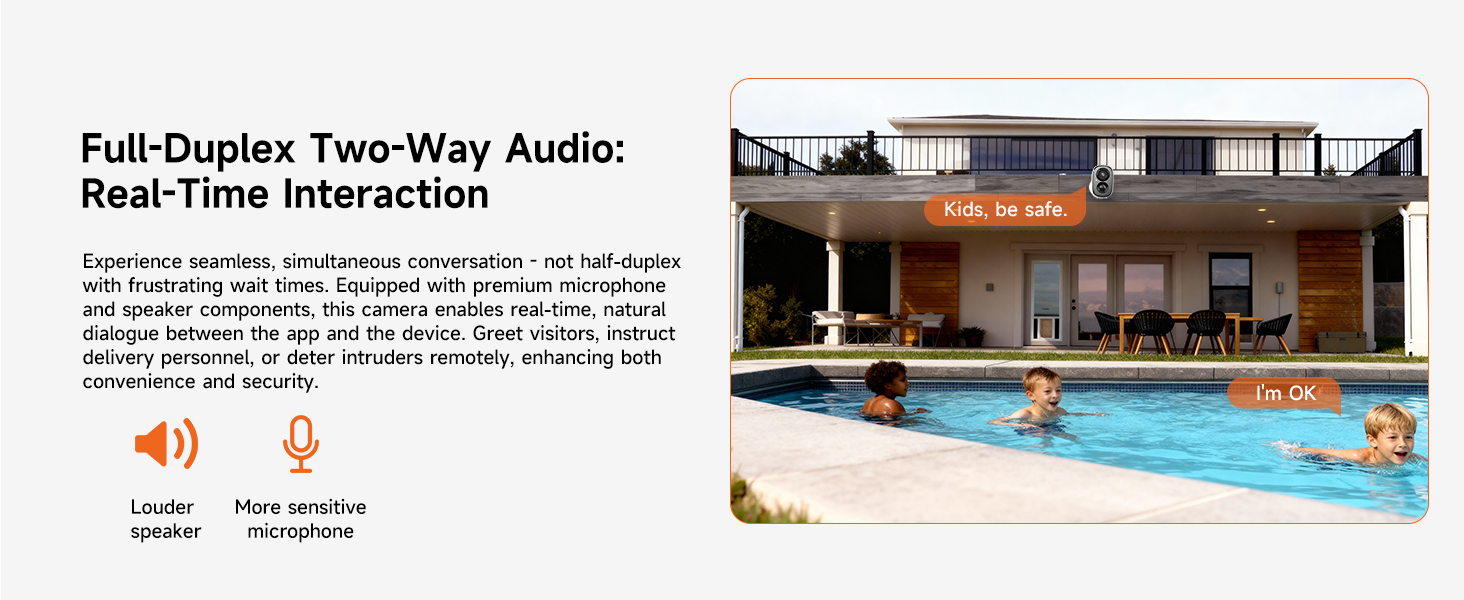
1. Enable your phone's Microphone Permission for the CINMOORE APP: Settings - CINMOORE APP - Microphone.
2. In the APP Settings > Sound Settings, confirm that both "Live Broadcast Audio Collection" and "Intercom Volume" are enabled.
The camera is turning on and off intermittently.
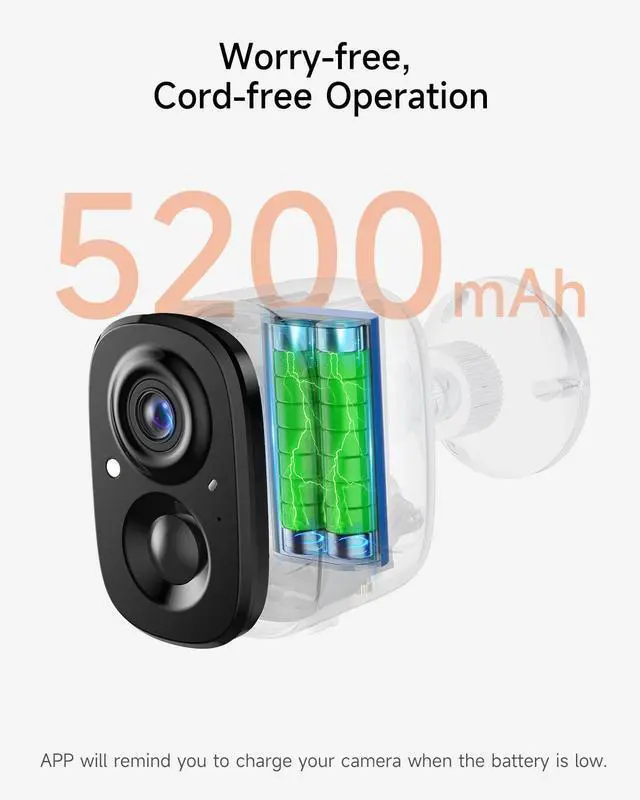
1. When the battery is low, the camera may automatically hibernate or restart. We recommend fully charging the camera before connecting it to the network for use.
2. Reset the camera and upgrade to the latest firmware via the App.
WiFi connection is failed.
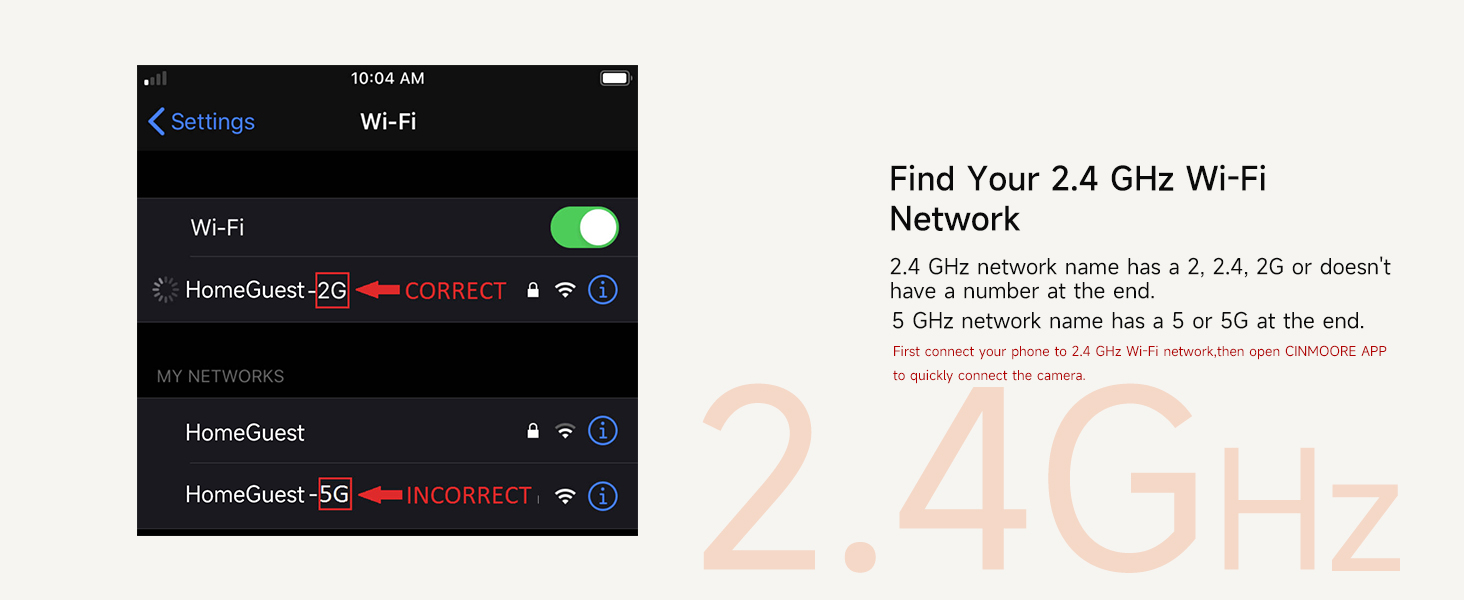
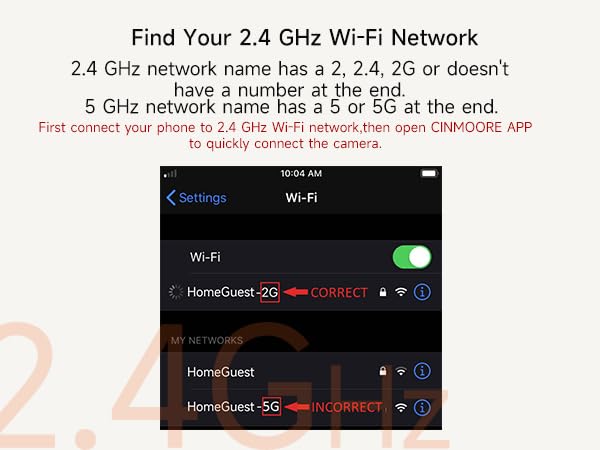
1. Use only a 2.4GHz WiFi network (5GHz WiFi is not supported).
2. Move the camera closer to the router to improve signal strength.
3. Restart both the router and the camera to refresh the connection.
How to allow mutiple users for simultaneous viewing?
Device Sharing Guide:
1. On the App homepage, click the "more" button, select "Share", generate a device sharing code.
2. Other users to be shared with should download the App, register a new account, scan the sharing code to add the camera
How to save recordings to phone?
?1. SD Card Recordings?: During playback ? Tap ?"Screen Record" icon? (top-right) ? "Recording" prompt appears ? Saves to phone gallery.
?2. Cloud Recordings?: Playback ? Tap ?"Batch Manage"? ? Select clips ? Tap ?"Download"? to save to phone.
Cinmoore Camera App Instructions for Recording and Playback
I. Enabling Recording Function?
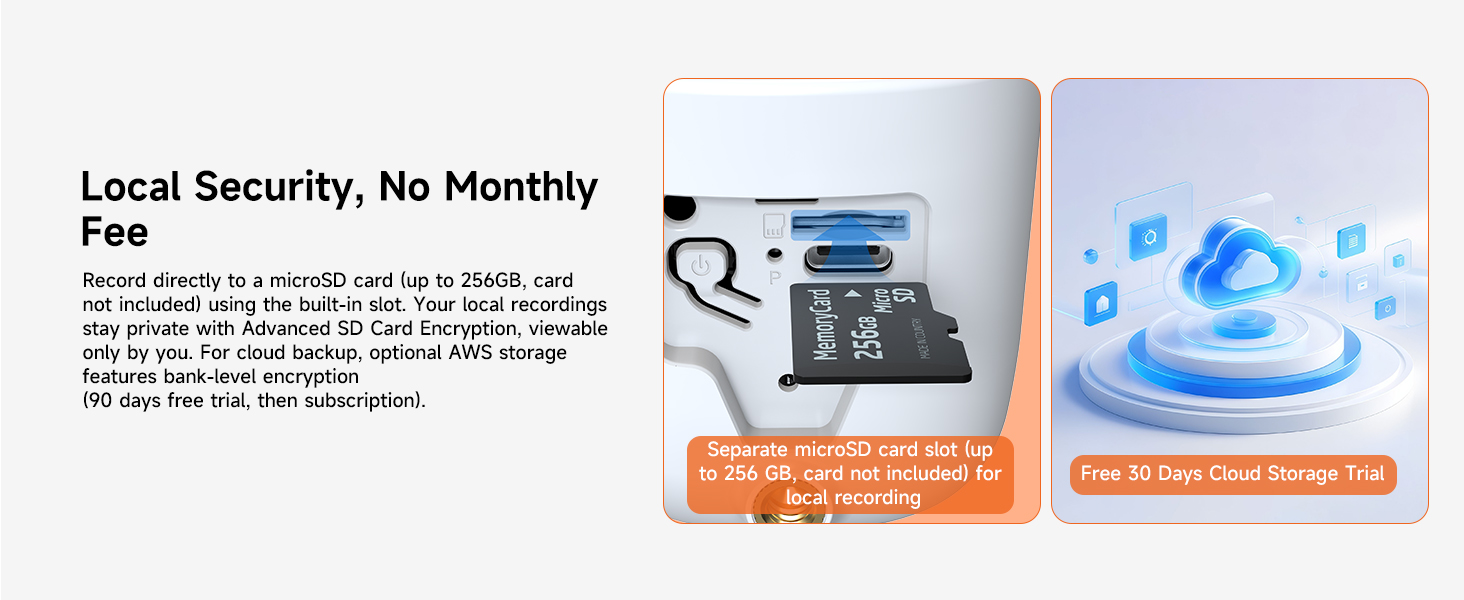
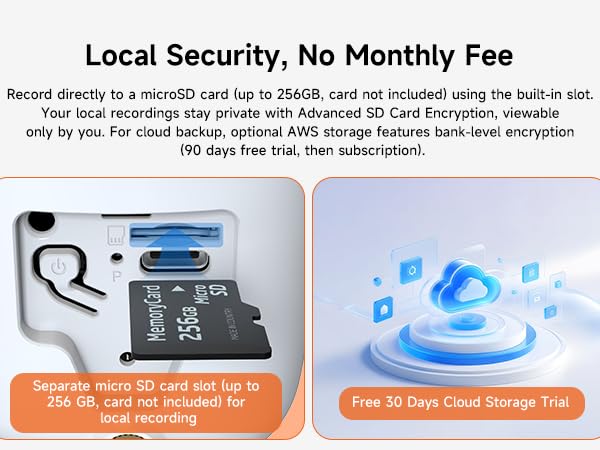
?1. Insert Storage Card?: Ensure a compatible storage card (e.g., Micro SD card, not included) is inserted into the camera and formatted.
2. Access Live View?: Open the app ? Select the camera device ? Tap the ?Play button? to enter the live view.
?3. Start Recording??: - Manual Recording?: Tap the ?"RECORD" button? (circular icon). The button turns red/indicates "Recording" to start. Footage saves automatically to the storage card. - Auto Recording?: tap the setting icon on the right corner, enable "Event Recording Mode"? (Short recordings triggered by motion/sound detection) or ?"AOR Mode" (Always-On Recording) in camera settings, not supported in sleep/battery-saving mode.
II. Viewing Playback?
?1. View SD Card Recordings?: - Event Clips? (e.g., motion-triggered): Live view ? Tap ?"Playback"? ? Select ?SD card icon? (right side) ? Tap clips to play.? - 24/7 Continuous Recording?: Playback interface ? Drag the ?purple timeline slider? to target time segments.? - Date Selection?: Tap the date label (e.g., "Today") ? Choose a date from the calendar ? Load recordings.
?2. View Cloud Recordings (Subscription Required)?: Live view ? Tap ?"Playback"? ? Switch to ?cloud icon? (right side) ? Select event clips to play. Note: Cloud only stores event clips (e.g., alarms), not 24/7 recordings.
III. Saving Recordings to Phone?
?1. SD Card Recordings?: During playback ? Tap ?"Screen Record" icon? (top-right) ? "Recording" prompt appears ? Saves to phone gallery.
?2. Cloud Recordings?: Playback ? Tap ?"Batch Manage"? ? Select clips ? Tap ?"Download"? to save to phone.

Two-way talk feature does not work.
1. Enable your phone's Microphone Permission for the CINMOORE APP: Settings - CINMOORE APP - Microphone.
2. In the APP Settings > Sound Settings, confirm that both "Live Broadcast Audio Collection" and "Intercom Volume" are enabled.
The camera is turning on and off intermittently.
1. When the battery is low, the camera may automatically hibernate or restart. We recommend fully charging the camera before connecting it to the network for use.
2. Reset the camera and upgrade to the latest firmware via the App.
WiFi connection is failed.
1. Use only a 2.4GHz WiFi network (5GHz WiFi is not supported).
2. Move the camera closer to the router to improve signal strength.
3. Restart both the router and the camera to refresh the connection.
How to allow mutiple users for simultaneous viewing?
Device Sharing Guide:
1. On the App homepage, click the "more" button, select "Share", generate a device sharing code.
2. Other users to be shared with should download the App, register a new account, scan the sharing code to add the camera
How to save recordings to phone?
?1. SD Card Recordings?: During playback ? Tap ?"Screen Record" icon? (top-right) ? "Recording" prompt appears ? Saves to phone gallery.
?2. Cloud Recordings?: Playback ? Tap ?"Batch Manage"? ? Select clips ? Tap ?"Download"? to save to phone.
Cinmoore Camera App Instructions for Recording and Playback
I. Enabling Recording Function?
?1. Insert Storage Card?: Ensure a compatible storage card (e.g., Micro SD card, not included) is inserted into the camera and formatted.
2. Access Live View?: Open the app ? Select the camera device ? Tap the ?Play button? to enter the live view.
?3. Start Recording??: - Manual Recording?: Tap the ?"RECORD" button? (circular icon). The button turns red/indicates "Recording" to start. Footage saves automatically to the storage card. - Auto Recording?: tap the setting icon on the right corner, enable "Event Recording Mode"? (Short recordings triggered by motion/sound detection) or ?"AOR Mode" (Always-On Recording) in camera settings, not supported in sleep/battery-saving mode.
II. Viewing Playback?
?1. View SD Card Recordings?: - Event Clips? (e.g., motion-triggered): Live view ? Tap ?"Playback"? ? Select ?SD card icon? (right side) ? Tap clips to play.? - 24/7 Continuous Recording?: Playback interface ? Drag the ?purple timeline slider? to target time segments.? - Date Selection?: Tap the date label (e.g., "Today") ? Choose a date from the calendar ? Load recordings.
?2. View Cloud Recordings (Subscription Required)?: Live view ? Tap ?"Playback"? ? Switch to ?cloud icon? (right side) ? Select event clips to play. Note: Cloud only stores event clips (e.g., alarms), not 24/7 recordings.
III. Saving Recordings to Phone?
?1. SD Card Recordings?: During playback ? Tap ?"Screen Record" icon? (top-right) ? "Recording" prompt appears ? Saves to phone gallery.
?2. Cloud Recordings?: Playback ? Tap ?"Batch Manage"? ? Select clips ? Tap ?"Download"? to save to phone.