here!
here!
I’m your shopping assistant for PC builds, upgrades, and everything tech.
Got questions? Ask away!
Start a conversation
here!
I’m your shopping assistant for PC builds, upgrades, and everything tech.
Got questions? Ask away!
Start a conversation
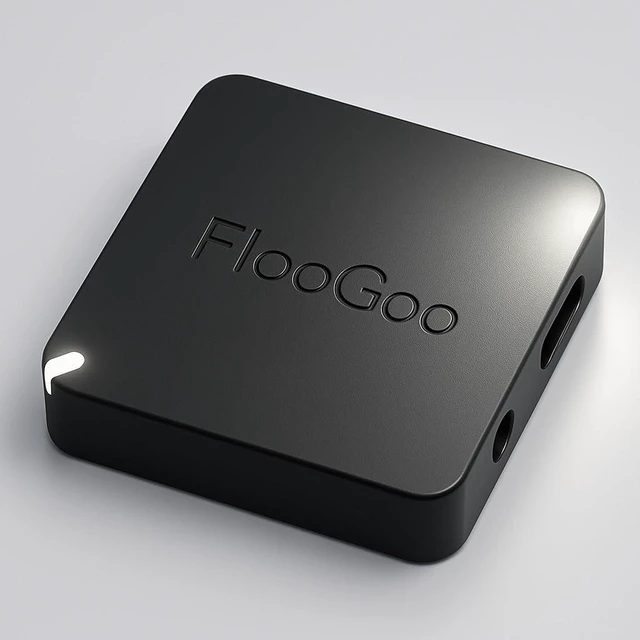
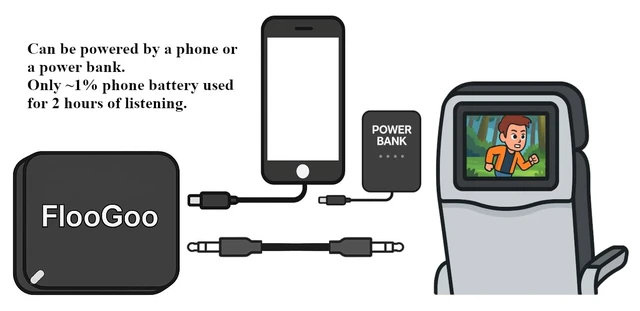



Any questions? Ask CelesteSM will help you find out quickly.

The FlooGoo FMA120 is designed for both personal and professional use. It has been integrated into public announcement systems at Frankfurt Airport, where Auracast is used to deliver accessible audio announcements. This real-world deployment demonstrates the stability, low latency, and suitability of the FMA120/FMA121 for use in public venues.
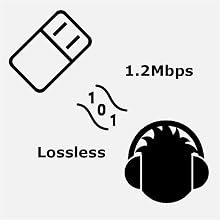
Experience high-definition Bluetooth audio with CD-quality lossless playback, faithfully delivering every bit of your music.
*Please check that your device supports aptX Lossless. Confirmed devices include Bose QuietComfort Ultra, Bowers & Wilkins Pi8, Cambridge Melomania P100, Creative Aurvana Ace 2, Denon PerL Pro, EarFun Air Pro 4, Focal Bathys, NuraTrue Pro, Sennheiser MOMENTUM True Wireless 4 and Sonos Ace.
*If lossless mode is unavailable, disable "Spatial Audio" and "Multipoint" in your device's app.
*Set the USB audio sample rate to 44.1kHz or 48kHz for lossless playback.
*LC3 is used with Samsung Buds 3, Buds 2/3/4 Pro, Sony LinkBuds S, INZONE Buds, WF-1000XM5/6, WH-1000XM6, Creative Zen Air Pro, Technics EAH-AZ100, Xiaomi Redmi Buds 6 Pro, nwm DOTS and LE Audio hearing aids.
*Moondrop LE Audio earbuds are not currently compatible with FlooGoo. We contacted the manufacturer but have not received a response.
*aptX HD with Sony WH-1000XM3.
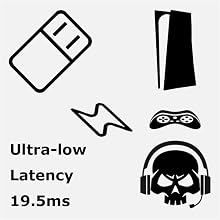
Experience ultra-low latency with the latest Bluetooth LE Audio-compatible headsets and earbuds.
*Sony users: Update the dongle to firmware 1.1.7.3 or later for low-latency, full-duplex gaming audio with microphone support.
*19.5 ms latency with aptX Lite-compatible devices (excluding USB driver latency). Confirmed devices include many QCC5181-based models, Creative Aurvana Ace 2 and Xiaomi Buds 5/6.
*Delivers latency as low as 25 ms with LC3-compatible earbuds and headsets. Confirmed devices include Denon AH-C500W, JBL Tour Pro 3, Samsung Galaxy Buds2/3/4 Pro, Sony LinkBuds S, INZONE Buds, WF-1000XM5/6, WH-1000X/1000X THE COLLEXION (1.3.0) and WH-1000XM6 (3.1.5).
*Galaxy Buds2/3/4 Pro, Sony INZONE Buds, WH-1000X/1000X THE COLLEXION and WH-1000XM6 support high-quality, low-latency, full-duplex gaming audio with microphone audio.
*Please pair your earbuds in "High Quality" mode first, then switch to "Gaming" mode.

Broadcast audio in various settings such as churches, concerts, museums, airports, buses, stores, TVs at the gym or home, or even transform your old Bluetooth phone into a broadcaster.
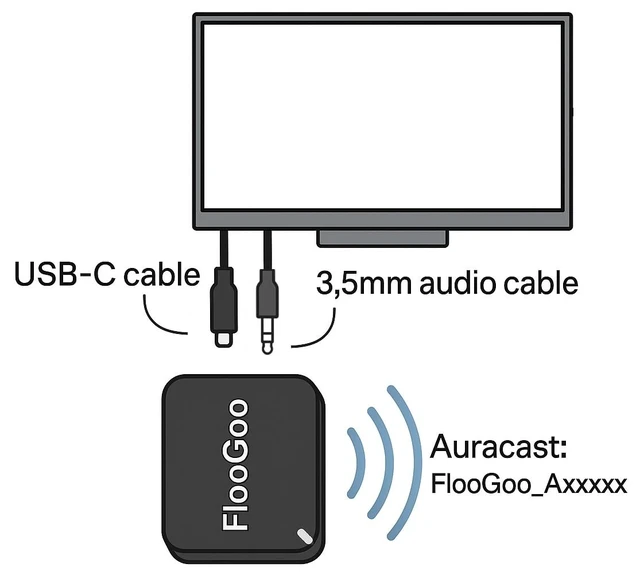
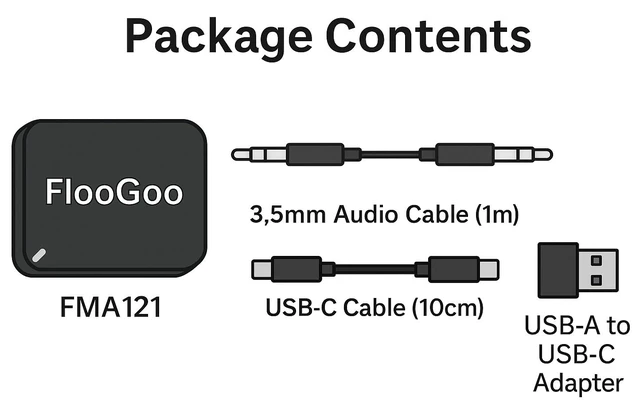
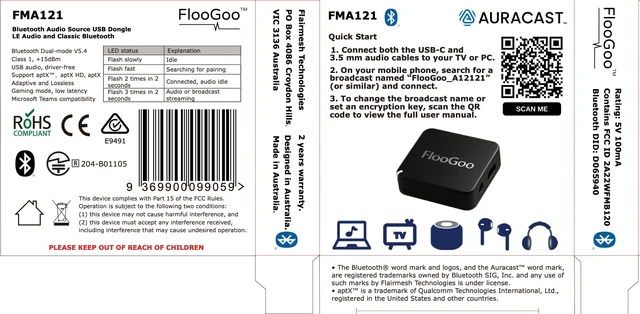
Note for TV users: Many TVs have USB ports that only support external storage, not USB audio output. Please confirm whether your TV supports USB audio output. If not, check if it can pair directly with a Bluetooth headset — in that case, you can set the FMA120 to relay mode to enjoy Auracast (see our support page for setup instructions). Alternatively, you may choose the FMA121, which features a 3.5 mm analog input for easier TV connection.
*For hearing aids that don’t natively support Auracast: You can load the Auracast receiver mode firmware onto a second FMA120 and use it with your mobile phone to enable Auracast reception.

Your headset or earbuds' operations are transferred to standard USB HID input for your host, ensuring compatibility with VoIP Apps including Microsoft Teams.
Note for hearing aid users: For the best compatibility, please update the dongle's firmware to the latest version as indicated in the FlooCast app. Confirmed compatible models include GN ReSound Nexia/Vivia/Savi, Jabra Enhance Pro 20/30, Oticon Intent, Philips HearLink 9050, Rexton Reach, Signia 5IX/7IX, Starkey Edge/Omega AI, and TruHearing 7.
*Phonak and Kirkland models that use classic Bluetooth can also be supported through classic Bluetooth with the mSBC/WBS codec.
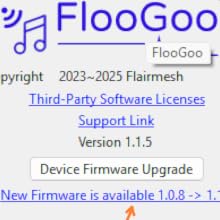
Keep your device running at its best by updating to the latest firmware.
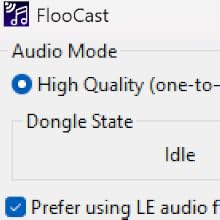
Enable "Prefer using LE audio for dual-mode devices" before pairing your LE Audio earbuds, headphones, or hearing aids. The FlooGoo FMA120 supports LE Audio hearing aids with the LC3 codec. Please do not confuse this with legacy MFi or ASHA models. Confirmed LE Audio-compatible hearing aids include:
Additional new models may also be compatible even if not listed here.
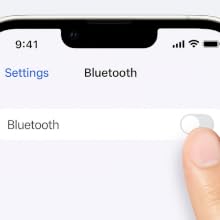
When pairing LE Audio devices like hearing aids, make sure other Bluetooth connections are disabled — for instance, switch off Bluetooth on your phone or TV streamer.
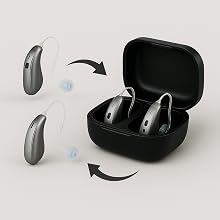
Hearing aids typically enter pairing mode when placed in their charger and then removed after a few seconds.
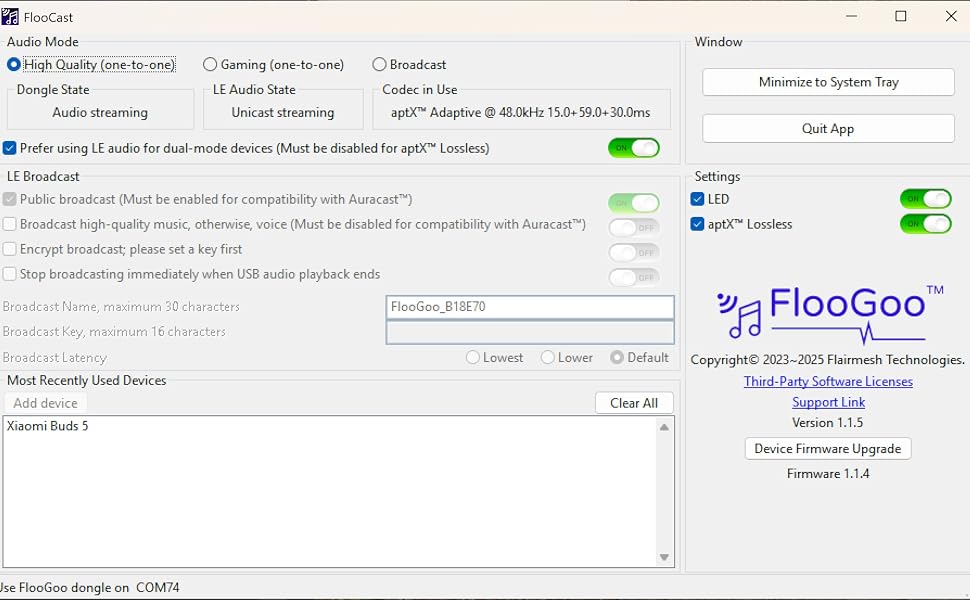
Our FlooGoo FMA120 offers versatile working modes to cater to various Bluetooth audio needs. Whether you require high-quality lossless Bluetooth audio for your aptX adaptive-enabled headset/earbuds, the latest LE audio connection utilizing the LC3 codec, low-latency audio and voice connections for gaming, or transforming your Raspberry Pi into an Auracast broadcaster, achieving these functionalities is just a few simple clicks away.
* When a new firmware version is available, the FlooCast app will provide a download link. Please download and unzip the firmware into a folder with a full path containing only English characters to ensure a smooth upgrade process.
* For pairing and use with aptX Lossless-enabled headsets or earbuds: Please disable the "Prefer using LE audio for dual-mode devices" setting.
* For gamers: Start by pairing your headphones or earbuds in “High Quality” mode, then switch to “Gaming” mode for lower latency. The FMA120 supports not only devices with Qualcomm chipsets, but also many popular models — including Samsung Buds 2, Buds 3, Buds 3 Pro; Sony LinkBuds S, Inzone Buds, WF-1000XM5, WH-1000XM6; Technics EAH-AZ100; and Xiaomi Redmi Buds 6 Pro.
*For hearing aids: Ensure the FMA120 firmware is the latest version 1.1.2+ and enable 'Prefer using LE audio for dual-mode devices' for optimal hearing aid compatibility. Set the FMA120 to 'High Quality' mode and pair it with your hearing aids for seamless music streaming and smooth online chatting or meeting experiences. The FMA120 is compatible with a variety of hearing aids, including GN ReSound Enzo IA/Nexia/Vivia/Savi (firmware9.68.1+), Jabra Enhance Pro 20 (9.68.1+), Oticon Intent (1.1.0+), Philips HearLink 9050 (1.1.0+), Rexton Reach (25.5.972.3+), Signia 5IX (25.5.972.3+), Signia 7IX (25.5.1039.3+), Starkey Edge AI (10.0.0+), TruHearing 7 Advanced (25.5.972.3+) and TruHearing TH 7 Premium (25.5.1039.3+) delivering crystal-clear audio for calls, meetings, or gaming. Some older hearing aids, like the Kirkland Signature KS10, can also be supported via classic Bluetooth using the "mSBC/WBS" codec. Most hearing aids do not support multiple connections. To pair the hearing aids with the FMA120, simply turn off Bluetooth on the paired phone and any connected TV adapter, if applicable. Alternatively, if using a USB-A to USB-C adapter with the FMA120 for calls and music on your phone, consider removing the pairing from the phone. This ensures seamless switching between PC and phone—just plug the FMA120 into the desired source for effortless connectivity.
*For Oticon Intent and Philips HearLink 9050: Please ensure the hearing aids are updated to firmware version 1.1.0 or later. If needed, contact your audiologist for assistance. Place the hearing aids within 20 cm of the FMA120 during pairing. This requirement is based on Philips' online help documentation and is not a limitation of the FMA120.
* When using Auracast with hearing aids, please disable the 'Broadcast High-Quality Music' option, as most hearing aids do not support 48kHz sample rate music streaming.
* For hearing aids that don’t natively support Auracast: You can load the Auracast receiver mode firmware onto a second FMA120 and use it with your mobile phone to enable Auracast reception. Please refer to our online manual for detailed instructions.
* Note for TV users: Many TVs have USB ports that only support reading external storage, not USB audio output. Please check whether your TV supports USB audio output. If it doesn’t, see if your TV can pair directly with a Bluetooth headset — in that case, you can set the FMA120 in relay mode to enjoy Auracast. Alternatively, you may want to wait a few months for our upcoming model, which will feature a 3.5?mm analog input for easier connection to TVs.
* The FMA120 is an officially Bluetooth SIG-qualified Auracast product. It has been confirmed to work with the following devices (not an exhaustive list): Creative Aurvana Ace 2, Jabra Enhance Pro 20, ReSound Nexia hearing aids, Samsung Buds 2 Pro, Sennheiser MOMENTUM True Wireless 4, Sony Linkbuds S, and Starkey hearing aids.
*For Auracast setup with hearing aids on an Android 14 device, such as the Samsung Galaxy S23, you may need to toggle Bluetooth, Airplane mode, and the LE Audio switch multiple times due to a known bug (expected to be resolved in Android 15).
*The FMA120 can set up Auracast directly with paired LE audio devices, eliminating the need for a phone.
* Refer to the online manual via the link on the package for detailed guidelines or contact support through the email provided.
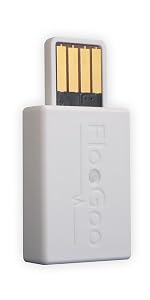 FlooGoo FMA120 | 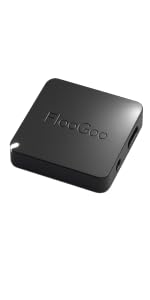 FlooGoo FMA121 | 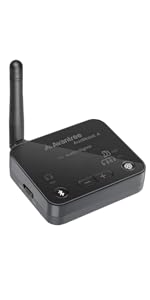 Avantree Audikast 4 | 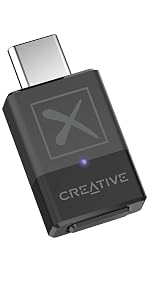 Creative BT-W6 | 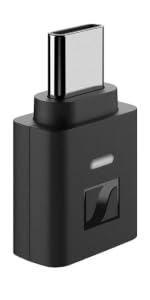 Sennheiser BTD 700 | |
|---|---|---|---|---|---|
| Customer Reviews | — | — | — | — | — |
| Price | — | — | — | — | — |
| LE Audio | Compatible with all major brands, including Sony, Samsung, and popular hearing aids. | Compatible with all major brands, including Sony, Samsung, and popular hearing aids. | no data | Only support Qualcomm | Only support Qualcomm |
| Auracast | ? | ? | ? | May not compatible with hearing aids. | May not compatible with hearing aids. |
| USB Audio Input | ? | ? | no data | ? | ? |
| 3.5mm Audio Input | no data | ? | ? | no data | no data |
| aptX Lossless support | ? | ? | ? | ? | ? |
| Auracast Latency | Configurable (minimum 45 ms) | Configurable (minimum 45 ms) | 60ms | NA | NA |
| Operating Range | Up to 100m (Auracast 200m) | Up to 100m (Auracast 200m) | Up to 30m (Auracast 100m) | Up to 50m | NA |
| Auracast Receiver | ? | ? | no data | no data | no data |
| Auracast Relay | ? | no data | no data | no data | no data |
| Control Interface | Desktop App Available (Windows / Mac / Linux) | Desktop App Available (Windows / Mac / Linux) | Physical buttons | Desktop App on Windows | Desktop App on Windows & Mac |
The FlooGoo FMA120 is designed for both personal and professional use. It has been integrated into public announcement systems at Frankfurt Airport, where Auracast is used to deliver accessible audio announcements. This real-world deployment demonstrates the stability, low latency, and suitability of the FMA120/FMA121 for use in public venues.
Experience high-definition Bluetooth audio with CD-quality lossless playback, faithfully delivering every bit of your music.
*Please check that your device supports aptX Lossless. Confirmed devices include Bose QuietComfort Ultra, Bowers & Wilkins Pi8, Cambridge Melomania P100, Creative Aurvana Ace 2, Denon PerL Pro, EarFun Air Pro 4, Focal Bathys, NuraTrue Pro, Sennheiser MOMENTUM True Wireless 4 and Sonos Ace.
*If lossless mode is unavailable, disable "Spatial Audio" and "Multipoint" in your device's app.
*Set the USB audio sample rate to 44.1kHz or 48kHz for lossless playback.
*LC3 is used with Samsung Buds 3, Buds 2/3/4 Pro, Sony LinkBuds S, INZONE Buds, WF-1000XM5/6, WH-1000XM6, Creative Zen Air Pro, Technics EAH-AZ100, Xiaomi Redmi Buds 6 Pro, nwm DOTS and LE Audio hearing aids.
*Moondrop LE Audio earbuds are not currently compatible with FlooGoo. We contacted the manufacturer but have not received a response.
*aptX HD with Sony WH-1000XM3.
Experience ultra-low latency with the latest Bluetooth LE Audio-compatible headsets and earbuds.
*Sony users: Update the dongle to firmware 1.1.7.3 or later for low-latency, full-duplex gaming audio with microphone support.
*19.5 ms latency with aptX Lite-compatible devices (excluding USB driver latency). Confirmed devices include many QCC5181-based models, Creative Aurvana Ace 2 and Xiaomi Buds 5/6.
*Delivers latency as low as 25 ms with LC3-compatible earbuds and headsets. Confirmed devices include Denon AH-C500W, JBL Tour Pro 3, Samsung Galaxy Buds2/3/4 Pro, Sony LinkBuds S, INZONE Buds, WF-1000XM5/6, WH-1000X/1000X THE COLLEXION (1.3.0) and WH-1000XM6 (3.1.5).
*Galaxy Buds2/3/4 Pro, Sony INZONE Buds, WH-1000X/1000X THE COLLEXION and WH-1000XM6 support high-quality, low-latency, full-duplex gaming audio with microphone audio.
*Please pair your earbuds in "High Quality" mode first, then switch to "Gaming" mode.
Broadcast audio in various settings such as churches, concerts, museums, airports, buses, stores, TVs at the gym or home, or even transform your old Bluetooth phone into a broadcaster.
Note for TV users: Many TVs have USB ports that only support external storage, not USB audio output. Please confirm whether your TV supports USB audio output. If not, check if it can pair directly with a Bluetooth headset — in that case, you can set the FMA120 to relay mode to enjoy Auracast (see our support page for setup instructions). Alternatively, you may choose the FMA121, which features a 3.5 mm analog input for easier TV connection.
*For hearing aids that don’t natively support Auracast: You can load the Auracast receiver mode firmware onto a second FMA120 and use it with your mobile phone to enable Auracast reception.
Your headset or earbuds' operations are transferred to standard USB HID input for your host, ensuring compatibility with VoIP Apps including Microsoft Teams.
Note for hearing aid users: For the best compatibility, please update the dongle's firmware to the latest version as indicated in the FlooCast app. Confirmed compatible models include GN ReSound Nexia/Vivia/Savi, Jabra Enhance Pro 20/30, Oticon Intent, Philips HearLink 9050, Rexton Reach, Signia 5IX/7IX, Starkey Edge/Omega AI, and TruHearing 7.
*Phonak and Kirkland models that use classic Bluetooth can also be supported through classic Bluetooth with the mSBC/WBS codec.
Keep your device running at its best by updating to the latest firmware.
Enable "Prefer using LE audio for dual-mode devices" before pairing your LE Audio earbuds, headphones, or hearing aids. The FlooGoo FMA120 supports LE Audio hearing aids with the LC3 codec. Please do not confuse this with legacy MFi or ASHA models. Confirmed LE Audio-compatible hearing aids include:
Additional new models may also be compatible even if not listed here.
When pairing LE Audio devices like hearing aids, make sure other Bluetooth connections are disabled — for instance, switch off Bluetooth on your phone or TV streamer.
Hearing aids typically enter pairing mode when placed in their charger and then removed after a few seconds.
Our FlooGoo FMA120 offers versatile working modes to cater to various Bluetooth audio needs. Whether you require high-quality lossless Bluetooth audio for your aptX adaptive-enabled headset/earbuds, the latest LE audio connection utilizing the LC3 codec, low-latency audio and voice connections for gaming, or transforming your Raspberry Pi into an Auracast broadcaster, achieving these functionalities is just a few simple clicks away.
* When a new firmware version is available, the FlooCast app will provide a download link. Please download and unzip the firmware into a folder with a full path containing only English characters to ensure a smooth upgrade process.
* For pairing and use with aptX Lossless-enabled headsets or earbuds: Please disable the "Prefer using LE audio for dual-mode devices" setting.
* For gamers: Start by pairing your headphones or earbuds in “High Quality” mode, then switch to “Gaming” mode for lower latency. The FMA120 supports not only devices with Qualcomm chipsets, but also many popular models — including Samsung Buds 2, Buds 3, Buds 3 Pro; Sony LinkBuds S, Inzone Buds, WF-1000XM5, WH-1000XM6; Technics EAH-AZ100; and Xiaomi Redmi Buds 6 Pro.
*For hearing aids: Ensure the FMA120 firmware is the latest version 1.1.2+ and enable 'Prefer using LE audio for dual-mode devices' for optimal hearing aid compatibility. Set the FMA120 to 'High Quality' mode and pair it with your hearing aids for seamless music streaming and smooth online chatting or meeting experiences. The FMA120 is compatible with a variety of hearing aids, including GN ReSound Enzo IA/Nexia/Vivia/Savi (firmware9.68.1+), Jabra Enhance Pro 20 (9.68.1+), Oticon Intent (1.1.0+), Philips HearLink 9050 (1.1.0+), Rexton Reach (25.5.972.3+), Signia 5IX (25.5.972.3+), Signia 7IX (25.5.1039.3+), Starkey Edge AI (10.0.0+), TruHearing 7 Advanced (25.5.972.3+) and TruHearing TH 7 Premium (25.5.1039.3+) delivering crystal-clear audio for calls, meetings, or gaming. Some older hearing aids, like the Kirkland Signature KS10, can also be supported via classic Bluetooth using the "mSBC/WBS" codec. Most hearing aids do not support multiple connections. To pair the hearing aids with the FMA120, simply turn off Bluetooth on the paired phone and any connected TV adapter, if applicable. Alternatively, if using a USB-A to USB-C adapter with the FMA120 for calls and music on your phone, consider removing the pairing from the phone. This ensures seamless switching between PC and phone—just plug the FMA120 into the desired source for effortless connectivity.
*For Oticon Intent and Philips HearLink 9050: Please ensure the hearing aids are updated to firmware version 1.1.0 or later. If needed, contact your audiologist for assistance. Place the hearing aids within 20 cm of the FMA120 during pairing. This requirement is based on Philips' online help documentation and is not a limitation of the FMA120.
* When using Auracast with hearing aids, please disable the 'Broadcast High-Quality Music' option, as most hearing aids do not support 48kHz sample rate music streaming.
* For hearing aids that don’t natively support Auracast: You can load the Auracast receiver mode firmware onto a second FMA120 and use it with your mobile phone to enable Auracast reception. Please refer to our online manual for detailed instructions.
* Note for TV users: Many TVs have USB ports that only support reading external storage, not USB audio output. Please check whether your TV supports USB audio output. If it doesn’t, see if your TV can pair directly with a Bluetooth headset — in that case, you can set the FMA120 in relay mode to enjoy Auracast. Alternatively, you may want to wait a few months for our upcoming model, which will feature a 3.5?mm analog input for easier connection to TVs.
* The FMA120 is an officially Bluetooth SIG-qualified Auracast product. It has been confirmed to work with the following devices (not an exhaustive list): Creative Aurvana Ace 2, Jabra Enhance Pro 20, ReSound Nexia hearing aids, Samsung Buds 2 Pro, Sennheiser MOMENTUM True Wireless 4, Sony Linkbuds S, and Starkey hearing aids.
*For Auracast setup with hearing aids on an Android 14 device, such as the Samsung Galaxy S23, you may need to toggle Bluetooth, Airplane mode, and the LE Audio switch multiple times due to a known bug (expected to be resolved in Android 15).
*The FMA120 can set up Auracast directly with paired LE audio devices, eliminating the need for a phone.
* Refer to the online manual via the link on the package for detailed guidelines or contact support through the email provided.
FlooGoo FMA120 | FlooGoo FMA121 | Avantree Audikast 4 | Creative BT-W6 | Sennheiser BTD 700 | |
|---|---|---|---|---|---|
| Customer Reviews | — | — | — | — | — |
| Price | — | — | — | — | — |
| LE Audio | Compatible with all major brands, including Sony, Samsung, and popular hearing aids. | Compatible with all major brands, including Sony, Samsung, and popular hearing aids. | no data | Only support Qualcomm | Only support Qualcomm |
| Auracast | ? | ? | ? | May not compatible with hearing aids. | May not compatible with hearing aids. |
| USB Audio Input | ? | ? | no data | ? | ? |
| 3.5mm Audio Input | no data | ? | ? | no data | no data |
| aptX Lossless support | ? | ? | ? | ? | ? |
| Auracast Latency | Configurable (minimum 45 ms) | Configurable (minimum 45 ms) | 60ms | NA | NA |
| Operating Range | Up to 100m (Auracast 200m) | Up to 100m (Auracast 200m) | Up to 30m (Auracast 100m) | Up to 50m | NA |
| Auracast Receiver | ? | ? | no data | no data | no data |
| Auracast Relay | ? | no data | no data | no data | no data |
| Control Interface | Desktop App Available (Windows / Mac / Linux) | Desktop App Available (Windows / Mac / Linux) | Physical buttons | Desktop App on Windows | Desktop App on Windows & Mac |