


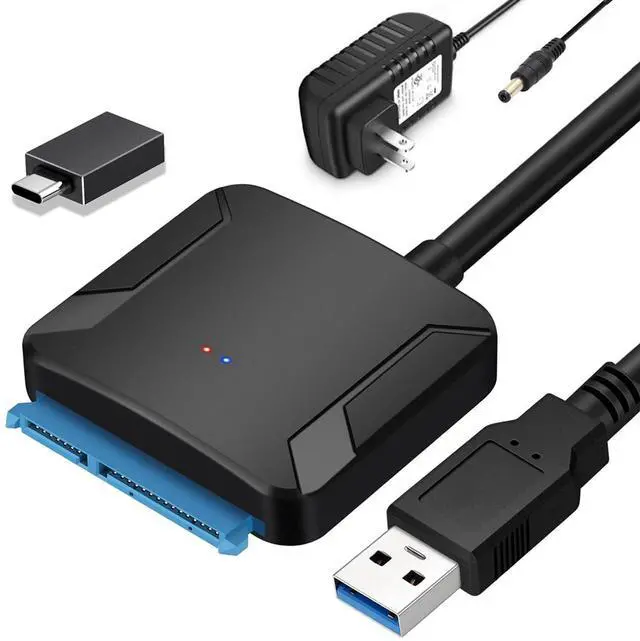
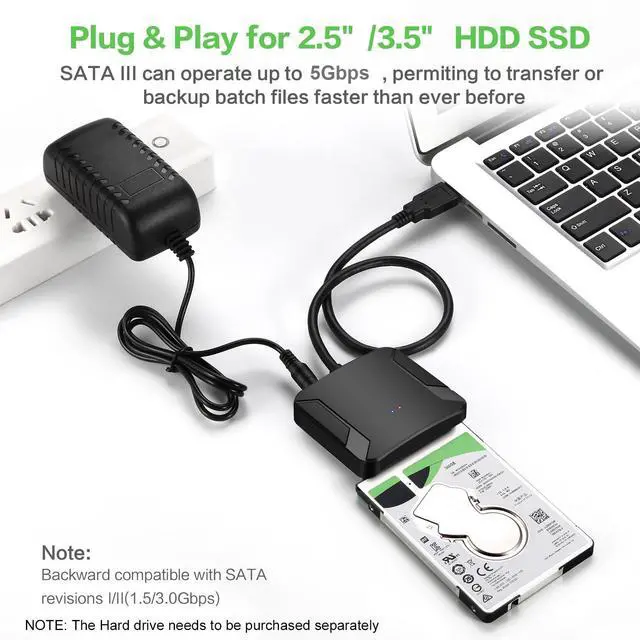


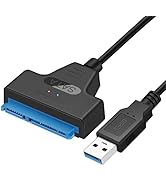
An external drive adapter that gives you quick and easy access to a SATA drive through the USB-A/USB-C port on a laptop
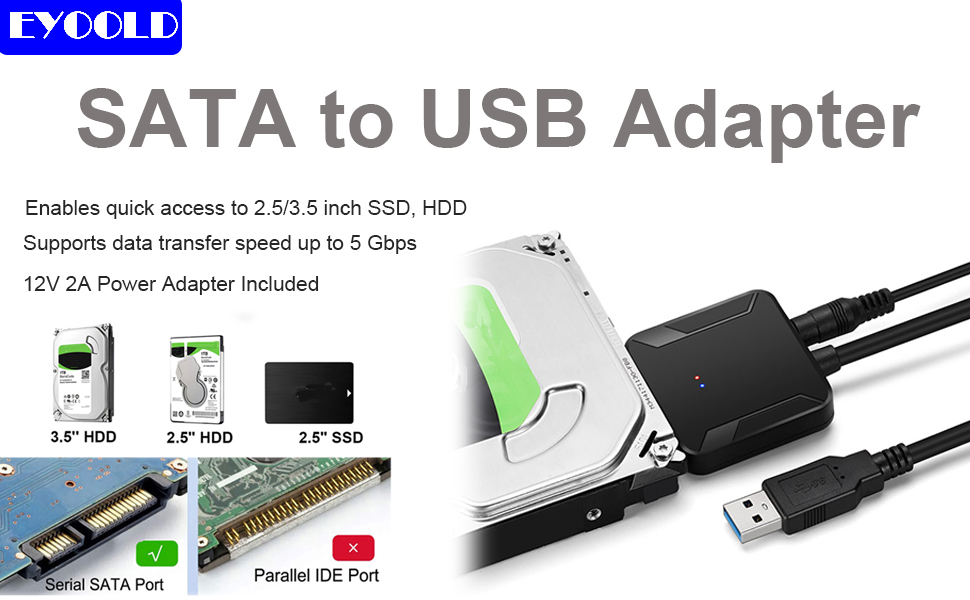
These devices allow you to connect 2.5"/3.5" SATA-based hard drives (HDDs) or solid-state drives (SSDs) to a computer via USB, making them useful for data recovery, backups, or using an internal drive externally
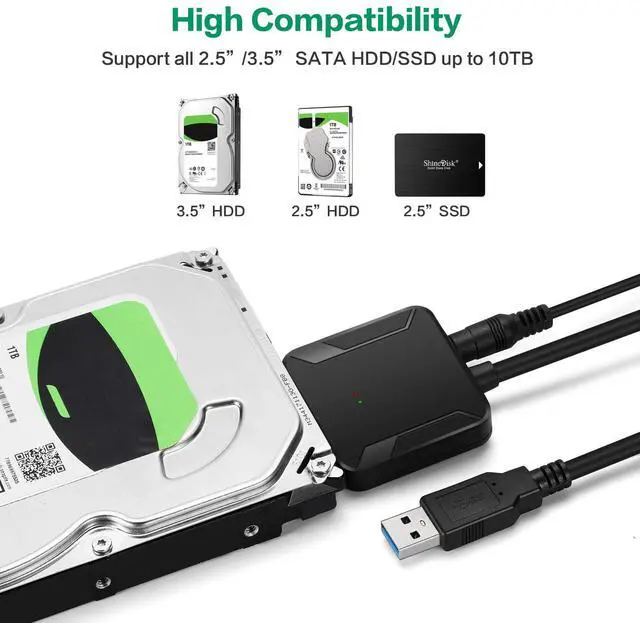
External SATA Adapter supports 2.5-inch and 3.5-inch SATA drives
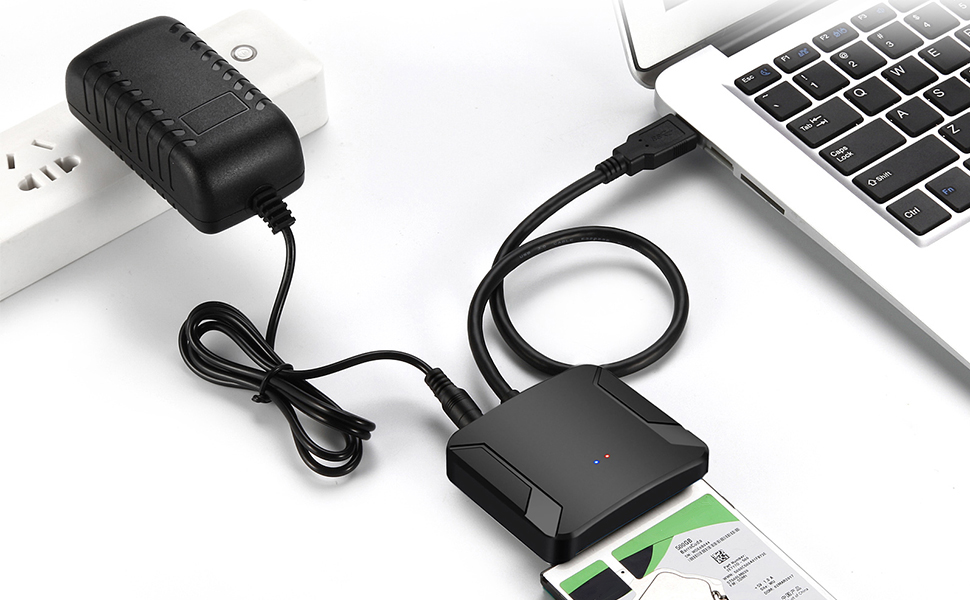
Applications
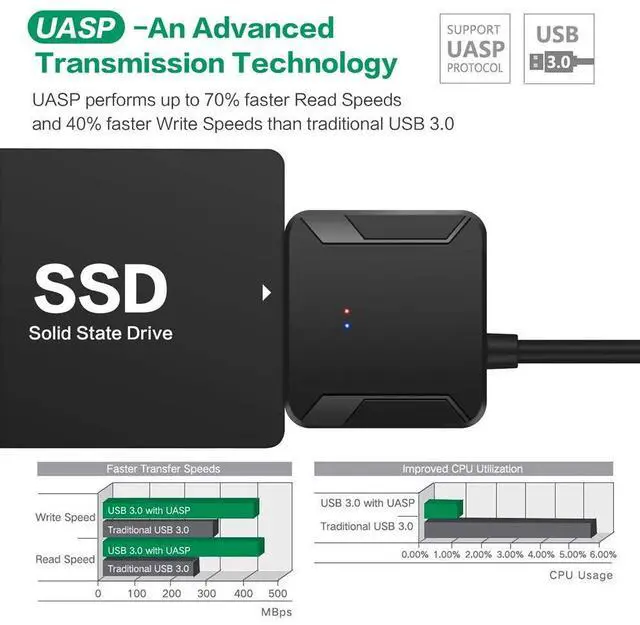
- Take advantage of USB 3.0-enabled laptops or desktops with UASP for faster transfer speeds.
- Create an external storage solution on the go, for desktops, laptops.
- Backup important data to an external storage device.
- Retrieve data from an old SATA and HDD drive.
- Use an SSD drive to externally upgrade your laptop hard drive via USB 3.0.
5Gbps Data Transmission Rates
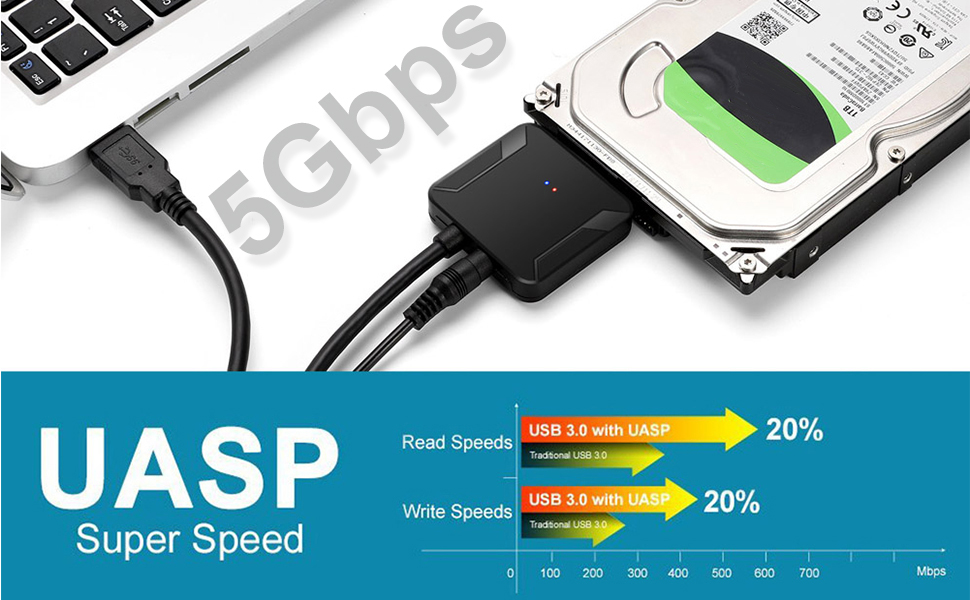
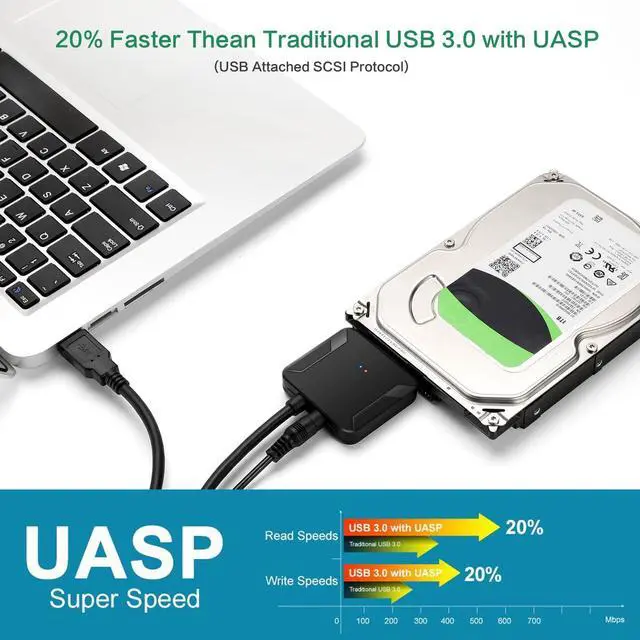
Features with USB 3.0 external data transfer rates up to 5Gbps, you can experience transfer speeds up to 20% faster than conventional USB 3.0, when connected to a computer that also supports UASP, allows you to backup files or upgrade your notebook/PC hard drive quickly.
USB 3.0: Offers speeds up to 5 Gbps (ideal for SSDs or fast HDDs).
USB 2.0: Limited to 480 Mbps (sufficient for basic file transfers but slower)
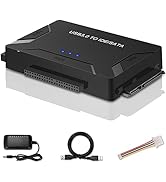
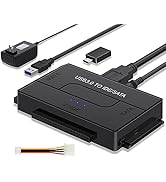
12V 2A Power Adapter Included
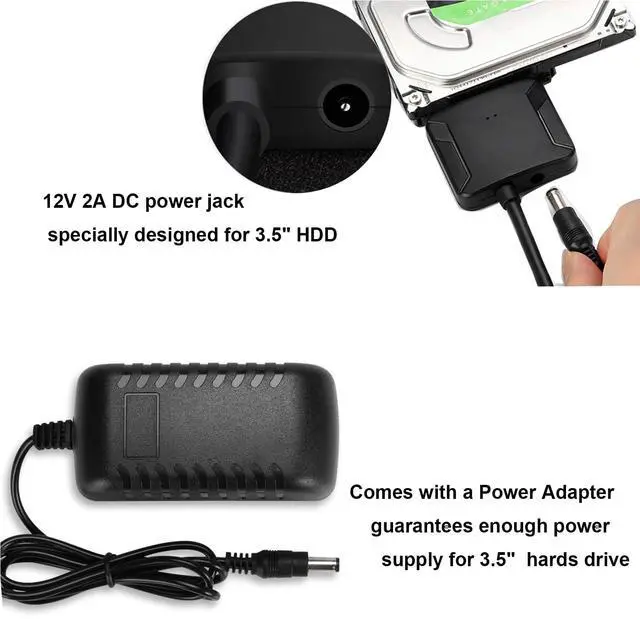
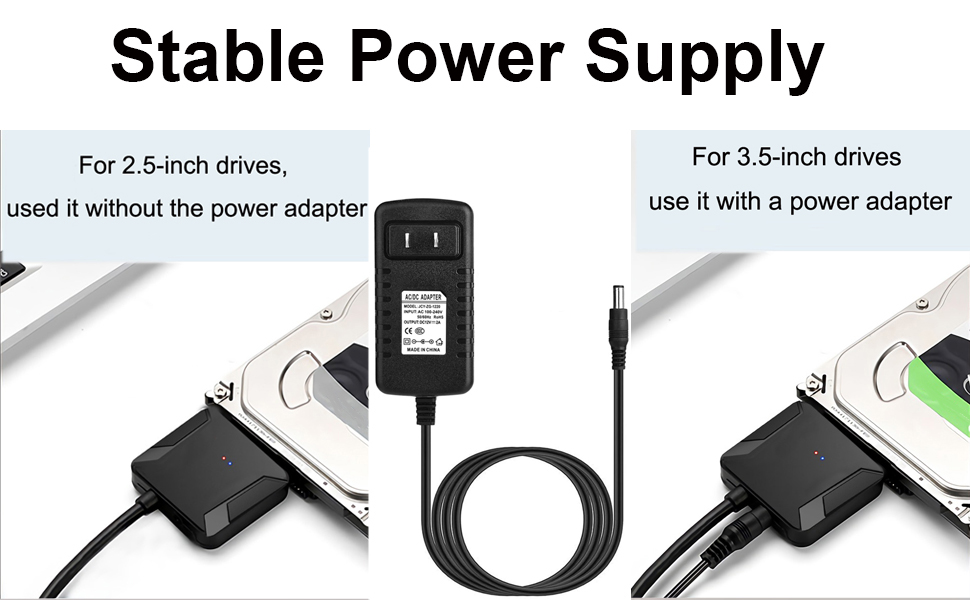
This SATA to USB Adapter is equipped with a DC-Jack port and comes with a 12V/2A Power Adapter, which ensures enough power supply for a 3.5" hard drive
Power Requirements:
- 2.5-inch drives: Typically powered via USB (no external power needed).
- 3.5-inch drives: Require a 12V external power adapter (included with most kits)
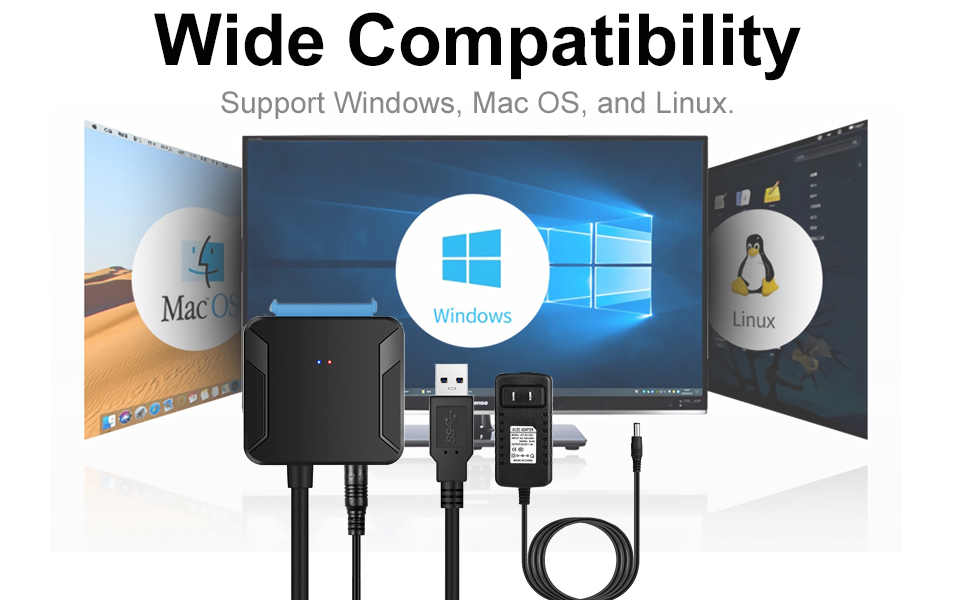
Wide Compatibility
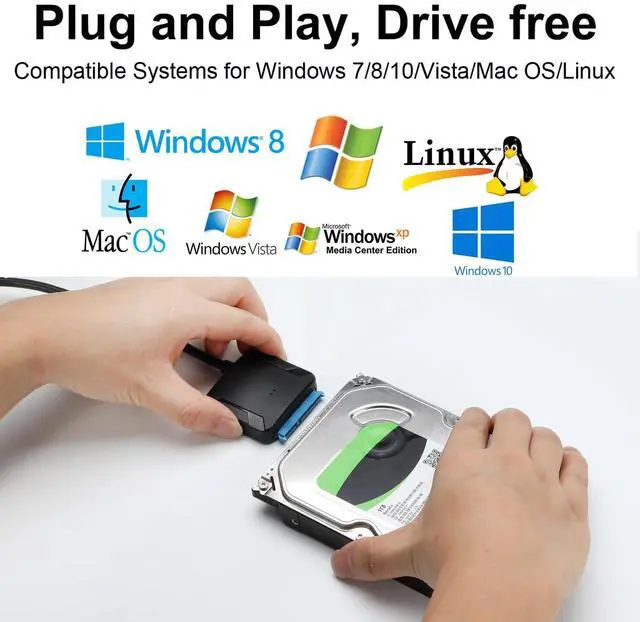
- USB 3.0 Male Connection: Laptops running Windows 10/8.1/8/7/XP/Vista, Mac OS, Linux or Chrome OS;
- SATA 15+7 Pin Female Connection: 2.5" 3.5" SATA III / II / I HDD and SSD,
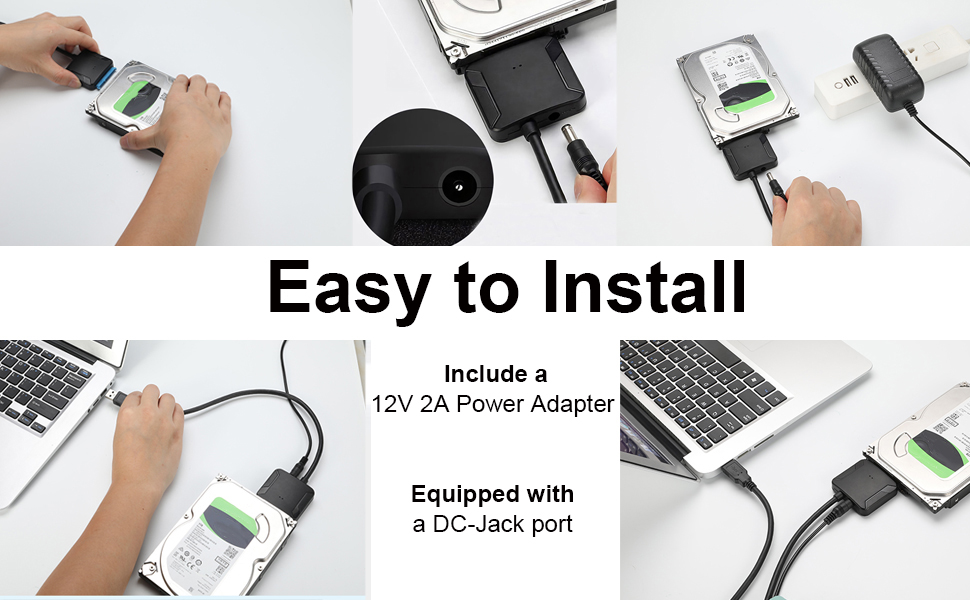
Here’s a step-by-step guide to installing and using a SATA to USB adapter
1. Prepare Your Hardware
SATA to USB adapter (with USB cable and power supply if needed).
SATA HDD/SSD (2.5" or 3.5").
Computer (Windows, Mac, or Linux).
2. Connect the Drive to the Adapter
- For 2.5" HDD/SSD:Plug the SATA data cable into the drive’s SATA port (L-shaped connector). No external power needed – USB provides power.
- For 3.5" HDD:Connect the SATA data cable to the drive. Attach the 12V power adapter to the adapter and plug it into an outlet.
3. Connect the Adapter to Your Computer
- Plug the USB end of the adapter into your computer’s USB port
Why my computer doesn't recognize the drive?
1) For a new SSD or HDD, you need to initialize it first and then format it. For guidance, search "How to initialize an external hard drive." The instructions differ between Windows 10, 7, and Vista.
2) If it is an old hard disk or a removed hard disk, please confirm whether it is intact.
3) If it is an Apple OS Mac system, please set the hard disk format
4) Wrong hard drive type - this cable does not apply to SAS/SCSI hard drive.
5) The USB port on the computer is damaged.
6) Drive spins but not detected: Format/repair via Disk Management
7) Drive not listed in Disk Management: Replace cable or adapter
8) Intermittent detection: Secure connections; use external power
9) Device descriptor request failed: Update USB drivers or OS
If the drive still isn’t recognized, it may be dead. Let me know your OS and drive type for further help!

EYOOLD – Bridging Memories, Powering Futures
Every hard drive holds a story. Yet, as tech evolves, millions of drives become “obsolete”—abandoned in drawers, labeled “dead.”
EYOOLD was born to bridge the gap between old and new. Our adapters aren’t just cables and chips—they’re keys to unlock legacies
Your drive isn’t “old.”
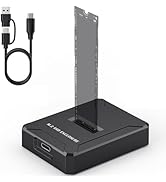
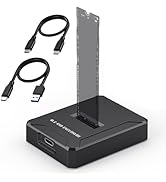
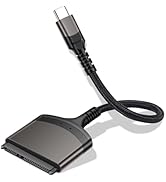
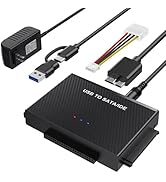
Data Recovery Hero
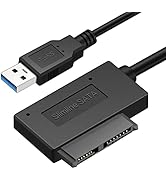
Rescue Lost Memories
An external drive adapter that gives you quick and easy access to a SATA drive through the USB-A/USB-C port on a laptop
These devices allow you to connect 2.5"/3.5" SATA-based hard drives (HDDs) or solid-state drives (SSDs) to a computer via USB, making them useful for data recovery, backups, or using an internal drive externally
External SATA Adapter supports 2.5-inch and 3.5-inch SATA drives
Applications
- Take advantage of USB 3.0-enabled laptops or desktops with UASP for faster transfer speeds.
- Create an external storage solution on the go, for desktops, laptops.
- Backup important data to an external storage device.
- Retrieve data from an old SATA and HDD drive.
- Use an SSD drive to externally upgrade your laptop hard drive via USB 3.0.
5Gbps Data Transmission Rates
Features with USB 3.0 external data transfer rates up to 5Gbps, you can experience transfer speeds up to 20% faster than conventional USB 3.0, when connected to a computer that also supports UASP, allows you to backup files or upgrade your notebook/PC hard drive quickly.
USB 3.0: Offers speeds up to 5 Gbps (ideal for SSDs or fast HDDs).
USB 2.0: Limited to 480 Mbps (sufficient for basic file transfers but slower)
12V 2A Power Adapter Included
This SATA to USB Adapter is equipped with a DC-Jack port and comes with a 12V/2A Power Adapter, which ensures enough power supply for a 3.5" hard drive
Power Requirements:
- 2.5-inch drives: Typically powered via USB (no external power needed).
- 3.5-inch drives: Require a 12V external power adapter (included with most kits)
Wide Compatibility
- USB 3.0 Male Connection: Laptops running Windows 10/8.1/8/7/XP/Vista, Mac OS, Linux or Chrome OS;
- SATA 15+7 Pin Female Connection: 2.5" 3.5" SATA III / II / I HDD and SSD,
Here’s a step-by-step guide to installing and using a SATA to USB adapter
1. Prepare Your Hardware
SATA to USB adapter (with USB cable and power supply if needed).
SATA HDD/SSD (2.5" or 3.5").
Computer (Windows, Mac, or Linux).
2. Connect the Drive to the Adapter
- For 2.5" HDD/SSD:Plug the SATA data cable into the drive’s SATA port (L-shaped connector). No external power needed – USB provides power.
- For 3.5" HDD:Connect the SATA data cable to the drive. Attach the 12V power adapter to the adapter and plug it into an outlet.
3. Connect the Adapter to Your Computer
- Plug the USB end of the adapter into your computer’s USB port
Why my computer doesn't recognize the drive?
1) For a new SSD or HDD, you need to initialize it first and then format it. For guidance, search "How to initialize an external hard drive." The instructions differ between Windows 10, 7, and Vista.
2) If it is an old hard disk or a removed hard disk, please confirm whether it is intact.
3) If it is an Apple OS Mac system, please set the hard disk format
4) Wrong hard drive type - this cable does not apply to SAS/SCSI hard drive.
5) The USB port on the computer is damaged.
6) Drive spins but not detected: Format/repair via Disk Management
7) Drive not listed in Disk Management: Replace cable or adapter
8) Intermittent detection: Secure connections; use external power
9) Device descriptor request failed: Update USB drivers or OS
If the drive still isn’t recognized, it may be dead. Let me know your OS and drive type for further help!
EYOOLD – Bridging Memories, Powering Futures
Every hard drive holds a story. Yet, as tech evolves, millions of drives become “obsolete”—abandoned in drawers, labeled “dead.”
EYOOLD was born to bridge the gap between old and new. Our adapters aren’t just cables and chips—they’re keys to unlock legacies
Your drive isn’t “old.”
Data Recovery Hero
Rescue Lost Memories