Your Browsing History
Meet Your Seller
Visit EmpressTech Store
FOLLOW
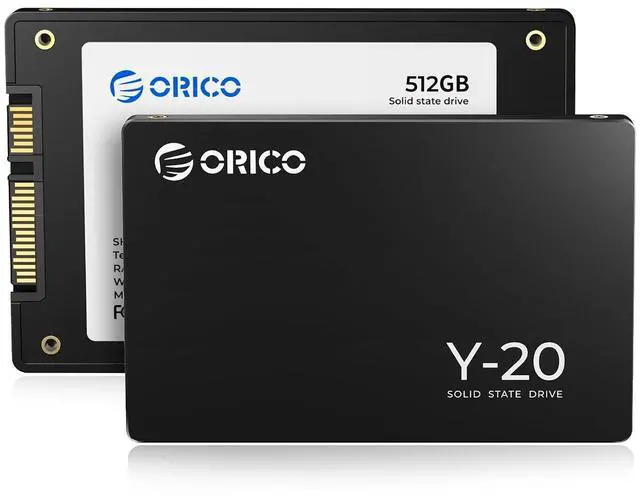
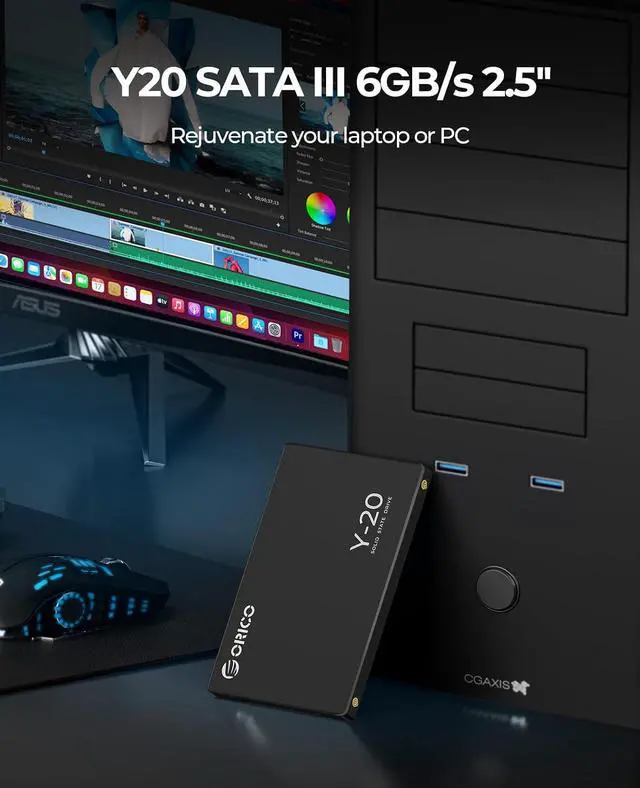
512GB SATA SSD 2.5 Inch Internal Solid State Drive, Read Speed up to 500MB/s, SATA III 6Gbps for Desktop Laptop NAS DIY External Drive - Y20
Limited time offer, ends 07/12 By EmpressTech
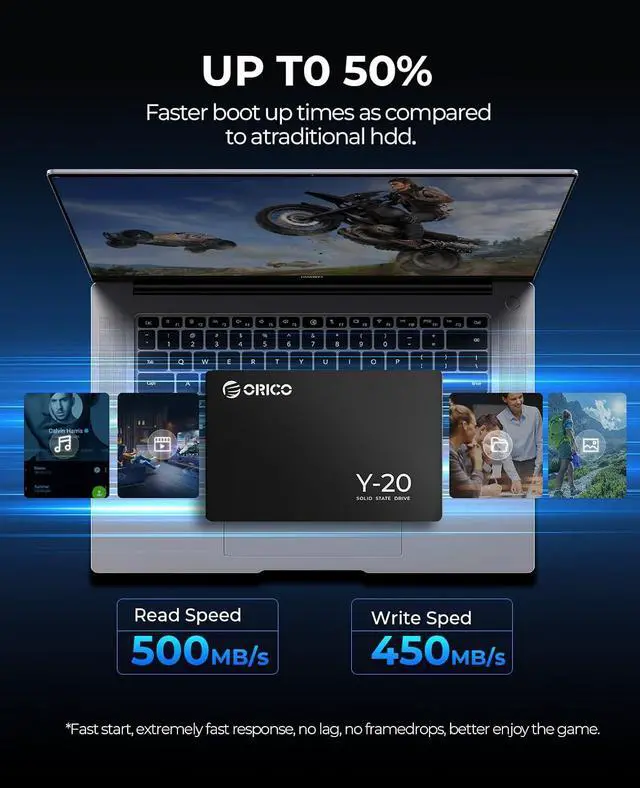
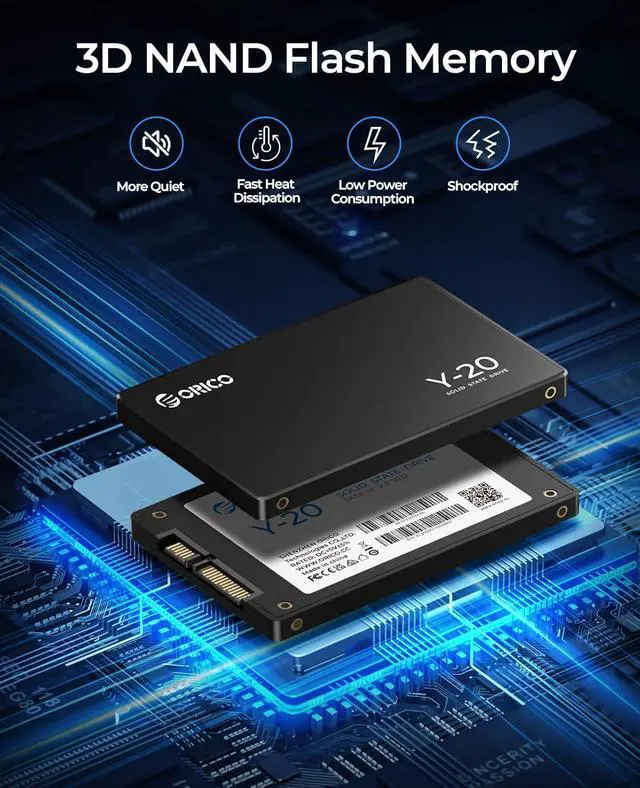
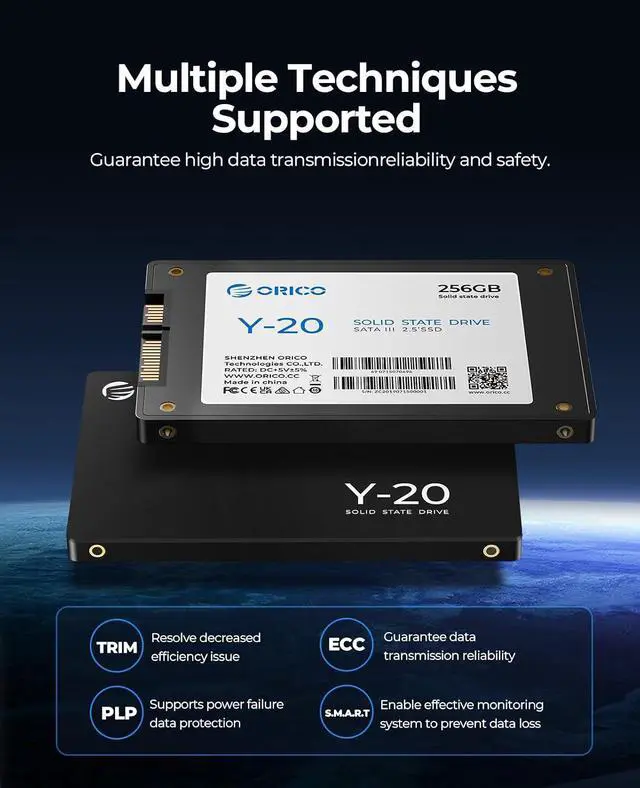
- 3D-NAND Technology: The 2.5-inch SATA SSD utilizes advanced 3D NAND flash for enhanced reliability and endurance, delivering optimized performance for daily computing tasks; Ultra-fast speed: Sequential read and write performance levels of up to 500MB/s and 480MB/s(Based on internal testing; performance may vary depending upon drive capacity, host device, OS and application). Faster performance and more reliable than traditional hard drives; High-Performance: Solid state internal drive has the characteristics of shockproof and anti-drop, quiet and noiseless, low power consumption, high and low-temperature resistance, faster-booting speed, and program loading speed; Compatibility: Supports Windows 11, Windows 10, Windows 8 (32-bit & 64-bit), Vista (SP1 and above), XP (SP2 and above), macOS, and Linux. : A newly installed SSD needs to be properly formatted before use; otherwise, it may not be recognized or appear in the file explorer; Long-Term Reliability: The SATA SSD is backed by 3 years of quality coverage, with ongoing technical support available to address all your needs
+
+
Overview
Specs
Reviews
Any questions? Our AI beta will help you find out quickly.
Try me now
Product description ORICO
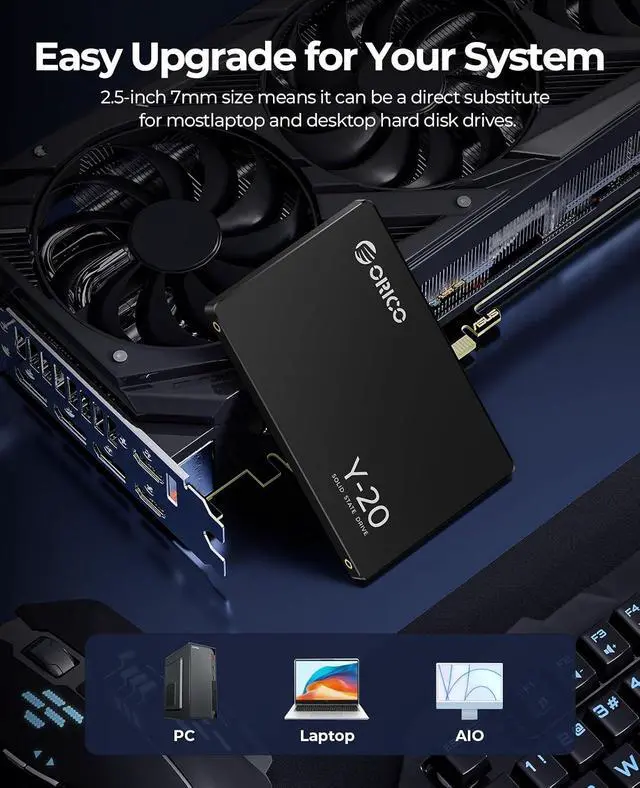
SATA SSD Comparison: Choose the Right SSD to Match Your Needs ORICO Y20 Buying Options ORICO S500-PRO Buying Options ORICO ZH10 Buying Options ORICO Y20M-2242 Buying Options ORICO Y20M Buying Options Customer Reviews 4.4 out of 5 stars 2, 033 4.5 out of 5 stars 440 4.5 out of 5 stars 472 4.5 out of 5 stars 233 4.5 out of 5 stars 1, 187 Price $ 31.99 $31. 99 Form Factor 2.5 Inch 2.5 Inch mSATA M. 2 2242 M. 2 2280 Interface Standard SATA III SATA III SATA III M. 2 B+M Key M. 2 B+M Key Transfer Rate 6 Gb/s 6 Gb/s 6 Gb/s 6 Gb/s 6 Gb/s Capacity 128GB - 4TB 128GB - 4TB 128GB - 2TB 128GB - 1TB 128GB - 4TB Max Read Speed 500 MB/s 560 MB/s 500 MB/s 530 MB/s 500 MB/s Max Write Speed 480 MB/s 500 MB/s 490 MB/s 500 MB/s 480 MB/s Why is the new SSD not showing up in Windows or macOS? If your SSD isnt detected, its likely because it hasnt been formatted properly. Ensure both proper connection and formatting to make it usable. Correct Connection Ensure the SSD is properly connected, either internally or through a USB enclosure, and check that all cables and ports are functioning correctly.
Drive Initialization and
Formatting Windows: Open Disk Management, initialize the SSD, and format it to NTFS or exFAT (NTFS for system use, exFAT for cross-platform compatibility). Create a New Simple Volume after formatting.
macOS: Open Disk Utility, select the SSD, erase it, and format as APFS for macOS use or exFAT for both macOS and Windows compatibility.
Video Tutorial: A helpful video tutorial is available on the product page titled "Computer Not Recognize Drive? - Formatting New SSD Before Use", which guides you through the entire process. Once the SSD is properly connected and formatted, it should show up in File Explorer (Windows) or Finder (macOS).

SATA SSD Comparison: Choose the Right SSD to Match Your Needs ORICO Y20 Buying Options ORICO S500-PRO Buying Options ORICO ZH10 Buying Options ORICO Y20M-2242 Buying Options ORICO Y20M Buying Options Customer Reviews 4.4 out of 5 stars 2, 033 4.5 out of 5 stars 440 4.5 out of 5 stars 472 4.5 out of 5 stars 233 4.5 out of 5 stars 1, 187 Price $ 31.99 $31. 99 Form Factor 2.5 Inch 2.5 Inch mSATA M. 2 2242 M. 2 2280 Interface Standard SATA III SATA III SATA III M. 2 B+M Key M. 2 B+M Key Transfer Rate 6 Gb/s 6 Gb/s 6 Gb/s 6 Gb/s 6 Gb/s Capacity 128GB - 4TB 128GB - 4TB 128GB - 2TB 128GB - 1TB 128GB - 4TB Max Read Speed 500 MB/s 560 MB/s 500 MB/s 530 MB/s 500 MB/s Max Write Speed 480 MB/s 500 MB/s 490 MB/s 500 MB/s 480 MB/s Why is the new SSD not showing up in Windows or macOS? If your SSD isnt detected, its likely because it hasnt been formatted properly. Ensure both proper connection and formatting to make it usable. Correct Connection Ensure the SSD is properly connected, either internally or through a USB enclosure, and check that all cables and ports are functioning correctly.
Drive Initialization and
Formatting Windows: Open Disk Management, initialize the SSD, and format it to NTFS or exFAT (NTFS for system use, exFAT for cross-platform compatibility). Create a New Simple Volume after formatting.
macOS: Open Disk Utility, select the SSD, erase it, and format as APFS for macOS use or exFAT for both macOS and Windows compatibility.
Video Tutorial: A helpful video tutorial is available on the product page titled "Computer Not Recognize Drive? - Formatting New SSD Before Use", which guides you through the entire process. Once the SSD is properly connected and formatted, it should show up in File Explorer (Windows) or Finder (macOS).
Warranty & Returns
Warranty, Returns, And Additional Information
Warranty
- Please contact the Seller directly for warranty information. Warranty information may also be found on the Manufacturer's website.
- CONTACT
Return Policies
- Return for refund within: 30 days
- Return for replacement within: 30 days
- This item is covered by EmpressTech Return Policy
Manufacturer Contact Info
- For a directory of all our manufacturers, please click below.
- Manufacturers Directory
LOADING...