ED001 USB-C External CD/DVD RW Drive Burner for Apple Mac & Windows Laptop PC
In the age of streaming and cloud services, CDs and DVDs have become outdated formats. As a result, most laptop and desktop manufacturers have opted to remove built-in optical drives to make their devices slimmer and more compact. However, if you want to relive your favorite '90s music CDs and movie DVDs, burn custom music CDs, archive valuable videos or photos to discs for long-term storage, import media from discs to your computer or phone, or install software and system updates, the best and most convenient solution is a reliable USB external optical drive.
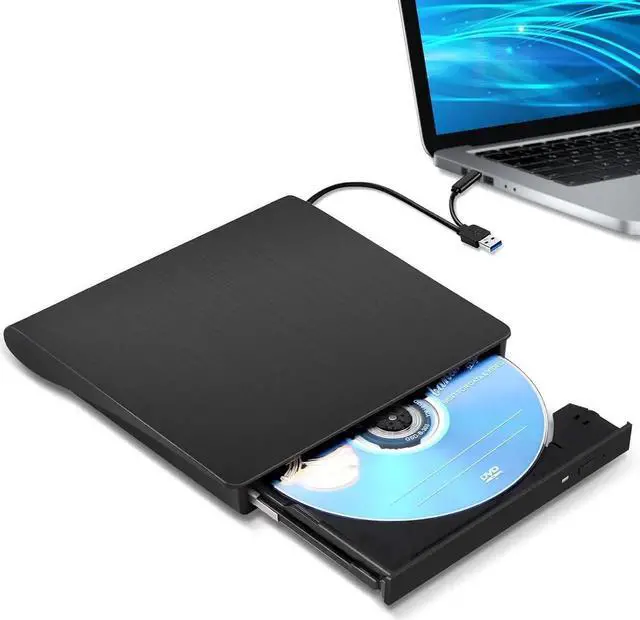
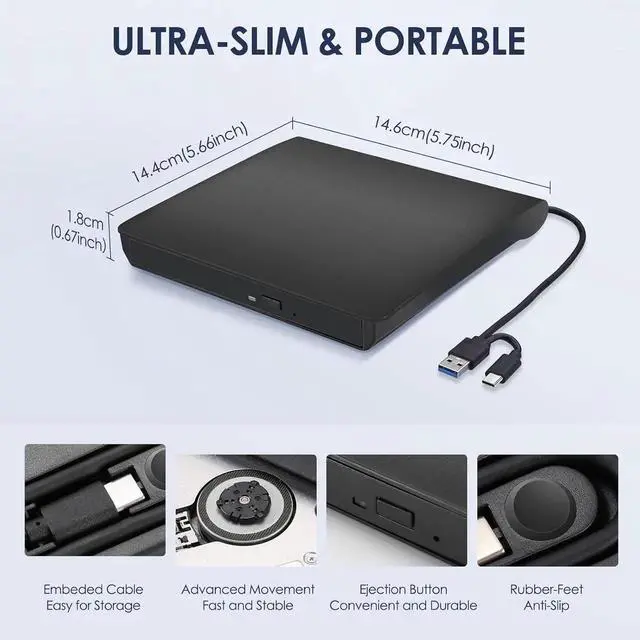
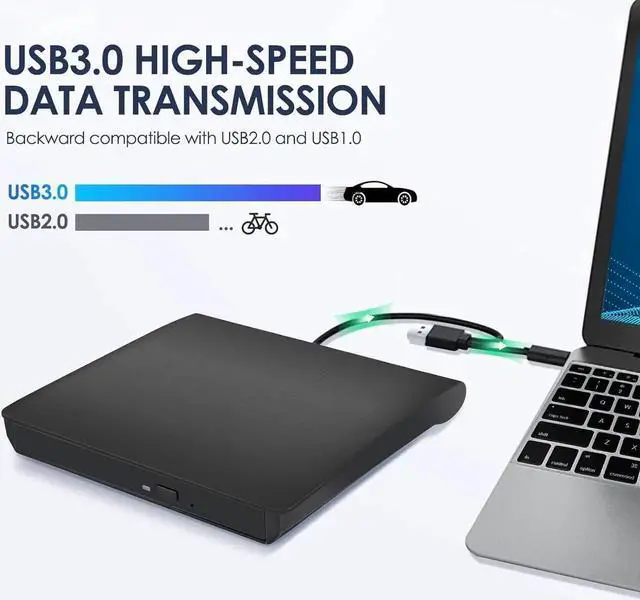
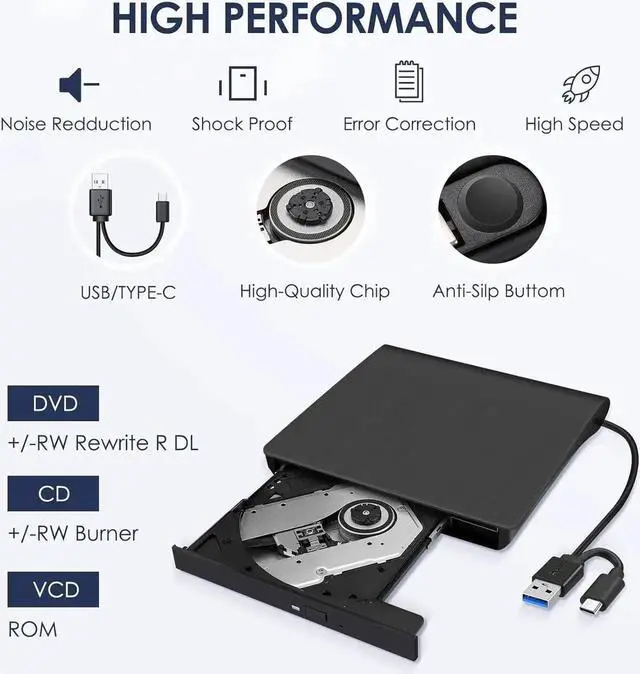
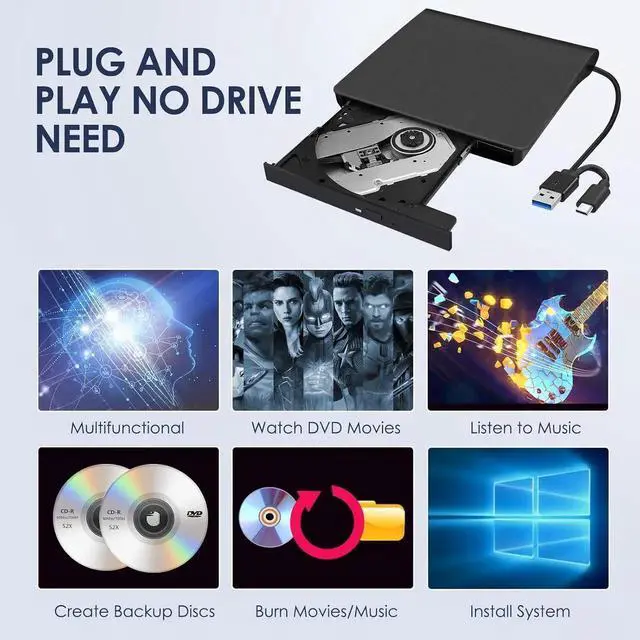
Luckily, we've got you covered. This ED001 not only has an ultra-thin and compact shape,but it also uses a true high-speed USB 3.0 solution. Simply connect to your computer via USB Type-A or Type-C, and it will automatically install the driver, and then you can experience smooth reading, burning, and ripping CD/DVD functions through the media player or burning software. The portable design and reliable performance are the reasons why this model has sold more than 1.8 million units and received the most positive reviews since it was launched in 2016.
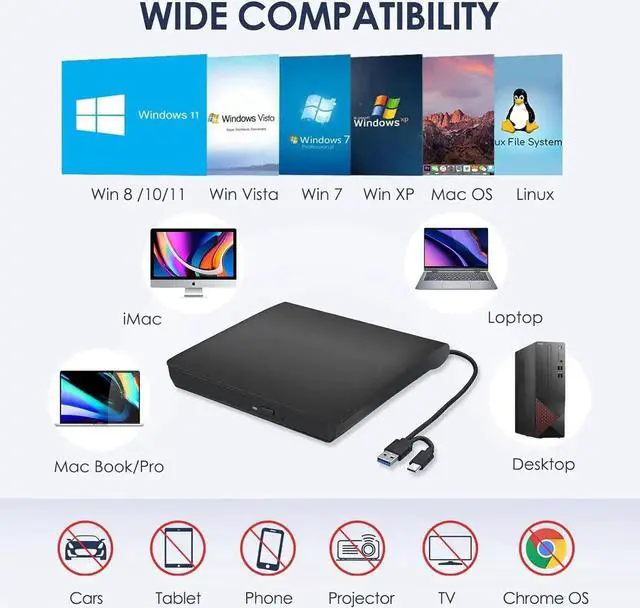
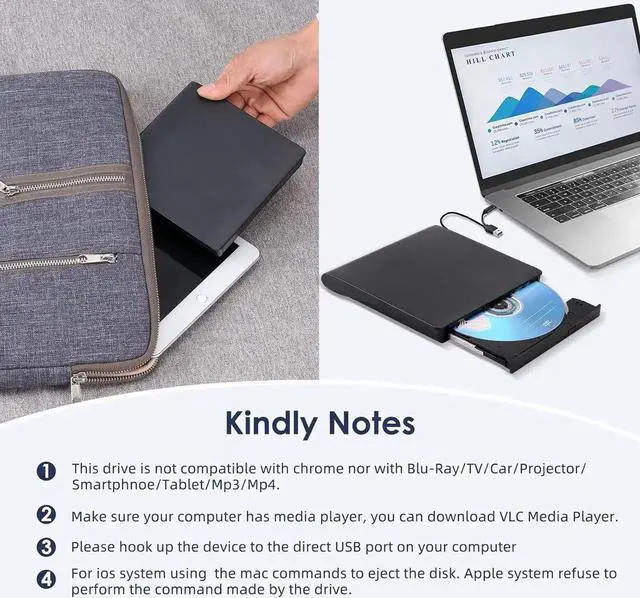
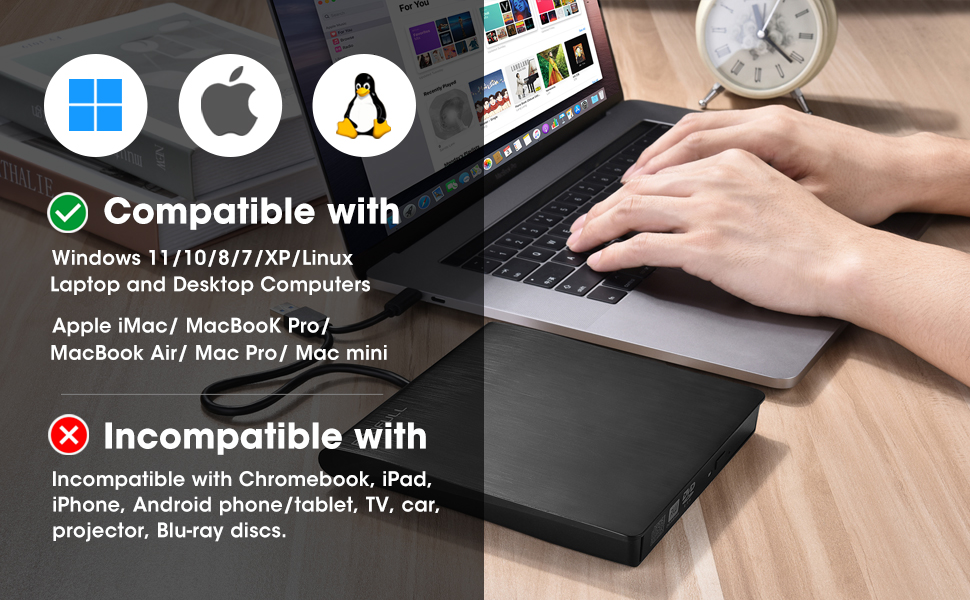
Of course, it should be noted that this external CD/DVD player is only compatible with Windows, Apple Mac, and Linux computers. It CAN NOT work with Chromebooks, smartphones, tablets, TVs, cars, projectors, PlayStation, Ubuntu, or Blu-ray discs.
How to Use this USB External CD/DVD Drive?
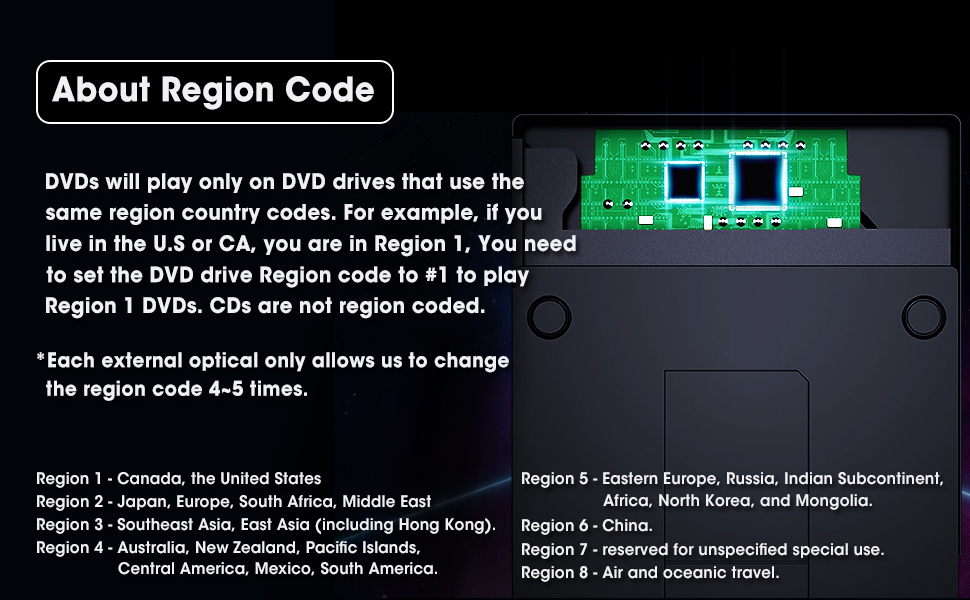
- How to Use it on Windows OS: 1. Take out the USB A/C data cable built into the back of the drive. 2. Plug the USB A or USB C connector into your computer's USB port instead of a USB hub. 3. Your computer will recognize the drive. 4. Insert your CDs or DVDs. 4. Set the region code to Number 1 to play US or CA DVDs (CDs do not have region code). 5. Use a media player (such as Windows Media Player, VLC player, etc.), burning, or ripping software to play, burn, or digitize your discs.
- Play CDs & DVDs on Windows OS: You can use Windows media player software to play audio CDs and data DVDs (Windows 11 needs a network). If you want to play video/movie DVDs, download the free VideoLAN VLC player from VLC's official site, launch the VLC media player, click on "Media" in the top menu, select "Open Disc...", ensure "DVD" is selected, then click "Play." If you want to use another media player to play video DVDs, please set the region code before playing, scroll down to check the region code instructions.
- Best CD & DVD Burning/Ripping Software on Windows OS: Free audio CDs burning software (Windows Media Player, CDBurnerXP and ImgBurn); Free audio CD ripping software (Windows Media Player, iTunes, CDex, Exact Audio Copy [EAC]); Free video DVDs burning software (ImgBurn, BurnAware Free, CDBurnerXP, Freemake Video Converter, or HandBrake software); Free video DVD ripping software (HandBrake, MakeMKV, VLC Media Player, Freemake Video Converter)
How to Use it on Mac OS: 1. Open up the Finder > Preferences and ensure "CDs, DVDs, and iPods" have been selected. Also, "External Disks", and "Hard Disks" are selected. 2. Take out the USB A/C data cable located in the back of the drive. 3. Plug the USB A or USB C connector into your Mac USB port instead of a USB hub. 4. Insert your CDs or DVDs. 5. Your Mac will recognize the drive, read the disc and an icon will appear on the desktop. 6. Use a media player (such as Apple Music, iTunes, DVD Player, etc.) ,burning, or ripping software to read, write, or rip the disc.
- Play CDs & DVDs on Mac OS: After placing the audio CD into your CD drive, the Apple Music app should automatically open and start playing the CD. If not, you can open the Music app manually and select the CD from the sidebar under "Devices.". If you prefer, you can use VLC Media Player. For video DVDs, Open VLC Media Player, go to "File" >"Open Disc..." or simply drag the DVD icon into the VLC window. VLC will handle most DVD formats and regions.
- Best CD & DVD Burning/Ripping App on Mac OS: Free audio CDs burning software (Apple Music, old iTunes, Burn, Express Burn); Free audio CD ripping software (Apple Music, old iTunes, X Lossless Decoder, HandBrake, Audacity); Free video DVDs burning software (Burn, HandBrake, iDVD (Legacy), DVDStyler, iDVD [for old mac]); Free video DVD ripping software (MakeMKV, HandBrake with VLC - Use VLC to read the DVD, and HandBrake to convert and rip it to your desired format).
Mac OS Includes a Built-in Burning Function: Connect the external optical drive, insert a blank disc, then click 'File' in the top menu and select 'New Burn Folder.' Drag the files you want to burn into this folder, click 'Burn to Disc,' and eject the disc when finished. Note that Mac OS only supports burning blank discs, and each disc can be burned only once.
Troubleshooting Steps
If your Windows laptop PC cannot recognize this CD/DVD drive, please try the following suggestions:
- Use the Type A and Type C cables on the back (bottom) of the optical drive to connect your computer's USB port instead of a USB hub. This drive also comes with a power supply cable (charging cable). Please connect it to a 5V power adapter or power bank, which can help eliminate any issues related to insufficient power. For Windows 11/10, please make sure a network connection and a media player software (Such as Windows media player for audio CDs, VLC player for video DVDs)
- Try different USB: Move the data cable to different USB ports on your computer.
- Reinstall the driver: 1. Right-click the Windows Start Button in the lower left corner of the screen, or press the Windows Logo + X key combination on the keyboard, from the list, and click to select Device Manager. 2. Click View. 3. Click Show Hidden Devices. 4. Fine this DVD/CD-ROM drive or similar name. 5. Right-click and select Uninstall. 6. Reboot your computer and replug the external drive, Windows will detect the drive and then reinstall it. If it is not solved, reach out to us for a Driver troubleshooting tool, the download link is not allowed here.
- Reach out to us to get the driver repair tool.
If your MacBook, iMac, or Mac Pro/Studio cannot recognize this CD/DVD drive, please try the following suggestions:
- The Mac OS computer will not display the device icon until the disc is placed in the optical drive and the disc is read successfully.
- Move the data cable to different USB ports on your Mac computer, and try different discs.
- Please connect it to a 5V power adapter or power bank, which can help eliminate any issues related to insufficient power. NOTE: For Mac, you need to connect the external CD/DVD drive to the computer first, and then connect the power supply to the external CD/DVD drive, otherwise the Apple computer will not recognize the external CD/DVD drive.
Tips: If you need assistance, please feel free to reach out to us on Newegg (STEP: On this product detail page, click the name of the seller [AUBEAMTO] and send messages.)