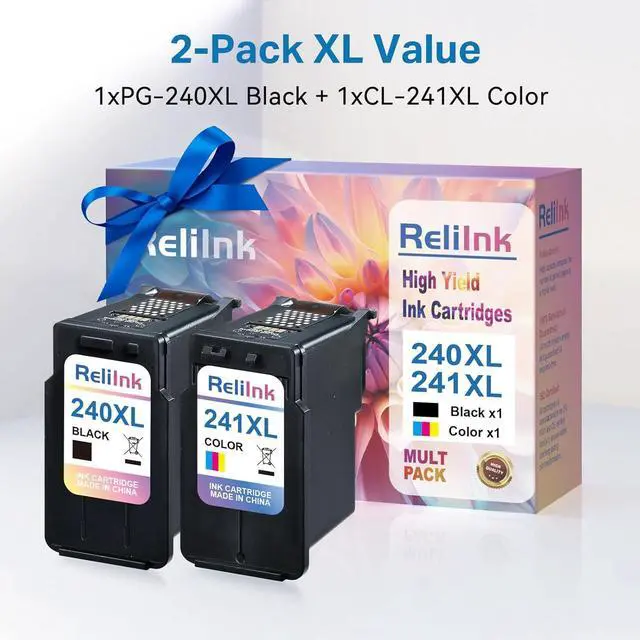
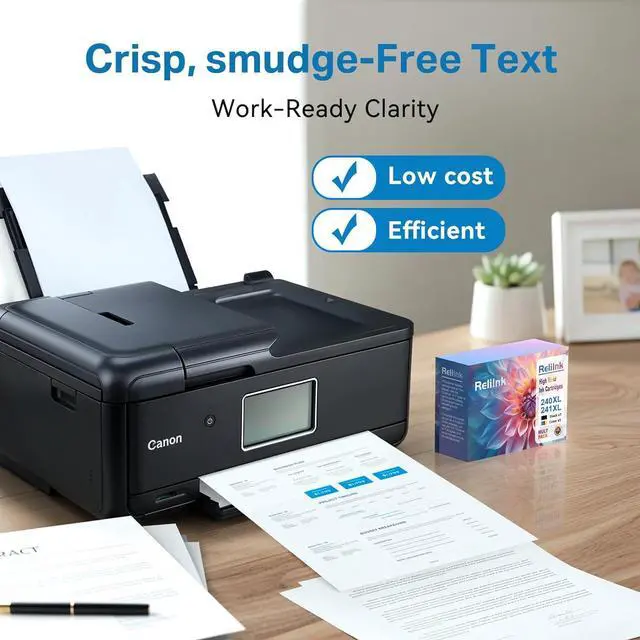
Q1: Why is my printer not recognizing the ink cartridge during installation?
A1: (1) Check if the ink cartridge model is compatible with your printer. (2) Ensure the blue sealing tape on the ink cartridge is removed. (3) Verify the ink cartridge is correctly installed in the slot. (4) Clean the chip surface gently with an eraser or alcohol. (5) Restart your printer. (6) If the issue persists, find us support for a replacement.
Q2: Why does the printer stop recognizing the ink cartridge during printing?
A2: (1) Remove and reinstall the ink cartridge. (2) Restart your printer. (3) If the problem continues, find us support for a replacement.
Q3: What should I do if the ink cartridge leaks during or after installation?
A3: (1) Avoid using the ink cartridge and inspect the printer for damage. (2) Find us support for a replacement.
Q4: Why is the print quality poor?
A4: (1) Check if the blue sealing tape has been removed. (2) Print a self-test page to check the printhead. (3) If the printhead is in poor condition, follow the printer's prompts to perform multiple nozzle cleaning cycles in the printer settings. (4) If the issue persists, find us support for a replacement.
Q5: What should I do if the printer displays an error message about the ink cartridges, such as Empty ink cartridge/Non-original ink cartridge/Used original ink cartridge?
A5: (1) Press the "OK" button to bypass the message and continue printing. (2) If the error persists, find us support for a replacement.