

Your Browsing History


Meet Your Seller

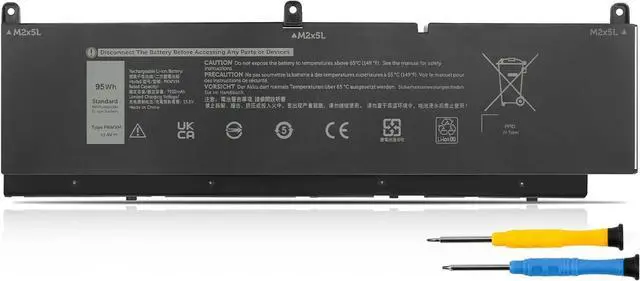
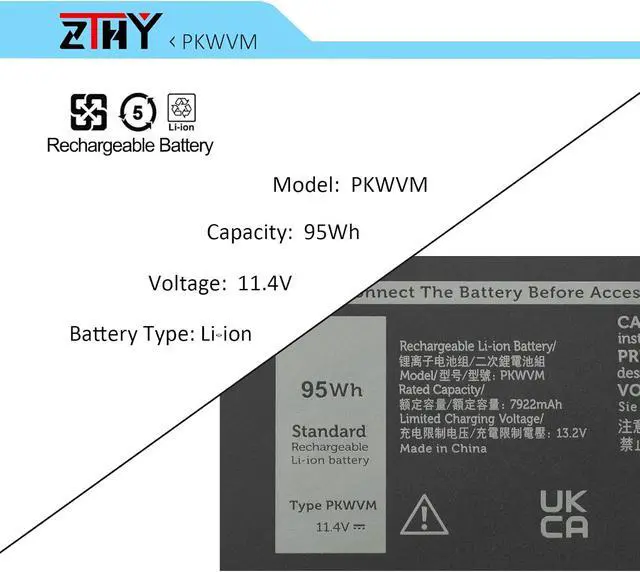
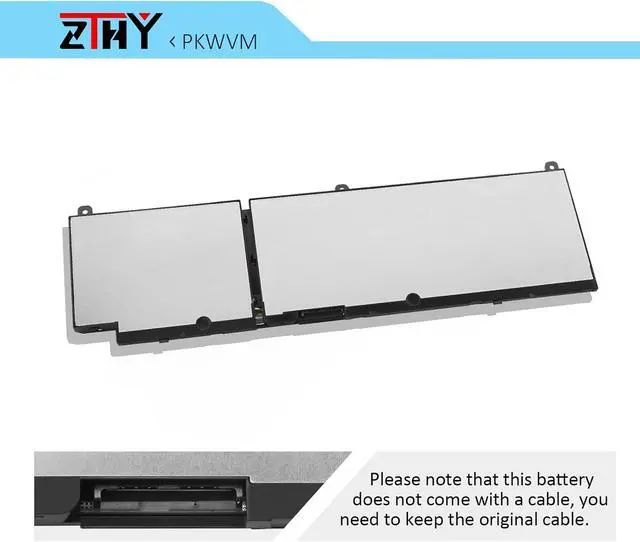
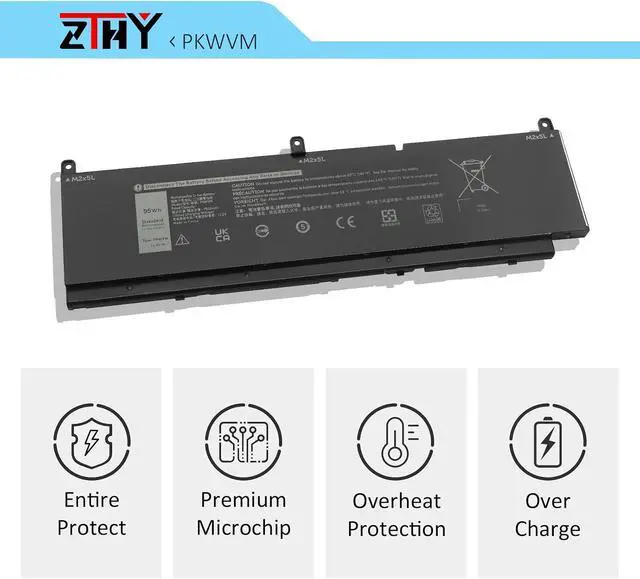
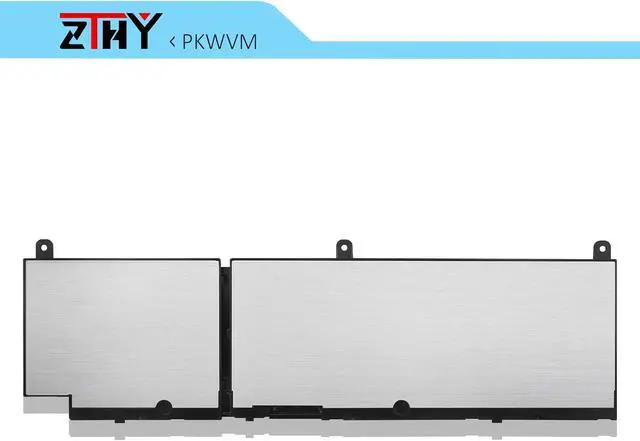
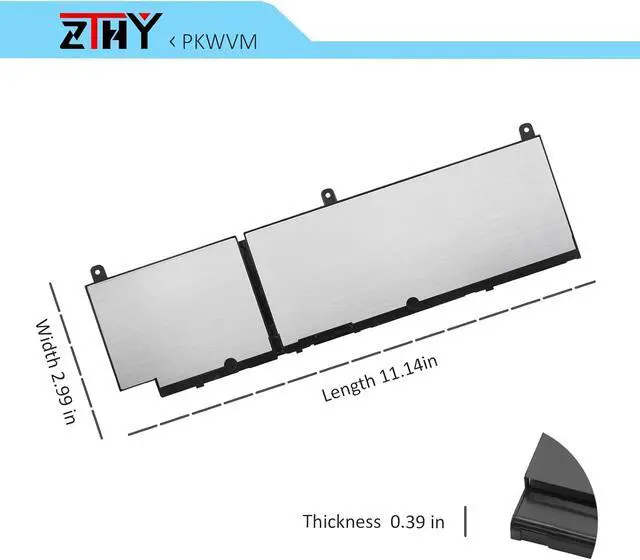


ZTHY PKWVM Battery 95Wh 6-Cell Replacement for Dell Precision 7550 7560 7750 7760 Mobile Workstation Laptop P44E P93F P44E001 P44E002 P93F001 P93F002 C903V 17C06 0CR72X 0447VR 068N03 453-BBCQ 11.4V
- Specifications: Battery type: Li-ion. Color: Black. Voltage: 11.4V. Capacity: 95Wh/7922mAh. Cells: 6-Cell. ZTHY specializes in Laptop and camera Accessories including Laptop Batteries, Tablet batteries, Camera Batteries, Camcorder Batteries, Vacuum Batteries, and chargers
- Compatible Part Number: PKWVM C903V CR72X 68ND3 0CR72X 068N03 0447VR 453-BBCQ
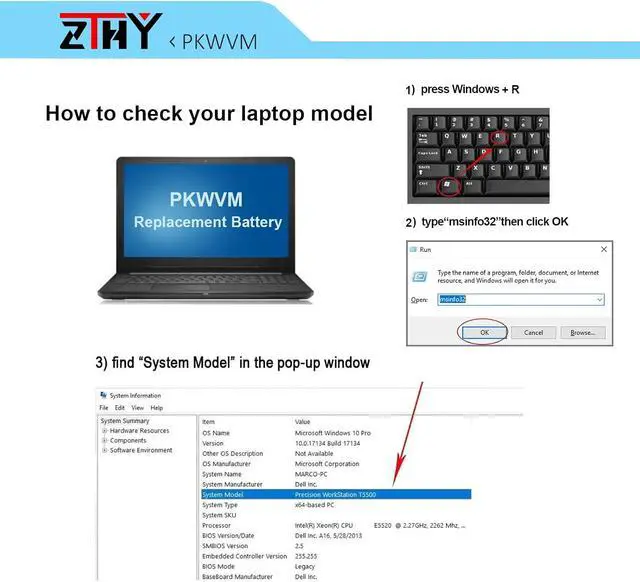
- Compatible Models: Replacement for Dell Precision 7550 7560 Mobile Workstation Series; Replacement for Dell Precision 7750 7760 Mobile Workstation Series; Replacement for Dell P44E P93F P44E001 P44E002 P93F001 P93F002 Series
- Security: All ZTHY products are Certified by CE, UL for safety. Strict guidelines for compatibility, and standards compliance for environment safety
- Note: If the new battery is not recognized during the initial installation, please reinstall and check if the interface is fully connected. Discharge the new battery to 10-20% (not 0%), then charge and cycle 3-4 times to wake up the new battery
+
+
Overview
Reviews

Any questions? Our AI beta will help you find out quickly.
Try me now
Compatible Part Number PKWVM C903V CR72X 68ND3 0CR72X 068N03 0447VR 453-BBCQ Compatible Model Replacement for Dell Precision 7550 7560 Mobile Workstation Series; Compatible Model Replacement for Dell Precision 7750 7760 Mobile Workstation Series; Compatible Model Replacement for Dell P44E P93F P44E001 P44E002 P93F001 P93F002 Series. What do I need to be aware of when I receive a new laptop battery?
Check appearance, model, manual. Do 5-6 full charge-discharge cycles to activate. Store long-term at 50%-60% in cool dry place; check every 2-3 months & recharge if needed. These steps extend battery life & reliability.
What should I do if laptop won't boot up after installing a new battery?
1. Check battery seated & contacts clean. 2. Run laptop on charger alone (battery out). 3. If charger works, charge new battery 30 mins then boot with battery. 4. Reset BIOS/EC (hold power 30s). 5. Reinstall old battery to verify laptop hardware.
How should I do if the battery is not recognised?
Update BIOS to latest version. Power off, disconnect battery (and adapter), hold power button 20s, reconnect battery and adapter, reboot. If still not recognised, reseat battery and clean contacts.
What should I do if the battery expands?
1. Power off & unplug laptop. 2. Do not charge or use. 3. In ventilated area, remove swollen battery carefully, avoid pressing or puncturing.
What can you do if you are not satisfied with the battery?
Please use Amazon's messaging system with your order details. We are committed to your satisfaction and will do our best to help resolve any issue.
Battery Installation Guidelines
1.Prepare Before Installation: While installing a battery is generally straightforward, it is recommended to watch online installation tutorials for your specific laptop model or seek assistance from a professional.
2.Follow Installation Procedures: Handle all components with care during installation. Be particularly gentle with the battery connector on the laptop motherboard; do not use excessive force. Any damage caused by improper operation is the user's responsibility.
3.If the New Battery Doesn't Charge: If the battery isn't charging after installation, try a power reset: remove the battery, unplug the charger, hold the power button for 15 seconds, and then reinstall the battery. Repeat this process if necessary.
Battery Identification Troubleshooting Guide
1.Check the Connection: A loose battery is a common cause. Remove the battery and reinstall it, ensuring the connector is firmly seated in the motherboard interface.
2.Inspect Conductive Components: The conductive materials on the laptop's battery contact points can become damaged. Compare with an original battery to confirm (if the original battery works, the conductive components are likely the issue).
3.Update the Battery Driver: Check the device's driver status. If the battery driver is malfunctioning, download and install the latest driver for your specific laptop model.
4.Perform a Power Reset: Remove the battery and, with the power adapter unplugged, press and hold the power button for 15 seconds to discharge residual power. Reinstall the battery and attempt to power on. You may need to repeat this process if it is ineffective the first time.
Battery Usage and Maintenance Tips: 1.Activating a New Battery: New batteries often arrive with a partial charge (around 50%). To maximize initial performance, discharge the battery to 10-20% and then charge it to 100%. Repeat this cycle 3-5 times. 2.Avoid Full Discharge: Never drain the battery to 0%, as this can damage the battery cells and accelerate aging. Extreme low power may also cause the laptop to shut down unexpectedly. 3.Charge Promptly: Recharge the battery soon after it is depleted. Leaving a battery at 0% for an extended period can cause permanent damage. 4.Long-Term Storage: If you do not
Check appearance, model, manual. Do 5-6 full charge-discharge cycles to activate. Store long-term at 50%-60% in cool dry place; check every 2-3 months & recharge if needed. These steps extend battery life & reliability.
What should I do if laptop won't boot up after installing a new battery?
1. Check battery seated & contacts clean. 2. Run laptop on charger alone (battery out). 3. If charger works, charge new battery 30 mins then boot with battery. 4. Reset BIOS/EC (hold power 30s). 5. Reinstall old battery to verify laptop hardware.
How should I do if the battery is not recognised?
Update BIOS to latest version. Power off, disconnect battery (and adapter), hold power button 20s, reconnect battery and adapter, reboot. If still not recognised, reseat battery and clean contacts.
What should I do if the battery expands?
1. Power off & unplug laptop. 2. Do not charge or use. 3. In ventilated area, remove swollen battery carefully, avoid pressing or puncturing.
What can you do if you are not satisfied with the battery?
Please use Amazon's messaging system with your order details. We are committed to your satisfaction and will do our best to help resolve any issue.
Battery Installation Guidelines
1.Prepare Before Installation: While installing a battery is generally straightforward, it is recommended to watch online installation tutorials for your specific laptop model or seek assistance from a professional.
2.Follow Installation Procedures: Handle all components with care during installation. Be particularly gentle with the battery connector on the laptop motherboard; do not use excessive force. Any damage caused by improper operation is the user's responsibility.
3.If the New Battery Doesn't Charge: If the battery isn't charging after installation, try a power reset: remove the battery, unplug the charger, hold the power button for 15 seconds, and then reinstall the battery. Repeat this process if necessary.
Battery Identification Troubleshooting Guide
1.Check the Connection: A loose battery is a common cause. Remove the battery and reinstall it, ensuring the connector is firmly seated in the motherboard interface.
2.Inspect Conductive Components: The conductive materials on the laptop's battery contact points can become damaged. Compare with an original battery to confirm (if the original battery works, the conductive components are likely the issue).
3.Update the Battery Driver: Check the device's driver status. If the battery driver is malfunctioning, download and install the latest driver for your specific laptop model.
4.Perform a Power Reset: Remove the battery and, with the power adapter unplugged, press and hold the power button for 15 seconds to discharge residual power. Reinstall the battery and attempt to power on. You may need to repeat this process if it is ineffective the first time.
Battery Usage and Maintenance Tips: 1.Activating a New Battery: New batteries often arrive with a partial charge (around 50%). To maximize initial performance, discharge the battery to 10-20% and then charge it to 100%. Repeat this cycle 3-5 times. 2.Avoid Full Discharge: Never drain the battery to 0%, as this can damage the battery cells and accelerate aging. Extreme low power may also cause the laptop to shut down unexpectedly. 3.Charge Promptly: Recharge the battery soon after it is depleted. Leaving a battery at 0% for an extended period can cause permanent damage. 4.Long-Term Storage: If you do not
Warranty & Returns
Warranty, Returns, And Additional Information
Warranty
- Please contact the Seller directly for warranty information. Warranty information may also be found on the Manufacturer's website.
- CONTACT
Return Policies
- Return for refund within: 45 days
- Return for replacement within: 45 days
- This item is covered by Xalvion E-Commerce Limited Return Policy
Manufacturer Contact Info
- For a directory of all our manufacturers, please click below.
- Manufacturers Directory
LOADING...