

Your Browsing History


Meet Your Seller

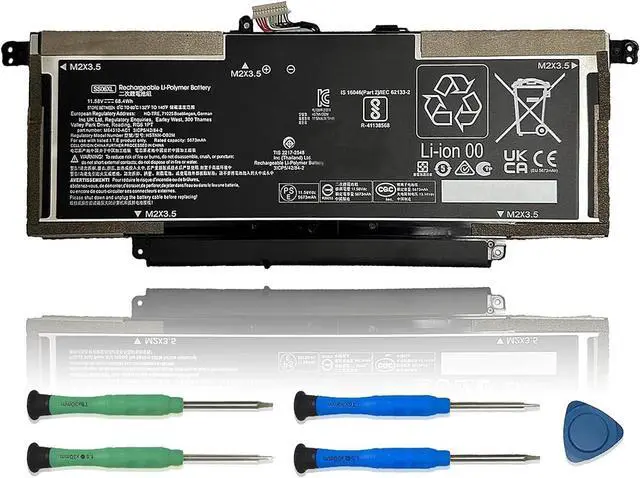
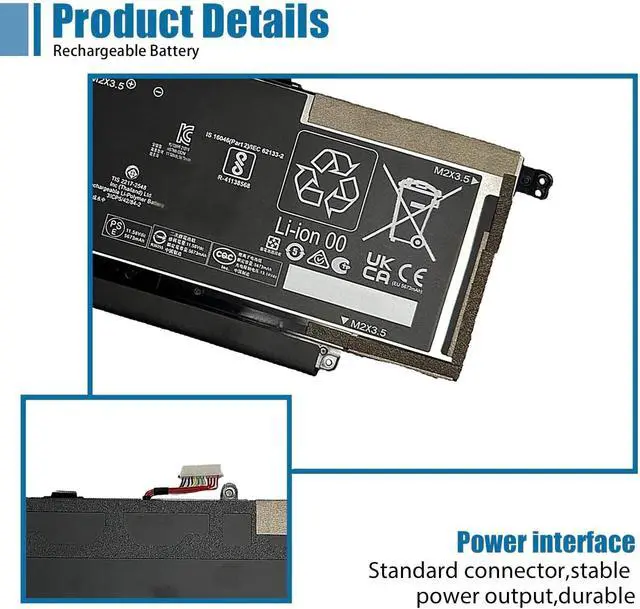
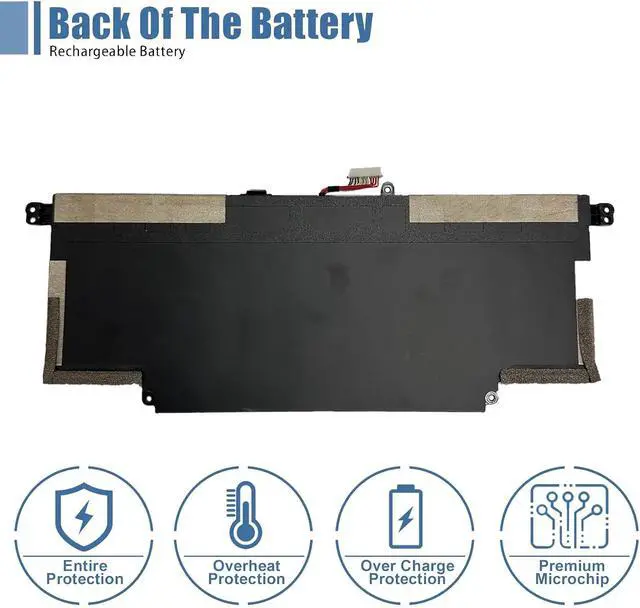
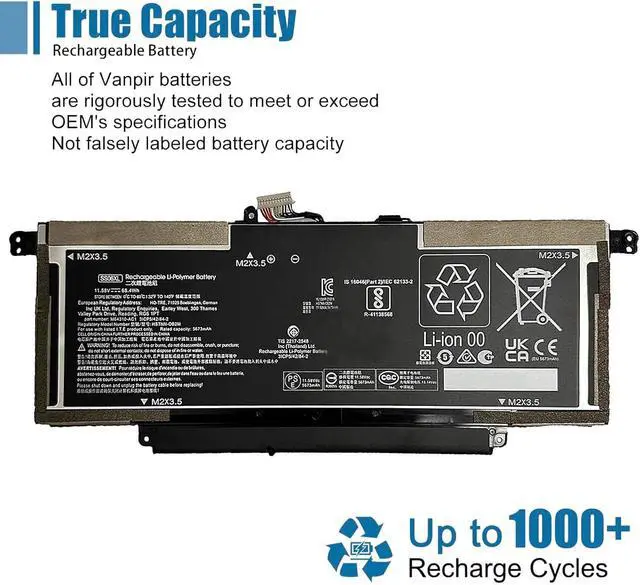



SS06XL Laptop Battery Replacement for HP Elite Dragonfly G3 Series M73478-005 M64310-AC1 HSTNN-OB2M TPN-DB0O M64310-271 SS06068XL 11.58V 68.4Wh 5673mAh
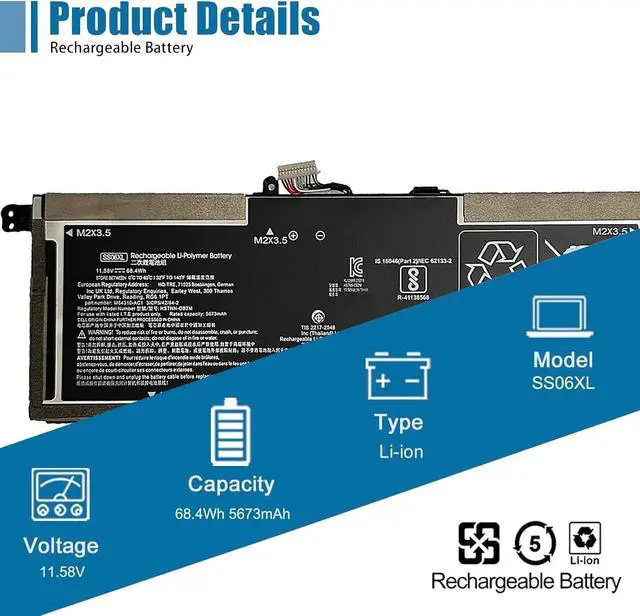
- SpecificationsModel: SS06XL/ Type: Li-ion / Voltage: 11.58V /Capacity: 68.4Wh
- Compatible Laptop Models Replacements for Hp Elite Dragonfly G3 Series
- Replace Part NumberSS06XL M73478-005 M64310-AC1 HSTNN-OB2M TPN-DB0O M64310-271 SS06068XL
- Advantage for batteryBrand New battery, Certified by CE for safety and Strict guidelines for compatibility. Now, this battery is powered by Lithium-Ion technology and has a safeguard chip that authenticates. System Battery Extended Life System Battery
- Quality AssuranceSupport 30 days return or exchange and 12 months replacement. Factory Sealed, Retail Packaged. Any questions will be answered within 24 hours, Serve you wholeheartedly
+
+
Overview
Specs
Reviews

Any questions? Our AI beta will help you find out quickly.
Try me now
We are a professional laptop battery manufacturer, dedicated to manufacture and provide high-quality different types laptop batteries for our customers and dedicated to serving customers wholeheartedly.
Lithium-ion batteries, rechargeable batteries for portable electronics,100% new from Manufacturer. Adopt strict quality control standards, reliable and high-quality batteries. Meet the OEMs specifications, be stable and last long, Lower Power Consumption, provide stronger power for your laptop.
ModelSS06XL Battery
TypeLi-ion
Voltage11.58V
Capacity68.4Wh 5673mAh
Condition : 100% New from Manufacturer, Grade A Cell
Packing Included:
1* SS06XL battery
1* Instruction manual
Meet the OEM. CE / FCC / RoHS certified.
Easy to install.
Up to 1000+ recharge cycles over the life of the battery.
Easily deal with various practical environments and bring you a stronger battery life experience.
Method 1: Use System Information to find your laptop model
Step 1: Press " Windows + R " to open the Run window.
Step 2: Type " msinfo32 " in the empty box and click " OK " to open System Information.
Step 3: Keep in the " System Summary " section and you will find the " System Model " item in the right pane.
Method 2: Open the back cover of the laptop and confirm the battery type and capacity, as well as the model of the laptop.
Step 1: Turn off the laptop and unplug the power cord (to prevent electric shock)
Step 2: Remove the back panel with a screwdriver. (Please proceed with care to avoid damage to the laptop's components.)
Step 3: Disconnect the cable connected to the battery and remove it. After that, you can check the specifications of your battery.
Replacement Part Number:
SS06XL M73478-005 M64310-AC1 HSTNN-OB2M TPN-DB0O M64310-271 SS06068XL
Compatible Models: (use "Ctrl+F" to find your model quickly)
Replacement for Hp Elite Dragonfly G3 Series
Note: For more accrate, please check the part number of your original battery.
Manual calibration, The steps are:
1) Shut down, plug in the power adapter to fully charge the battery. If the battery is full, you can proceed directly to the next step.
2) Unplug the power adapter, turn on the battery, and let the battery automatically discharge until the computer automatically shuts down. During this period, it is best not to do any computer operations.
3) Plug in the battery adapter and fully charge the battery. This process is OK if it is turned on or not.
To borrow software, such as batteryMon :
1) Install the battery, plug in the power adapter, and power on. Run Batterymon and click the start button. After charging, shut down and unplug the adapter.
2) Restart and run Batterymon. Close all applications, adjust the power plan to turn off the screen for 1 minute and never go to sleep, and then slowly wait for the battery to discharge until it automatically shuts down. Repeat the operation 3 times.
3. The software is still used, but the battery manager on the official website is used, just follow the instructions.
Besides, The software is still used, but the battery manager on the official website is used, just follow the instructions.
Use the battery that comes with BIOS to calibrate:
(1) After booting, quickly press the "F2" key to enter the BIOS menu; use the left and right direction keys to select and enter the Power menu.
(2) Enter the Power menu, you can see the "Start Battery Calibration" option, select it and press the Enter key to execute.
(3) At this time, the screen will turn blue, and there will be a prompt in English, requiring that the notebook's power adapter be plugged in to charge the battery. After the battery is fully charged, the screen prompts the user to disconnect the power adapter. After that, the notebook continues to discharge the battery until the battery is exhausted. <
Warranty & Returns
Warranty, Returns, And Additional Information
Warranty
- Please contact the Seller directly for warranty information. Warranty information may also be found on the Manufacturer's website.
- CONTACT
Return Policies
- Return for refund within: 45 days
- Return for replacement within: 45 days
- This item is covered by Xalvion E-Commerce Limited Return Policy
Manufacturer Contact Info
- For a directory of all our manufacturers, please click below.
- Manufacturers Directory
LOADING...