





aplus content video
PRODUCT PARAMETER
How to download and use the mouse driver?
Please download the driver software: support.attackshark.com/attackshark/ATTACK_SHARK_R6/R6_14_49_53_Ver1.0.0.0.exe?v=4353980492
And we can set it directly on the web page without downloading: cn.attackshark.pro/WebDriven/index.html#/project/items
How to precisely adjust the DPI value?
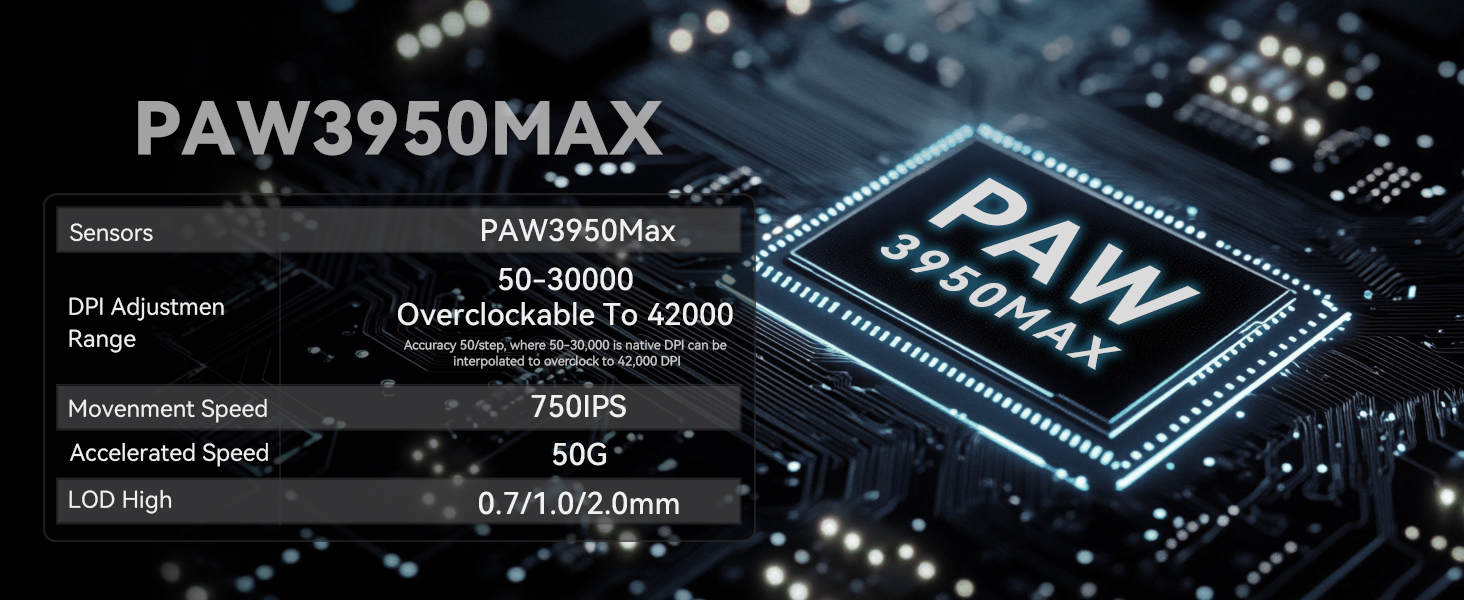
We can enter the required value under the DPI setting of the software and click the save button to apply it. Supporting minimum 50 DPI up to 42000 DPI step setting.
We can also use the combination of shortcut keys introduced in the manual to adjust.
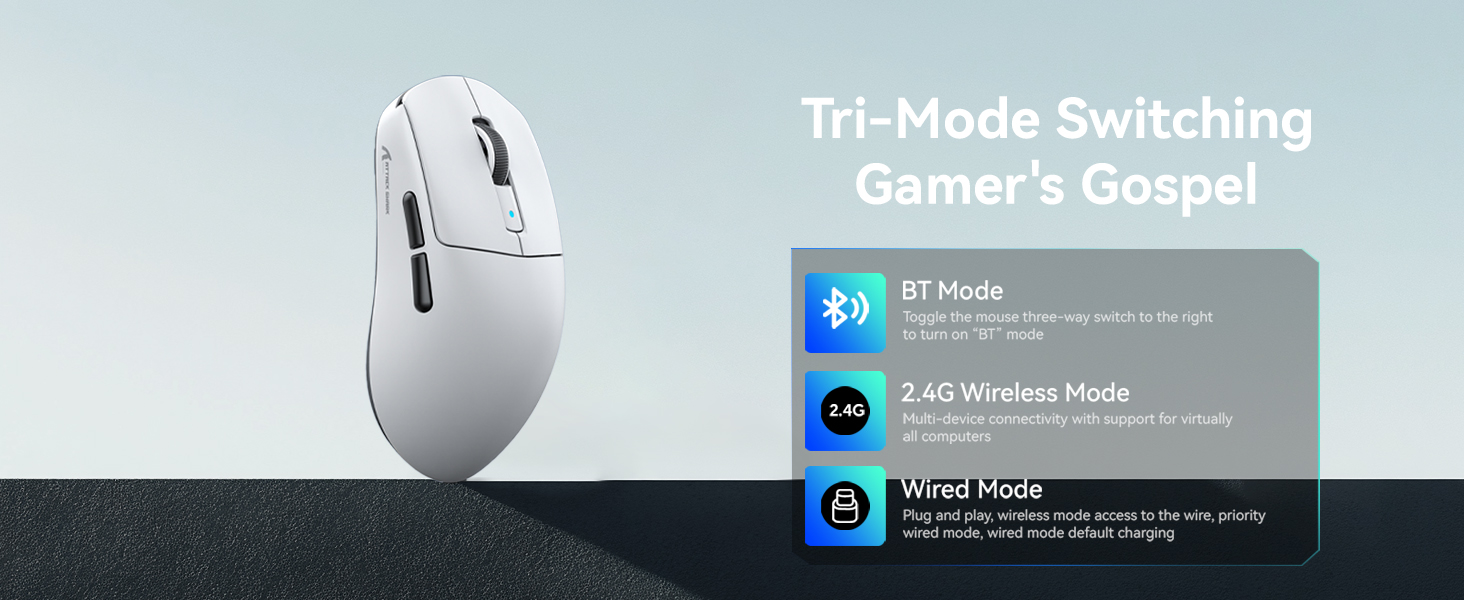
How to use Bluetooth connection?
a) Toggle the switch on the back to Bluetooth.
b) Long press the Bluetooth button for 3 seconds.
c) Turn on the Bluetooth switch of the device, find the device named "R6 mouse", click to connect.
Please check the manual for details.
How to use 2.4G wireless connection or wired connection?
1) 2.4G connection
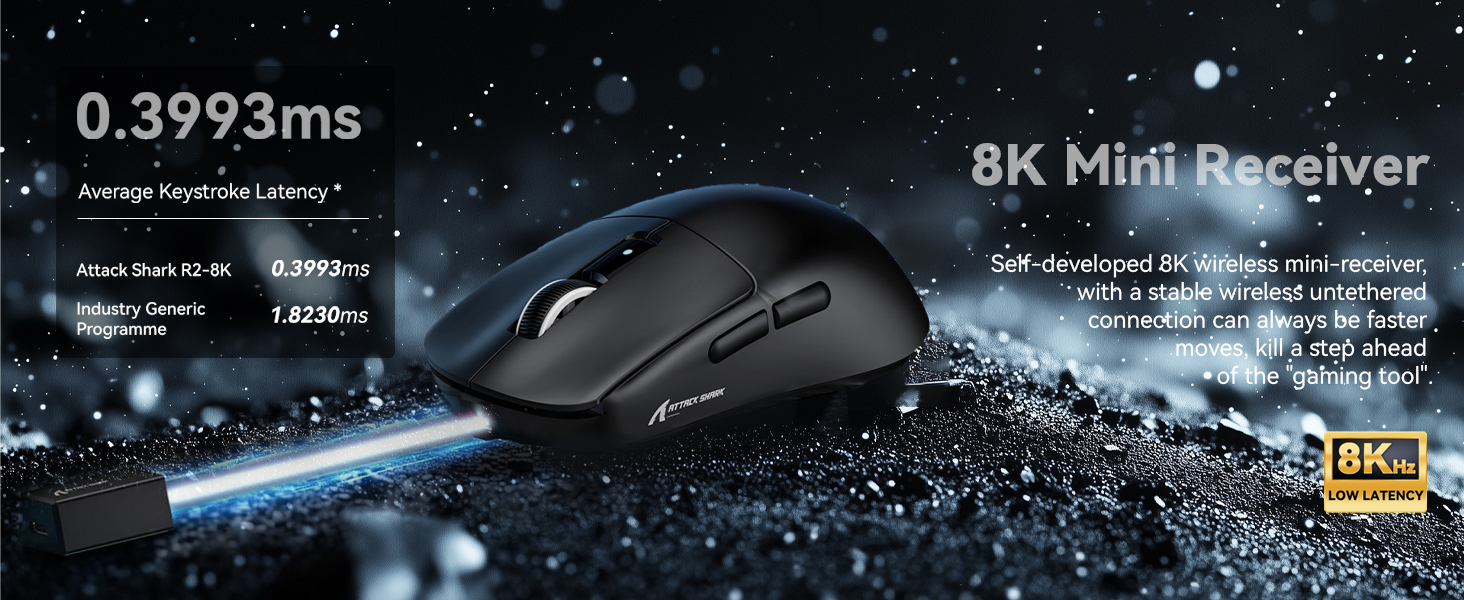
Turn the switch on the back of the mouse to 2.4G, and plug the Mini receiver into the computer to use it.
2) Wired connection
Adjust the switch to the middle position-insert the USB cable, which can be used directly and charge it.
What's included in the product packaging?
1× R6 mouse
1× 2.4G receiver
1× USB-C cable
1× instruction manual
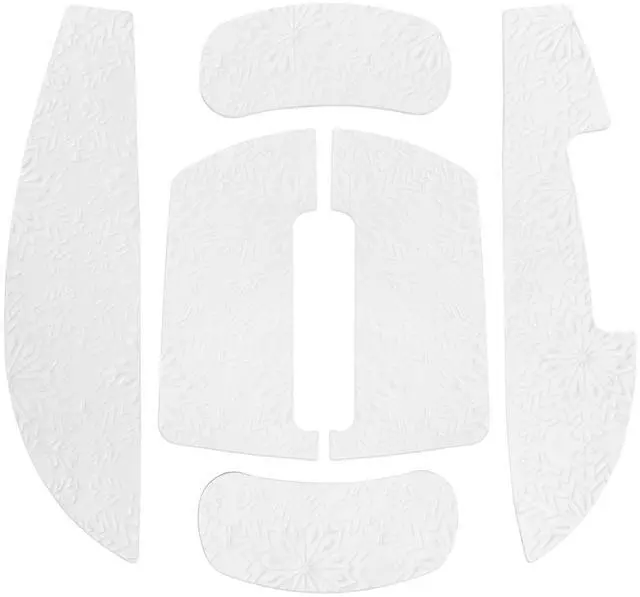
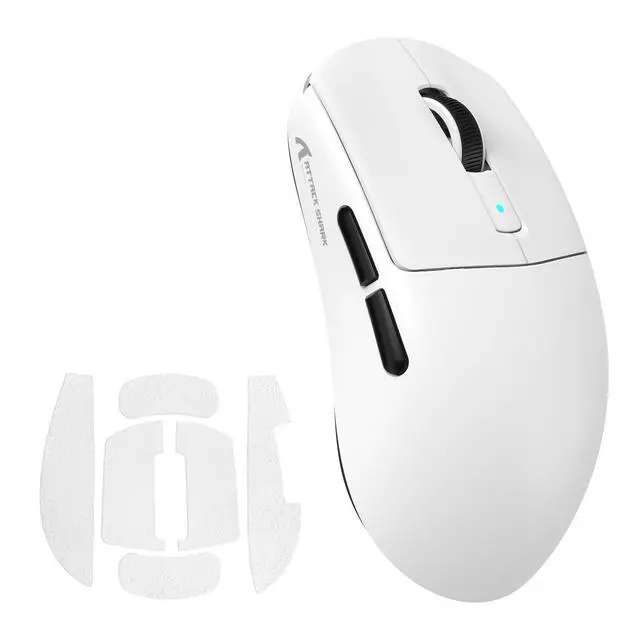
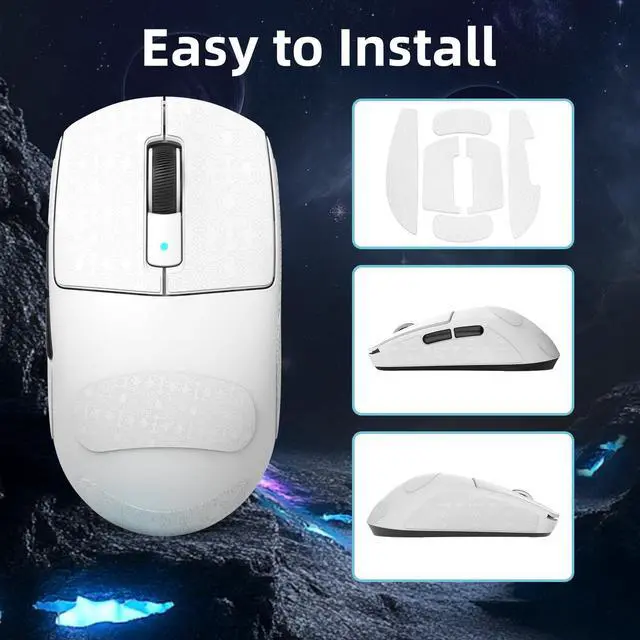
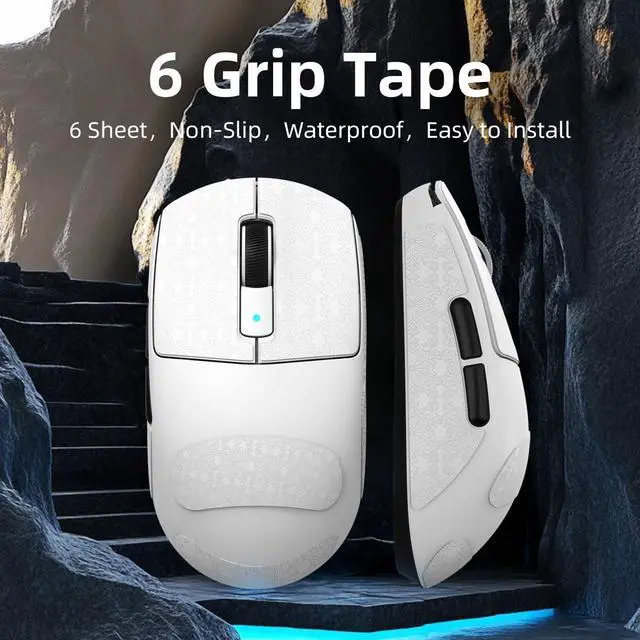
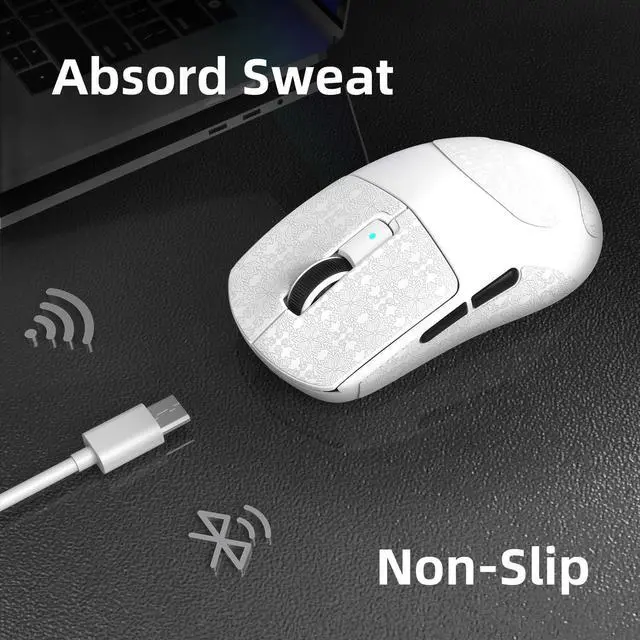
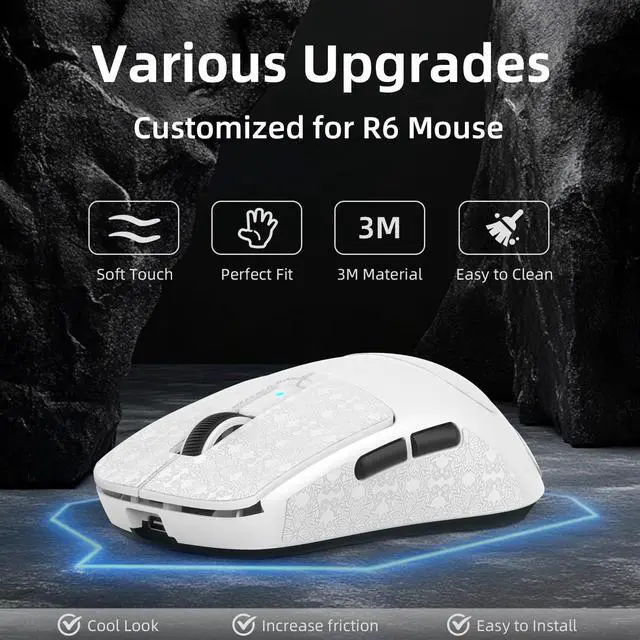
1× Grip tape

PEOPLE-PRIENTED
CUSTOMER FIRST

LexonElec adheres to the concept of "customer experience as the core" and "innovation". We are committed to continuously exploring customer needs; innovating according to customer needs. Use the latest technology to give customers the most advanced experience.
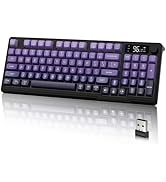
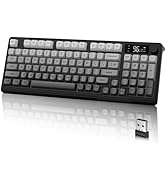
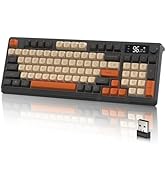
M96 Gaming Keyboard - Gradient
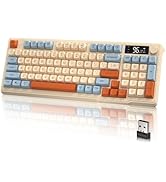
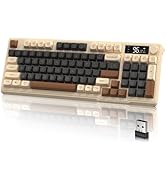
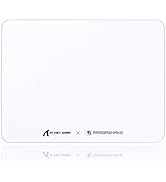
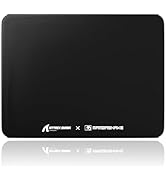
M96 Keyboard & CM05SE Mousepad
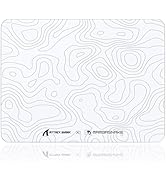
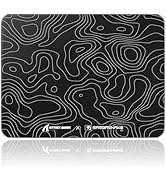
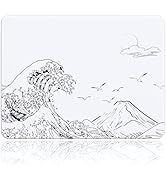
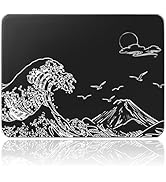
CM05SE Mousepads
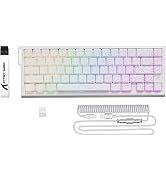
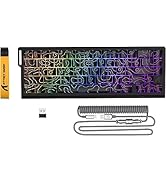
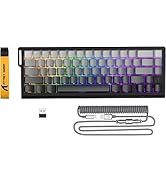
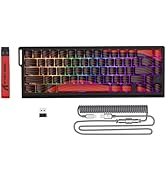
X68PRO HE Keyboards
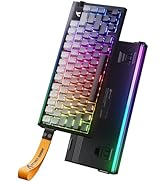
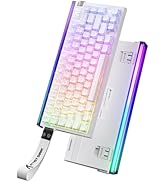
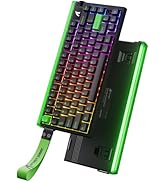
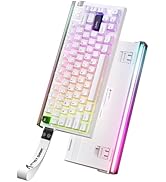
R85 Keyboards
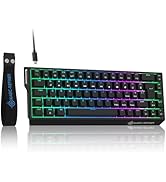
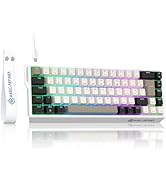
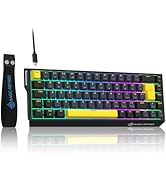
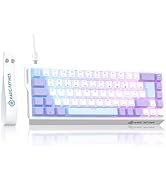
X68 HE Keyboards
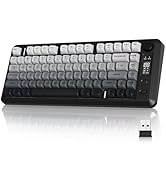
M75 Keyboards
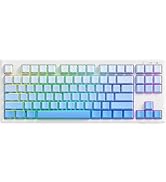
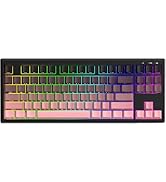
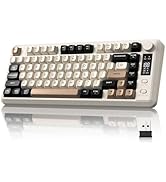
M87V2 Keyboards
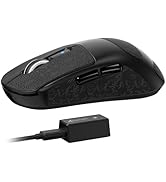
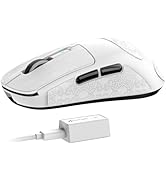
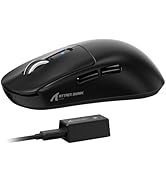
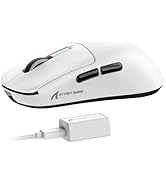
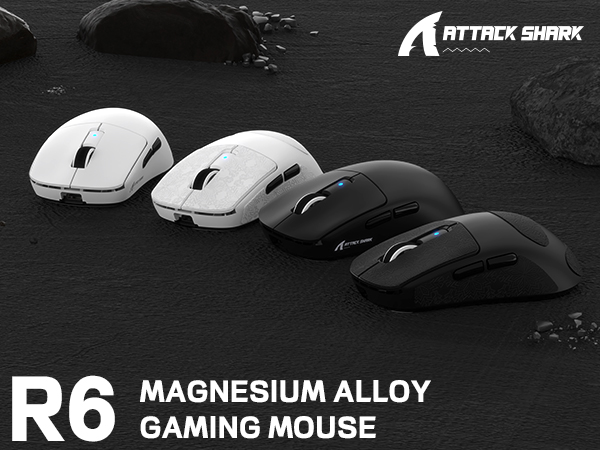
R6 Gaming Mouse
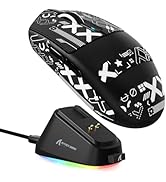
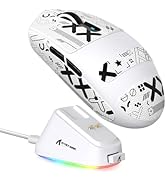
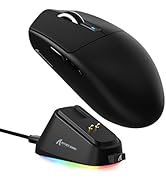
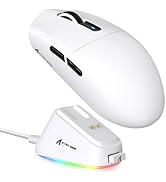
G3PRO Game mouse
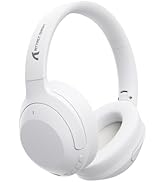


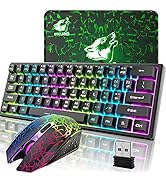
G300 Headsets
aplus content video
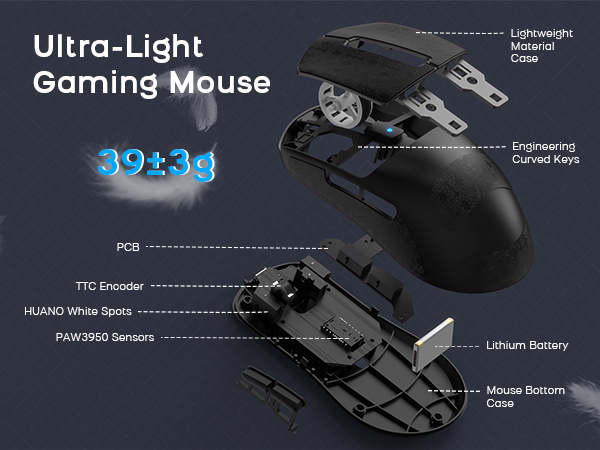
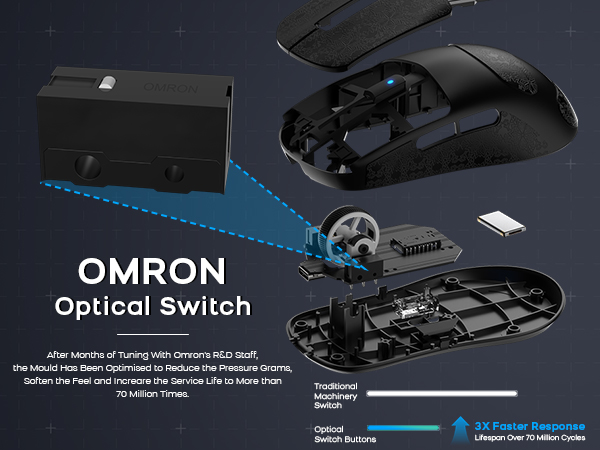
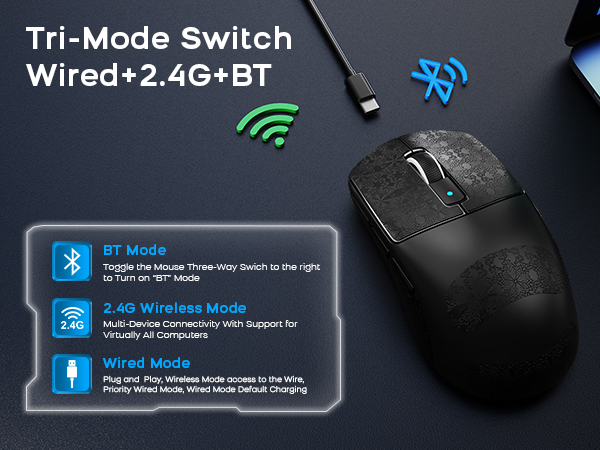
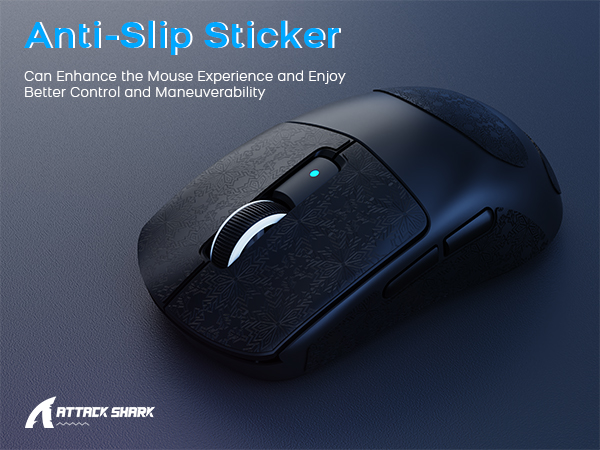
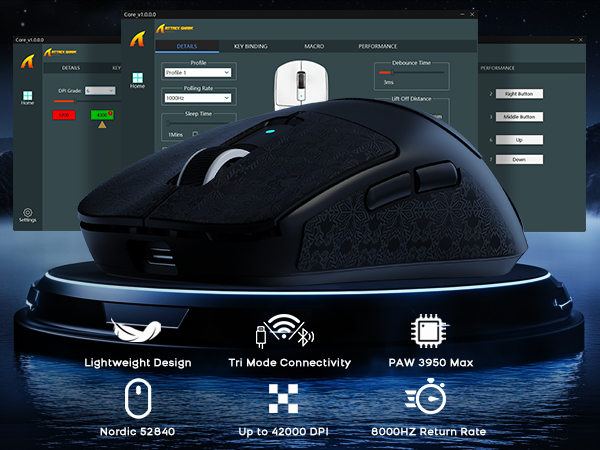
PRODUCT PARAMETER
| Product Model | R6 |
|---|---|
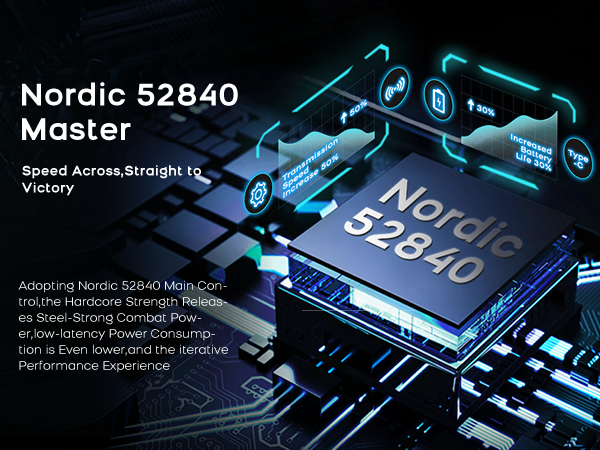
| Sensor Model | PAW 3950MAX |
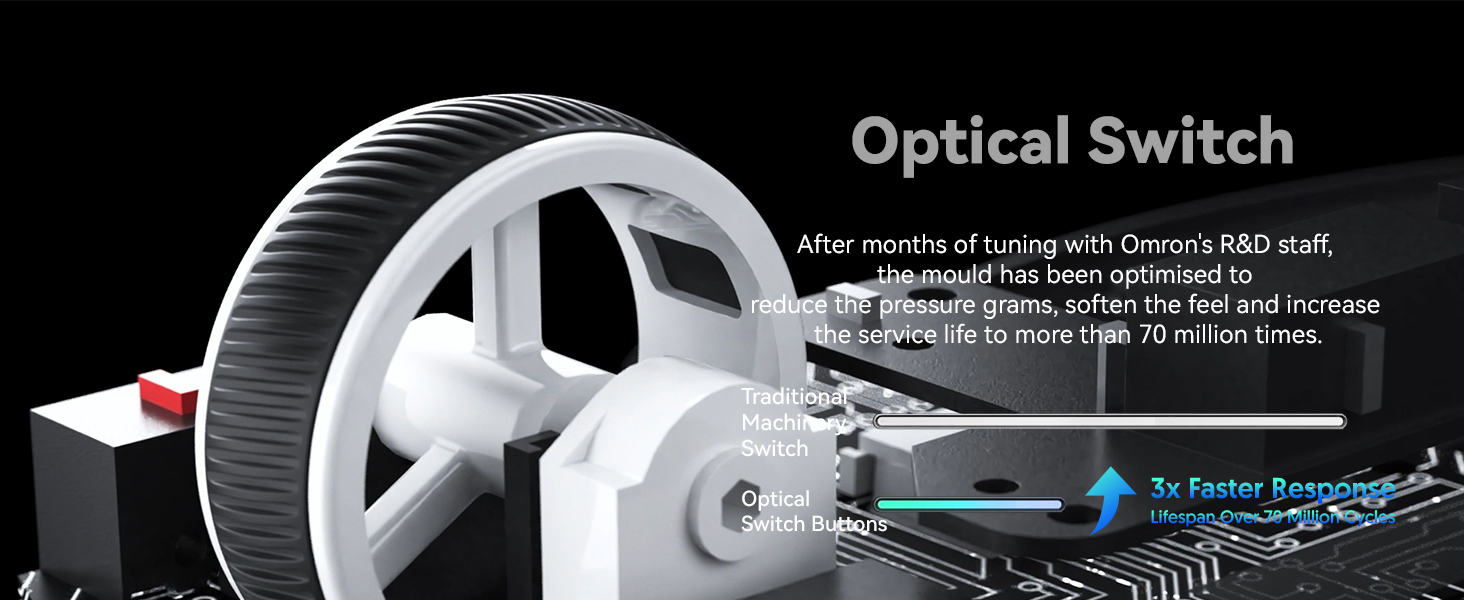
| Switches Model | OMRON Optaicl Switch |
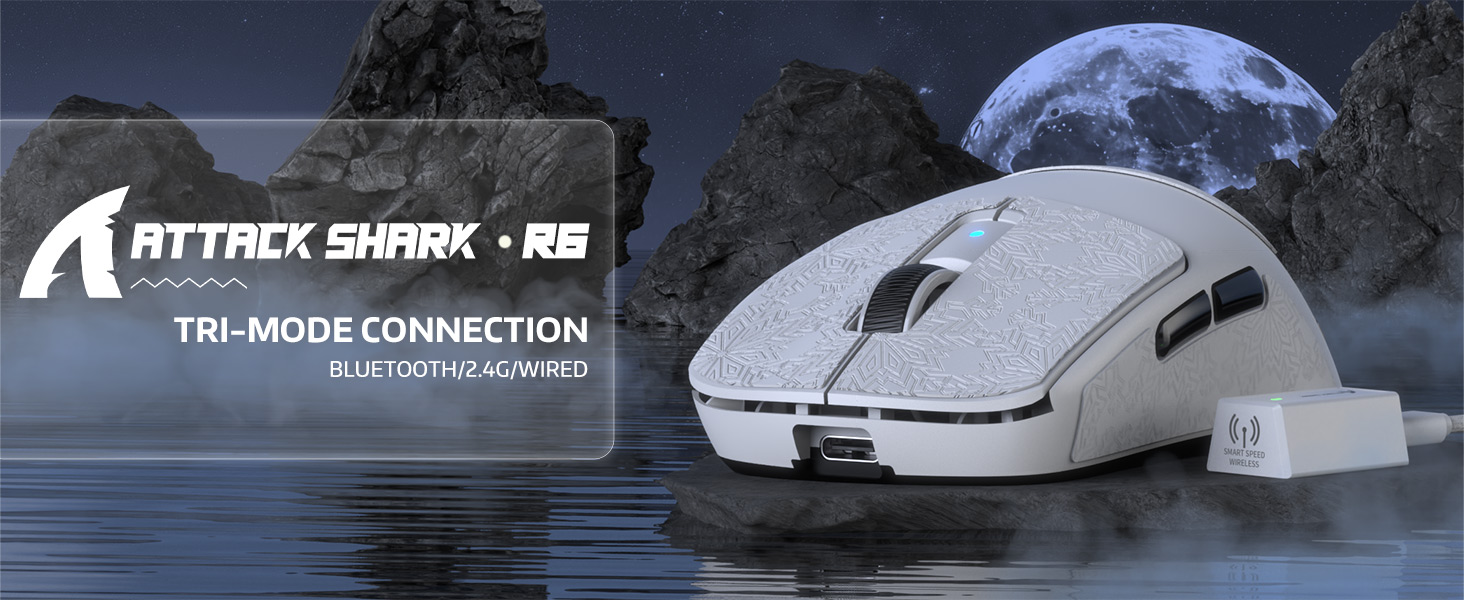
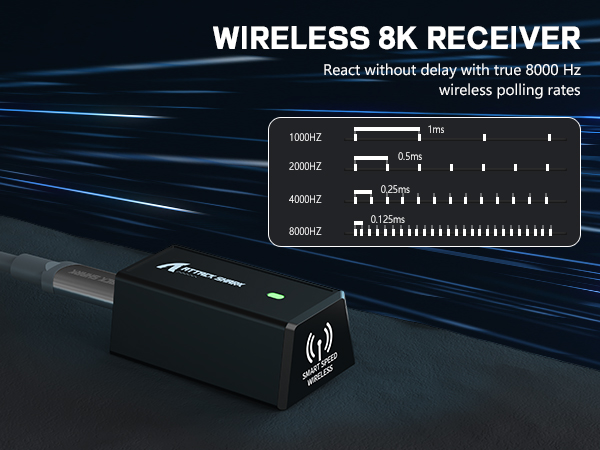
| Connection Method | 2.4Ghz Wireless/Bluetooth/USB-C Wired |
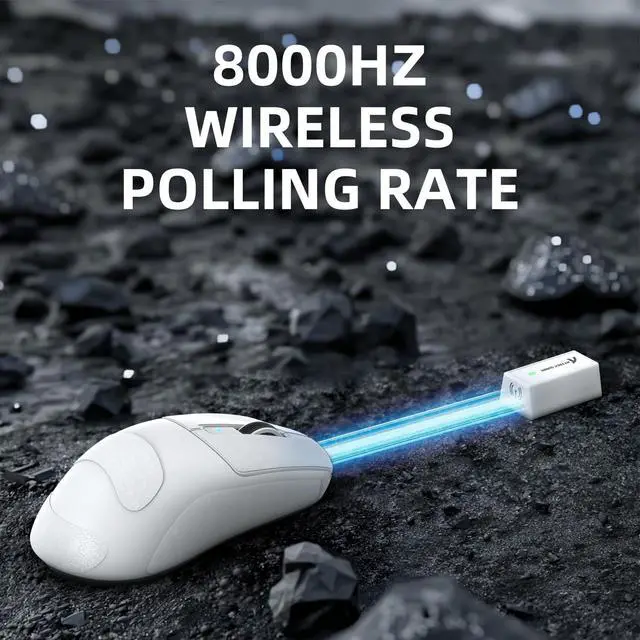
| Polling Rate | 125/250/500/1000/2000/4000/8000 Hz |
| DPI | 42,000 DPI, Programmable |
| Accelerated Speed | 50G |
| BT Pairing Name | R6 Mouse |
| Button | 7 Programmable Buttons |
| System Support | XP/Win7/Win8/Win10/Win11/Mac OS/Android/Linux |
| Supported devices | PC, Mac, Smartphone, Tablet |
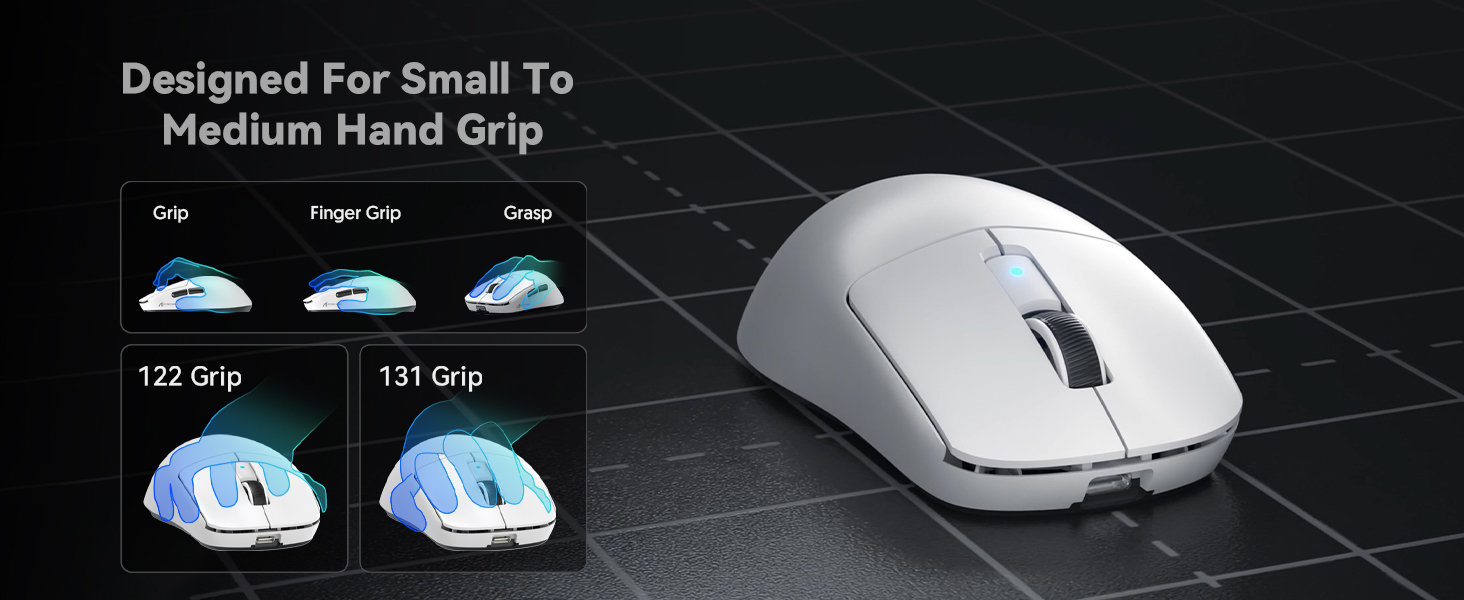
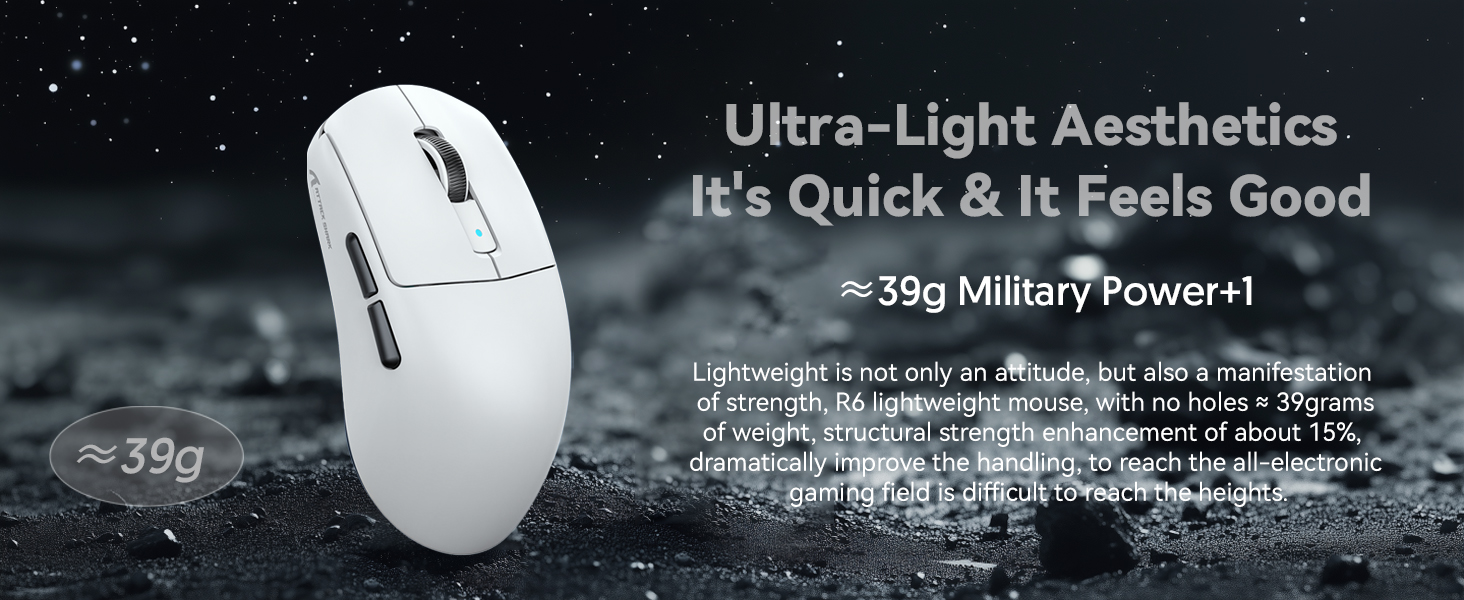
| Mouse Size | 117*61.6*38mm /4.6*2.43*1.5in |
| Driver Software Web Link | cn.attackshark.pro/WebDriven/index.html#/project/items |
How to download and use the mouse driver?
Please download the driver software: support.attackshark.com/attackshark/ATTACK_SHARK_R6/R6_14_49_53_Ver1.0.0.0.exe?v=4353980492
And we can set it directly on the web page without downloading: cn.attackshark.pro/WebDriven/index.html#/project/items
How to precisely adjust the DPI value?
We can enter the required value under the DPI setting of the software and click the save button to apply it. Supporting minimum 50 DPI up to 42000 DPI step setting.
We can also use the combination of shortcut keys introduced in the manual to adjust.
How to use Bluetooth connection?
a) Toggle the switch on the back to Bluetooth.
b) Long press the Bluetooth button for 3 seconds.
c) Turn on the Bluetooth switch of the device, find the device named "R6 mouse", click to connect.
Please check the manual for details.
How to use 2.4G wireless connection or wired connection?
1) 2.4G connection
Turn the switch on the back of the mouse to 2.4G, and plug the Mini receiver into the computer to use it.
2) Wired connection
Adjust the switch to the middle position-insert the USB cable, which can be used directly and charge it.
What's included in the product packaging?
1× R6 mouse
1× 2.4G receiver
1× USB-C cable
1× instruction manual
1× Grip tape
PEOPLE-PRIENTED
CUSTOMER FIRST
LexonElec adheres to the concept of "customer experience as the core" and "innovation". We are committed to continuously exploring customer needs; innovating according to customer needs. Use the latest technology to give customers the most advanced experience.
M96 Gaming Keyboard - Gradient
M96 Keyboard & CM05SE Mousepad
CM05SE Mousepads
X68PRO HE Keyboards
R85 Keyboards
X68 HE Keyboards
M75 Keyboards
M87V2 Keyboards
R6 Gaming Mouse
G3PRO Game mouse
G300 Headsets