





4 IN1 Card Reader for iPhone 15-17,Macbook and Smart Devices with USB-C/USB Port
Transfer Photos, Videos and Files with One Compact Multi-Card Reader
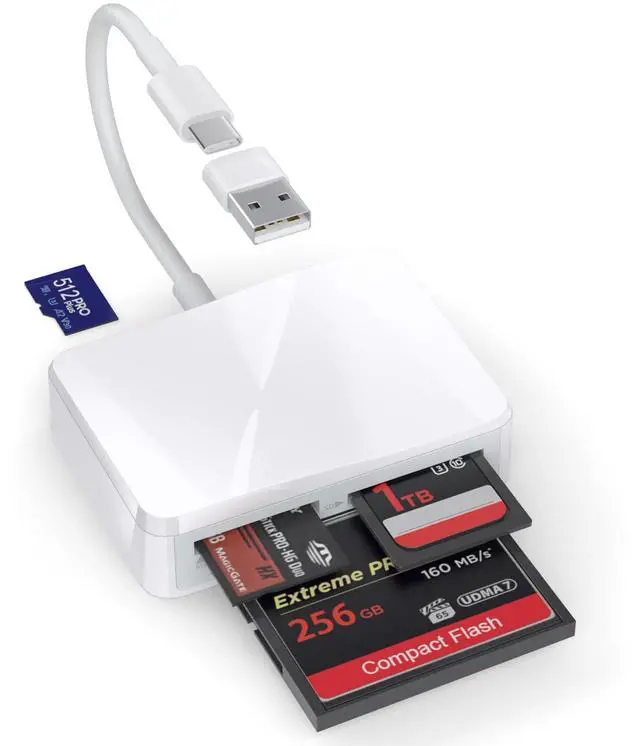
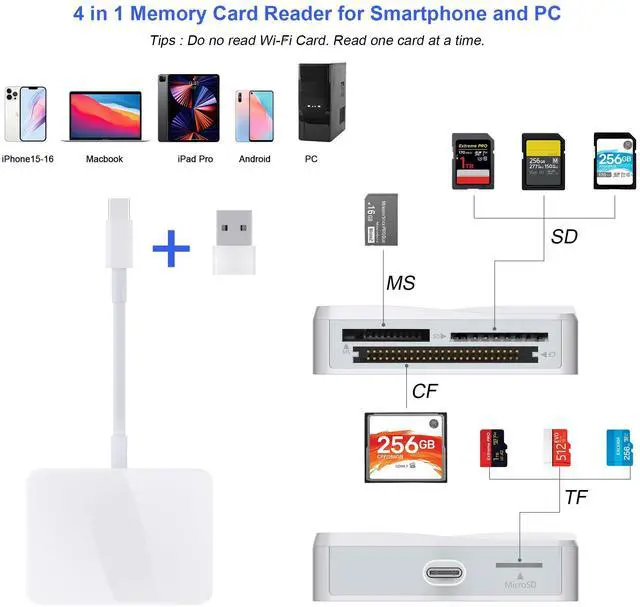
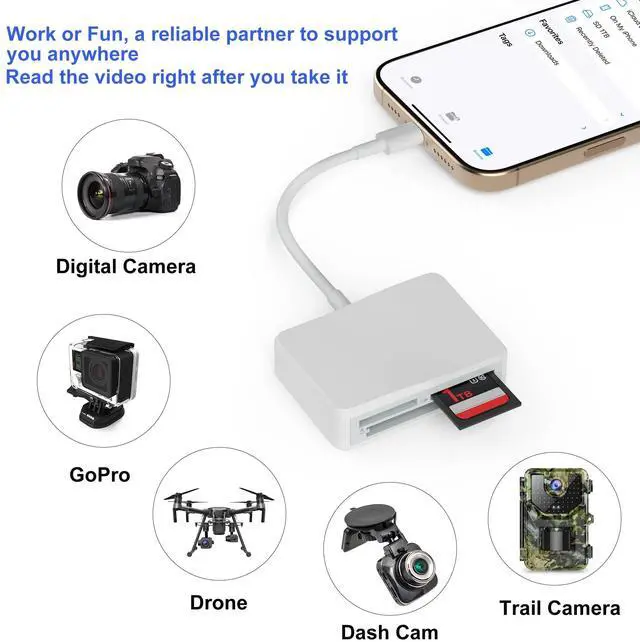
Effortlessly transfer and manage photos, videos, and files with this versatile 4-in-1 card reader. Designed for iPhone 15/16/17, MacBook, tablets, and other USB-C devices, it supports SD, microSD/TF, Memory Stick/Pro,and CompactFlash (CF) memory cards. The included USB adapter also enables convenient use with USB-A computers and laptops. Its compact, lightweight design makes it ideal for photographers, content creators, and travelers who need easy access to multiple memory-card formats at home or on the go. Simply connect the reader to a compatible device and insert your memory card for convenient file access.
Compatibility and transfer speeds may vary depending on the device, operating system, and memory card.
USB-A to USB-C Adapter for Data Transfer and Charging
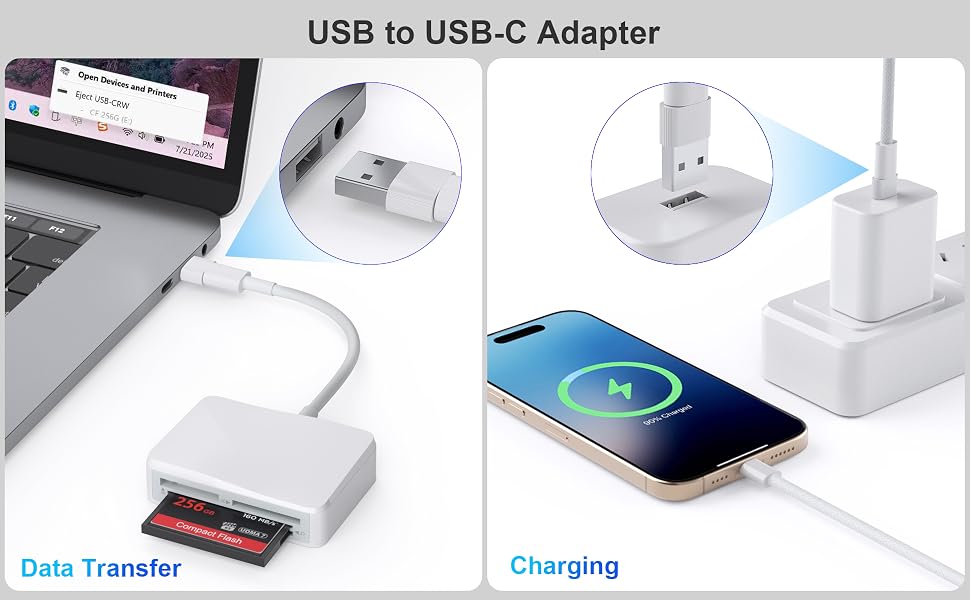
Connect USB-C Accessories to Laptops, Chargers and Other USB-A Devices
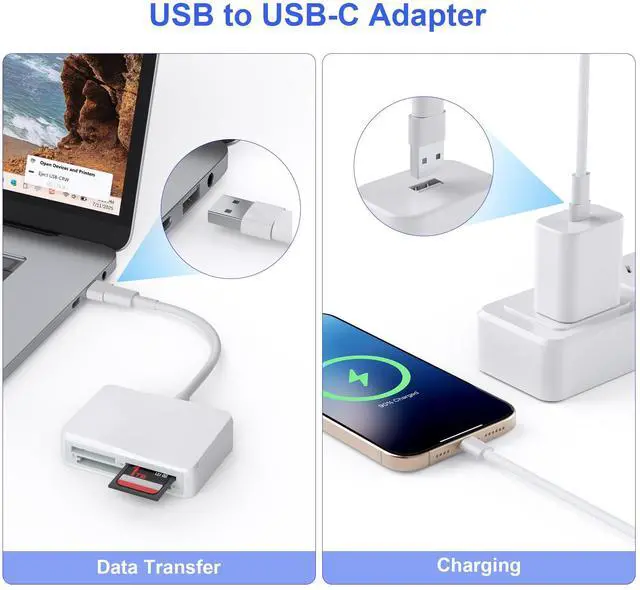
Expand your device compatibility with this compact USB-A to USB-C adapter. Connect USB-C accessories, including card readers and charging cables, to laptops, desktop computers, wall chargers and other devices equipped with a standard USB-A port. Designed for both data transfer and charging, it offers a convenient solution for accessing files or powering compatible devices. Its lightweight, portable design makes it ideal for use at home, in the office or while traveling.
Charging speed and data-transfer performance may vary depending on the connected devices, cables and power source.
Dual-Interface Card Reader for USB-C and USB-A Devices

Transfer Photos and Files Between iPhone 15/16/17, MacBook, PC and Multiple Memory Cards
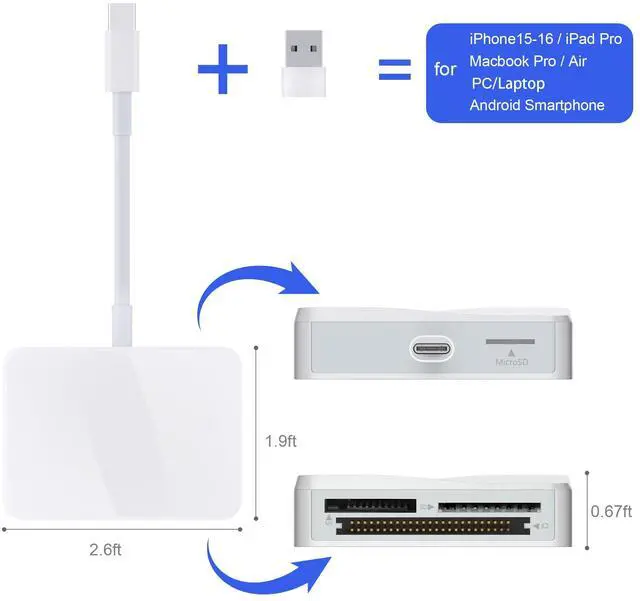
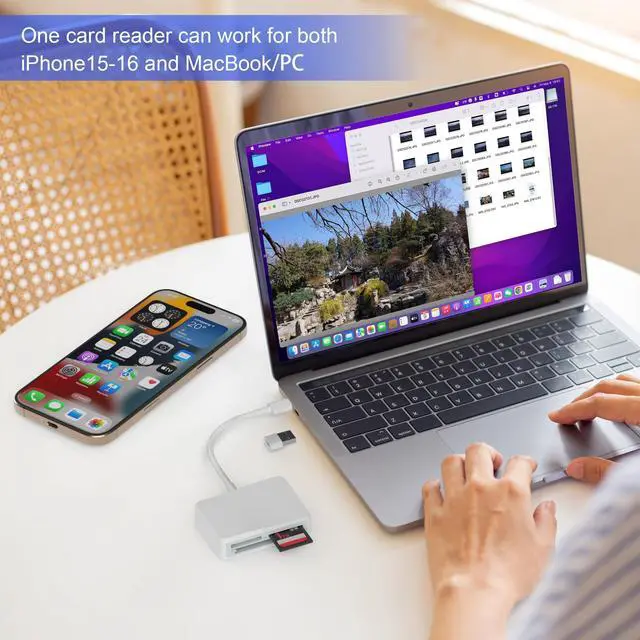
Enjoy flexible connectivity with this versatile multi-card reader. Connect directly to USB-C devices such as iPhone 15/16/17, MacBook, compatible tablets and laptops, or use the included USB-A adapter with desktop PCs and older computers. Supporting SD, microSD/TF, CompactFlash (CF) and Memory Stick (MS) cards, it offers a convenient way to access, organize and transfer photos, videos and other files. Its compact, lightweight design is ideal for photographers, content creators, travelers and everyday use.
Compatibility and transfer speed may vary depending on the device, operating system and memory card.
4-in-1 Multi-Card Reader for SD, MicroSD/TF, CF and MS Cards
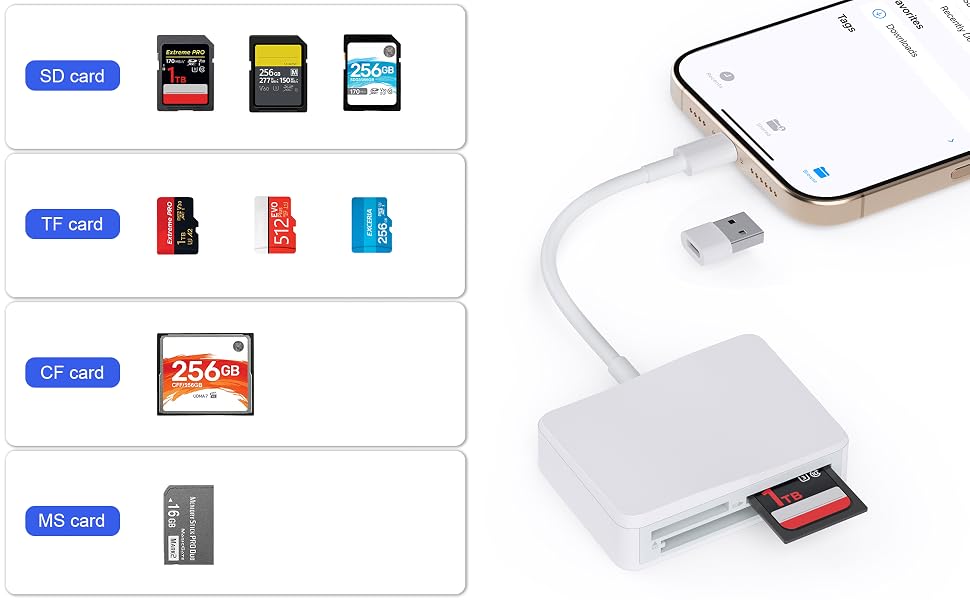
Easily Transfer Photos, Videos and Files to USB-C and USB-A Devices
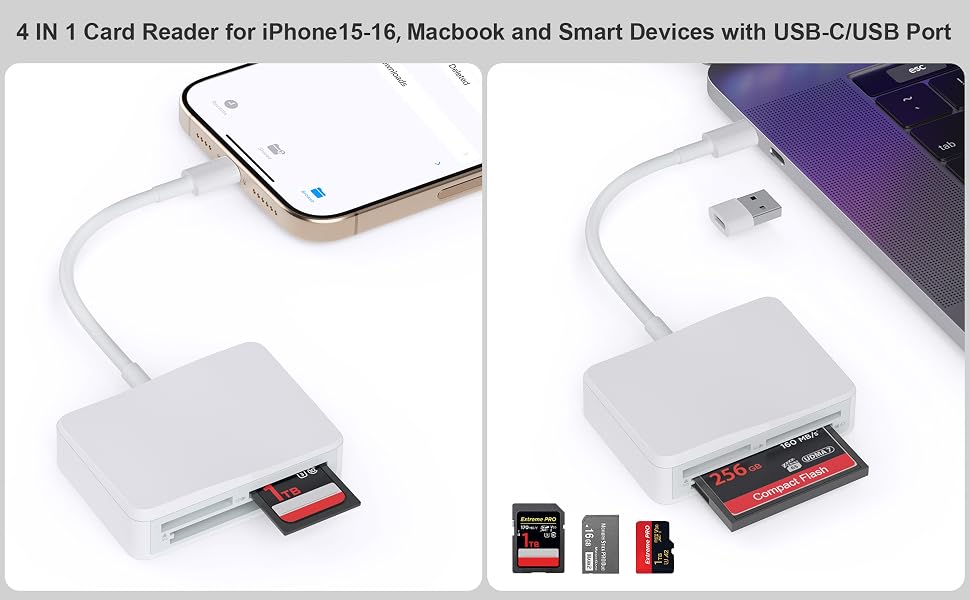
Access multiple memory-card formats with one compact and versatile card reader. Featuring dedicated slots for SD, microSD/TF, CompactFlash (CF), and Memory Stick (MS) cards, it provides a convenient way to transfer photos, videos, and other files. The USB-C connector works with compatible smartphones, tablets, and laptops, while the included USB-A adapter expands compatibility with desktop and laptop computers. Ideal for photographers, content creators, and everyday file management at home, in the office, or while traveling.
Compatibility and transfer performance may vary depending on the device, operating system, and memory card.
Download photos from Memory Card to iPhone 15-16/iPad/iPad Pro for User with iOS 13 or later
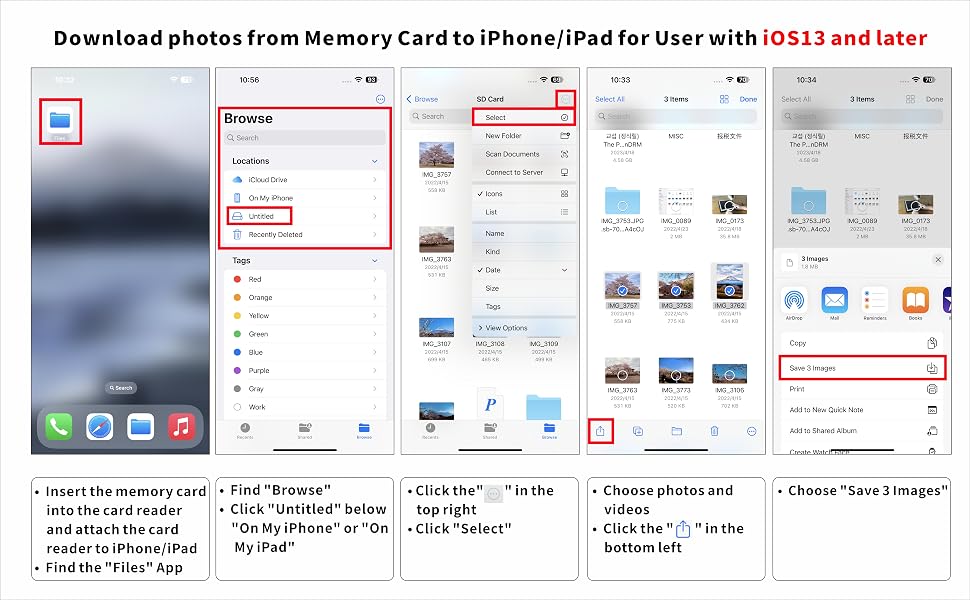
Two-way transfer for iOS user with iOS 13.0 or later
Files App ( iOS 13 or later)
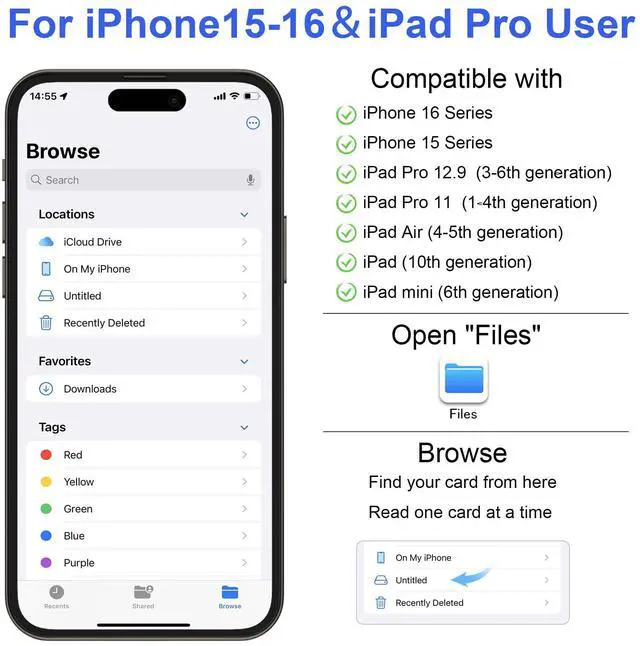
Files app is an important app which can transfer files between your memory card to your iPhone & iPad.
Data from your iPhone is “on my iPhone” and data of memory card is on “Untiled” (or "NONAME", which is the name of your memory card)
You can view data and transfer the data between memory card and iPhone.
Files app not only manager can videos and photos, but also manage music, PDF, word, or Excel, etc.
1. Insert a memory card into the reader. Turn on iPhone & iPad and attach the reader to the Lightning port.
2. On iPhone & iPad, open “Files” app. You can view the files in your memory card. You can view most files like jpg, MP3, word, excel, ppt and so on. If you can view the files but can’t open it, you may need to download a third-party app to read this file.
3. You can delete files or copy and paste files from memory card to your iPhone or iPad. Or coy files from iPhone or iPad to memory card.
4. If you can see the data, but not able to open it, you need to download a third-party App to open it.
What can I do if I see nothing on my iPhone 15/16 Series?
1. If you don’t see anything, don’t worry. App won’t pop up automatically, please access “Files” App. Then you will see “On My iPhone” which is the data on your iPhone. If you connect a Cf card, or a SD card or a TF card or Ms Card to your iPhone through this adapter, “Untitled” or “NONAME” will be shown below “On My iPhone”. “Untitled” or “NONAME” are the default name of most memory card. If your memory card were named “ABC”, you will see “ABC” there. Just tap “ABC” you will see what’s inside your memory card.
2. When you get inside “ABC” folder, you have three choices at the bottom of the screen. “Recents”, “Shared” and “Browse”, make sure you choose “Browse”. Other two choice is not what’s in your memory card.
3. If there is no “Files” App, please download it from App Store. “Files” is an App in your iPhone, usually you don’t have to download it.
4. If you still see nothing, make sure the memory card is correctly inserted into the slot. You can check the video if you have no idea how to insert a memory card. The memory card must be Fat32 or exFat format. If NTFS, iPhone will not be able to recognize it.
5. You can view most files like jpg, MP3, word, excel, PDF, etc. directly and read them without any problem. However, if you can see some data there but can't open it, you need to download a third-party app to read this file. It is the same thing as what’s happening in your computer, if you don’t have a MP3 player, even you have a MP3 file in your computer, you click it and it will not able to be played.
4 IN1 Card Reader for iPhone 15-17,Macbook and Smart Devices with USB-C/USB Port
Transfer Photos, Videos and Files with One Compact Multi-Card Reader
Effortlessly transfer and manage photos, videos, and files with this versatile 4-in-1 card reader. Designed for iPhone 15/16/17, MacBook, tablets, and other USB-C devices, it supports SD, microSD/TF, Memory Stick/Pro,and CompactFlash (CF) memory cards. The included USB adapter also enables convenient use with USB-A computers and laptops. Its compact, lightweight design makes it ideal for photographers, content creators, and travelers who need easy access to multiple memory-card formats at home or on the go. Simply connect the reader to a compatible device and insert your memory card for convenient file access.
Compatibility and transfer speeds may vary depending on the device, operating system, and memory card.
USB-A to USB-C Adapter for Data Transfer and Charging
Connect USB-C Accessories to Laptops, Chargers and Other USB-A Devices
Expand your device compatibility with this compact USB-A to USB-C adapter. Connect USB-C accessories, including card readers and charging cables, to laptops, desktop computers, wall chargers and other devices equipped with a standard USB-A port. Designed for both data transfer and charging, it offers a convenient solution for accessing files or powering compatible devices. Its lightweight, portable design makes it ideal for use at home, in the office or while traveling.
Charging speed and data-transfer performance may vary depending on the connected devices, cables and power source.
Dual-Interface Card Reader for USB-C and USB-A Devices
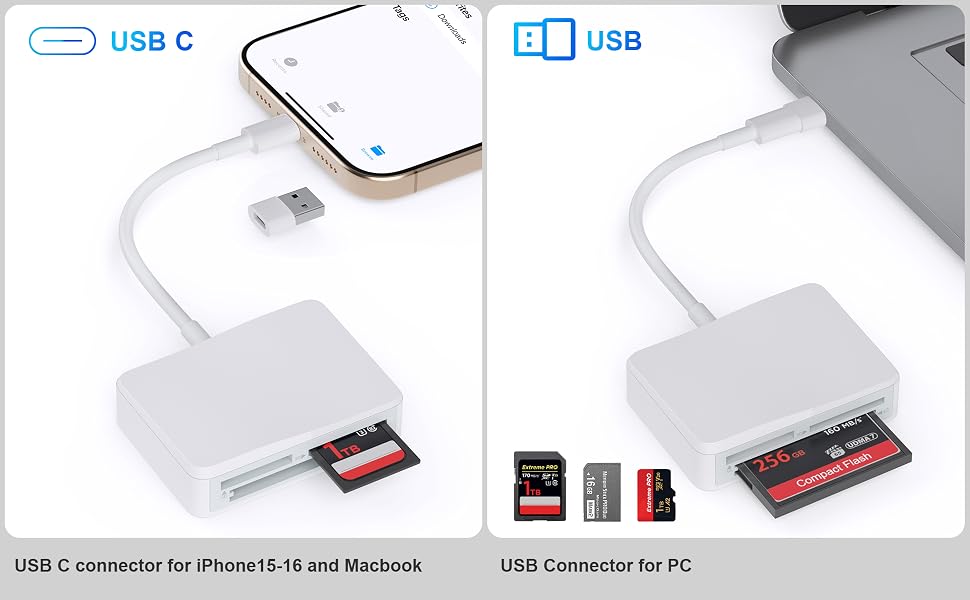
Transfer Photos and Files Between iPhone 15/16/17, MacBook, PC and Multiple Memory Cards
Enjoy flexible connectivity with this versatile multi-card reader. Connect directly to USB-C devices such as iPhone 15/16/17, MacBook, compatible tablets and laptops, or use the included USB-A adapter with desktop PCs and older computers. Supporting SD, microSD/TF, CompactFlash (CF) and Memory Stick (MS) cards, it offers a convenient way to access, organize and transfer photos, videos and other files. Its compact, lightweight design is ideal for photographers, content creators, travelers and everyday use.
Compatibility and transfer speed may vary depending on the device, operating system and memory card.
4-in-1 Multi-Card Reader for SD, MicroSD/TF, CF and MS Cards

Easily Transfer Photos, Videos and Files to USB-C and USB-A Devices
Access multiple memory-card formats with one compact and versatile card reader. Featuring dedicated slots for SD, microSD/TF, CompactFlash (CF), and Memory Stick (MS) cards, it provides a convenient way to transfer photos, videos, and other files. The USB-C connector works with compatible smartphones, tablets, and laptops, while the included USB-A adapter expands compatibility with desktop and laptop computers. Ideal for photographers, content creators, and everyday file management at home, in the office, or while traveling.
Compatibility and transfer performance may vary depending on the device, operating system, and memory card.
Download photos from Memory Card to iPhone 15-16/iPad/iPad Pro for User with iOS 13 or later

Two-way transfer for iOS user with iOS 13.0 or later
Files App ( iOS 13 or later)
Files app is an important app which can transfer files between your memory card to your iPhone & iPad.
Data from your iPhone is “on my iPhone” and data of memory card is on “Untiled” (or "NONAME", which is the name of your memory card)
You can view data and transfer the data between memory card and iPhone.
Files app not only manager can videos and photos, but also manage music, PDF, word, or Excel, etc.
1. Insert a memory card into the reader. Turn on iPhone & iPad and attach the reader to the Lightning port.
2. On iPhone & iPad, open “Files” app. You can view the files in your memory card. You can view most files like jpg, MP3, word, excel, ppt and so on. If you can view the files but can’t open it, you may need to download a third-party app to read this file.
3. You can delete files or copy and paste files from memory card to your iPhone or iPad. Or coy files from iPhone or iPad to memory card.
4. If you can see the data, but not able to open it, you need to download a third-party App to open it.
What can I do if I see nothing on my iPhone 15/16 Series?
1. If you don’t see anything, don’t worry. App won’t pop up automatically, please access “Files” App. Then you will see “On My iPhone” which is the data on your iPhone. If you connect a Cf card, or a SD card or a TF card or Ms Card to your iPhone through this adapter, “Untitled” or “NONAME” will be shown below “On My iPhone”. “Untitled” or “NONAME” are the default name of most memory card. If your memory card were named “ABC”, you will see “ABC” there. Just tap “ABC” you will see what’s inside your memory card.
2. When you get inside “ABC” folder, you have three choices at the bottom of the screen. “Recents”, “Shared” and “Browse”, make sure you choose “Browse”. Other two choice is not what’s in your memory card.
3. If there is no “Files” App, please download it from App Store. “Files” is an App in your iPhone, usually you don’t have to download it.
4. If you still see nothing, make sure the memory card is correctly inserted into the slot. You can check the video if you have no idea how to insert a memory card. The memory card must be Fat32 or exFat format. If NTFS, iPhone will not be able to recognize it.
5. You can view most files like jpg, MP3, word, excel, PDF, etc. directly and read them without any problem. However, if you can see some data there but can't open it, you need to download a third-party app to read this file. It is the same thing as what’s happening in your computer, if you don’t have a MP3 player, even you have a MP3 file in your computer, you click it and it will not able to be played.