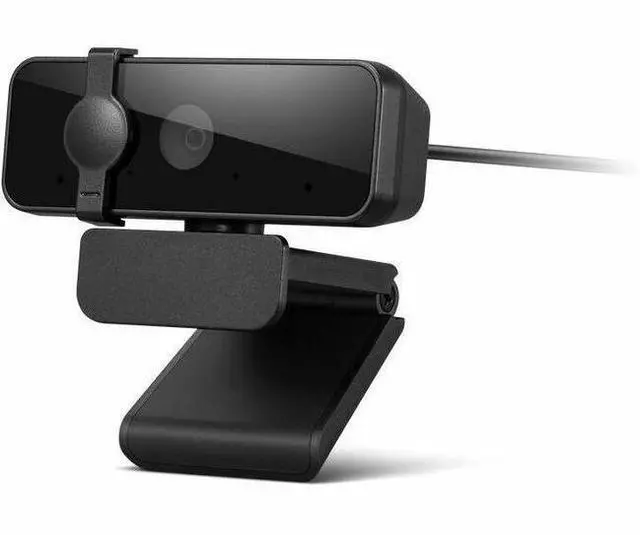
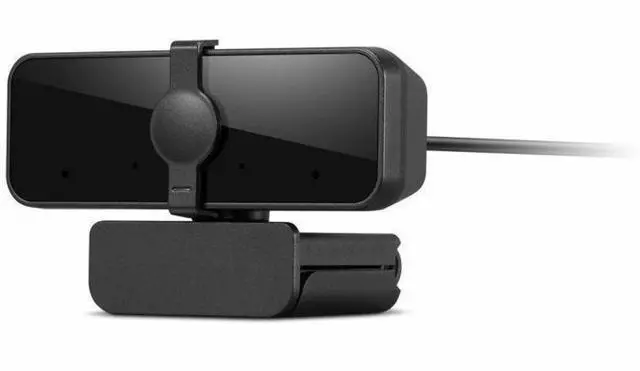
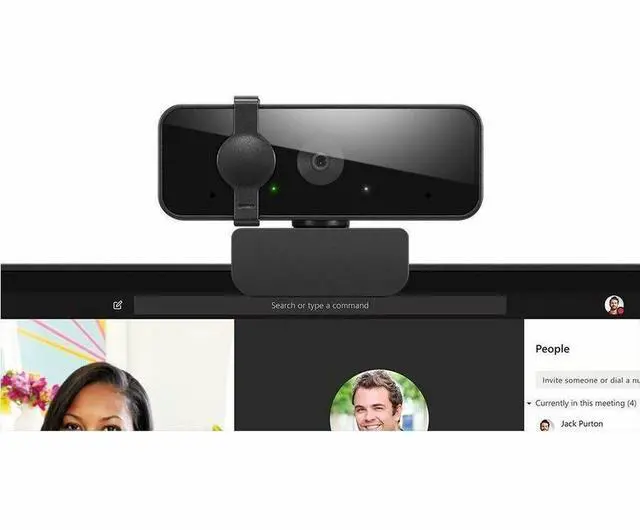
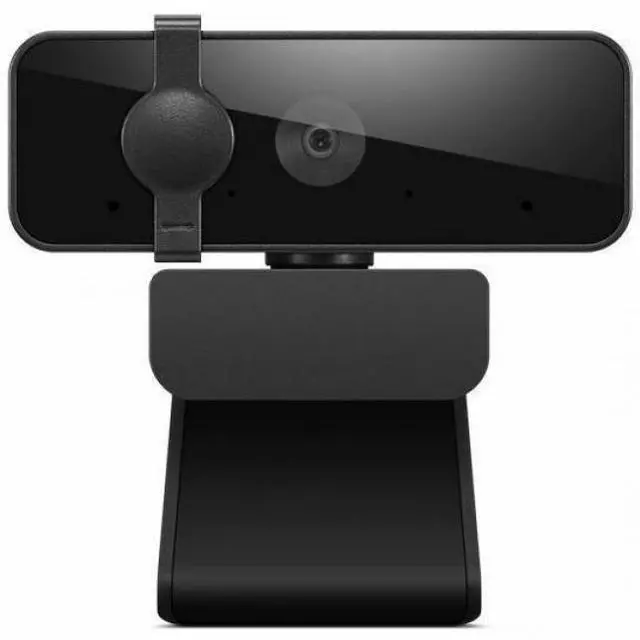
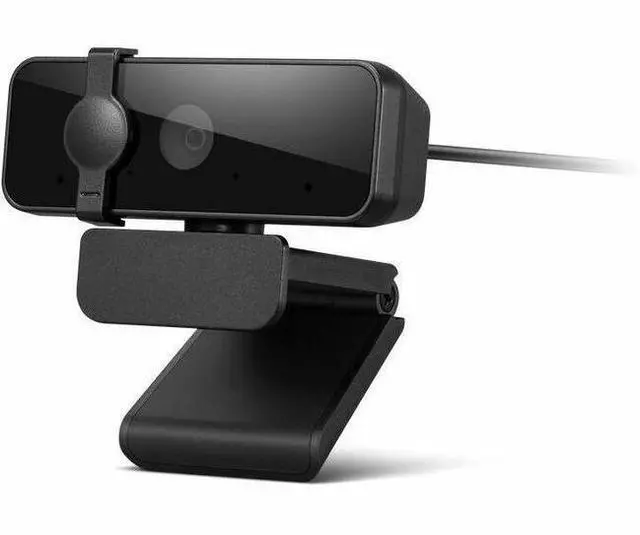
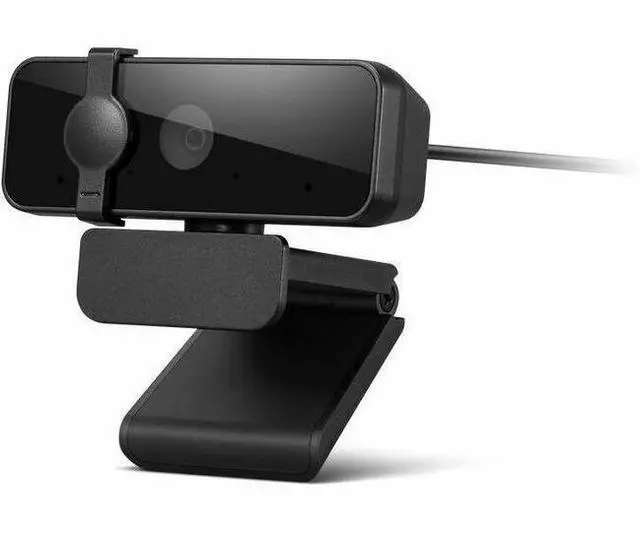
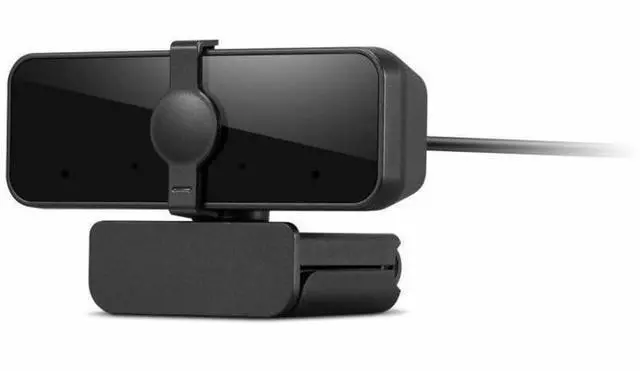
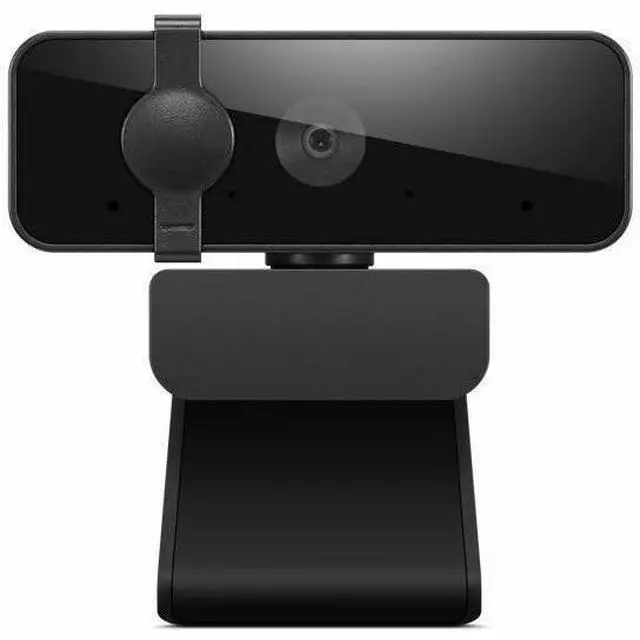
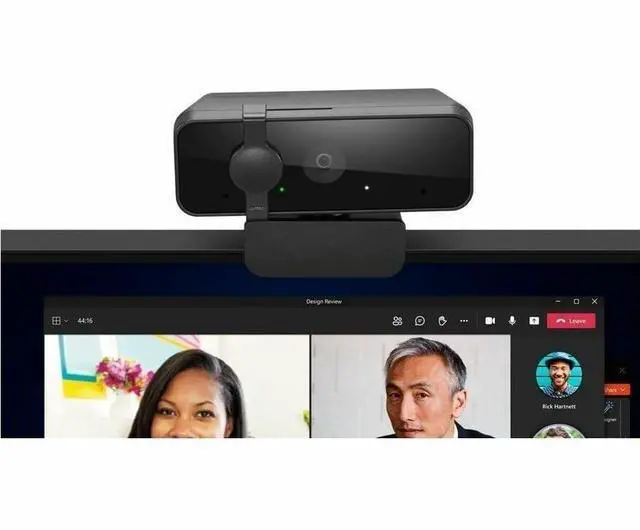
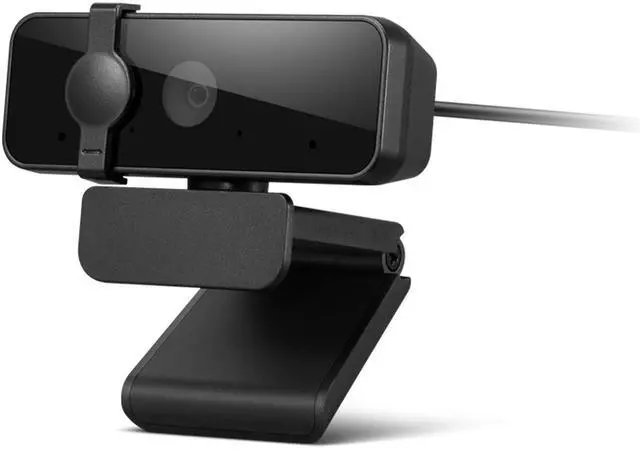
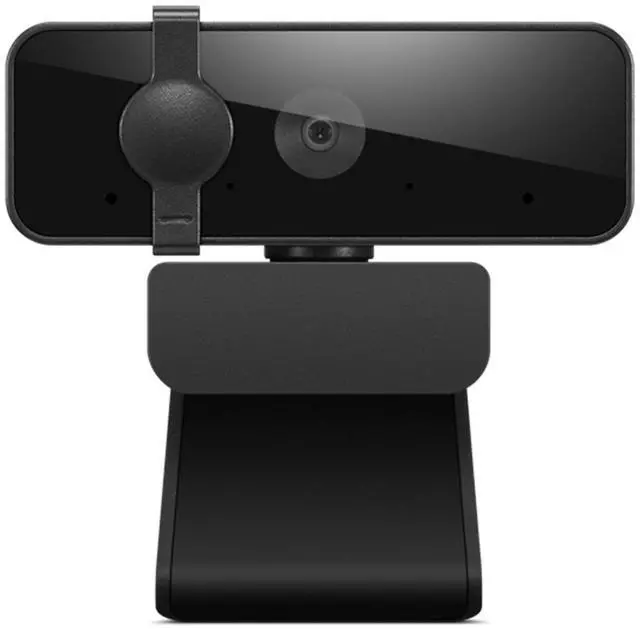
The Lenovo Essential FHD Webcam Gen2 is a USB-A webcam for video calls, online classes, and remote work, with 1080p video at 30 fps, a built-in microphone, and a privacy cap for everyday conferencing.
Recommended For
- Remote and hybrid workers who need a straightforward 1080p, 30 fps camera for regular Teams, Zoom, Google Meet, or Webex calls.
- People using a Windows, macOS, or ChromeOS computer with USB-A who want a plug-in webcam with dual built-in microphones for video calls.
- Users who want a physical way to cover the camera between calls, without relying only on software camera controls.
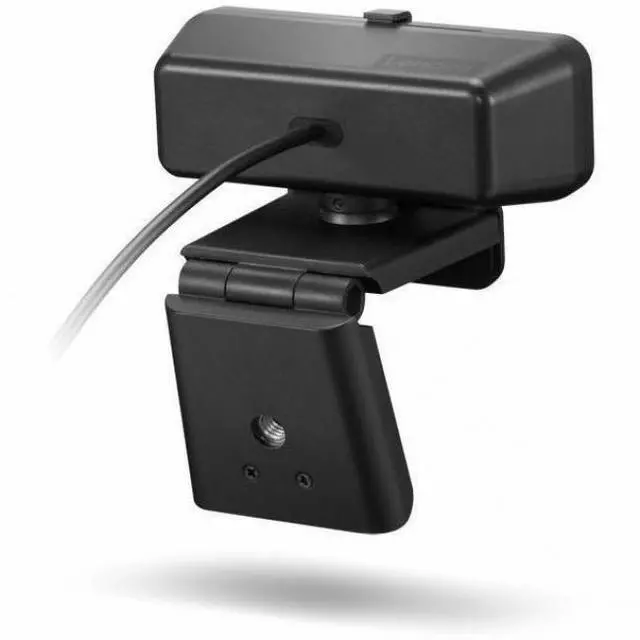
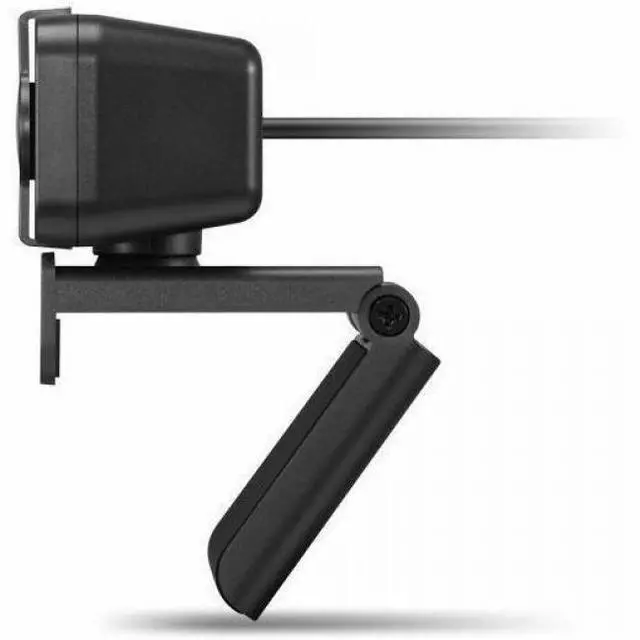
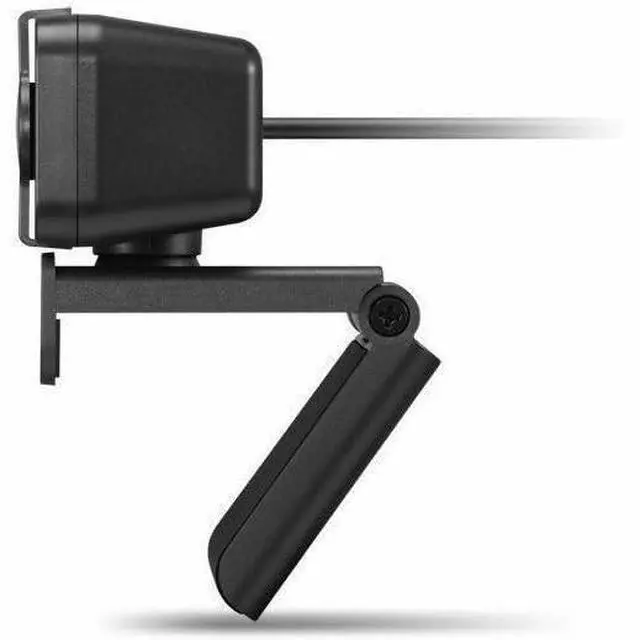
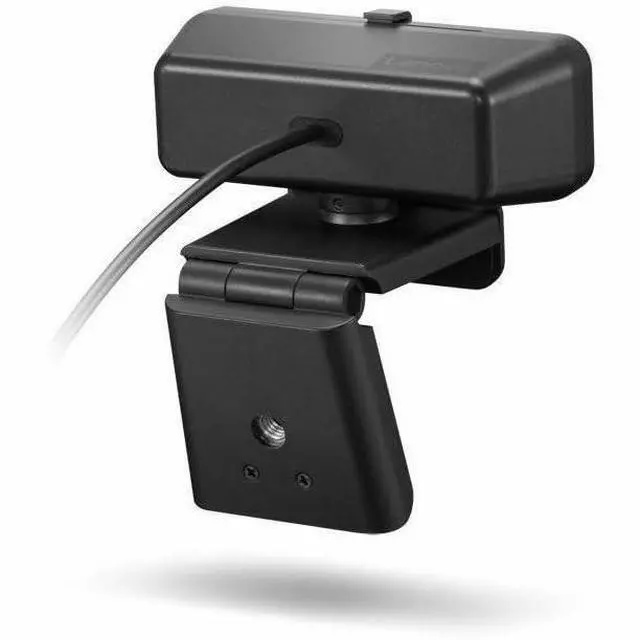
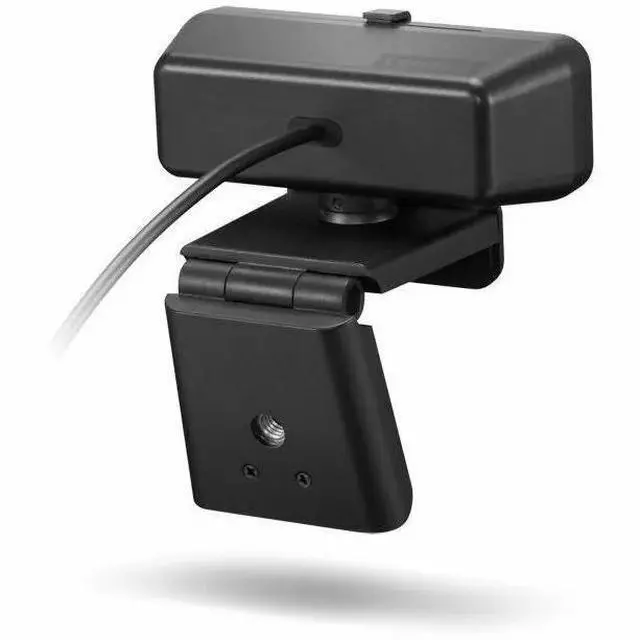
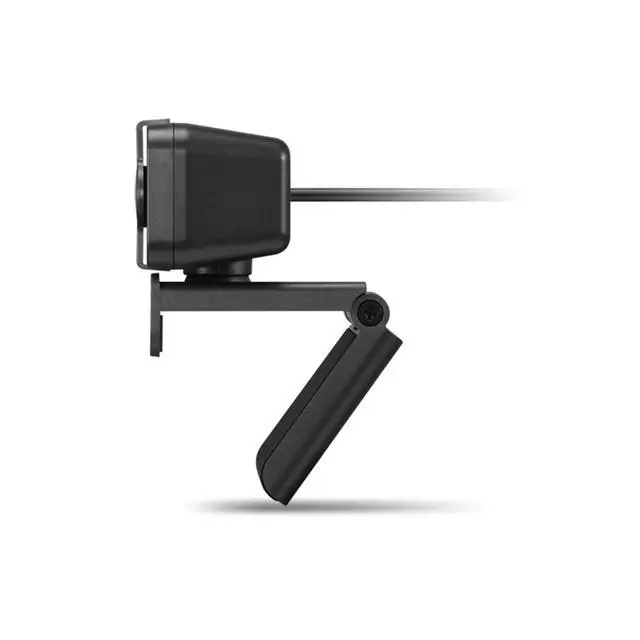
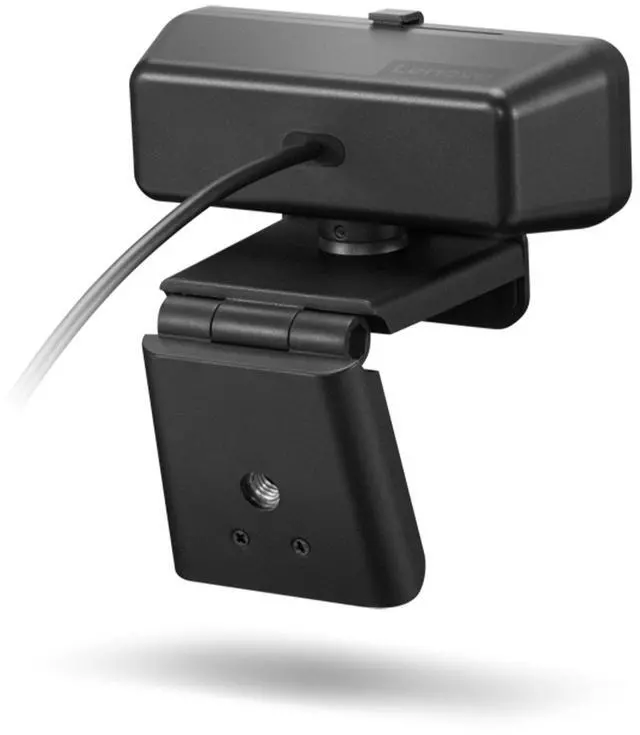
- People who need flexible placement for a desk setup, such as clipping the webcam to a monitor or mounting it on a tripod.
Real-World Use Scenarios
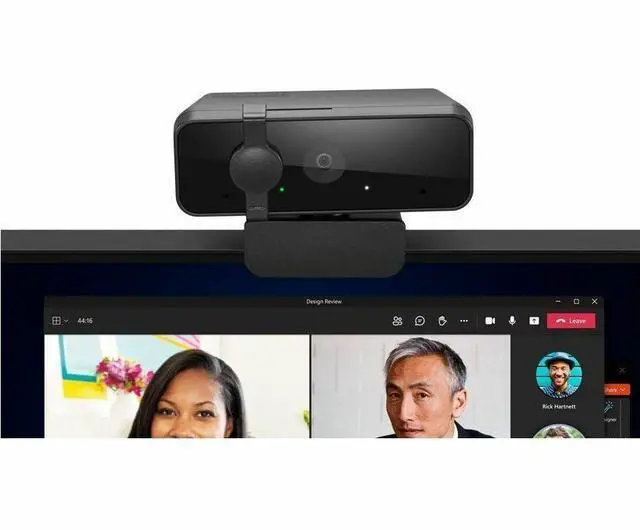
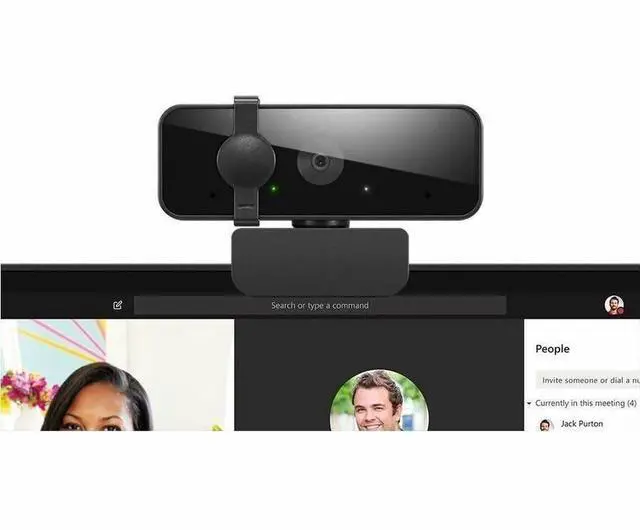
- For routine work meetings on Zoom, Microsoft Teams, or Google Meet, connect the webcam over USB-A to add a dedicated 1080p video feed and built-in microphones to a desktop or laptop setup.
- For online classes or remote group sessions, the webcam can provide a consistent camera position above a monitor; its 85° field of view is suited to framing one person or a nearby workspace rather than a large room.
- When switching between a Windows PC, Mac, or Chromebook for video calls, its listed operating-system support and USB-A connection make it a practical option for a shared or changing workstation.
- For calls where the webcam needs to sit off the monitor—such as a desk demonstration or a different camera angle—the tripod support offers another way to position it.
- After a video call, slide the physical privacy shutter closed to block the camera lens without unplugging the webcam.




 here!

 Hot Seller
 Top Rated