




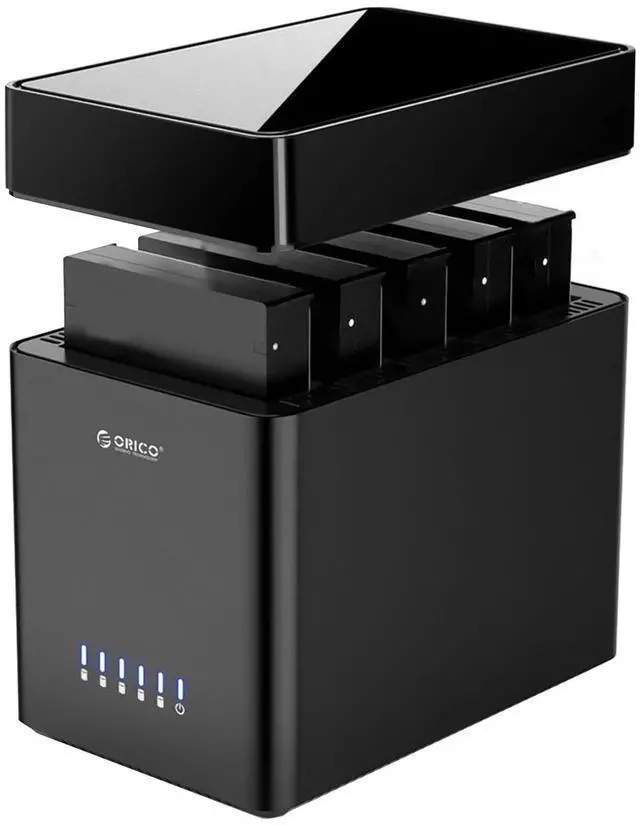
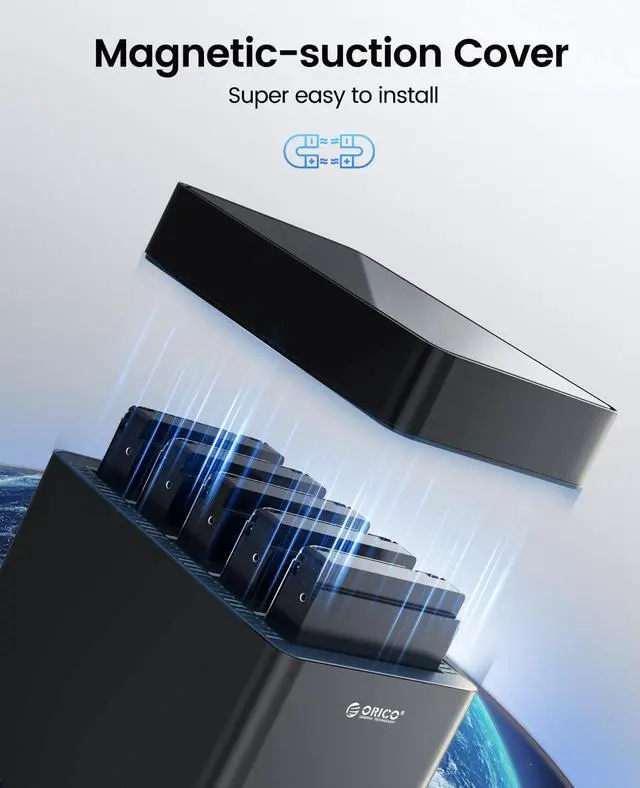

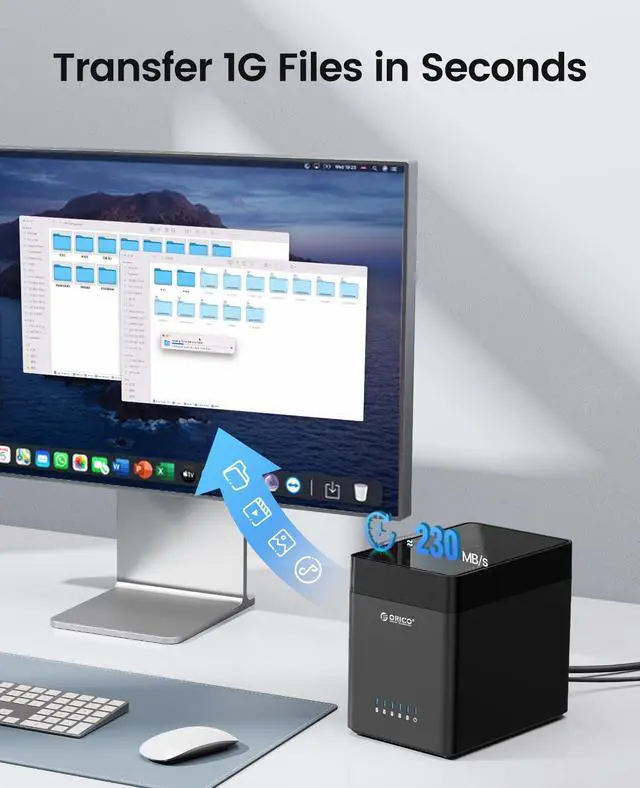





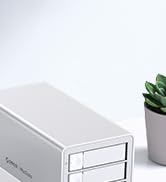
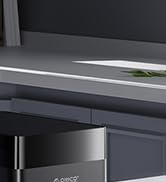
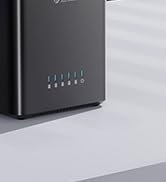
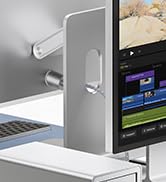
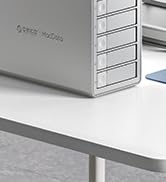


Multi Bay DAS Hard Drive Enclosure
 5 Bay DAS-9758C3 |  4 Bay DAS-9848RU3 |  4 Bay DAS-9948C3 |
|---|---|---|
Material ABS Plastic | Material Aluminum Alloy | Material Aluminum Alloy |
Transfer Speed 5 Gbps | Transfer Speed 5 Gbps | Transfer Speed 10 Gbps |
Function Supported Independent Bracket | Function Supported RAID Supported | Function Supported Daisy Chain &Hub Expansion |
Interface Port USB C TO USB A/C | Interface Port USB-B TO USB A | Interface Port USB C TO USB A/C |
Problem Elimination
One: The computer fails to recognize or read the disk.
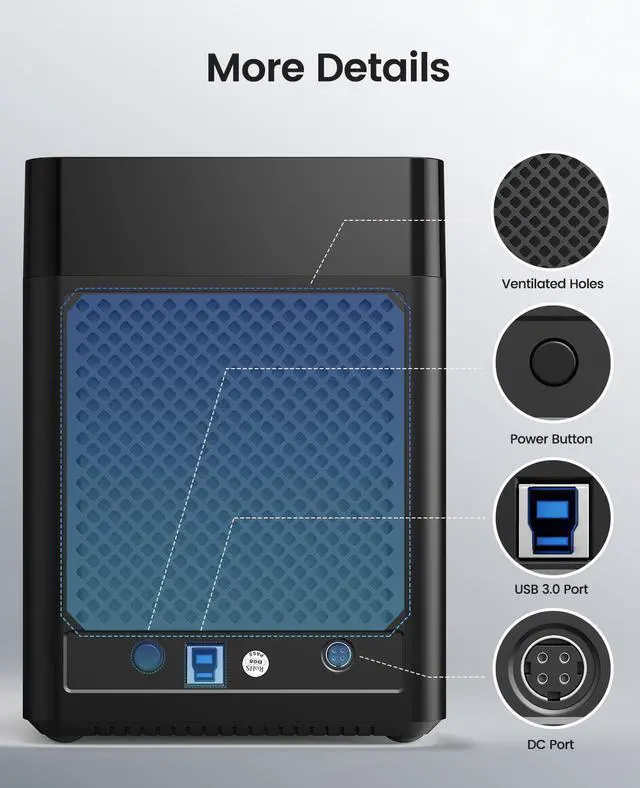
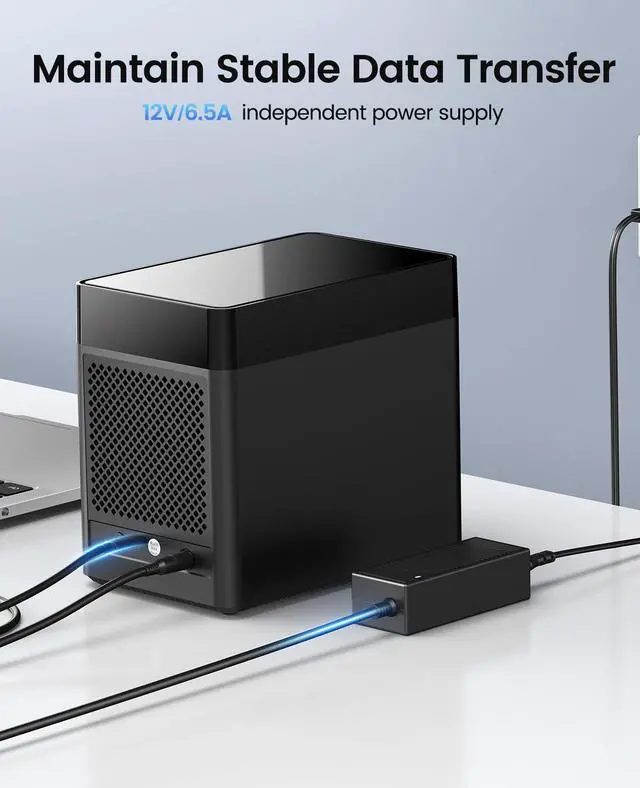
1.1: Ensure that the power adapter is securely connected to the socket and verify that the connection is stable. 1.2: Confirm that the hard disk enclosure is powered on correctly and that the power indicator light is illuminated. 1.3: Verify that the data cable is properly connected. If necessary, replace the data cable with a functional one and test its performance. 1.4: Ensure that the computer's connection interface is functioning correctly. Check that the relevant drivers for the interface are installed and up-to-date. You may also try reseating the connections or testing with an alternative interface. 1.5: A brand-new hard disk must be initialized and formatted before it can function properly. 1.6: Ensure that the file system format of the hard disk is compatible with the formats supported by the current operating system. If not, the hard disk may need to be reformatted for proper recognition and reading. 1.7: Verify that the hard disk is functioning without faults or errors.
Two: Slow transmission speed.
2.1: Connect the device to a USB 3.0 or higher-speed interface on the computer to achieve optimal transfer speeds. 2.2: Ensure that the connection interface and its associated drivers are functioning correctly. 2.3: Use the original data cable if available. If replacement is necessary, ensure the new cable is fully functional. 2.4: Note that different computer hosts have varying configuration environments, which may affect the transmission speed. 2.5: The performance of different hard disks varies; newer or older hard disks may impact transfer speeds differently. 2.6: Use CrystalDiskMark software to test whether the theoretical maximum transfer speed is achieved. Actual transfer speeds may vary due to factors such as computer configuration, file types being transferred, etc.
Three: Equipment overheating.
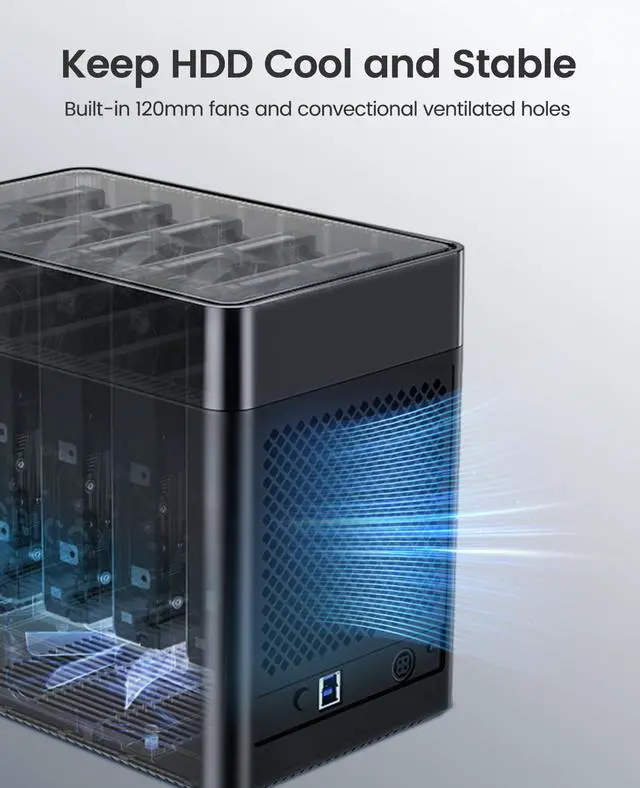
3.1: Inspect whether the equipment's ventilation is adequate. 3.2: Ensure that there is no dust obstructing the heat dissipation holes. 3.3: If feasible, reduce the workload of the device by avoiding simultaneous operation of multiple large applications. 3.4: Consider using external cooling pads or fans to enhance heat dissipation.


Multi Bay DAS Hard Drive Enclosure
Problem Elimination
One: The computer fails to recognize or read the disk.
1.1: Ensure that the power adapter is securely connected to the socket and verify that the connection is stable. 1.2: Confirm that the hard disk enclosure is powered on correctly and that the power indicator light is illuminated. 1.3: Verify that the data cable is properly connected. If necessary, replace the data cable with a functional one and test its performance. 1.4: Ensure that the computer's connection interface is functioning correctly. Check that the relevant drivers for the interface are installed and up-to-date. You may also try reseating the connections or testing with an alternative interface. 1.5: A brand-new hard disk must be initialized and formatted before it can function properly. 1.6: Ensure that the file system format of the hard disk is compatible with the formats supported by the current operating system. If not, the hard disk may need to be reformatted for proper recognition and reading. 1.7: Verify that the hard disk is functioning without faults or errors.
Two: Slow transmission speed.
2.1: Connect the device to a USB 3.0 or higher-speed interface on the computer to achieve optimal transfer speeds. 2.2: Ensure that the connection interface and its associated drivers are functioning correctly. 2.3: Use the original data cable if available. If replacement is necessary, ensure the new cable is fully functional. 2.4: Note that different computer hosts have varying configuration environments, which may affect the transmission speed. 2.5: The performance of different hard disks varies; newer or older hard disks may impact transfer speeds differently. 2.6: Use CrystalDiskMark software to test whether the theoretical maximum transfer speed is achieved. Actual transfer speeds may vary due to factors such as computer configuration, file types being transferred, etc.
Three: Equipment overheating.
3.1: Inspect whether the equipment's ventilation is adequate. 3.2: Ensure that there is no dust obstructing the heat dissipation holes. 3.3: If feasible, reduce the workload of the device by avoiding simultaneous operation of multiple large applications. 3.4: Consider using external cooling pads or fans to enhance heat dissipation.
2.5-inch HHD Docking Station
5 Bay USB Hard Drive Enclosure
3.5inch Hard Drive Enclosure
4Bay Raid Hard Drive Enclosure
5Bay RAID Hard Drive Enclosure