




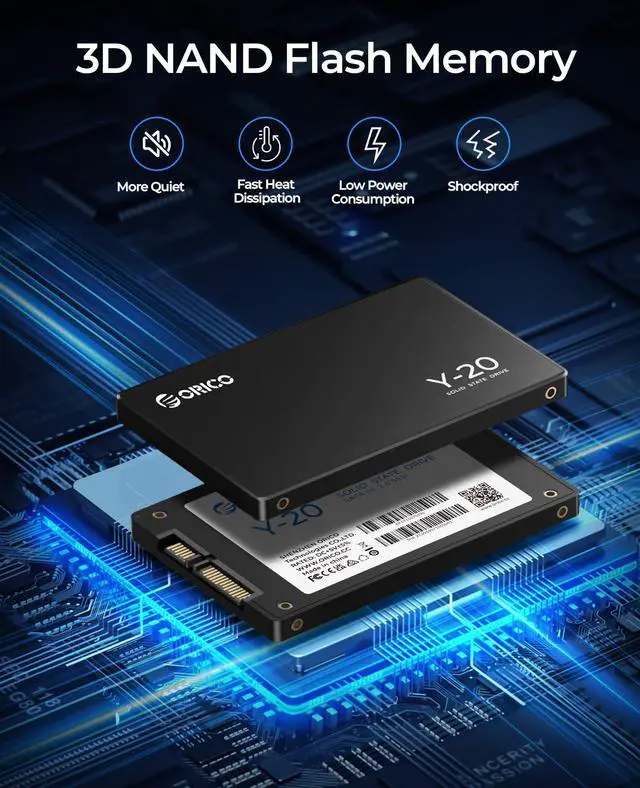
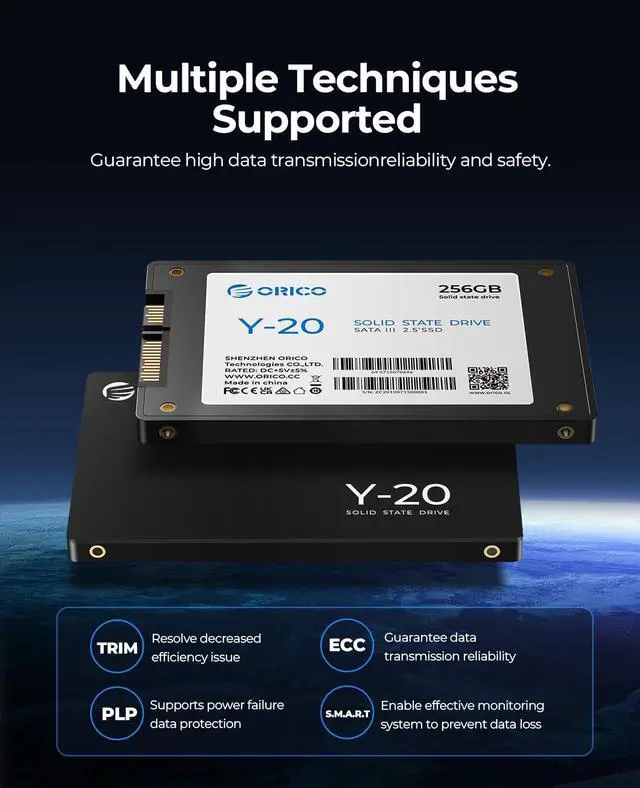


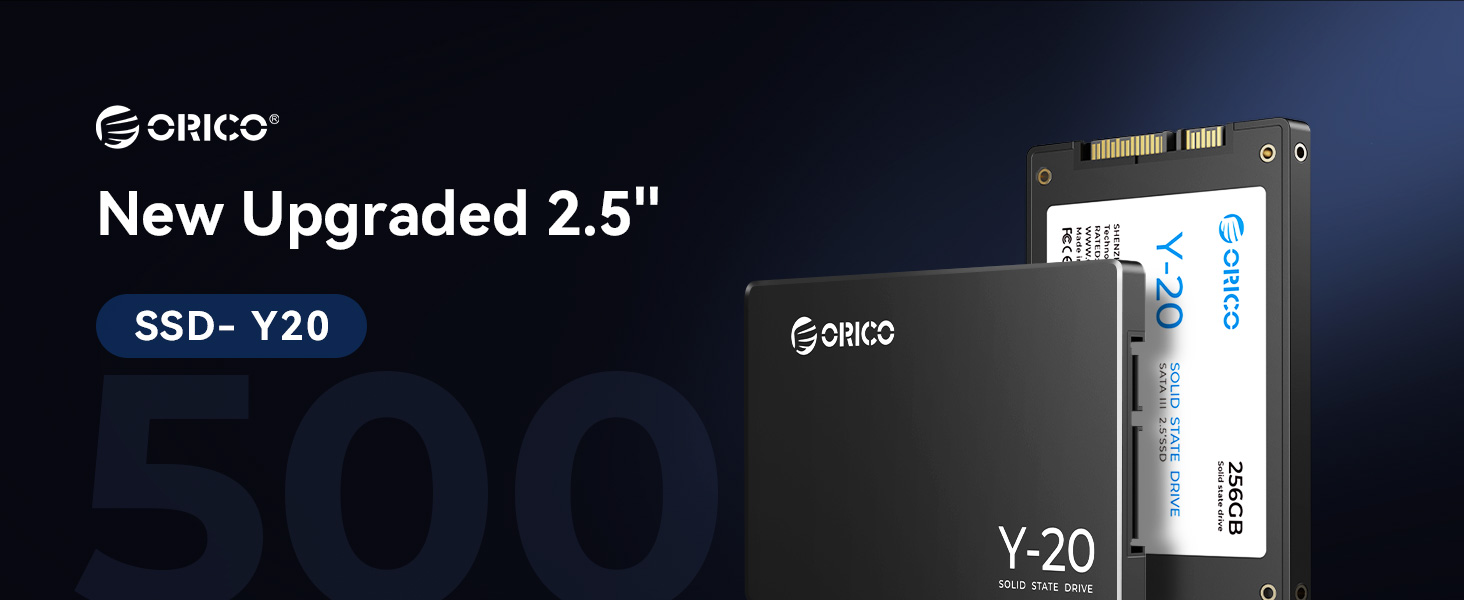
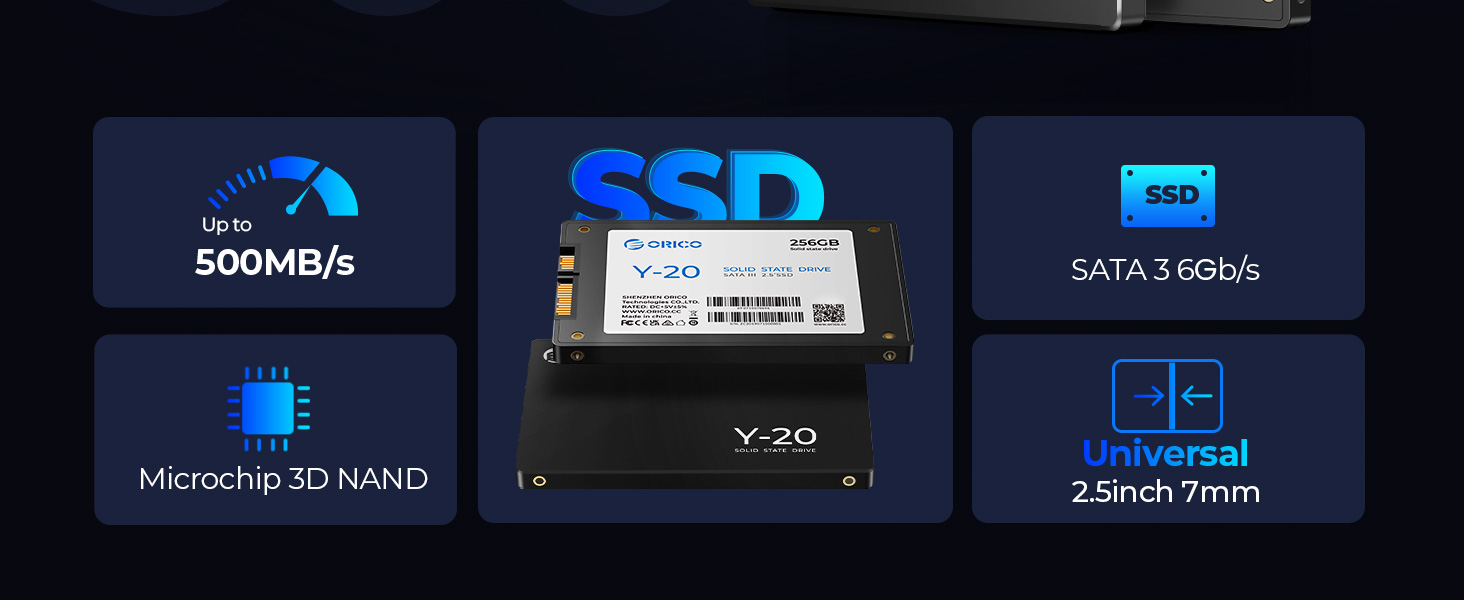

ORICO SATA SSD Comparison: Choose the Right SSD to Match Your Needs
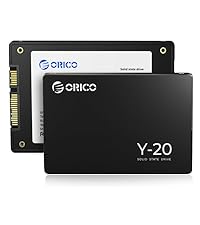 ORICO Y20 | 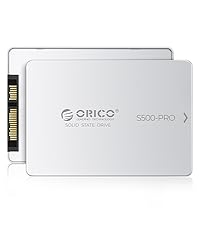 ORICO S500-PRO | 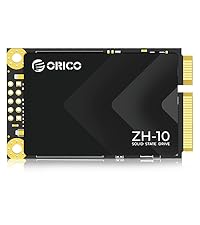 ORICO ZH10 | 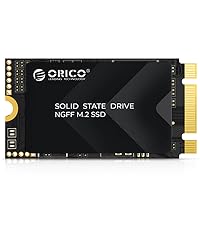 ORICO Y20M-2242 | 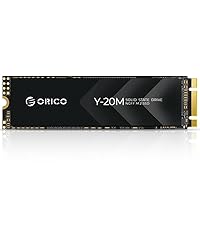 ORICO Y20M | |
|---|---|---|---|---|---|
Customer Reviews | — | — | — | — | — |
Price | — | — | — | — | — |
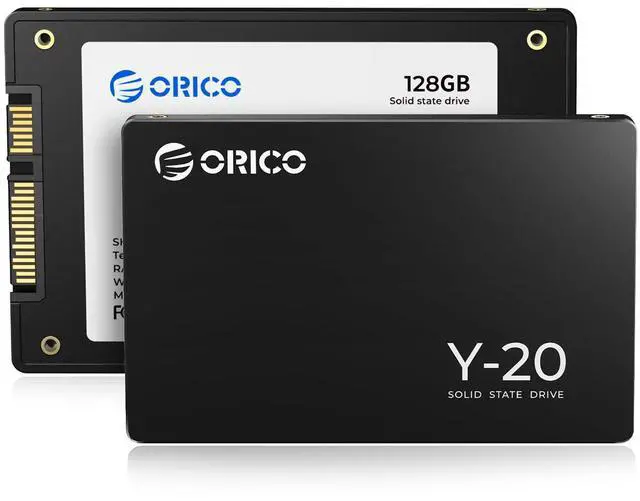
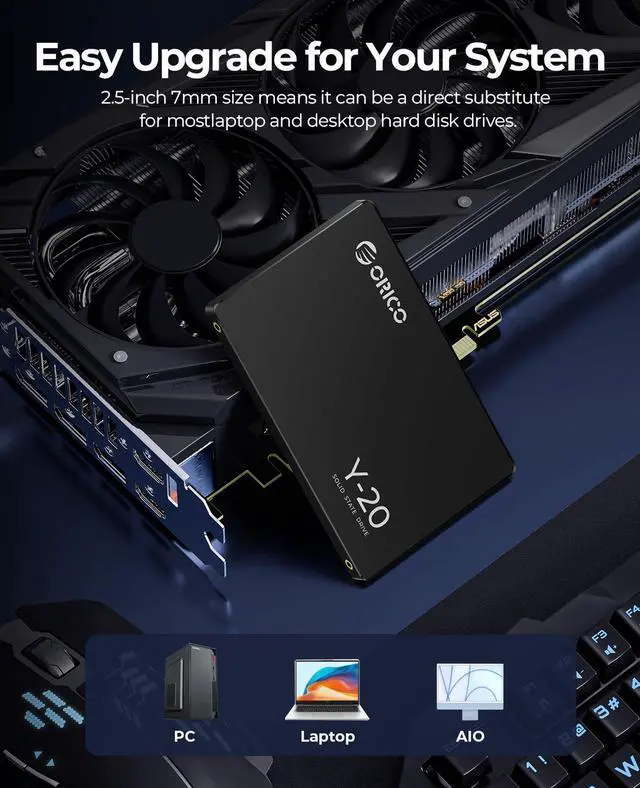
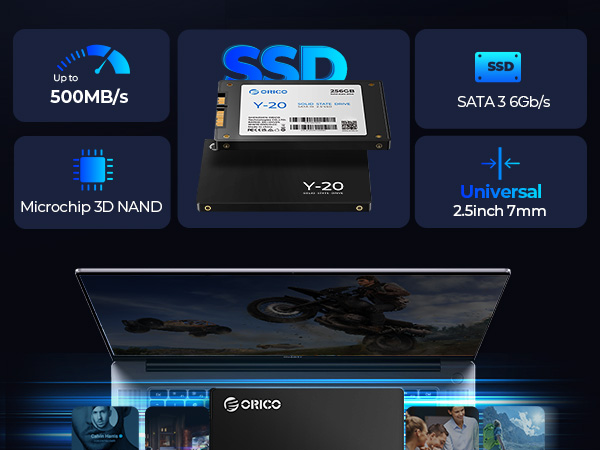
Form Factor | 2.5 Inch | 2.5 Inch | mSATA | M.2 2242 | M.2 2280 |
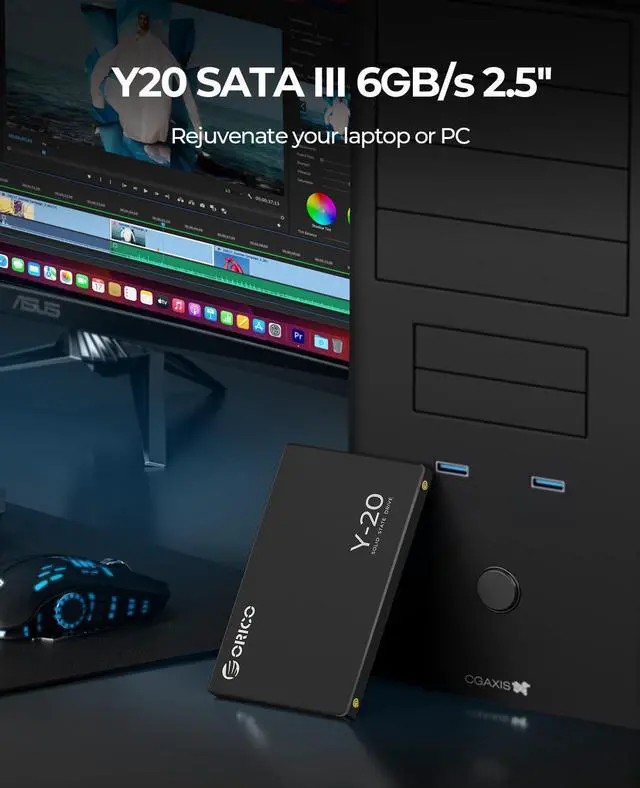
Interface Standard | SATA III | SATA III | SATA III | M.2 B+M Key | M.2 B+M Key |
Transfer Rate | 6 Gb/s | 6 Gb/s | 6 Gb/s | 6 Gb/s | 6 Gb/s |
Capacity | 128GB - 4TB | 128GB - 4TB | 128GB - 2TB | 128GB - 1TB | 128GB - 4TB |
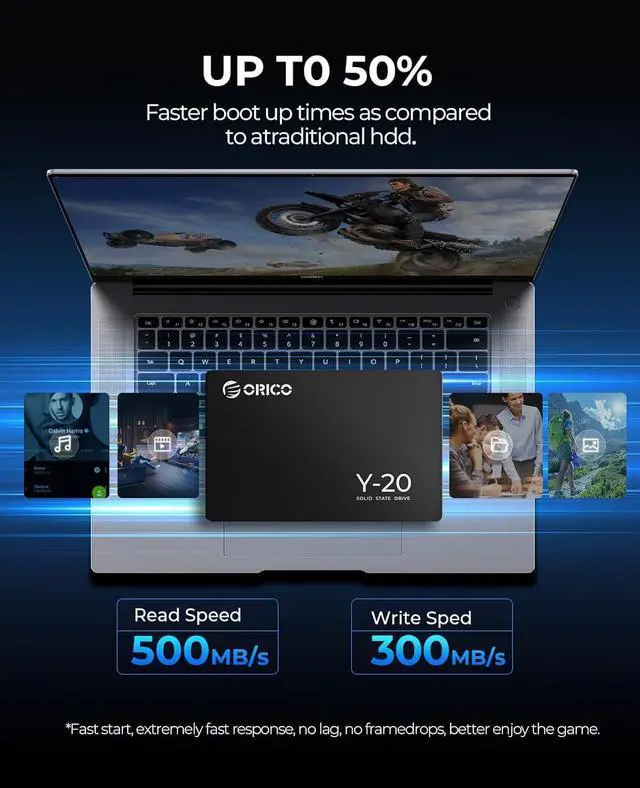
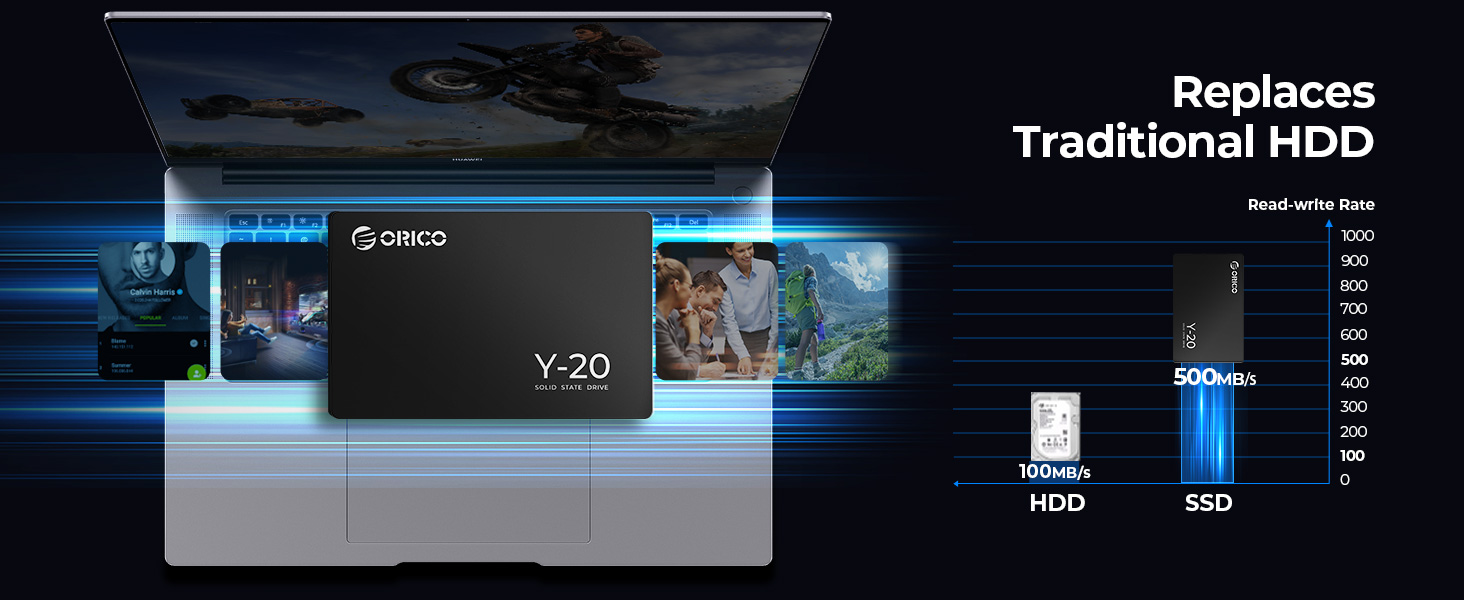
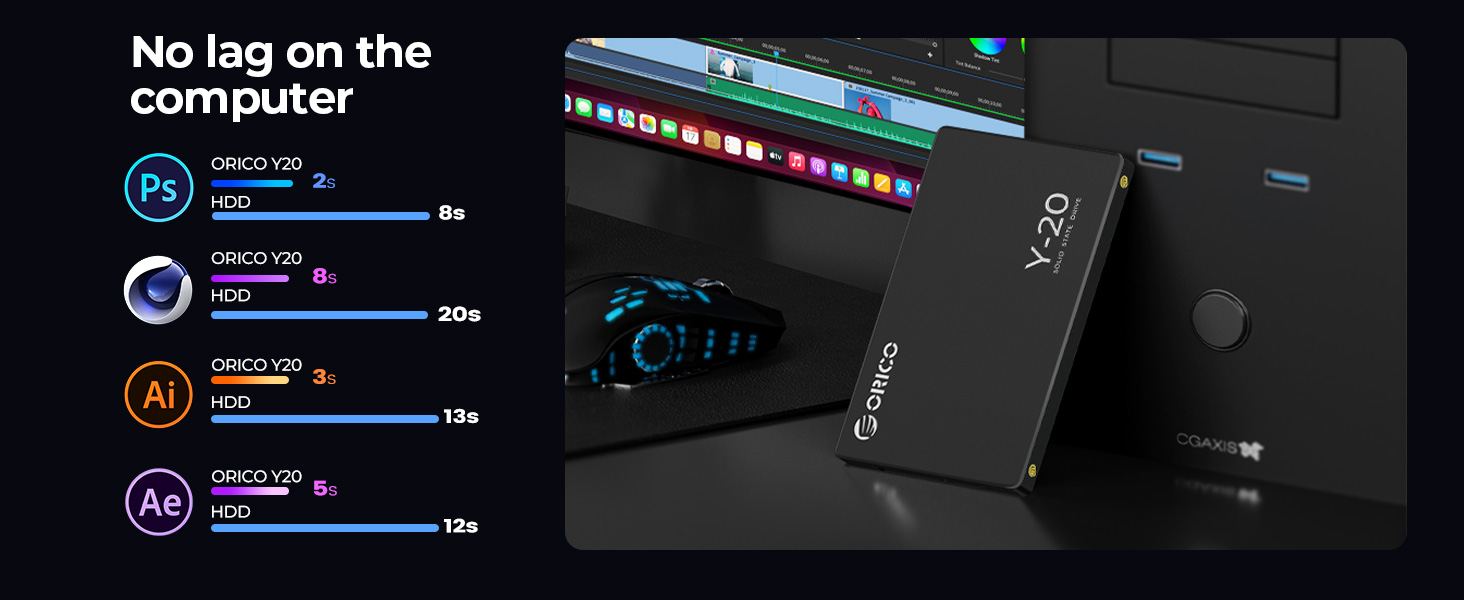
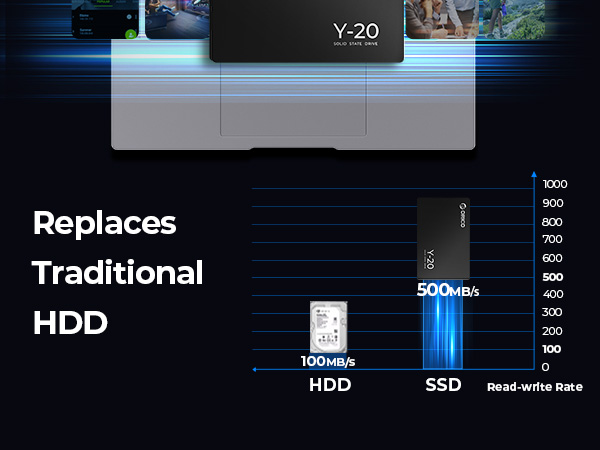
Max Read Speed | 500 MB/s | 560 MB/s | 500 MB/s | 530 MB/s | 500 MB/s |
Max Write Speed | 480 MB/s | 500 MB/s | 490 MB/s | 500 MB/s | 480 MB/s |
Why is the new SSD not showing up in Windows or macOS?
If your SSD isn’t detected, it’s likely because it hasn’t been formatted properly. Ensure both proper connection and formatting to make it usable.
- Correct Connection
Ensure the SSD is properly connected, either internally or through a USB enclosure, and check that all cables and ports are functioning correctly.
- Drive Initialization and Formatting
Windows: Open Disk Management, initialize the SSD, and format it to NTFS or exFAT (NTFS for system use, exFAT for cross-platform compatibility). Create a New Simple Volume after formatting.
macOS: Open Disk Utility, select the SSD, erase it, and format as APFS for macOS use or exFAT for both macOS and Windows compatibility.
Video Tutorial: A helpful video tutorial is available on the product page titled "Computer Not Recognize Drive? - Formatting New SSD Before Use", which guides you through the entire process.
Once the SSD is properly connected and formatted, it should show up in File Explorer (Windows) or Finder (macOS).
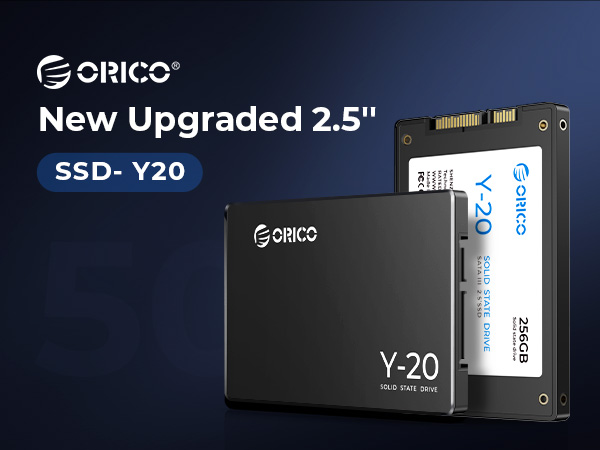

ORICO SATA SSD Comparison: Choose the Right SSD to Match Your Needs
ORICO Y20 | ORICO S500-PRO | ORICO ZH10 | ORICO Y20M-2242 | ORICO Y20M |
|---|---|---|---|---|
| Customer Reviews | ||||
| — | — | — | — | — |
| Price | ||||
| — | — | — | — | — |
| Form Factor | ||||
| 2.5 Inch | 2.5 Inch | mSATA | M.2 2242 | M.2 2280 |
| Interface Standard | ||||
| SATA III | SATA III | SATA III | M.2 B+M Key | M.2 B+M Key |
| Transfer Rate | ||||
| 6 Gb/s | 6 Gb/s | 6 Gb/s | 6 Gb/s | 6 Gb/s |
| Capacity | ||||
| 128GB - 4TB | 128GB - 4TB | 128GB - 2TB | 128GB - 1TB | 128GB - 4TB |
| Max Read Speed | ||||
| 500 MB/s | 560 MB/s | 500 MB/s | 530 MB/s | 500 MB/s |
| Max Write Speed | ||||
| 480 MB/s | 500 MB/s | 490 MB/s | 500 MB/s | 480 MB/s |
Why is the new SSD not showing up in Windows or macOS?
If your SSD isn’t detected, it’s likely because it hasn’t been formatted properly. Ensure both proper connection and formatting to make it usable.
- Correct Connection
Ensure the SSD is properly connected, either internally or through a USB enclosure, and check that all cables and ports are functioning correctly.
- Drive Initialization and Formatting
Windows: Open Disk Management, initialize the SSD, and format it to NTFS or exFAT (NTFS for system use, exFAT for cross-platform compatibility). Create a New Simple Volume after formatting.
macOS: Open Disk Utility, select the SSD, erase it, and format as APFS for macOS use or exFAT for both macOS and Windows compatibility.
Video Tutorial: A helpful video tutorial is available on the product page titled "Computer Not Recognize Drive? - Formatting New SSD Before Use", which guides you through the entire process.
Once the SSD is properly connected and formatted, it should show up in File Explorer (Windows) or Finder (macOS).