here!
here!
I’m your shopping assistant for PC builds, upgrades, and everything tech.
Got questions? Ask away!
Start a conversation
here!
I’m your shopping assistant for PC builds, upgrades, and everything tech.
Got questions? Ask away!
Start a conversation



Any questions? Ask CelesteSM will help you find out quickly.


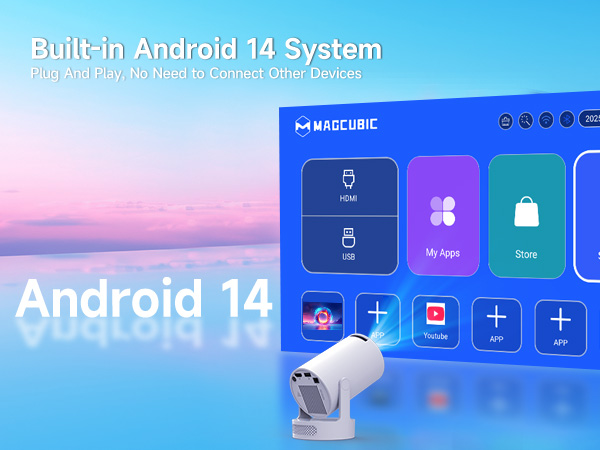


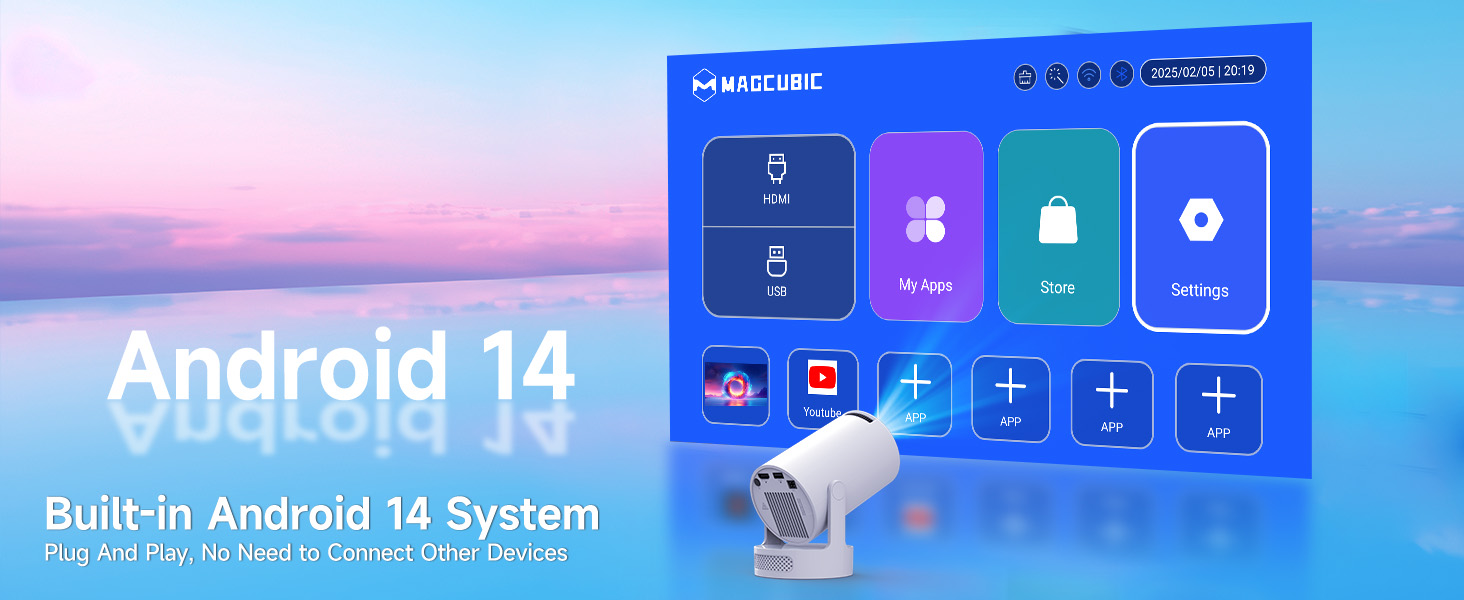
| Why OTA Update Pre-Use? | To ensure optimal performance and take advantage of our latest features and updates, please upgrade to the most recent software version before first use. You can do this by navigating to Settings > About device > Online upgrade. |
|---|---|
| Info on Streaming Services | Due to the HDCP (High-bandwidth Digital Content Protection) agreement, screen mirroring may not function properly (no image or sound) when attempting to mirror content from certain apps, such as Prime Video, Hulu, and others. We recommend that you use a streaming device such as a Fire Stick or Roku. |
| Can’t Connect to Wi-Fi? | 1. Ensure the projector and your router are within 16 feet (5 meters) of each other. Check if other devices connect to Wi-Fi. 2. Check the time zone settings by navigating to Settings > Time and Date > Time Zone and ensure it is accurate. 3. Attempt to connect to a different Wi-Fi network or use your phone's hotspot as an alternative. 4. Test both the 2.4GHz and 5GHz frequency bands on your router. 5. Reset the projector by going to Settings > Other Settings > Restore Factory Settings. |
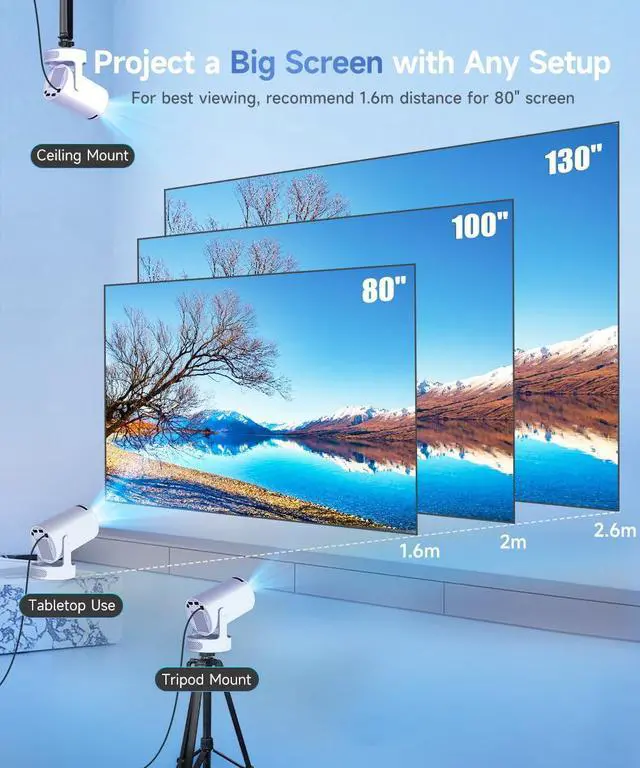
| Projection Distance? | The distance between the projector and the projection surface must be a minimum of 0.6 m and a maximum of 2.5m. This ensures a projection image between 40" and 110". |
| Screen-Mirror iOS? | 1.Ensure your device is updated to the latest version. You can do this by navigating to Settings > About device > Online upgrade. 2.Open the ScreenCast app. 3.Use AirPlay on your iOS device, making sure both devices are connected to the same Wi-Fi network. |
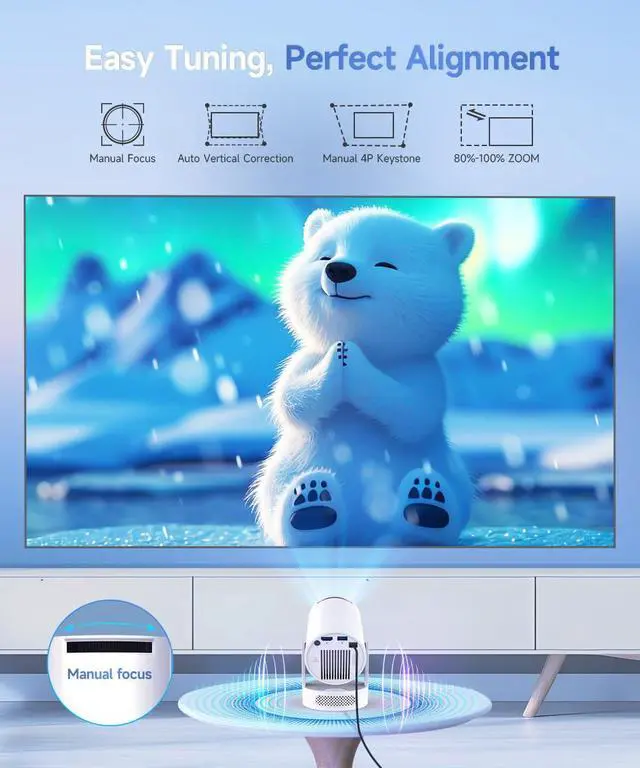
| How to Get a Square Image? | Automatic vertical keystone correction works best when the projector lens is directly facing the wall. If the results are unsatisfactory, follow these steps: 1. Place the projector on a flat surface and ensure the lens is perpendicular to the wall. 2. Navigate to Settings > Projection Settings > Keystone Correction > Initial Angle Correction. 3. If needed, disable the automatic keystone correction and make manual adjustments for optimal alignment. |
| Is It Good for Daytime Use? | Due to its brightness limitations, the projector is ideal for dark environments, such as a backyard at night, a campsite after sunset, a living room with closed curtains, or a bedroom with the lights turned off. |
| Activate Manual Focus? | To help you fine-tune the sharpness of your projection, the HY300Pro+ projector features an internal gear mechanism. Simply rotate the gear to adjust the focus and achieve your desired level of clarity. |
| Noise Explanation | All projectors operate at a unified 35dB noise level when measured 1 meter away, which is fixed and cannot be adjusted. This noise standard ranks the lowest among all grades of LCD projectors across the whole industry. Noise perception varies greatly among different individuals due to different personal tolerance thresholds. If you feel the noise is obvious, you can place the machine in a well-ventilated open space and avoid using it in ultra-quiet small rooms to reduce sensory interference. |
| No Sound Troubleshooting Guide | Please follow these steps one by one to fix no sound issues: 1. Adjust volume up and down via the remote control to confirm the volume is not muted; 2. Switch to different video Apps to exclude app audio compatibility failures; 3. Connect external Bluetooth speakers or earphones to test audio output. If sound works on external Bluetooth devices, the problem lies in the built-in speaker setting of the projector. |
| WiFi Disconnection | 1. Keep the projector unobstructed from the router; long distance or walls cause disconnection. 2. 2.4GHz is easily interfered by microwaves, Bluetooth and nearby Wi-Fi; switch to 5GHz. 3. Check if other devices work normally on the same Wi-Fi. 4. Forget and re-add the Wi-Fi network. 5. Test connection with a mobile hotspot. 6.Upgrade the projector to the latest firmware.7. If unresolved, provide router info, Wi-Fi setting screenshots and projector network footage/logs for factory testing. |
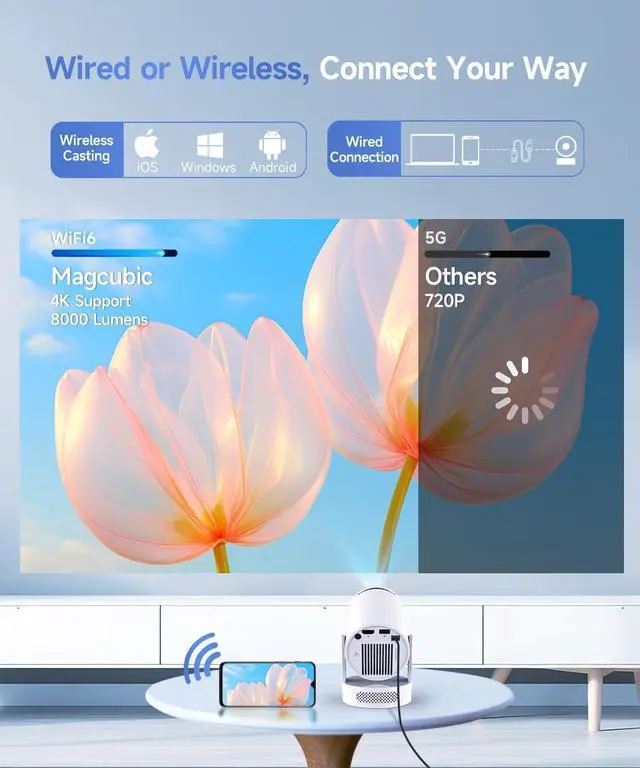
| Screen Cast Disconnection | 1. Connect both devices to the same stable Wi-Fi network. 2. Move closer to the router to reduce signal interference. 3. Restart your phone and the projector. 4. Update the projector’s firmware to the latest version. 5. Switch to HDMI wired connection for better stability if issues persist. |
| Unresponsive USB Port | 1. Test with another USB drive or wired mouse to check port damage. 2. Hanying model: supports USB drives under 512G (FAT32/NTFS only), no hard drives. 3. Tianchuang model: no limits on USB capacity or file format. |


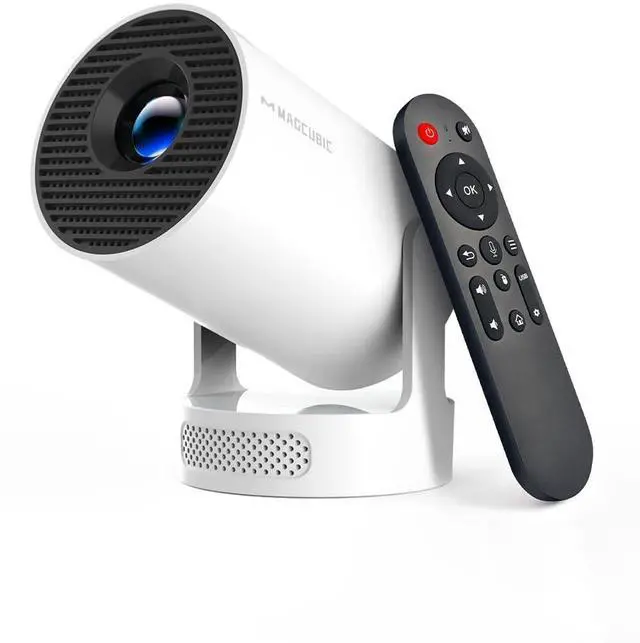
hy300pro+ mini 4k projector with Bluetooth and wifi
| Brand | Magcubic |
| Recommended Uses For Product | Business, Education, Gaming, Home Cinema |
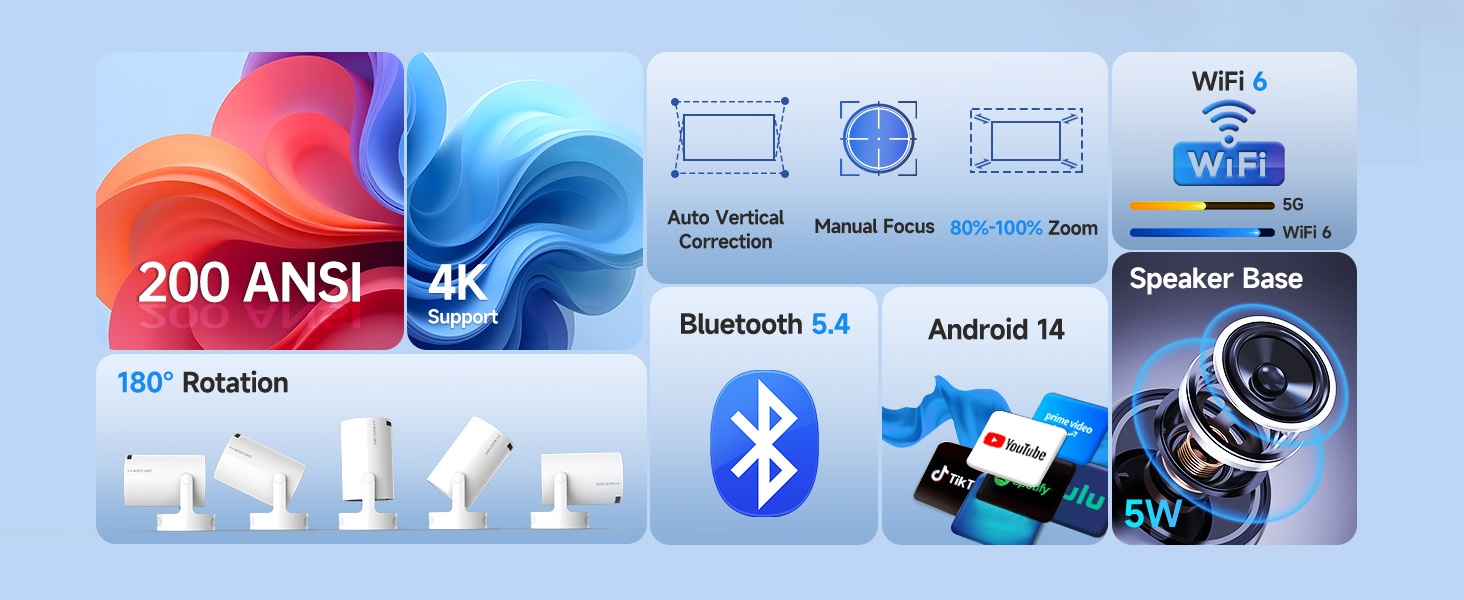
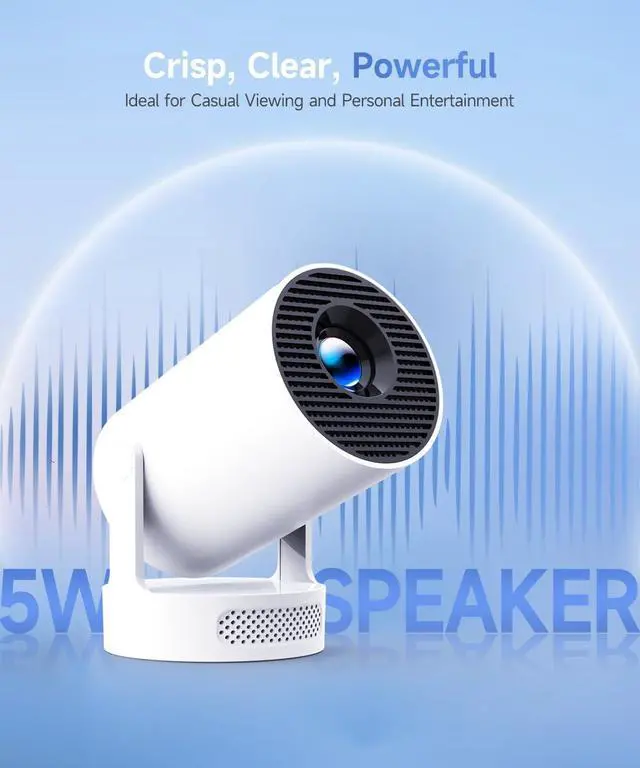
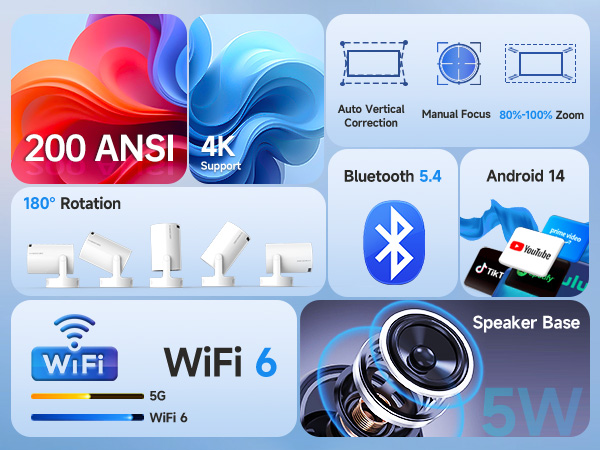
| Special Feature | 5W Soundbase Speaker, 8000 lumens, Auto Vertical Keystone, Portable, WiFi 6 & Bluetooth 5.4 |
| Connectivity Technology | Bluetooth, USB, Wi-Fi |
| Display resolution | 1280 x 720 |
| Brand Name | Magcubic |
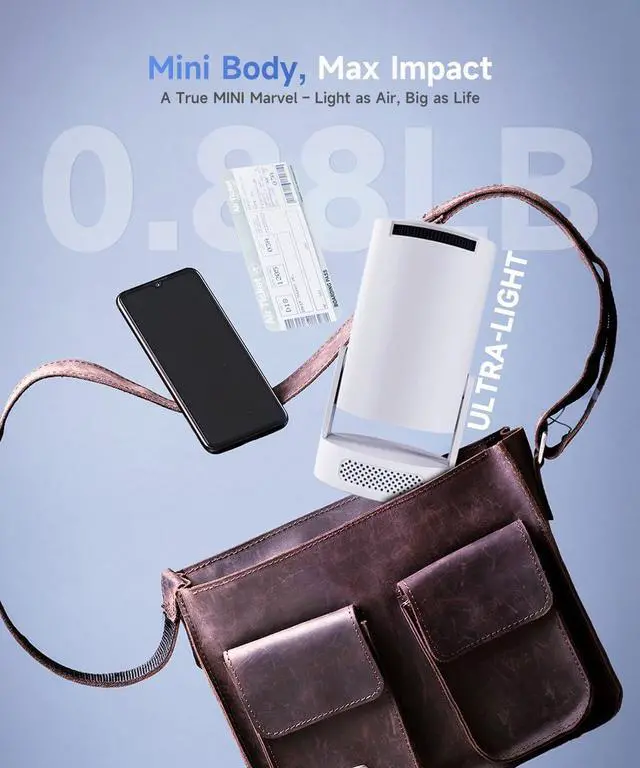
| Item Weight | 1.56 pounds |
| Package Dimensions | 6.73 x 5.83 x 4.88 inches |
| Item model number | HY300pro+ |
| Color Name | White |
| Special Features | 5W Soundbase Speaker, 8000 lumens, Auto Vertical Keystone, Portable, WiFi 6 & Bluetooth 5.4 |
| Date First Available | February 27, 2025 |