


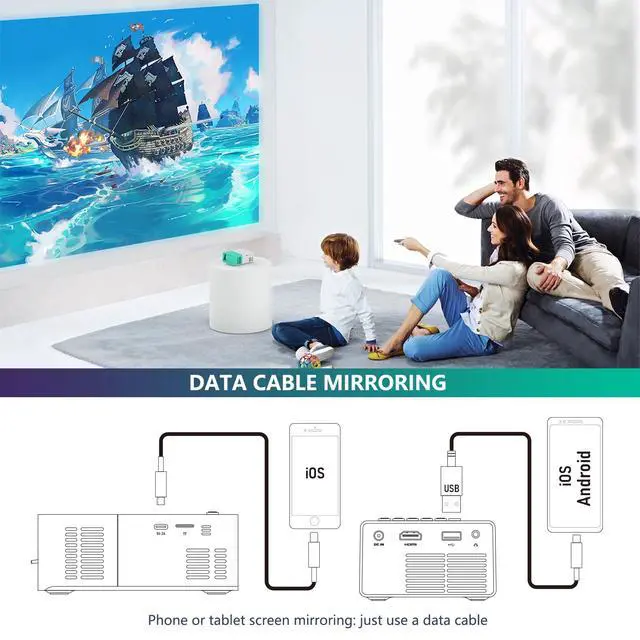







Data Cable Mirroring
1. iOS Devices: After connecting the projector with Apple's official data cable, a pop-up will ask if you trust the device. Click "Trust" to mirror your iOS screen.
2. Android Devices: See the video below for instructions.
Wired Screen Mirroring Guide (Data Cable Connection Method)
Note: The main UI may vary across different projector versions, but the functions and operation steps remain the same.
Mirroring via data cable requires an APP. The app mentioned in the video is for reference only; you may search for other apps. (The app "hccast" is currently available for download via Google Play Store.)
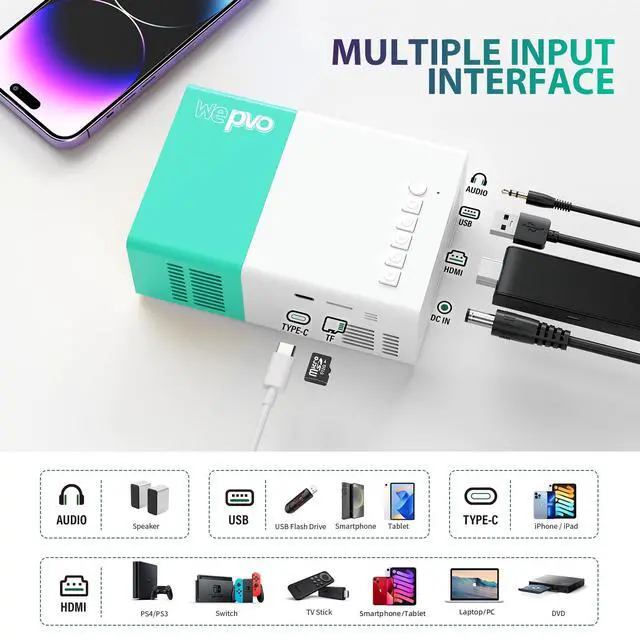
If concerned about app security, screen mirroring via HDMI is also supported. Use an official HDMI adapter of Android devices to connect to the projector.
Android Wired Screen Mirroring Guide
Merchant Video


Data Cable Mirroring
1. iOS Devices: After connecting the projector with Apple's official data cable, a pop-up will ask if you trust the device. Click "Trust" to mirror your iOS screen.
2. Android Devices: See the video below for instructions.
Android Wired Screen Mirroring Guide
Merchant VideoWired Screen Mirroring Guide (Data Cable Connection Method)
Note: The main UI may vary across different projector versions, but the functions and operation steps remain the same.
Mirroring via data cable requires an APP. The app mentioned in the video is for reference only; you may search for other apps. (The app "hccast" is currently available for download via Google Play Store.)
If concerned about app security, screen mirroring via HDMI is also supported. Use an official HDMI adapter of Android devices to connect to the projector.


wepvo focusing on the production and sale of mini home projectors.
Our R&D team continues to innovate and lead the industry in projector, and is committed to providing great viewing experience for our customers.
