• $133.97
  • Free 30-day Returns
  • Price alert
    Shop it at NeweggBusiness.

    Meet Your Seller

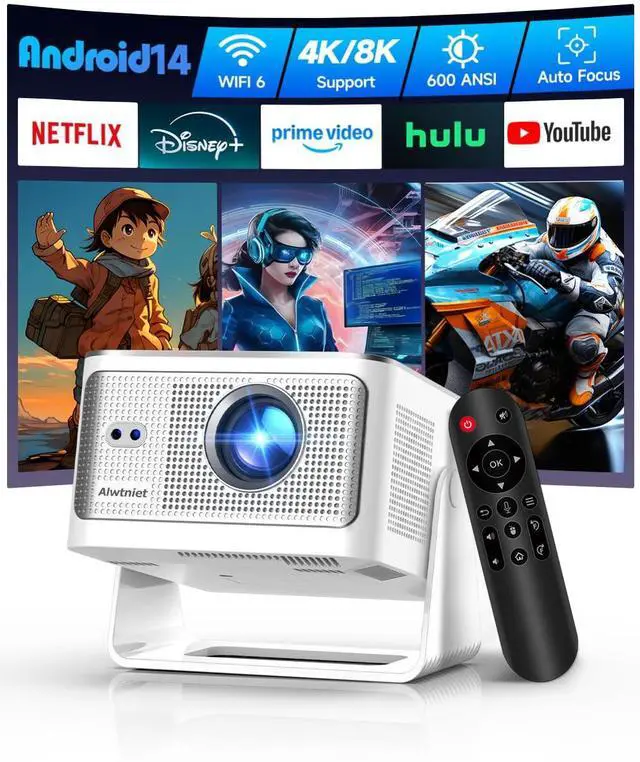
    Smart Projector with 4K 8K Support, Android 14 mini Projector with Wifi and Bluetooth, 600 ANSI, Auto Focus & Keystone, Obstacle Avoidance, 1080P Portable Movie Proyector, HY350Max for Home Outdoor

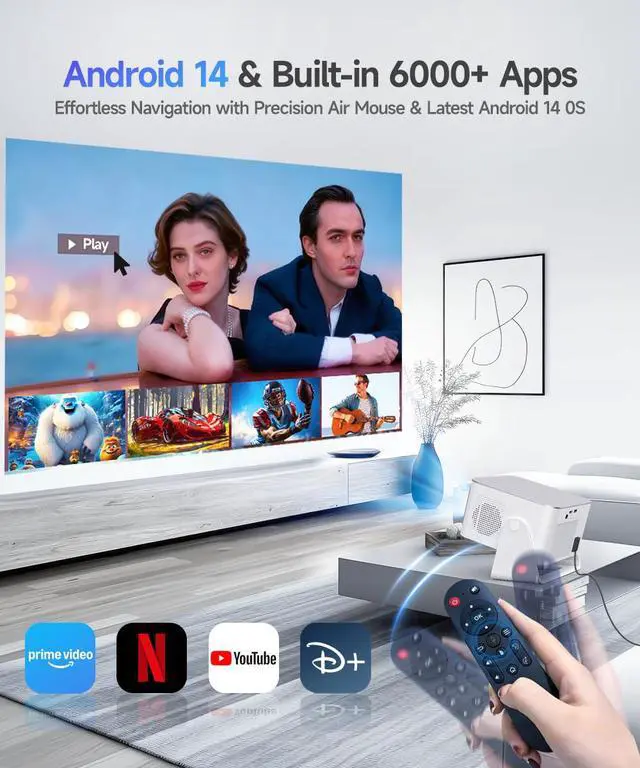
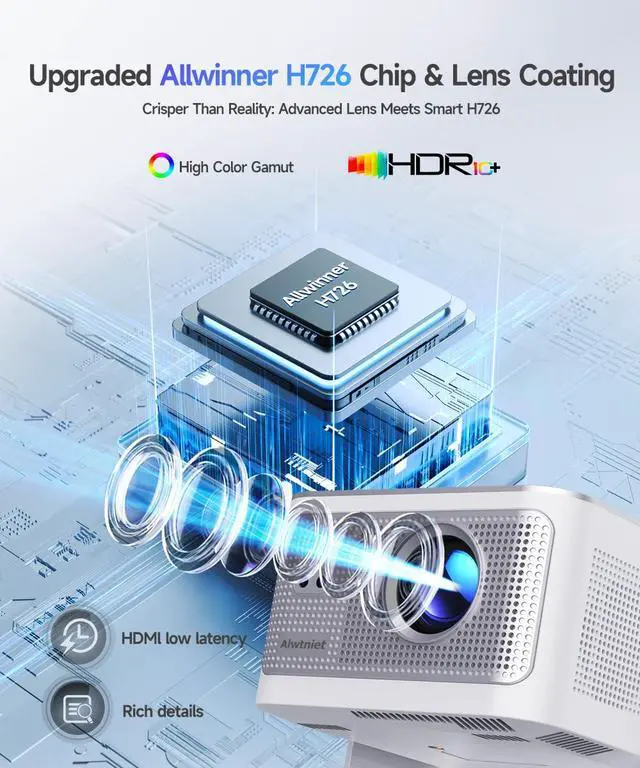
    • Your Plug-and-Play Smart CinemaIt starts with the powerful Allwinner H726 chip and pure Android 14 for wireless freedom and direct access to Netflix, YouTube, and more with no extra sticks. The 150'' giant screen that pulls you into the immersive viewing experience. This is the smart projector that does it all
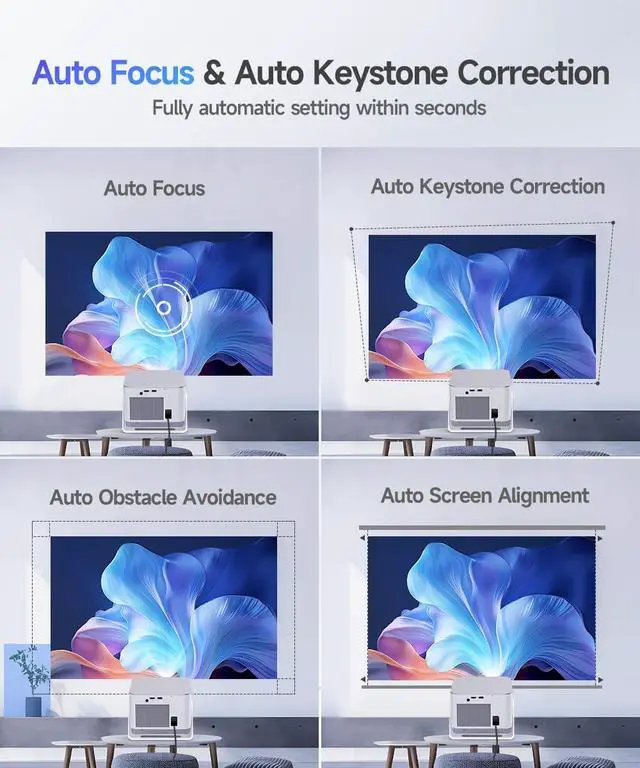
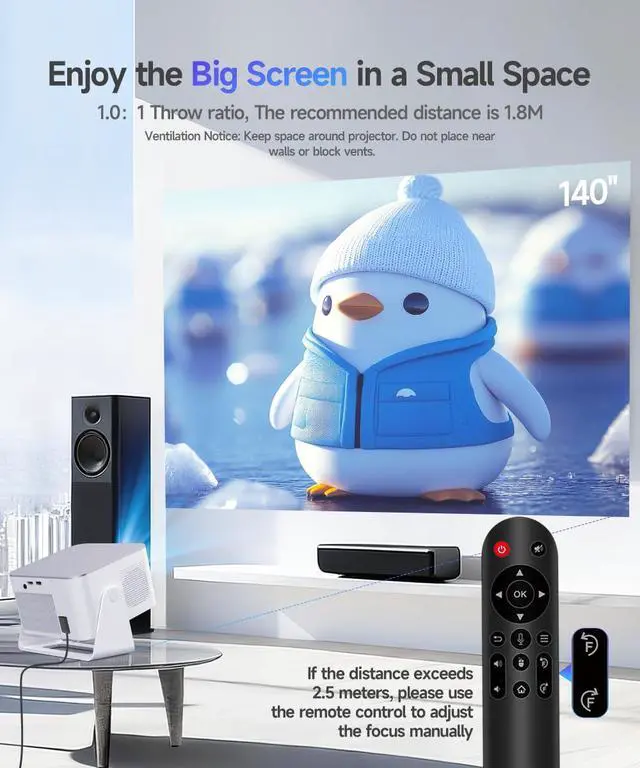
    • 4-in-1 Intelligent Image CalibrationThis portable projector sets itself upauto focus, 6D keystone, obstacle avoidance, and screen alignment kick in the second you turn it on. No menus, no buttons, just a sharp, straight picture every time. For distances >2.5m, Use the remote to fine-tune it for extra clarity
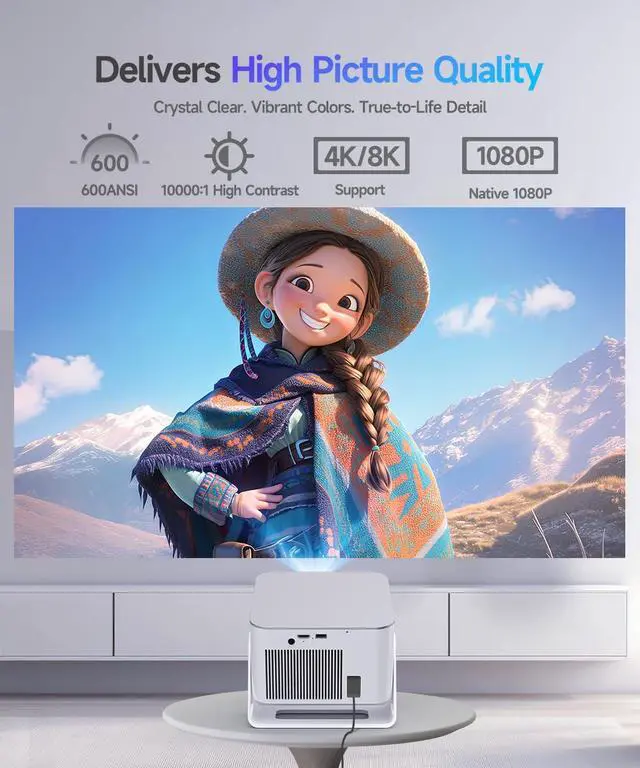
    • 8K Supported & Native 1080PThis mini projector packs a punch with true-to-life 1080P clarityplus it handles 4K/8K content like a champ. At 600 ANSI lumens, colors stay vibrant and contrast stays sharp, even with the lights on. Movies, sports, gamingwhatever you're into, it fills your wall with that theater feel
    • Big Screen & Tiny SpaceOur 1.0:1 ultra-short throw mini projector is made for bedrooms and small living rooms. Sits close to the wall (1.0m-3.5m), throws a huge 40-150 image. Effortlessly resize (80%-100%) without moving it. For the best view, we recommend 1.35m
    +
    +
    Overview
    Specs
    Reviews
    avatar

    Any questions? Our AI beta will help you find out quickly.

    mini projector with wifi and bluetooth

    Merchant Video
    smart projector
    Why OTA Update Before Use? To ensure optimal performance and take advantage of our latest features and updates, please upgrade to the most recent software version before first use. You can do this by navigating to Settings > About device > Online upgrade.
    Is It Good for Daytime Use? Due to its brightness limitations, the projector is ideal for dark environments, such as a backyard at night, a campsite after sunset, a living room with closed curtains, or a bedroom with the lights turned off.
    Info on Streaming Services Due to the HDCP (High-bandwidth Digital Content Protection) agreement, screen mirroring may not function properly (no image or sound) when attempting to mirror content from certain apps, such as Prime Video, Hulu, and others. We recommend that you use a streaming device such as a Fire Stick or Roku.
    Activate Manual Focus? If the image appears blurry, use the electronic focus buttons on the remote control to adjust it until the picture becomes sharp. Also, make sure the projector is placed within the correct throw distance range.
    How to Get a Square Image? Automatic vertical keystone correction works best when the projector lens is directly facing the wall. If the results are unsatisfactory, follow these steps: ? 1. Place the projector on a flat surface and ensure the lens is perpendicular to the wall. 2. Navigate to Settings > Projection Settings > Keystone Correction > Initial Angle Correction. 3. If needed, disable the automatic keystone correction and make manual adjustments for optimal alignment.
    Adjust Picture Settings? The projector running Android 14 does not include Display settings for adjusting Contrast, Hue, Saturation, or Sharpness within the Android system interface. To adjust the brightness, go to Settings > Projection Settings > Device Mode and select your preferred mode. However, when using HDMI or USB Drive mode, you can access these picture adjustment options by pressing the “MENU” button on the remote control.
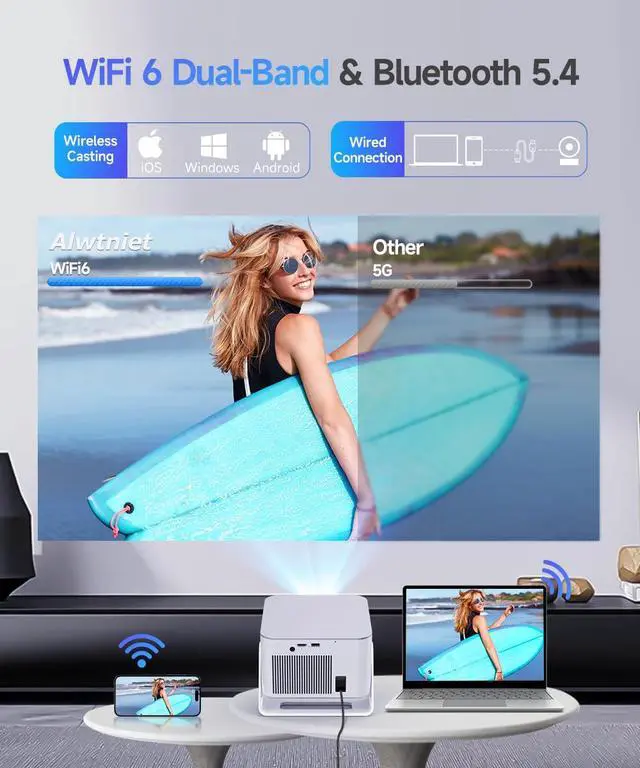
    Can’t Connect to Wi-Fi? 1.Keep the projector and router within 16 feet (5 meters). Check if other devices connect to Wi-Fi. 2.Verify time zone accuracy in Settings > Time and Date > Time Zone. 3.Try a different Wi-Fi network or use your phone’s hotspot. 4.Test both 2.4GHz and 5GHz bands on your router. 5.Reset the projector via Settings > Other Settings > Restore Factory Settings.
    Screen-Mirror iOS? 1.Ensure your device is updated to the latest version. You can do this by navigating to Settings > About device > Online upgrade. 2.Open the ScreenCast app. 3.Use AirPlay on your iOS device, making sure both devices are connected to the same Wi-Fi network.
    How to Use Air Mouse Remote? Some apps are designed for mobile devices and require the mouse mode to be activated for navigation. Follow these steps to enable the air mouse function: 1. Open the Bluetooth settings on your device. 2. Press and hold both the “Left” and “Right” buttons simultaneously to enter pairing mode. 3. Press the “Mouse” icon on the remote to activate the air mouse function. 4. Move your wrist to control the cursor using the air mouse feature.
    Unable Pair Bluetooth Devices 1.Update the firmware to the latest version. 2.Clear the Bluetooth records. 3. Restart the projector and try pairing again. 4.Connect another Bluetooth speaker or headset 5. Keep the projector close to the Bluetooth device, avoiding metal objects or walls between them. Note: Miracast and AirPlay use Wi-Fi connections, not Bluetooth. The projector only supports Bluetooth audio output devices (such as speakers or headphones), not phones or other transmitters.

    mini projector with wifi and bluetooth

    Merchant Video
    smart projector
    Why OTA Update Before Use? To ensure optimal performance and take advantage of our latest features and updates, please upgrade to the most recent software version before first use. You can do this by navigating to Settings > About device > Online upgrade.
    Is It Good for Daytime Use? Due to its brightness limitations, the projector is ideal for dark environments, such as a backyard at night, a campsite after sunset, a living room with closed curtains, or a bedroom with the lights turned off.
    Info on Streaming ServicesDue to the HDCP (High-bandwidth Digital Content Protection) agreement, screen mirroring may not function properly (no image or sound) when attempting to mirror content from certain apps, such as Prime Video, Hulu, and others. We recommend that you use a streaming device such as a Fire Stick or Roku.
    Activate Manual Focus? If the image appears blurry, use the electronic focus buttons on the remote control to adjust it until the picture becomes sharp. Also, make sure the projector is placed within the correct throw distance range.
    How to Get a Square Image? Automatic vertical keystone correction works best when the projector lens is directly facing the wall. If the results are unsatisfactory, follow these steps: ? 1. Place the projector on a flat surface and ensure the lens is perpendicular to the wall. 2. Navigate to Settings > Projection Settings > Keystone Correction > Initial Angle Correction. 3. If needed, disable the automatic keystone correction and make manual adjustments for optimal alignment.
    Adjust Picture Settings? The projector running Android 14 does not include Display settings for adjusting Contrast, Hue, Saturation, or Sharpness within the Android system interface. To adjust the brightness, go to Settings > Projection Settings > Device Mode and select your preferred mode. However, when using HDMI or USB Drive mode, you can access these picture adjustment options by pressing the “MENU” button on the remote control.
    Can’t Connect to Wi-Fi? 1.Keep the projector and router within 16 feet (5 meters). Check if other devices connect to Wi-Fi. 2.Verify time zone accuracy in Settings > Time and Date > Time Zone. 3.Try a different Wi-Fi network or use your phone’s hotspot. 4.Test both 2.4GHz and 5GHz bands on your router. 5.Reset the projector via Settings > Other Settings > Restore Factory Settings.
    Screen-Mirror iOS? 1.Ensure your device is updated to the latest version. You can do this by navigating to Settings > About device > Online upgrade. 2.Open the ScreenCast app. 3.Use AirPlay on your iOS device, making sure both devices are connected to the same Wi-Fi network.
    How to Use Air Mouse Remote? Some apps are designed for mobile devices and require the mouse mode to be activated for navigation. Follow these steps to enable the air mouse function: 1. Open the Bluetooth settings on your device. 2. Press and hold both the “Left” and “Right” buttons simultaneously to enter pairing mode. 3. Press the “Mouse” icon on the remote to activate the air mouse function. 4. Move your wrist to control the cursor using the air mouse feature.
    Unable Pair Bluetooth Devices 1.Update the firmware to the latest version. 2.Clear the Bluetooth records. 3. Restart the projector and try pairing again. 4.Connect another Bluetooth speaker or headset 5. Keep the projector close to the Bluetooth device, avoiding metal objects or walls between them. Note: Miracast and AirPlay use Wi-Fi connections, not Bluetooth. The projector only supports Bluetooth audio output devices (such as speakers or headphones), not phones or other transmitters.
    Smart Projector with 4K 8K Support, Android 14 mini Projector with Wifi and Bluetooth, 600 ANSI, Auto Focus & Keystone, Obstacle Avoidance, 1080P Portable Movie Proyector, HY350Max for Home Outdoor

    Warranty & Returns

    Warranty, Returns, And Additional Information

    Warranty

    • Please contact the Seller directly for warranty information. Warranty information may also be found on the Manufacturer's website.
    • CONTACT

    Return Policies

    Manufacturer Contact Info

    LOADING...