









Affordable Projector, Big Screen Joy
 JY360 Ball Projector |  JY360 Football Projector |  JY320 Mini Projector |  JY320 Mini Projector |  M10Plus Smart Projector |  M10Plus Smart Projector | |
|---|---|---|---|---|---|---|
Customer Reviews | — | — | — | — | — | — |
Price | — | — | — | — | — | — |
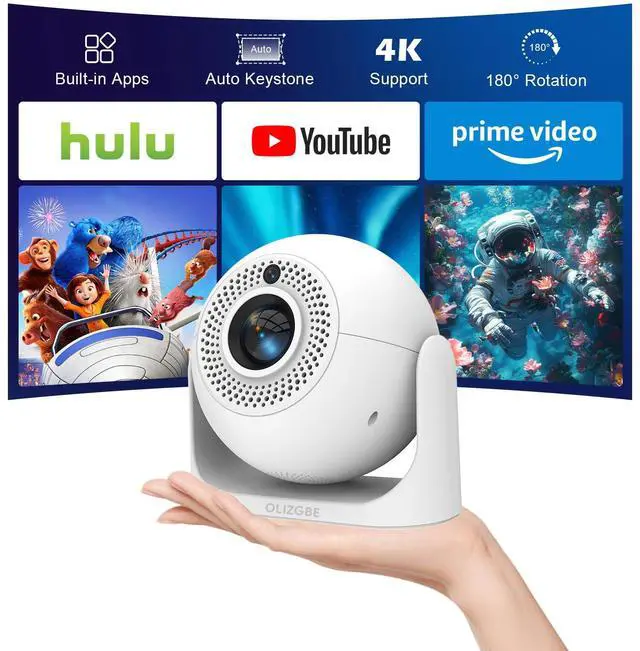
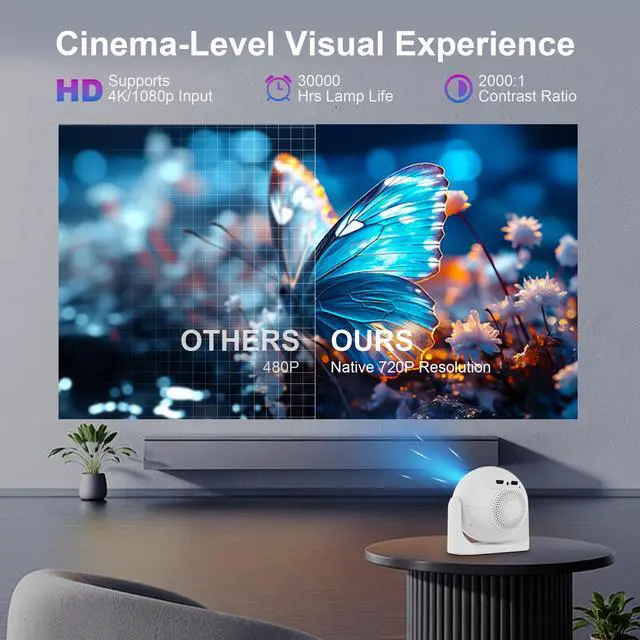
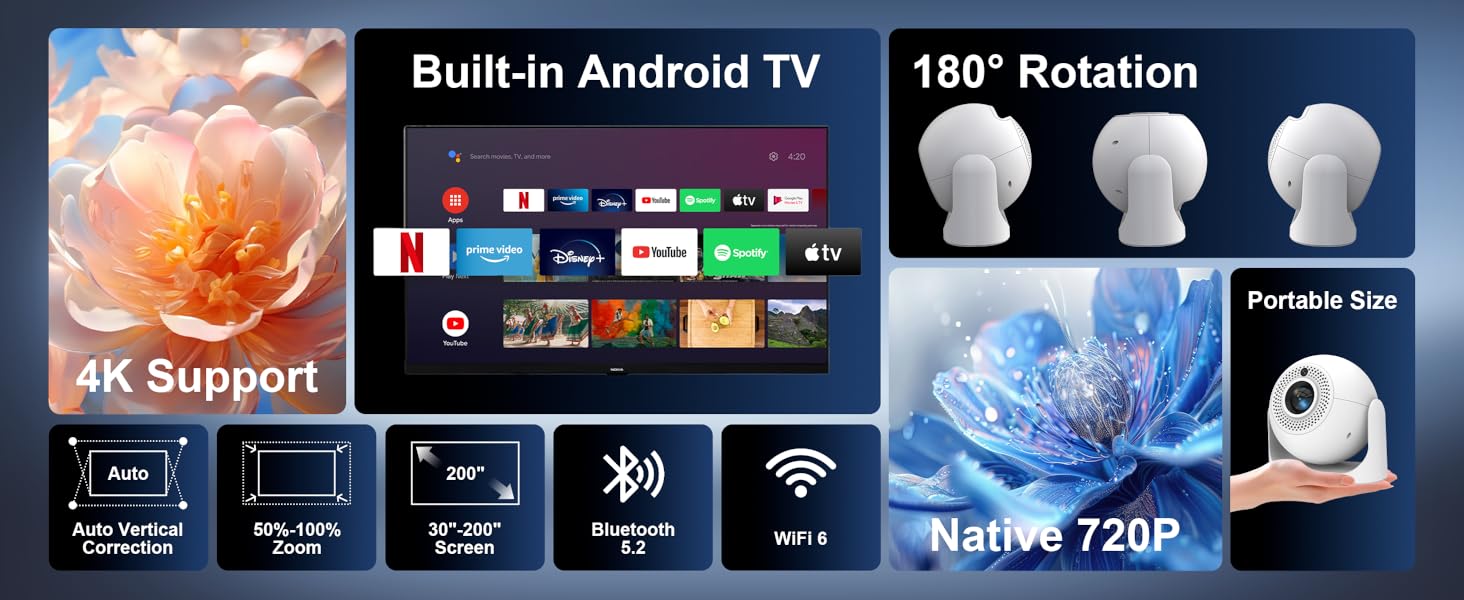
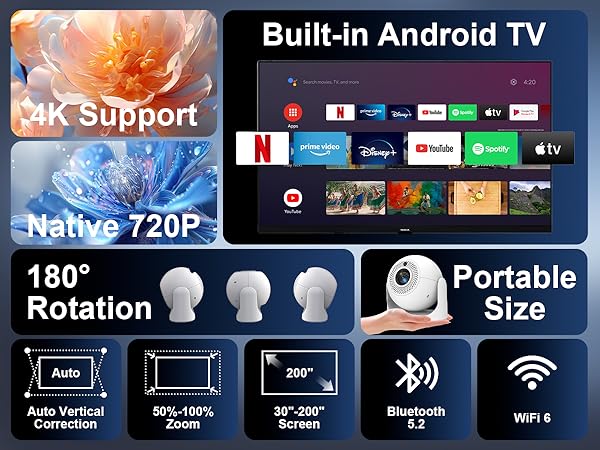
Display Resolution | Native 720P & 4K Support | Native 720P & 4K Support | Native 720P & 4K Support | Native 720P & 4K Support | Native 720P & 4K Support | Native 720P & 4K Support |
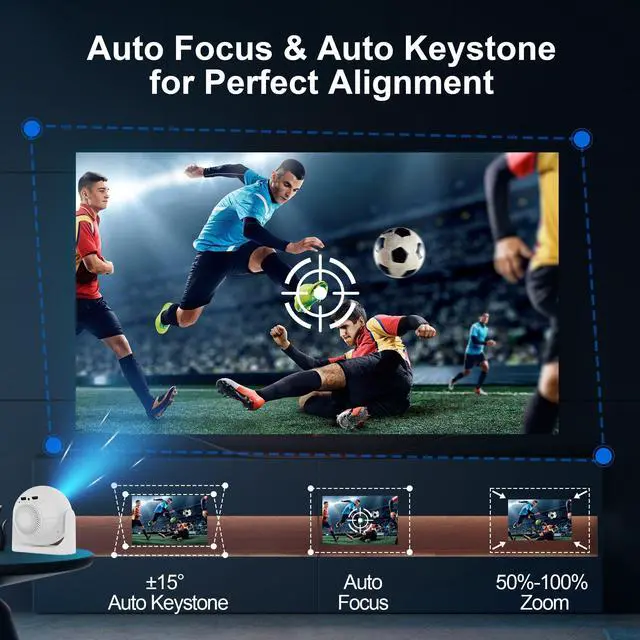
Focus Mode | Auto Focus | Electric Focus | Manual Focus | Manual Focus | Electric Focus | Electric Focus |
Auto Keystone Correction | Vertical | Vertical | Vertical | Vertical | Vertical | Vertical |
Brightness | 200 ANSI | 200 ANSI | 200 ANSI | 200 ANSI | 300 ANSI | 300 ANSI |
Speaker | 5W Soundbase Speaker | 5W Soundbase Speaker | 5W Soundbase Speaker | 5W Soundbase Speaker | 5W Soundbase Speaker | 5W Soundbase Speaker |
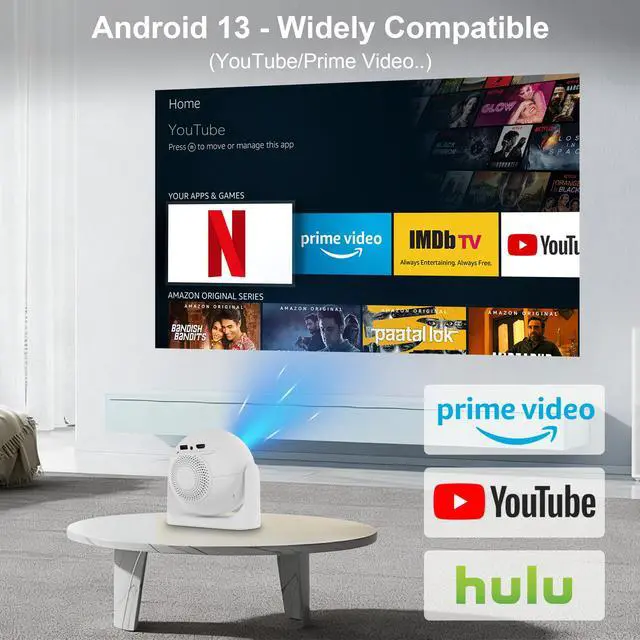
Android OS | Android 13.0 | Android 13.0 | Android 13.0 | Android 13.0 | Android 13.0 | Android 13.0 |
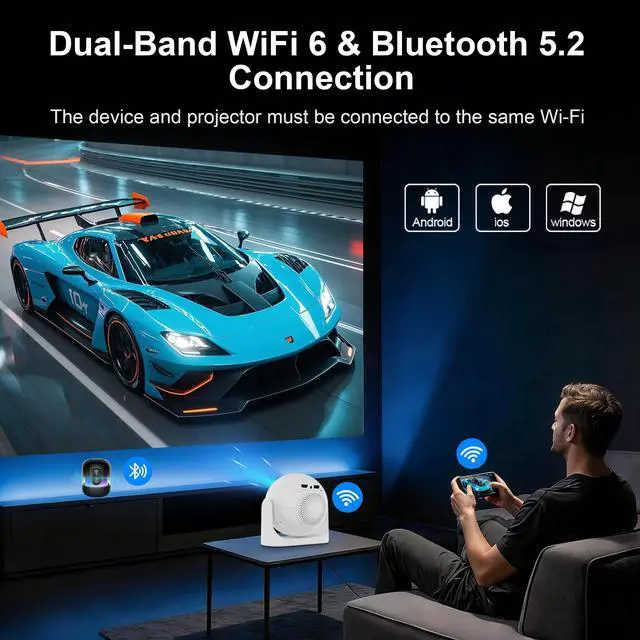
Connection | WiFi 6 + Bluetooth 5.2 | WiFi 6 + Bluetooth 5.2 | WiFi 6 + Bluetooth 5.1 | WiFi 6 + Bluetooth 5.1 | WiFi 6 + Bluetooth 5.1 | WiFi 6 + Bluetooth 5.1 |
How to Screen Mirror Your iOS Device to the Projector?
1. Connect your phone and the projector to the same Wi-Fi. 2. On the projector: Go to QuickShare > AirPlay. 3. On your phone: Swipe to open the Control Center, tap Screen Mirroring, then select your projector from the device list to start casting.
What Is the Optimal Projection Distance?
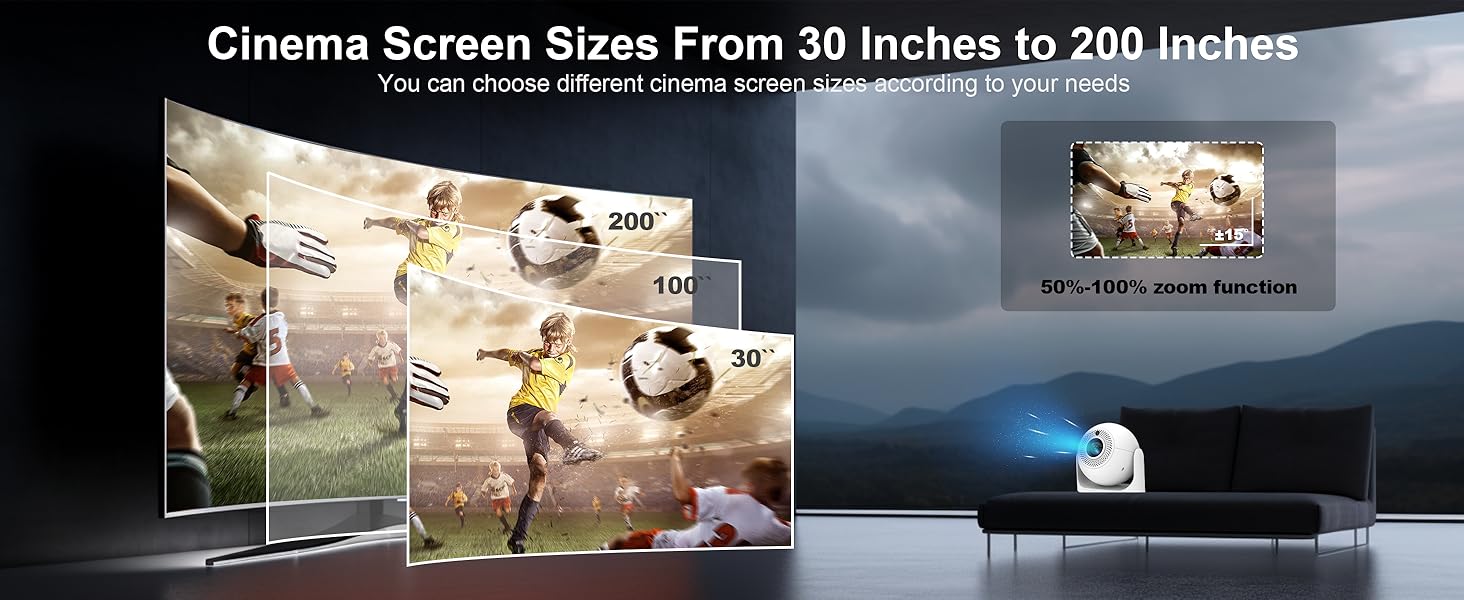
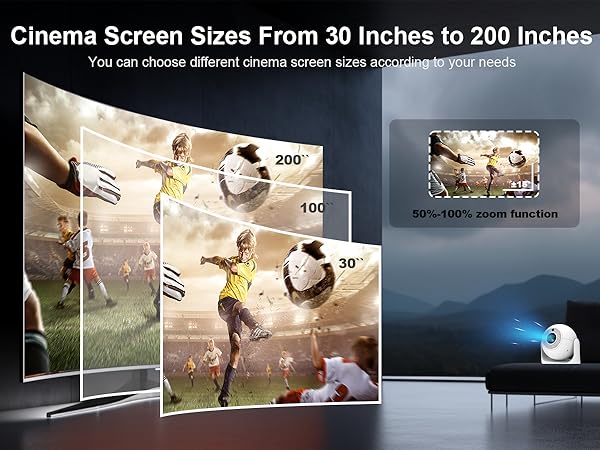
The recommended projection distance is 1.5–2 meters. This range produces a clear, well-sized image of 56–80 inches.
Is It Good for Daytime Use?
Due to its brightness rating, the projector is ideal for dark environments, such as a backyard at night, a campsite after sunset, a living room with closed curtains, or a bedroom with the lights off.
What Should I Do if the Projector's Screen Mirroring Function Does Not Work?
Due to HDCP protection, copyrighted apps like Hulu, Netflix and Prime Video do not support screen mirroring. We suggest installing the apps from the built-in app store, or using streaming devices such as Fire Stick via HDMI for playback.
Important Safety Note
Please don't block the projector's air intake and exhaust vents (heat dissipation vents) — blockage can cause overheating or screen burn-in. Avoid touching the vents during and after use to prevent burns from high temperatures.
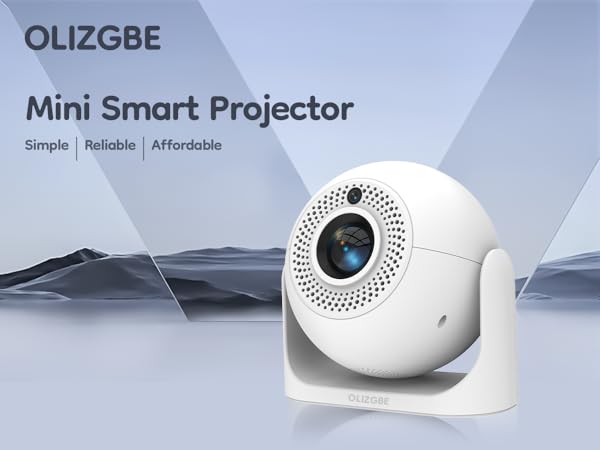



Affordable Projector, Big Screen Joy
JY360 Ball Projector | JY360 Football Projector | JY320 Mini Projector | JY320 Mini Projector | M10Plus Smart Projector | M10Plus Smart Projector |
|---|---|---|---|---|---|
| Customer Reviews | |||||
| — | — | — | — | — | — |
| Price | |||||
| — | — | — | — | — | — |
| Display Resolution | |||||
| Native 720P & 4K Support | Native 720P & 4K Support | Native 720P & 4K Support | Native 720P & 4K Support | Native 720P & 4K Support | Native 720P & 4K Support |
| Focus Mode | |||||
| Auto Focus | Electric Focus | Manual Focus | Manual Focus | Electric Focus | Electric Focus |
| Auto Keystone Correction | |||||
| Vertical | Vertical | Vertical | Vertical | Vertical | Vertical |
| Brightness | |||||
| 200 ANSI | 200 ANSI | 200 ANSI | 200 ANSI | 300 ANSI | 300 ANSI |
| Speaker | |||||
| 5W Soundbase Speaker | 5W Soundbase Speaker | 5W Soundbase Speaker | 5W Soundbase Speaker | 5W Soundbase Speaker | 5W Soundbase Speaker |
| Android OS | |||||
| Android 13.0 | Android 13.0 | Android 13.0 | Android 13.0 | Android 13.0 | Android 13.0 |
| Connection | |||||
| WiFi 6 + Bluetooth 5.2 | WiFi 6 + Bluetooth 5.2 | WiFi 6 + Bluetooth 5.1 | WiFi 6 + Bluetooth 5.1 | WiFi 6 + Bluetooth 5.1 | WiFi 6 + Bluetooth 5.1 |
How to Screen Mirror Your iOS Device to the Projector?
1. Connect your phone and the projector to the same Wi-Fi. 2. On the projector: Go to QuickShare > AirPlay. 3. On your phone: Swipe to open the Control Center, tap Screen Mirroring, then select your projector from the device list to start casting.
What Is the Optimal Projection Distance?
The recommended projection distance is 1.5–2 meters. This range produces a clear, well-sized image of 56–80 inches.
Is It Good for Daytime Use?
Due to its brightness rating, the projector is ideal for dark environments, such as a backyard at night, a campsite after sunset, a living room with closed curtains, or a bedroom with the lights off.
What Should I Do if the Projector's Screen Mirroring Function Does Not Work?
Due to HDCP protection, copyrighted apps like Hulu, Netflix and Prime Video do not support screen mirroring. We suggest installing the apps from the built-in app store, or using streaming devices such as Fire Stick via HDMI for playback.
Important Safety Note
Please don't block the projector's air intake and exhaust vents (heat dissipation vents) — blockage can cause overheating or screen burn-in. Avoid touching the vents during and after use to prevent burns from high temperatures.