





Joso One Ear Gaming Headset with Microphone

One Headset for Gaming & Work – P5/P4/X-box/NS Switch/PC Games, Office Calls

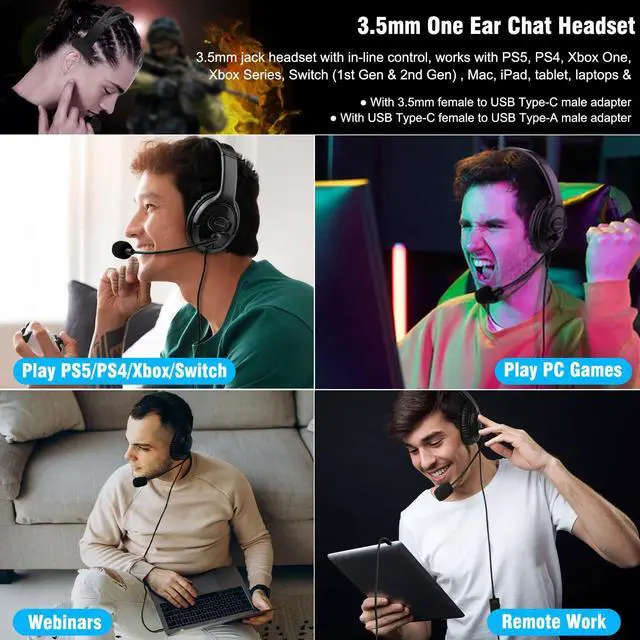
Use the same wired headset across all your devices. Play on PS, X-box or Switch, enjoy PC client games, or take crystal-clear business calls.

Console setup required for PS5/PS4/Xbox
3.5MM Wired Single Ear Headset for Gaming
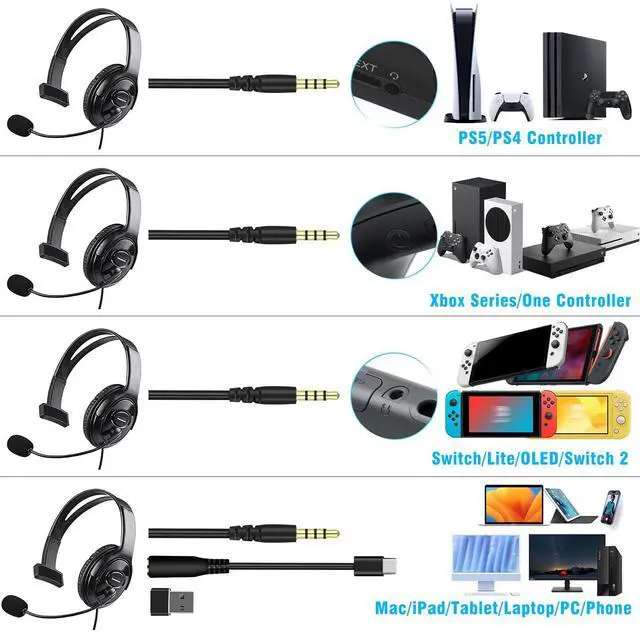
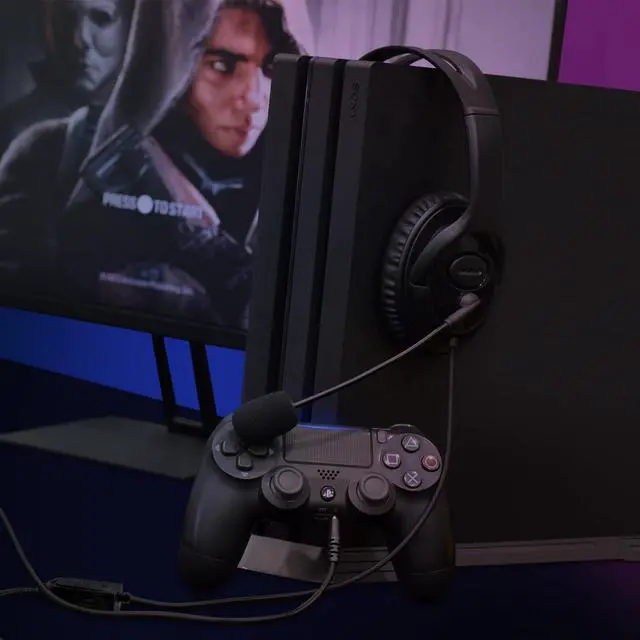
Connect the 3.5 mm plug to a PS5/PS4/Xbox controller, or to a NS-Switch, to play games.

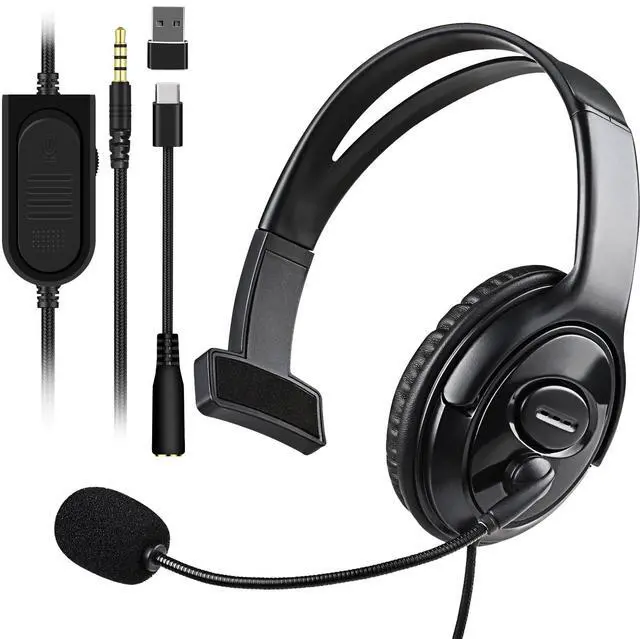
Includes USB A & USB C adapters
Wide Device Support
Easily connect the headset to PC, desktops, laptops, tablets, smartphones, and more. Plug and play, no extra drivers needed.
In-Line Control

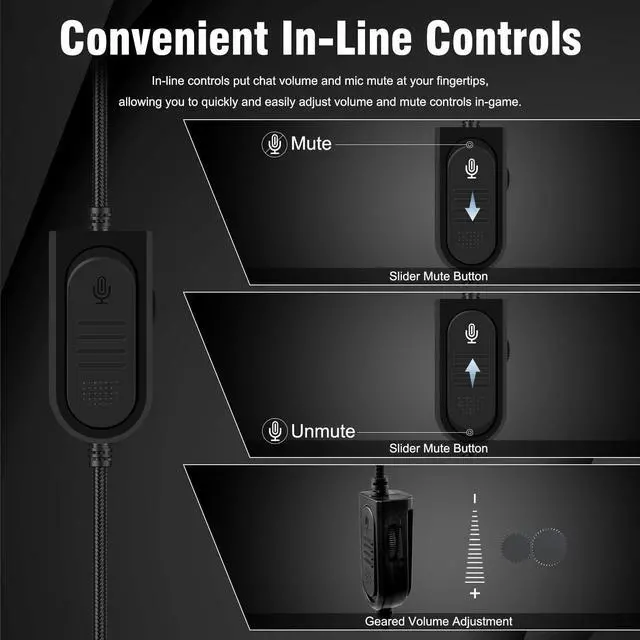
The 3.5mm headset built-in slider mute button & volume control, allow you to quickly and easily adjust volume and mute control in the game.
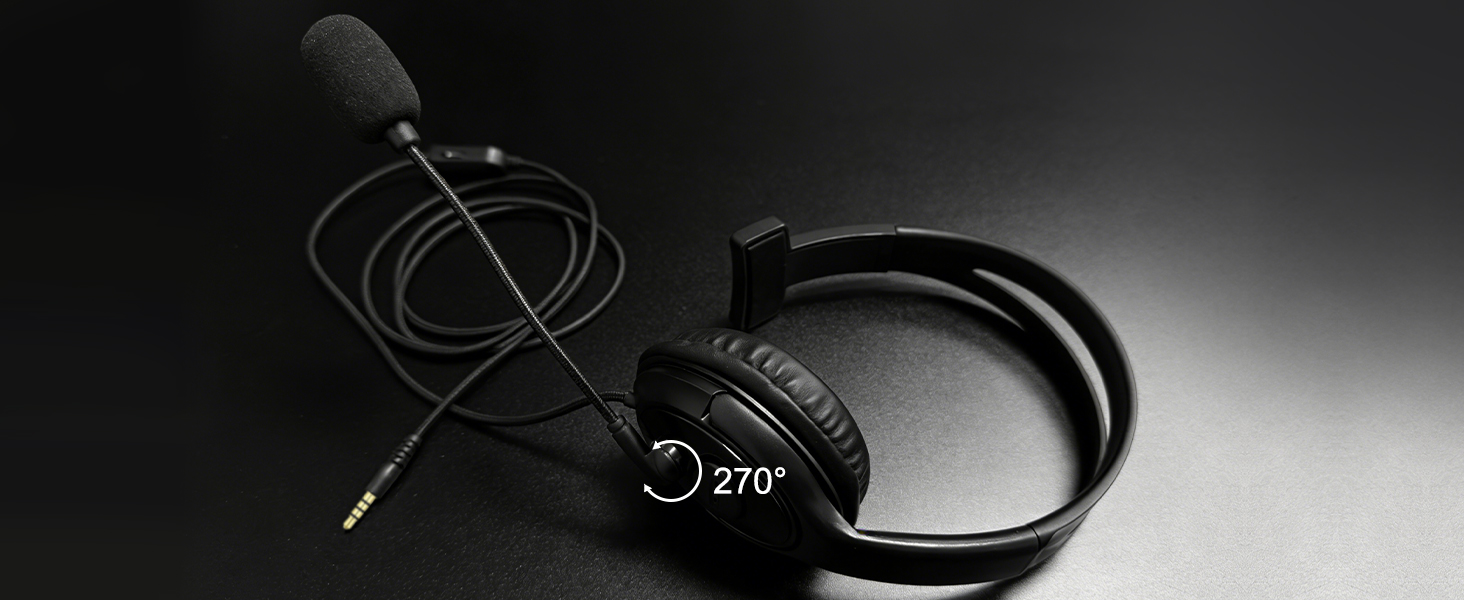
Rotate mic 270° for left/right use. Clear voice always.
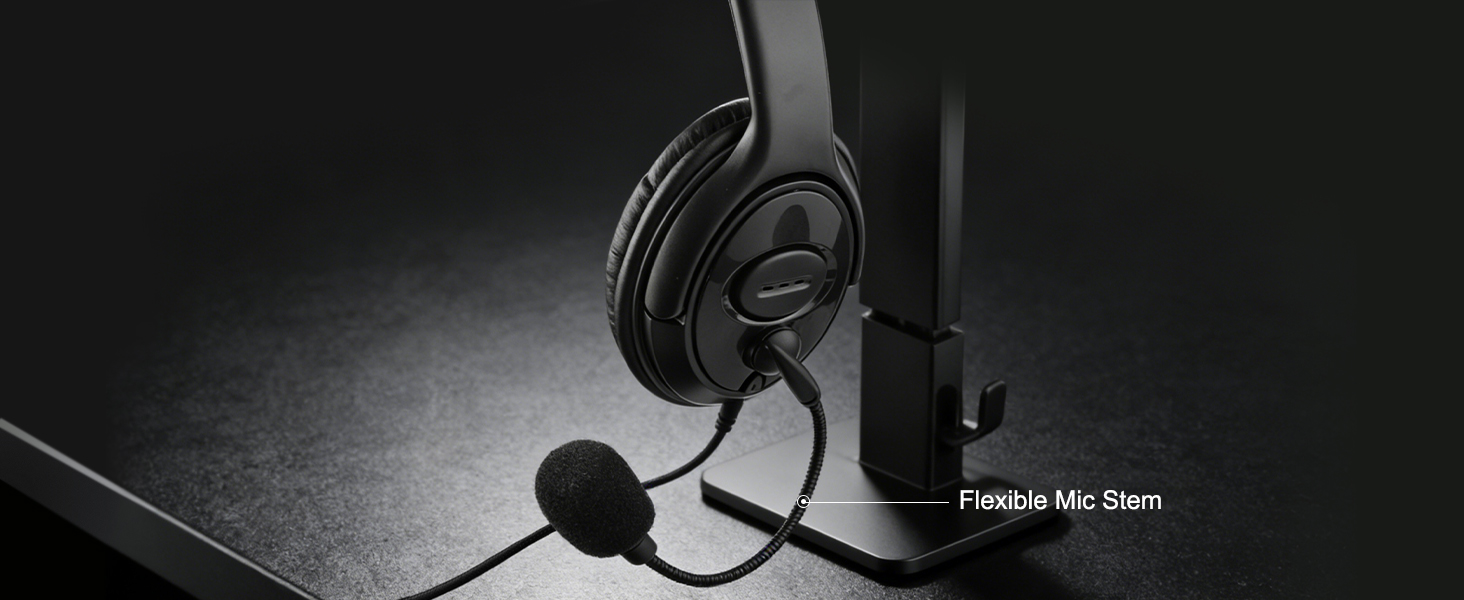
Crafted from premium materials, bending and twisting without compromising performance or integrity.
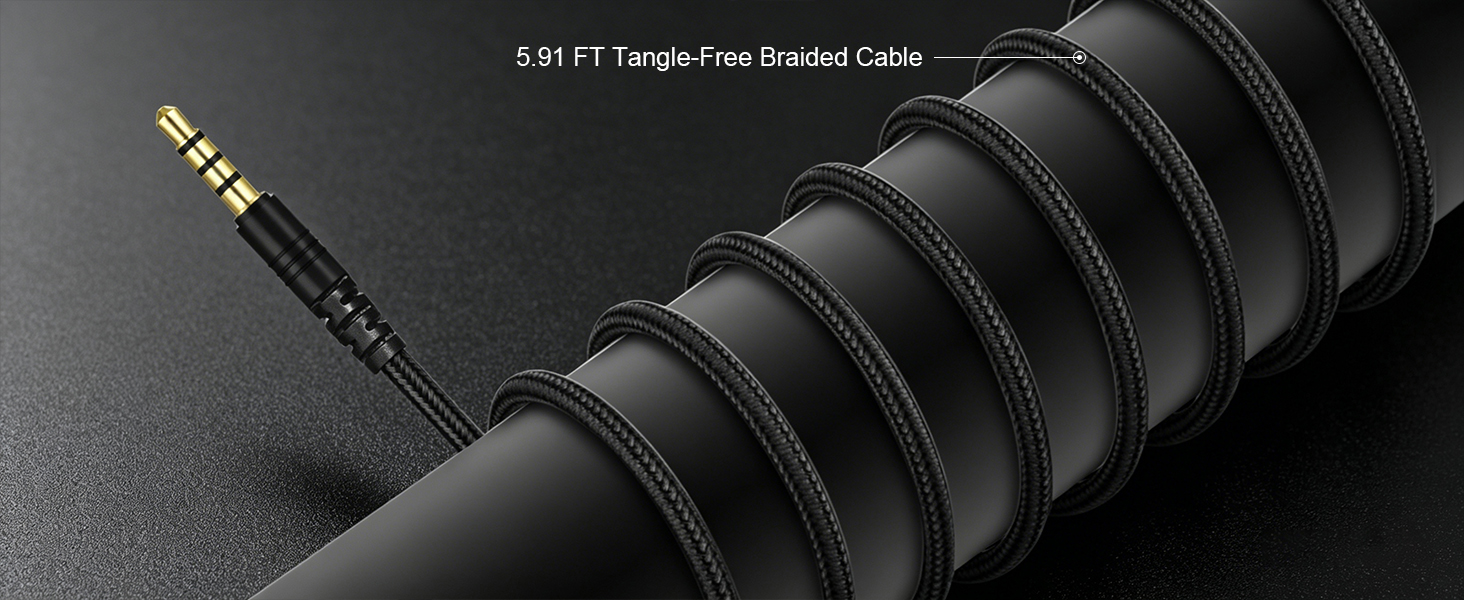
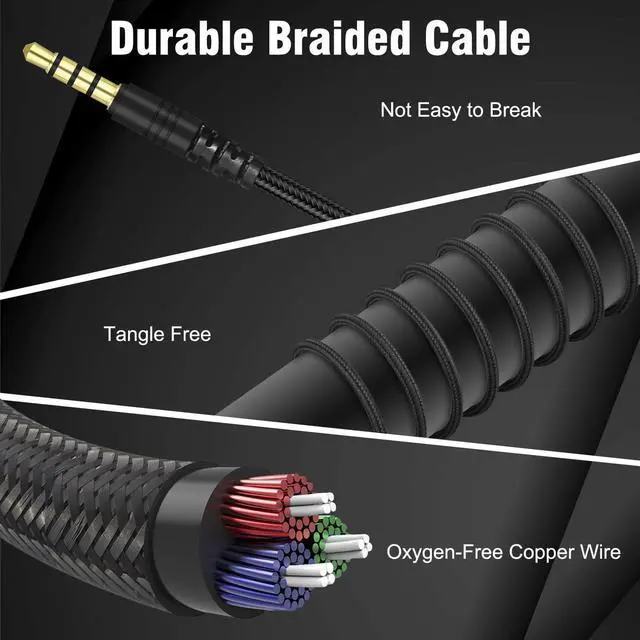
5.91ft braided cord resists tangles and wear — reliable for gaming or work.
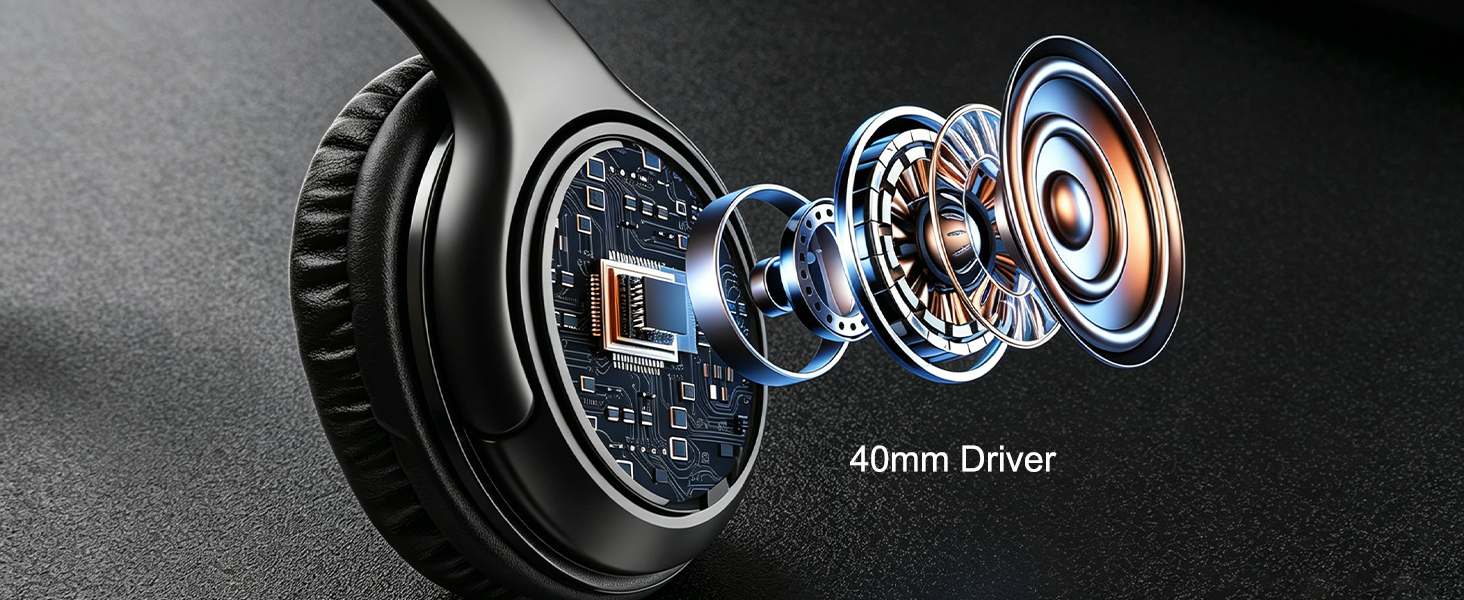
The built-in 40mm driver let you immersive and hear 100% real and crisp sound.
One-Time Console Setup Required for Xbox/PS4
Joso One Ear Gaming Headset with Microphone

One Headset for Gaming & Work – P5/P4/X-box/NS Switch/PC Games, Office Calls

Use the same wired headset across all your devices. Play on PS, X-box or Switch, enjoy PC client games, or take crystal-clear business calls.

3.5MM Wired Single Ear Headset for Gaming
Connect the 3.5 mm plug to a PS5/PS4/Xbox controller, or to a NS-Switch, to play games.

Wide Device Support
Easily connect the headset to PC, desktops, laptops, tablets, smartphones, and more. Plug and play, no extra drivers needed.
In-Line Control

The 3.5mm headset built-in slider mute button & volume control, allow you to quickly and easily adjust volume and mute control in the game.


Rotate mic 270° for left/right use. Clear voice always.
Crafted from premium materials, bending and twisting without compromising performance or integrity.
5.91ft braided cord resists tangles and wear — reliable for gaming or work.
The built-in 40mm driver let you immersive and hear 100% real and crisp sound.
One-Time Console Setup Required for Xbox/PS4
One-Time Console Setup Required for Xbox
Setup for Xbox Use
Go to "Settings" > "Devices & connections" > "Controllers & headsets" >"More opt ions" > "Volume" > "Headset mic" to set to "On".
a. Set Headset volume to maximum
b. Setting the headset chat mixer to "controller icon "
c. Set Mic monitoring to your preferred level.
One-Time Console Setup Required for PS4
Setup for PS4 Use
Go to Settings > Devices > Audio Devices. Set both Input and Output Device to "Headset Connected to Controller".
Choose your audio mode under "Output to Headphones", max the headphone volume, then calibrate the microphone.
Using Joso Wired Headsets on the P5
Via the P5 Controller
- Connect the headset to your PS5 controller’s 3.5mm jack. Audio will automatically route to the headset.
- To adjust the audio source or volume: Press the PS button ? select Sound (default output is “Headset (Controller)”).
- To adjust microphone volume or mute: select Mic ? Adjust Mic Level ? follow on-screen instructions.