• $157.99
  • Free 30-day Returns
  • Price alert
    Shop it at NeweggBusiness.

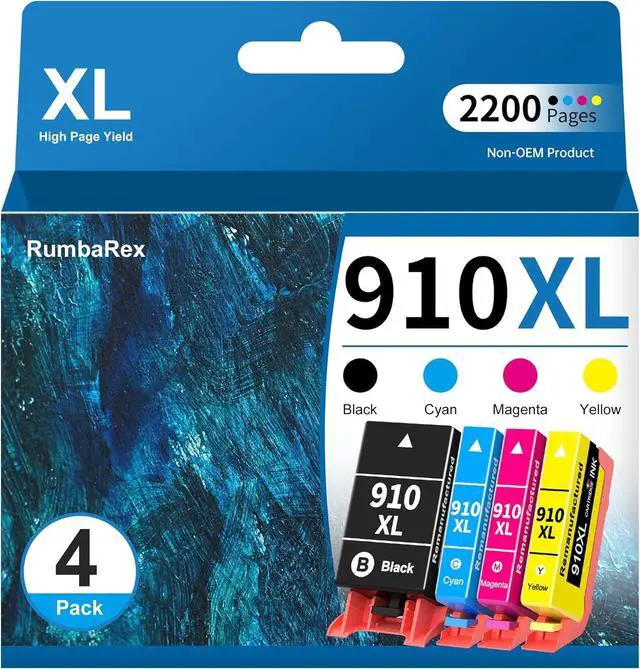
    910 XL Ink Cartridges Combo Pack (4-Pack, Black/Cyan/Magenta/Yellow) Replacement for HP 910 910XL Ink Cartridge for OfficeJet Pro 8025e 8028e 8035e 8025 8028 8035 8015e 8022e 8015 8022 Printer Ink

    • The Package Contains: 910 910XL Ink Cartridges 4-Pack (Black, Cyan, Magenta, Yellow)
    • RumbaRex 910 910XL Ink Cartridges with Latest Chip to be Fully Compatible with All Firmware Versions, Compatible with HP "e" Series Printers Featuring "HP+" Service
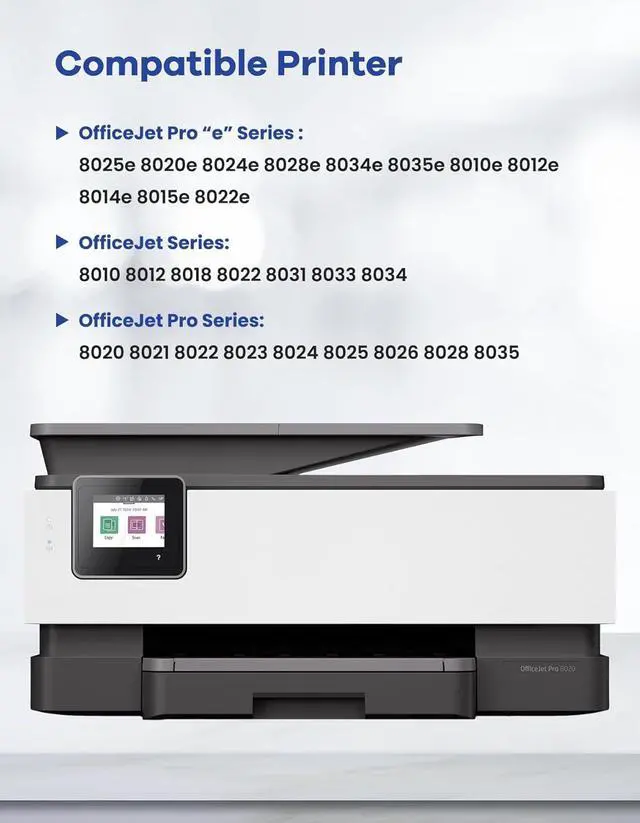
    • Compatible with HP OfficeJet 8010 8010e 8012e 8014e 8015 8015e 8018 8022 8022e; OfficeJet Pro 8020 8020e 8024e 8025 8025e 8028 8028e 8035 8035e
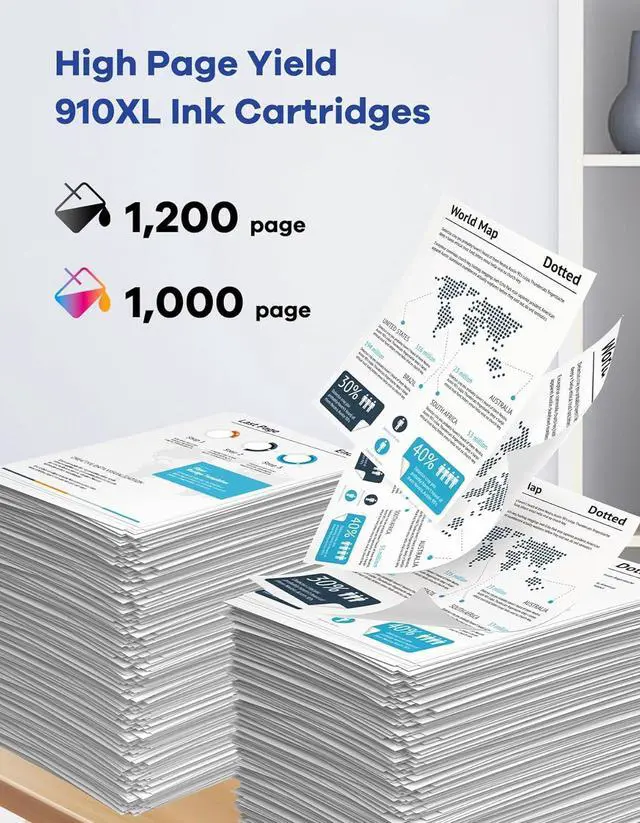
    • Exceptional Page Yield: 1,200 Pages per 910 XL Black Ink Cartridges; 1,000 Pages per 910 Cyan, Magenta, Yellow Ink Cartridges, at 5% coverage at A4 paper
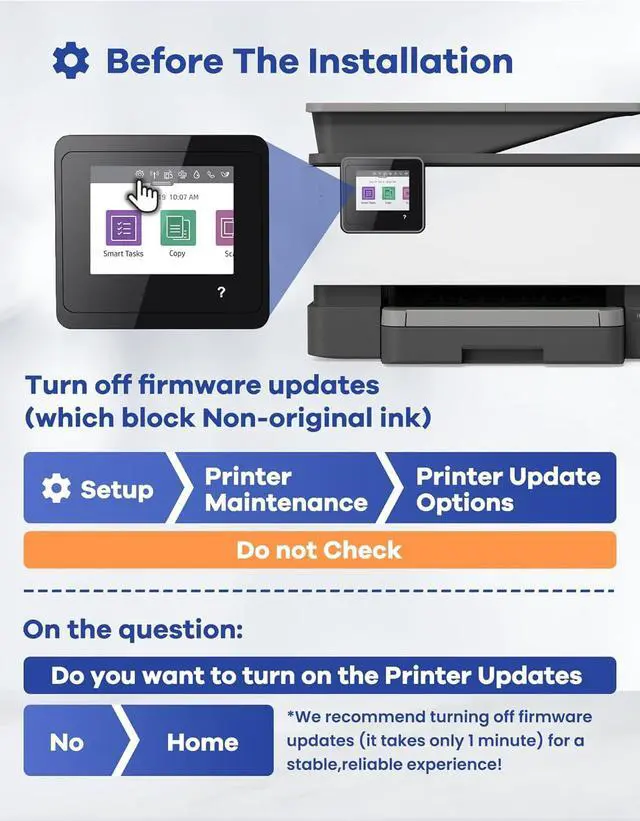
    • Before The Installation: Disable automatic firmware updates via your printer's control panel before installation to maintain continuous printing operation
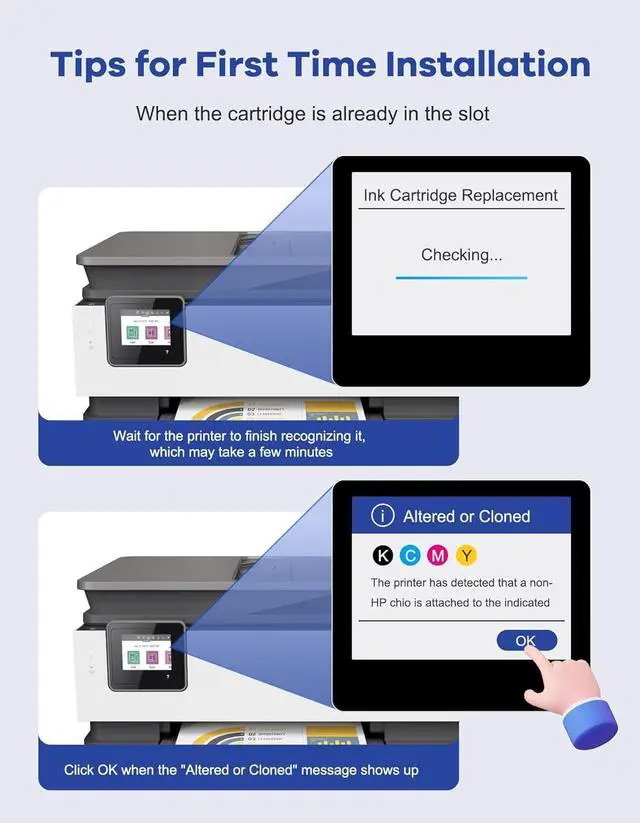
    • Note: This product is not-original. If your printer shows a message like "Non-HP Ink," click "OK," "Yes," or "Continue," or simply ignore it. This will not affect the cartridge's functionality
    • Reliable Quality Assurance: Rest easy knowing our 910XL ink cartridges are ISO-9001 and ISO-14001
    +
    +
    Overview
    Specs
    Reviews
    avatar

    Any questions? Our AI beta will help you find out quickly.

    1Home2Bank3School4Office How to fix a "Non-HP Ink" error message?
    Press "Proceed", "Continue", or "OK" to clear a "Non-Original Ink" error message, and resume the printing process.

    How to fix an "Ink Cartridge not recognized" or "Missing or damaged ink" error?
    Gently wipe the contacts on the cartridge and carriage with a dry lint-free cloth to remove built-up dirt or residue. Replace the cartridge, turn on the printer, and resume printing.

    How to fix an "Ink out / Empty / Low ink" error?
    Remove and reinstall the indicated cartridge until it clicks firmly into place. If all the cartridges are correctly installed, press 'OK' or 'Continue' to clear the message and resume printing.

    How to resolve print quality issues?
    The most common cause of poor print quality is a clogged printhead. To fix it, run the printhead cleaning cycle 2-5 times. Go to your printer settings: Setup Printer Maintenance (Tools) Clean Printhead to start.

    How to prevent the most common cartridge errors?
    Printer error messages with compatible cartridges are often caused by firmware updates, which may block compatible cartridges. To avoid this, turn off automatic printer updates for smooth operation.

    How to fix a "Non-HP Ink" error message?
    How to fix an "Ink Cartridge not recognized" or "Missing or damaged ink" error?
    How to fix an "Ink out / Empty / Low ink" error?
    How to resolve print quality issues?
    How to prevent the most common cartridge errors?

    Warranty & Returns

    Warranty, Returns, And Additional Information

    Warranty

    • Please contact the Seller directly for warranty information. Warranty information may also be found on the Manufacturer's website.
    • CONTACT

    Return Policies

    Manufacturer Contact Info

    LOADING...