• $216.99
  • Free 30-day Returns
  • Price alert
    Shop it at NeweggBusiness.

    PF-06 PF06 Print Head Printhead Compatible with with Canon TA-20, TA-30, TA-5200, TA-5300, TM-200, TM-205, TM-300, TM-305, TM-5205, TM-5305, TX-2000, TX-3000, TX-4000, TX-5200 (PF 06)

    • Compatible Models The PF-06 printhead is compatible with imagePROGRAF Canon Canon TA-20, TA-30, TM-200, TM-205, TM-300, TM-305, TX-2000, TX-3000, TX-4000 printer (Please check the model number before purchasing, as different models of print heads are extremely similar in appearance.
    • Premium QualityEach PF-06 printhead undergoes meticulous material selection, precise processing, and thorough factory inspection. After removing the protective cover, there may be a small amount of ink residue, this is a normal phenomenon, is to protect the print head PF-06, do not worry.
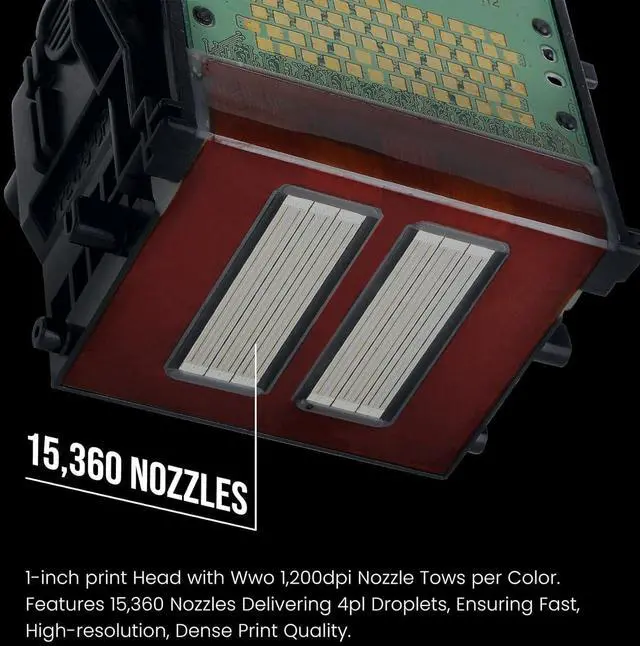
    • FINE Technology The PF-06 Printhead boasts a high-density printing head, featuring FINE (Full-photolithography Inkjet Nozzle Engineering) Nozzle Engineering technology. With two rows of 1,200dpi nozzles for each color on the 1-inch-wide PF-06 print head, all 15,360 high-density nozzles spray 4pl (picoliters) of fine ink droplets. This technology enables high-speed printing while maintaining exceptional resolution
    +
    +
    Overview
    Specs
    Reviews

    Any questions? Ask CelesteSM will help you find out quickly.

    Open the Top Cover, Prepare for installation
    NOTE: During Printhead replacement, do not move the Carriage from the position indicated.
    Remove the Printhead and Press the OK Button
    NOTE: Do not touch the Linear Scale (A)or Carriage Shaft (B). Touching these parts may damage them.
    Holding the Grips (C), take out the New Printhead
    NOTE: Always hold it by the grips (C). Never touch the nozzles (D), metal contacts (E) or ink supply section (F). This may damage the Printhead and affect printing quality
    Installing the New Printhead, Close the Top Cover
    NOTE: You need to wait about 6 minutes for the ink to fill, at which point if it shows words such as unrecognised, you can select the clear function on the printer and install it again.
    Step 1 Step 2 Step 3 Step 4

    Warranty & Returns

    Warranty, Returns, And Additional Information

    Warranty

    • Please contact the Seller directly for warranty information. Warranty information may also be found on the Manufacturer's website.
    • CONTACT

    Return Policies

    Manufacturer Contact Info

    LOADING...