

Your Browsing History
- Free 30-day Returns
$159.99
Ships from China.

Meet Your Seller




DIXSG Dual Monitor KVM Switch HDMI 2 Port, 4K@60Hz KVM Switch 2 Monitors 2 Computers with Audio Microphone Output and 3 USB Ports, PC Dual Monitor Keyboard Mouse Switcher
Limited time offer, ends 09/13 By Nexus3C
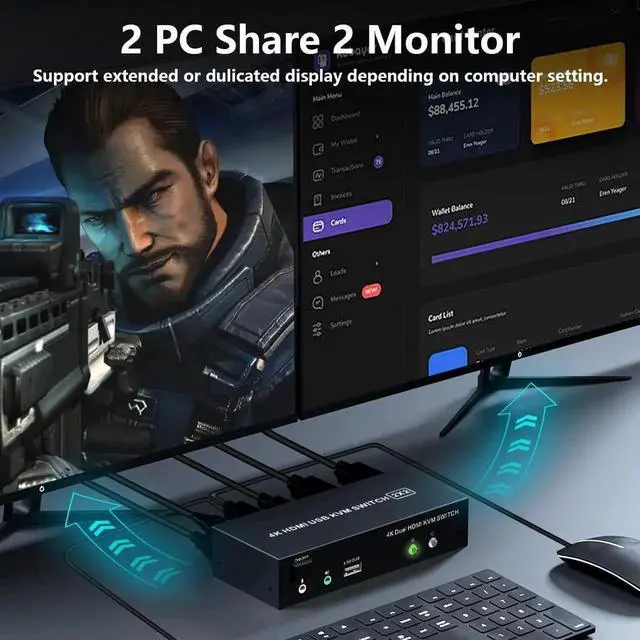
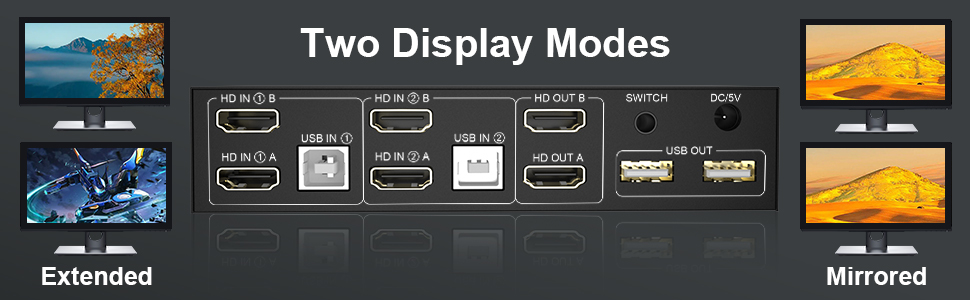
- Dual Monitor Switch for 2 Computers: This 2 IN 2 OUT HDMI KVM switch dual monitor allows you to control 2 computers or laptops with one set of wired or wireless keyboard, mouse, and 2 extended or mirrored monitors at the same time. Make your work space tidy and efficient, also a premium choice for working from home.
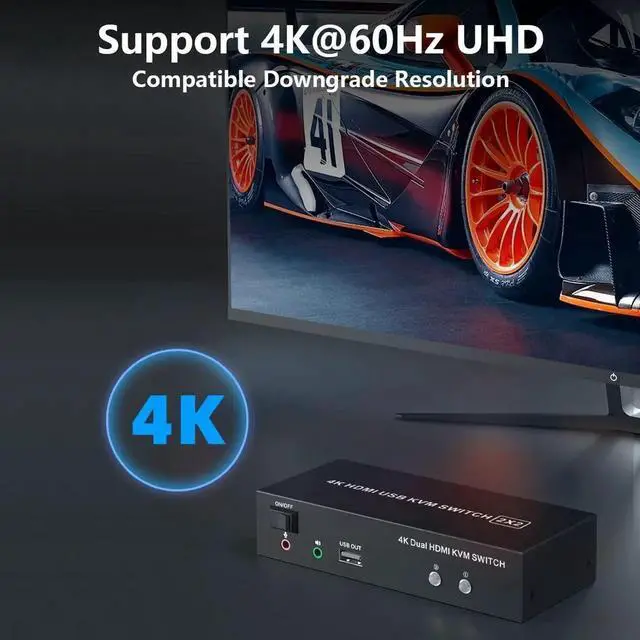
- KVM Switch Dual Monitor 4k 60Hz: Our dual Monitor KVM switch supporting high resolution max up to 4K@60Hz, and also supports 3D and 1080P@60Hz or other lower resolution (Downward Compatible). Supports separate audio and microphone output. Note: Only when both your computer Graphics card and monitor support 4K@60Hz then you can get 4K@60Hz effect, so if you want the max resolution you have to check your devices first.
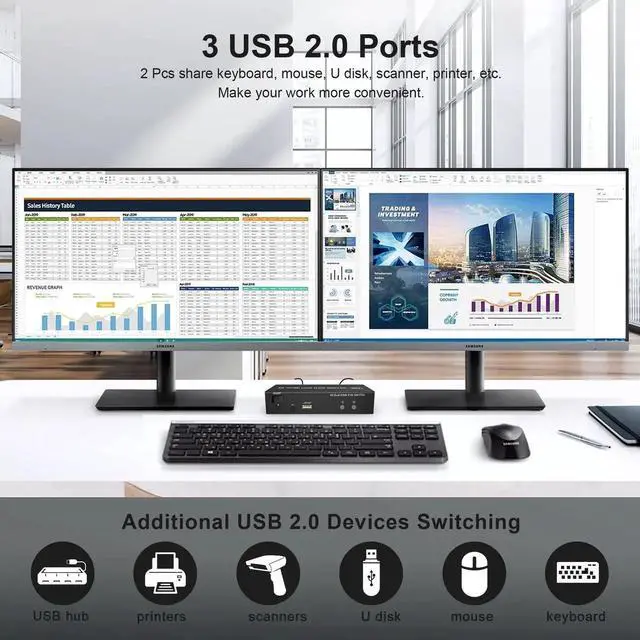
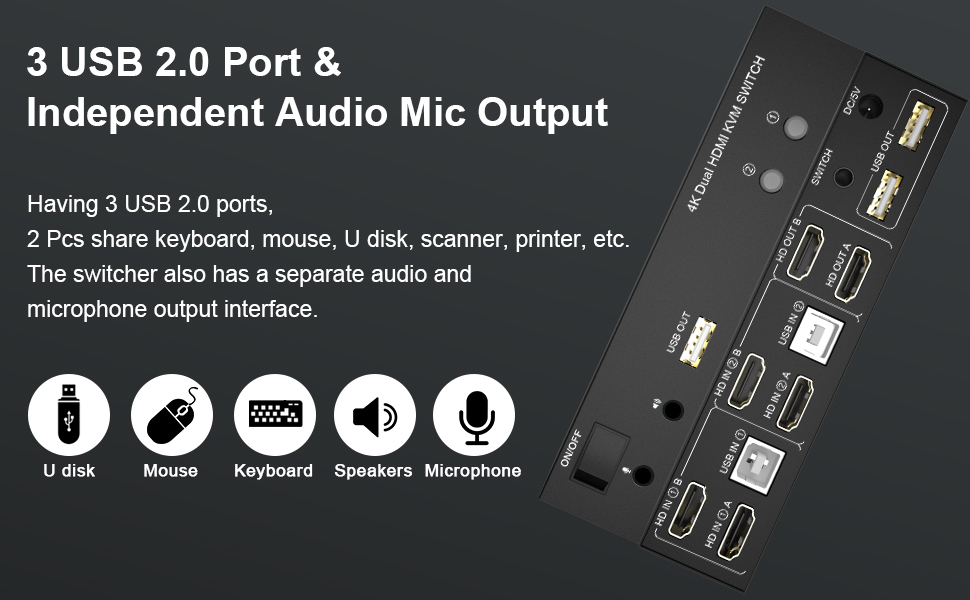
- With 3 USB 2.0 Ports: Plug and play with no driver needed, with extra USB 2.0 port for sharing USB printers, scanners and jump drives, wireless and gaming keyboard mouse. The upgraded design hides the messy cables at the back, leaving a USB 2.0 port on the front for inserting a USB flash drive.Unique design makes the desktop more tidy, Say goodbye to cluttered cables.
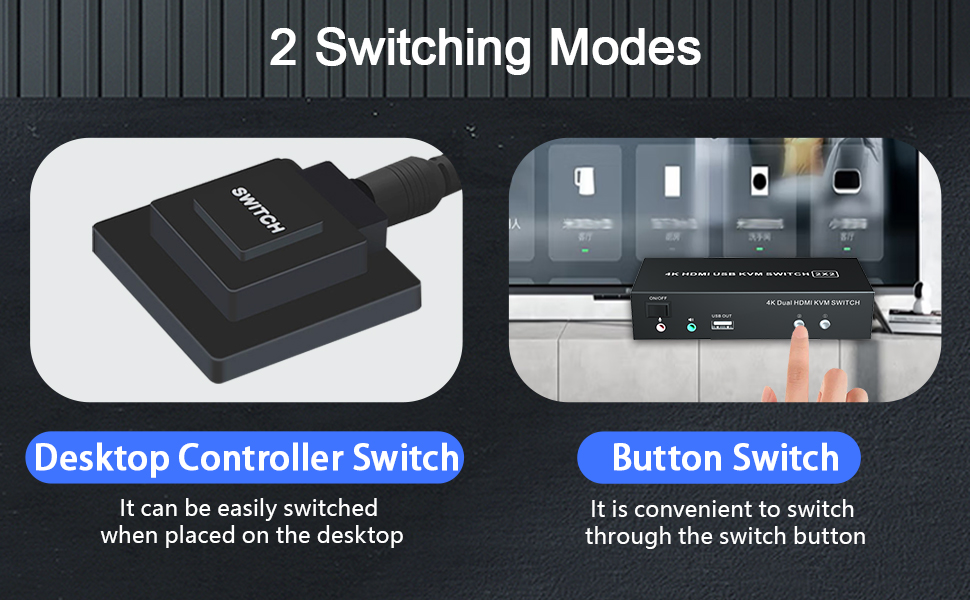
- Convenient Switching modes and Wide Compatibility: You can freely switch between personal and work using push button or wired remoter. LED indicates the active computer. Compatible with a variety of computer systems,such as Windows, Linux, Mac, Unix, Ubuntu, Raspberry and most other major OS; also supports HDMI devices without USB signal input like DVR, NVR etc.
+
+
Overview
Specs
Reviews

Any questions? Our AI mode will help you find out quickly.
Try me now
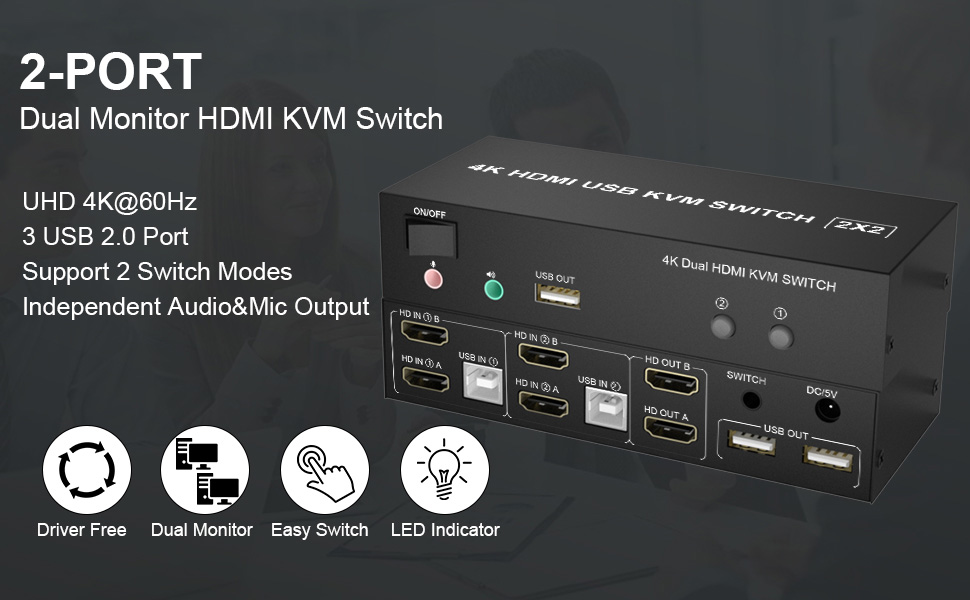 2 Port-Dual Monitor HDMI Switch for 2 Computers
Features:
1. Share one set of keyboard, mouse, and dual monitors between 2 computers or laptops;
2. Dual monitors output support up to 4K@60Hz for extended or mirrored display;
3. With extra 3 USB 2.0 ports and independent Audio Microphone output.
4. No complicated installation is required, and non-professionals can easily operate it;
5. Cross support major operating systems including Windows, Linux, Mac, and more;
6. Support 2 switching modes: Buttons switch and wired remote;
7. The ports that need to plug in HDMI/USB cables are all hidden behind the KVM, so the desktop doesn't get cluttered;
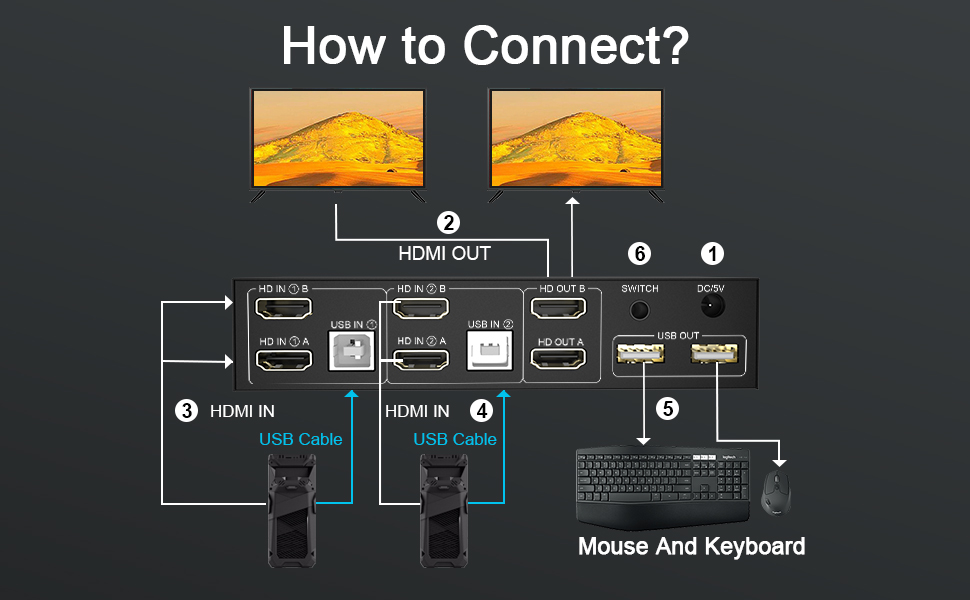 How to connect?
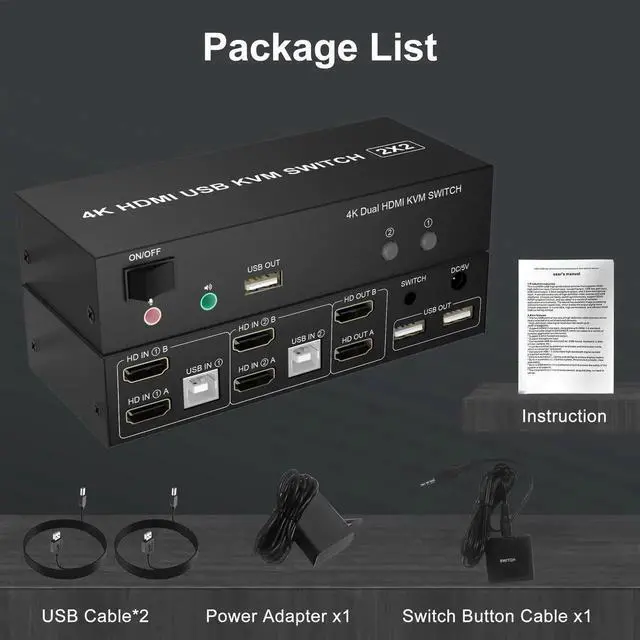
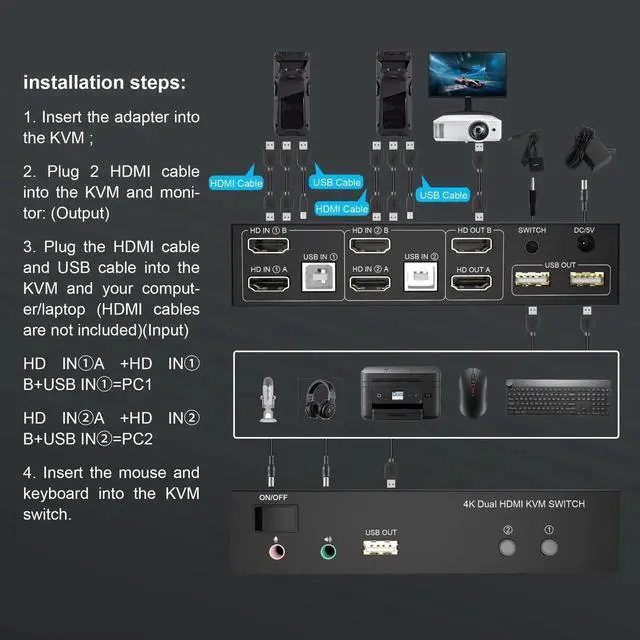
1. Insert the power adapter into the dual monitor KVM switch;
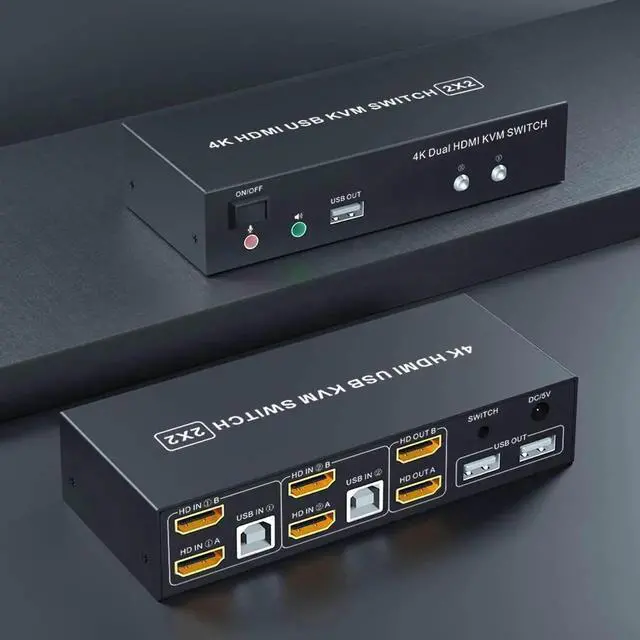
2. Plug the HDMI cable into the KVM and monitor;(Output)
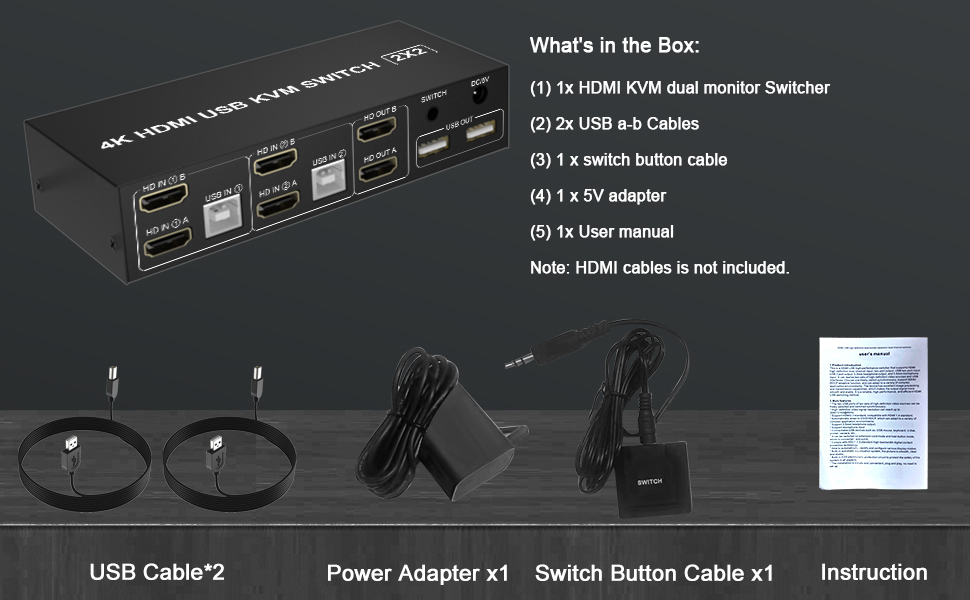
3. Plug the HDMI cable and USB cable into the KVM and your computer/laptop (HDMI cables are not included)(Input)
HD IN1A + HD IN1 B + USB IN1=PC1
HD IN2A + HD IN2 B + USB IN2=PC2
4. Insert the mouse and keyboard into the KVM switch
5. If needed, you can connect a microphone and audio port
6. You can switch by pressing the switch button or wired remote.
Note:
1. Most of the reasons why only one video output works are because of an incorrect connection. Please make sure each computer have 2 HDMI cables connected to the KVM.
2. If the KVM switch does not work, you can turn off the switch on the panel and turn it on again after 2-3 seconds, and it will return to normal.
2 Port-Dual Monitor HDMI Switch for 2 Computers
Features:
1. Share one set of keyboard, mouse and dual monitors between 2 computers or laptops;
2. Dual monitors output support up to 4K@60Hz for extended or mirrored display;
3. With extra 3 USB 2.0 ports and independent Audio Microphone output.
4. No complicated installation is required, and non-professionals can easily operate it;
5. Cross support major operation systems including Windows, Linux, Mac and more;
6. Support 2 switching modes: Buttons switch and wired remote;
7. The ports that need to plug in HDMI/USB cables are all hidden behind the KVM, so the desktop doesn't get cluttered;
How to connect?
1. Insert the power adapter into the dual monitor KVM switch;
2. Plug the HDMI cable into the KVM and monitor;(Output)
3. Plug the HDMI cable and USB cable into the KVM and your computer/laptop (HDMI cables are not included)(Input)
HD INA + HD IN B + USB IN=PC1
HD INA + HD IN B + USB IN=PC2
4. Insert the mouse and keyboard into the KVM switch
5. If needed, you can connect a microphone and audio port
6. You can switch by press the switch button or wired remote.
Note
1. Most of the reasons why only one video output works is because of incorrect connection. Please make sure each computer have 2 HDMI cables connect to the KVM.
2.If the KVM switch does not work, you can turn off the switch on the panel and turn it on again after 2-3 seconds, and it will return to normal.
| Operation Mode | Push Button |
| Contact Type | Normally Open |
| Connector Type | Hdmi,usb,wireless |
| Brand | Arkidyn Plus |
| Terminal | Quick-connect |
| Circuit Type | 2-way |
| Actuator Type | Push Button |
| International Protection Rating | IP54 |
| Number of Positions | 3 |
| Controller Type | Push Button |
| Package Dimensions | 6.93 x 5.04 x 2.4 inches; 1.17 Pounds |
| Item model number | KM202B-H-EU |
| Date First Available | December 13, 2022 |
| Manufacturer | Arkidyn Plus |
- Important NotesOnly when your computer supports dual display or multi-display, you can use this product to achieve 2 computers to share two monitors, extended mode or copy mode. If your computer only supports a single display, then this product cannot help you get a dual display function. Tips: We offer 18 months warranty. If you have any questions about the product, please contact us.
Warranty & Returns
Warranty, Returns, And Additional Information
Warranty
- Please contact the Seller directly for warranty information. Warranty information may also be found on the Manufacturer's website.
- CONTACT
Return Policies
- Return for refund within: 30 days
- Return for replacement within: non-replaceable
- This item is covered by Nexus3C Return Policy
Manufacturer Contact Info
- For a directory of all our manufacturers, please click below.
- Manufacturers Directory
LOADING...