Your Browsing History
- Free 30-day Returns
$307.99
Ships from China.
Meet Your Seller
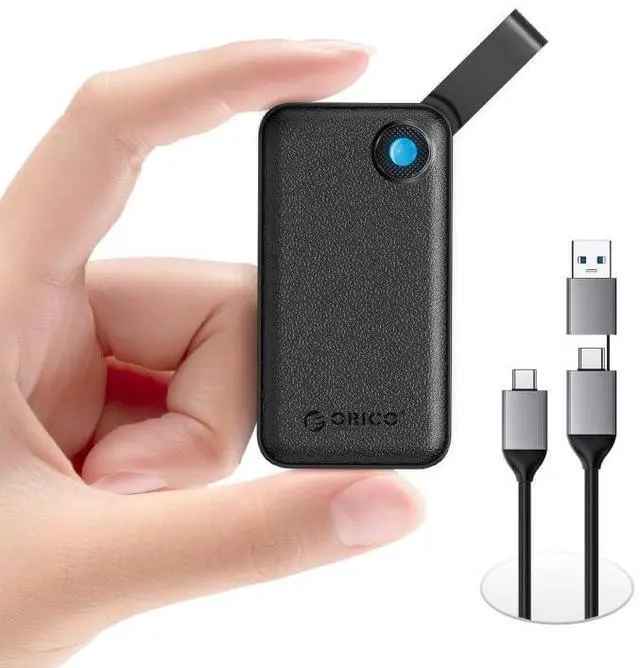
512GB Portable SSD, Up to 2000MB/s, USB 3.2 Gen 2x2, Ultra-mini, Compact with 2 in 1 USB C Cable, External Solid State Drives, Reliable Storage for USB C Smartphone, Tablet, PC - B20
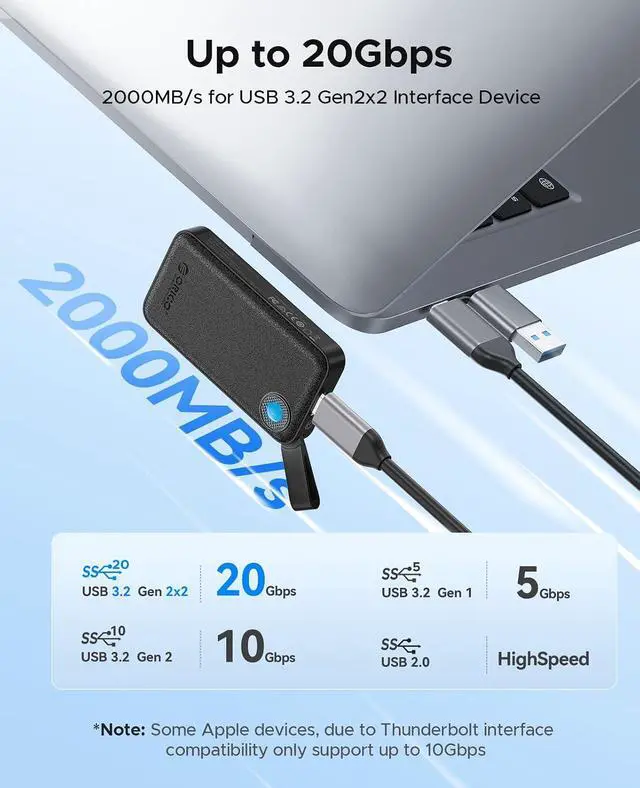
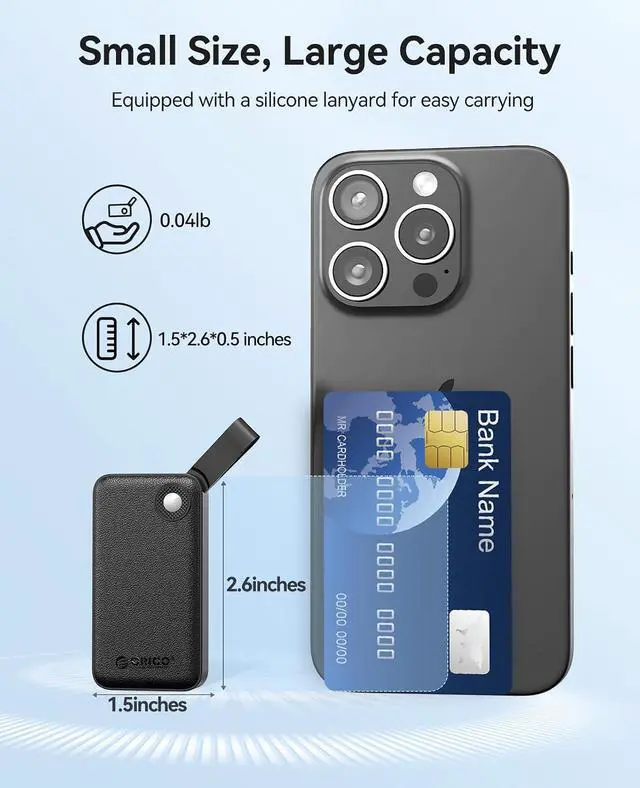
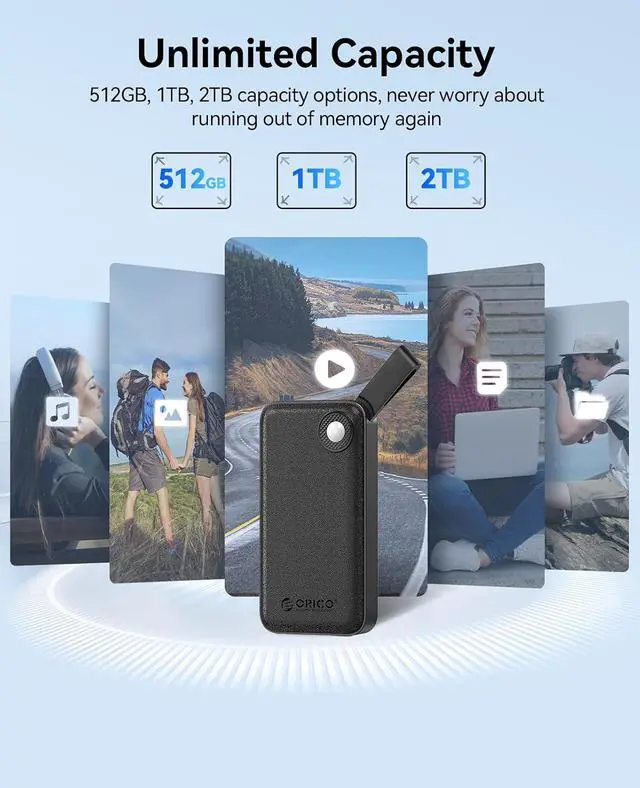
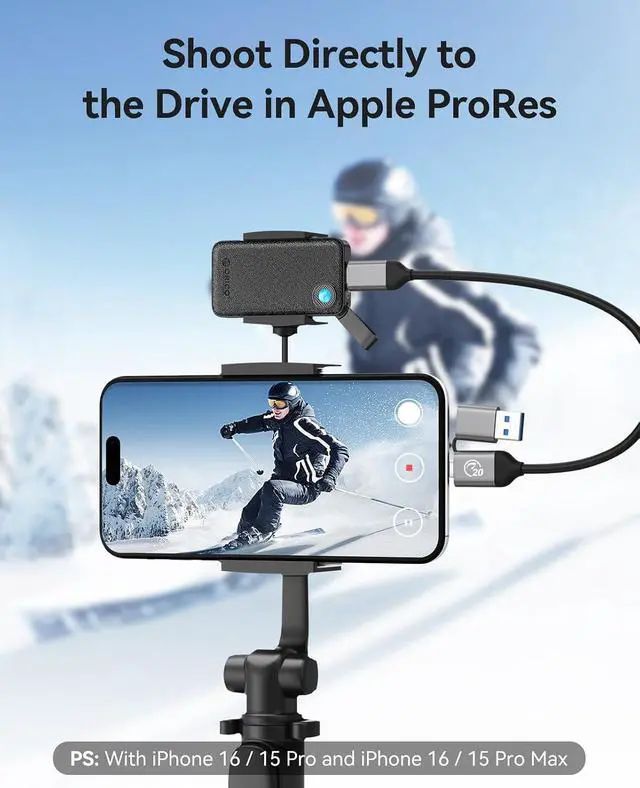
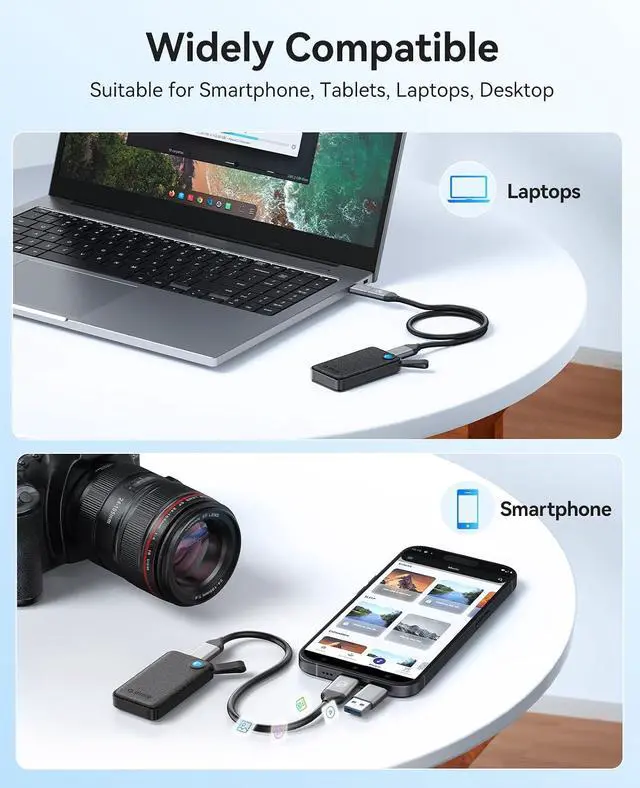
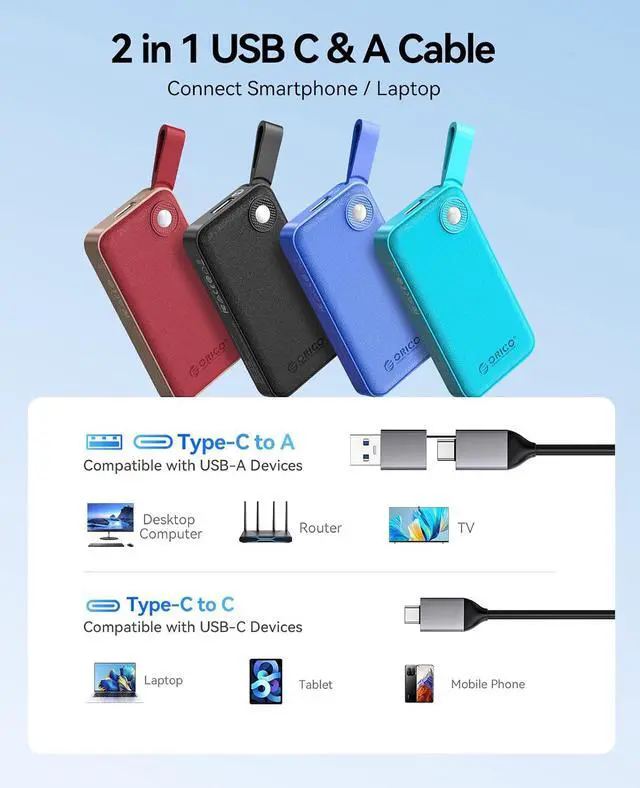
- High Speed Performance: Up to 2000MB/s transfer speed, quickly back up or store photos, large video files and design assets on the go. Please note that to achieve a transmission speed of 2000MB/s, the corresponding device's interface must be at least USB3.2 Gen2x2; Pocket-Sized & Portable: Ultra-small (1.5*2.6*0.5 inches) and lightweight (0.04 lbs), it fits easily in your pocket or laptop bag, the silicone strap lets you securely attach it to your backpack or gear for easy access; Ample Storage: Equipped with a 1TB storage capacity, it provides plenty of space for your photos, large files, video footage and backups, ensuring you never run out of storage during long shoots; 2 in 1 USB C & A Cable: Adapt USB-C and USB-A devices(Smart phones, PC, Laptops and Tablets ect). Plug and play for a variety of systems (Android, IOS, macOS, Windows); File Backup Steps for iPhone 15, 16 Series. Step 1-Open the album/file -select the data - click 'Send'; Step 2-Click 'Save to file' (If this option is not displayed, click 'Edit Operation' below); Step 3-Go to ORICO B20 - select destination folder - click 'Save'. *When the iPhone cannot recognize the external SSD, please format the external SSD and change the format to exFAT
+
+
Overview
Specs
Reviews
Any questions? Our AI beta will help you find out quickly.
Try me now
Product description
Problem Elimination One: Slow Transfer
Speed 1.1: Please ensure that the connection is made to a USB 3.2 Gen2x2 port on the computer to achieve a transfer speed of 2000MB/s.
1.2: Please ensure that the interface is functioning normally and that the relevant drivers are up to date.
1.3: Use the original data cable. If replacing the cable, ensure that the replacement cable also supports the USB 3.2 Gen2x2 protocol.
1.4: Different computer host configurations can result in varying transfer speeds.
1.5: Different hard drive performances and their condition can also affect transfer speed.
1.6: Use CrystalDiskMark software to test the theoretical maximum transfer speed. Actual transfer speeds may be affected by computer configuration, file types, and other factors during the transfer process.
Two: Device Does Not Function After Plugging In 2.1: Please ensure that the portable solid-state drive is properly powered and that the power indicator light is on.
2.2: Please ensure that the data cable is connected normally. If replacing the cable, ensure that the replacement cable is functioning properly.
2.3: Please ensure that the computer's interface is functioning normally. Check that the interface drivers are correct, and try unplugging and replugging or testing with a different interface.
2.4: Ensure that the file format of the hard drive is compatible with the file system supported by the current system. If not, the hard drive may need to be reformatted to be recognized and read.
Three: Unable to
Copy Files 3.1: Check if the device is properly connected. If the iPhone cannot recognize the external SSD, format the external SSD and change the format to exFAT.
3.2: Open the Photos/Files app, select the data, and click "Send.
" 3.3: Click "Save to Files" (if this option is not displayed, click "Edit Actions" at the bottom).
3.4: Go to ORICO B20, select the target folder, and click "Save. " ORICO eFox Series External SSD for Your Need 2000MB/s PSSD Buying Options 2000MB/s PSSD Buying Options 2000MB/s PSSD Buying Options 1000MB/s PSSD Buying Options 1000MB/s PSSD Buying Options 1000MB/s PSSD Buying Options 460MB/s PSSD Buying Options Customer Reviews 4.3 out of 5 stars 108 5.0 out of 5 stars 1 4.0 out of 5 stars 2 4.1 out of 5 stars 23 4.1 out of 5 stars 23 4.1 out of 5 stars 23 4.5 out of 5 stars 13 Model B20 B20 B20 B10Pro B10Pro B10Pro B5Pro Color Black Blue Green Black Blue Green Black Capacity 1TB 1TB 1TB 512GB 512GB 512GB 1TB Interface USB 3.2 Gen 2 X 2 USB 3.2 Gen 2 X 2 USB 3.2 Gen 2 X 2 USB 3.2 Gen2 USB 3.2 Gen2 USB 3.2 Gen2 USB 3.2 Gen1 Max speed (MB/s) 2000MB/s 2000MB/s 2000MB/s 1000MB/s 1000MB/s 1000MB/s 460MB/s USB Cable/s USB-C/A Cable USB-C/A Cable USB-C/A Cable USB-C/A Cable USB-C/A Cable USB-C/A Cable USB-C/A Cable Compatibility iPhone15&16, Android, Mac, Win iPhone15&16, Android, Mac, Win iPhone15&16, Android, Mac, Win iPhone15&16, Android, Mac, Win iPhone15&16, Android, Mac, Win iPhone15&16, Android, Mac, Win iPhone15&16, Android, Mac, Win

Problem Elimination One: Slow Transfer
Speed 1.1: Please ensure that the connection is made to a USB 3.2 Gen2x2 port on the computer to achieve a transfer speed of 2000MB/s.
1.2: Please ensure that the interface is functioning normally and that the relevant drivers are up to date.
1.3: Use the original data cable. If replacing the cable, ensure that the replacement cable also supports the USB 3.2 Gen2x2 protocol.
1.4: Different computer host configurations can result in varying transfer speeds.
1.5: Different hard drive performances and their condition can also affect transfer speed.
1.6: Use CrystalDiskMark software to test the theoretical maximum transfer speed. Actual transfer speeds may be affected by computer configuration, file types, and other factors during the transfer process.
Two: Device Does Not Function After Plugging In 2.1: Please ensure that the portable solid-state drive is properly powered and that the power indicator light is on.
2.2: Please ensure that the data cable is connected normally. If replacing the cable, ensure that the replacement cable is functioning properly.
2.3: Please ensure that the computer's interface is functioning normally. Check that the interface drivers are correct, and try unplugging and replugging or testing with a different interface.
2.4: Ensure that the file format of the hard drive is compatible with the file system supported by the current system. If not, the hard drive may need to be reformatted to be recognized and read.
Three: Unable to
Copy Files 3.1: Check if the device is properly connected. If the iPhone cannot recognize the external SSD, format the external SSD and change the format to exFAT.
3.2: Open the Photos/Files app, select the data, and click "Send.
" 3.3: Click "Save to Files" (if this option is not displayed, click "Edit Actions" at the bottom).
3.4: Go to ORICO B20, select the target folder, and click "Save. " ORICO eFox Series External SSD for Your Need 2000MB/s PSSD Buying Options 2000MB/s PSSD Buying Options 2000MB/s PSSD Buying Options 1000MB/s PSSD Buying Options 1000MB/s PSSD Buying Options 1000MB/s PSSD Buying Options 460MB/s PSSD Buying Options Customer Reviews 4.3 out of 5 stars 108 5.0 out of 5 stars 1 4.0 out of 5 stars 2 4.1 out of 5 stars 23 4.1 out of 5 stars 23 4.1 out of 5 stars 23 4.5 out of 5 stars 13 Model B20 B20 B20 B10Pro B10Pro B10Pro B5Pro Color Black Blue Green Black Blue Green Black Capacity 1TB 1TB 1TB 512GB 512GB 512GB 1TB Interface USB 3.2 Gen 2 X 2 USB 3.2 Gen 2 X 2 USB 3.2 Gen 2 X 2 USB 3.2 Gen2 USB 3.2 Gen2 USB 3.2 Gen2 USB 3.2 Gen1 Max speed (MB/s) 2000MB/s 2000MB/s 2000MB/s 1000MB/s 1000MB/s 1000MB/s 460MB/s USB Cable/s USB-C/A Cable USB-C/A Cable USB-C/A Cable USB-C/A Cable USB-C/A Cable USB-C/A Cable USB-C/A Cable Compatibility iPhone15&16, Android, Mac, Win iPhone15&16, Android, Mac, Win iPhone15&16, Android, Mac, Win iPhone15&16, Android, Mac, Win iPhone15&16, Android, Mac, Win iPhone15&16, Android, Mac, Win iPhone15&16, Android, Mac, Win


Warranty & Returns
Warranty, Returns, And Additional Information
Warranty
- Please contact the Seller directly for warranty information. Warranty information may also be found on the Manufacturer's website.
- CONTACT
Return Policies
- Return for refund within: 30 days
- Return for replacement within: non-replaceable
- This item is covered by Nexus3C Return Policy
Manufacturer Contact Info
- For a directory of all our manufacturers, please click below.
- Manufacturers Directory
LOADING...