Your Browsing History
- Free 30-day Returns
$377.99
Ships from China.
Meet Your Seller
1TB Portable Solid State Drive, 1050MB/s Dual-Port Rotating Metal External SSD with 90° Click-Stop, Reliable Storage for iPhone 17, 16 Series, Type-C Smartphone, Mac, Audio, Vehicle - A101
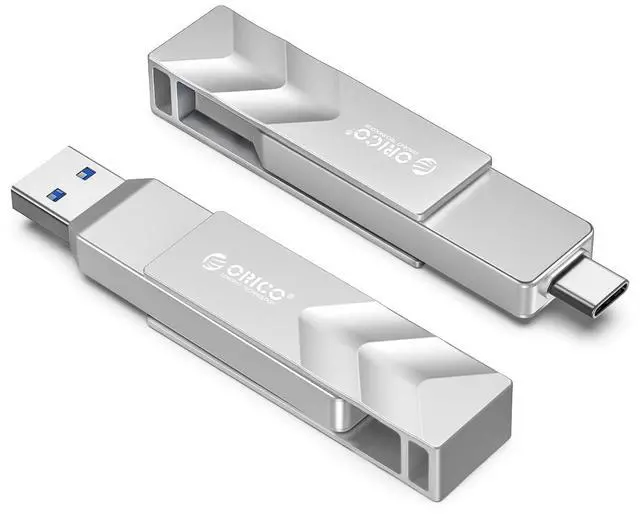
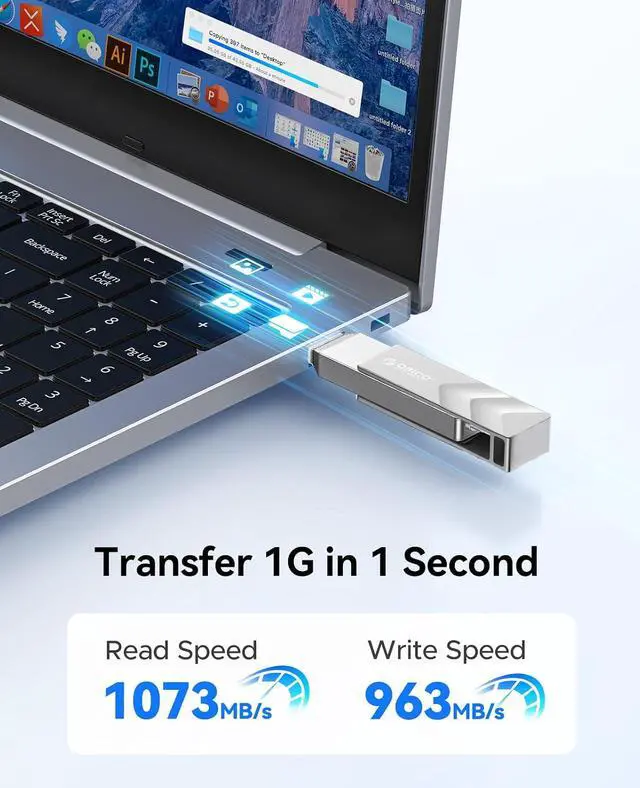
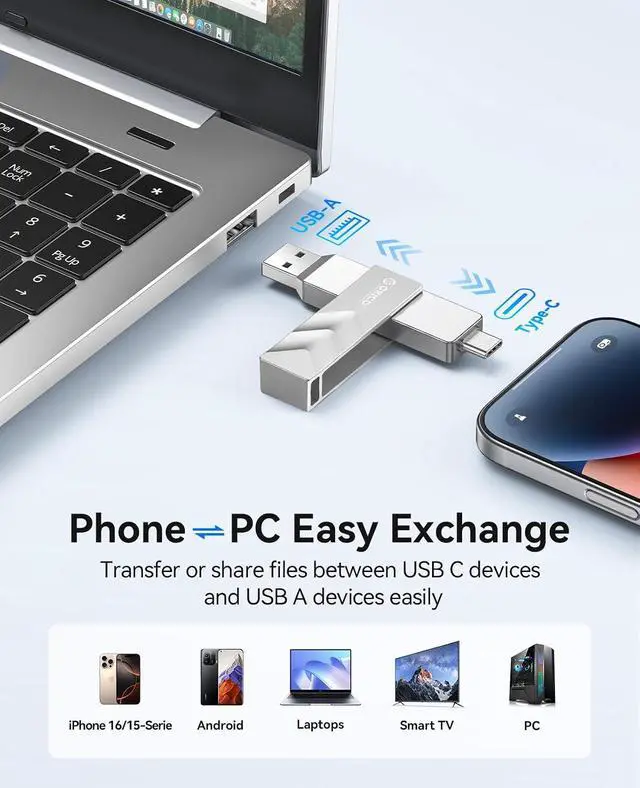
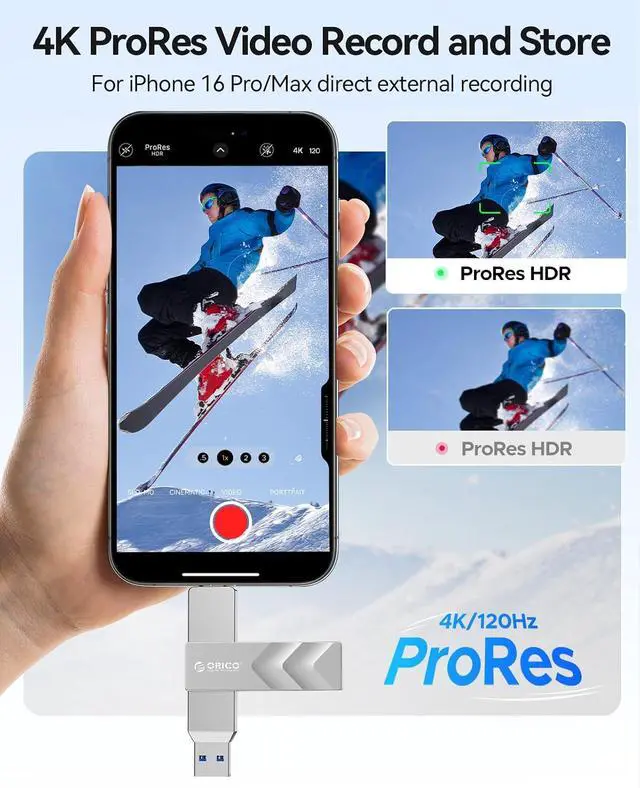
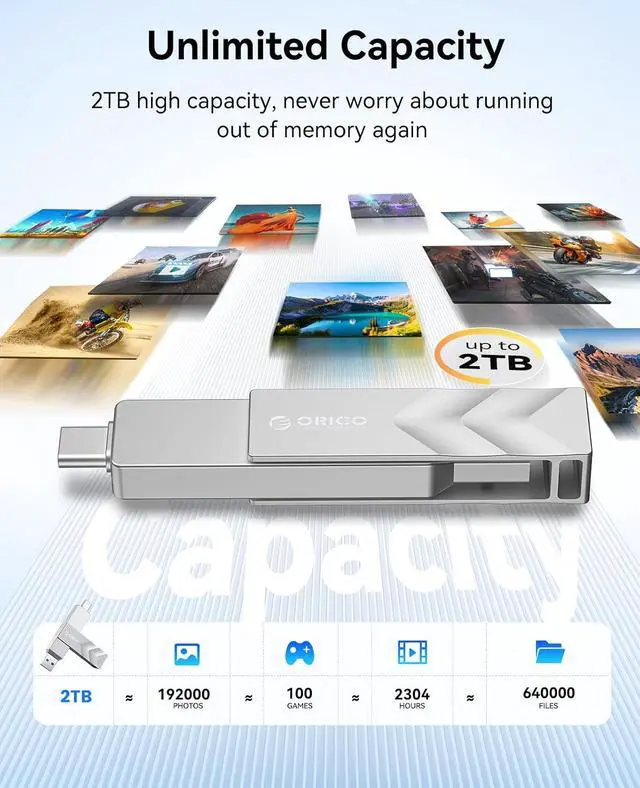
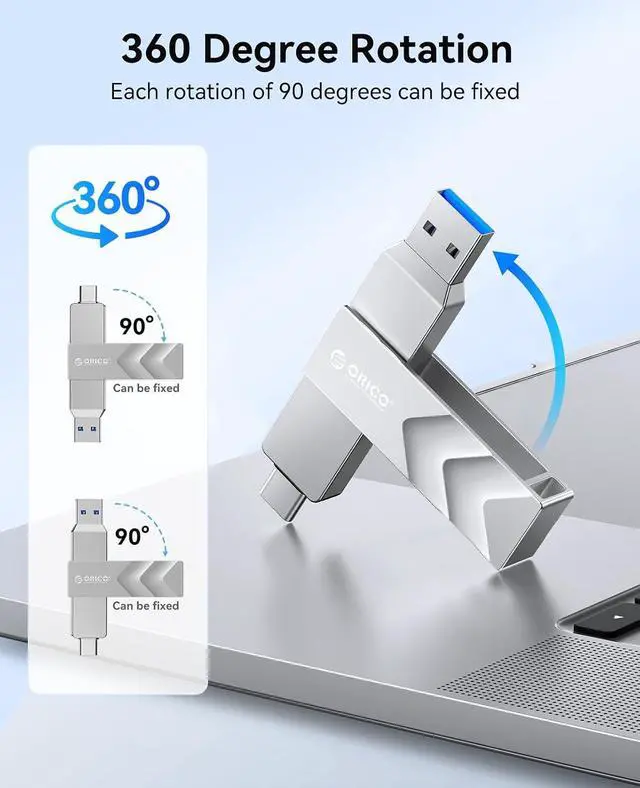
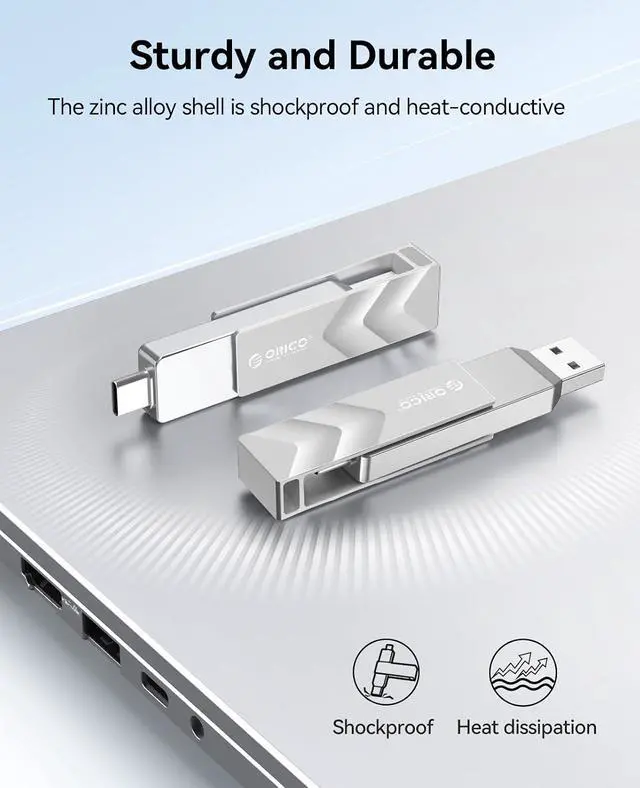
- Lightning-Fast Transfer Speeds: Transfer up to 1050MB/s for fast handling of high-res videos, photos, and design files. Suitable for photographers, designers, and video creators to boost productivity; Massive Storage Capacity: 1TB high capacity, this portable SSD offers ample storage for high-res photos, 4K videos, and data backups. or keeping your files secure; Versatile Dual Interface Design: Dual-interface with 360-degree rotation and 90-degree lock for seamless compatibility across USB C and USB A devices, ensuring secure connections and efficient data transfer; Support 4K 120 fps ProRes: Works with iPhone 16 Pro Max / 17 Pro / 17 Pro Max's 4K ProRes recording for seamless video recording and editing. Suitable for filmmakers and creators to capture high-quality content; Durable Zinc Alloy: Robust zinc alloy casing ensures durability and data safety, making this PSSD ideal for everyday use or rugged outdoor shoots
+
+
Overview
Specs
Reviews
Any questions? Our AI beta will help you find out quickly.
Try me now
Product description Backup for iPhone Backup for Android 4k ProRes Outdoor Shooting Work from Home Mobile Work In Car Use Solution to iPhone 15/15 Pro/Pro Max/15 Plus/16/17 or Android phone not recognizing the usb drive.
Method 1: Format the thumb drive and change the format to exFAT.
Formatting steps: Connect the usb ssd drive to your computer Double click on this computer Right click on the disk Select Format Select exFAT format.
Method 2: If the USB drive is formatted as exFAT but cannot be recognized, please restart your mobile phone and reinsert the usb drive. How to save phone files or photos to a USB drive.
Step 1: Insert the usb ssd drive into your mobile phone.
Step 2: Select the data/images/videos to be transferred, and press the share button.
Step 3: Go to the browsing interface, select the target folder for saving, and then click the "Save" button at the top right corner.

Method 1: Format the thumb drive and change the format to exFAT.
Formatting steps: Connect the usb ssd drive to your computer Double click on this computer Right click on the disk Select Format Select exFAT format.
Method 2: If the USB drive is formatted as exFAT but cannot be recognized, please restart your mobile phone and reinsert the usb drive. How to save phone files or photos to a USB drive.
Step 1: Insert the usb ssd drive into your mobile phone.
Step 2: Select the data/images/videos to be transferred, and press the share button.
Step 3: Go to the browsing interface, select the target folder for saving, and then click the "Save" button at the top right corner.
Warranty & Returns
Warranty, Returns, And Additional Information
Warranty
- Please contact the Seller directly for warranty information. Warranty information may also be found on the Manufacturer's website.
- CONTACT
Return Policies
- Return for refund within: 30 days
- Return for replacement within: non-replaceable
- This item is covered by Nexus3C Return Policy
Manufacturer Contact Info
- For a directory of all our manufacturers, please click below.
- Manufacturers Directory
LOADING...