

Your Browsing History

Meet Your Seller


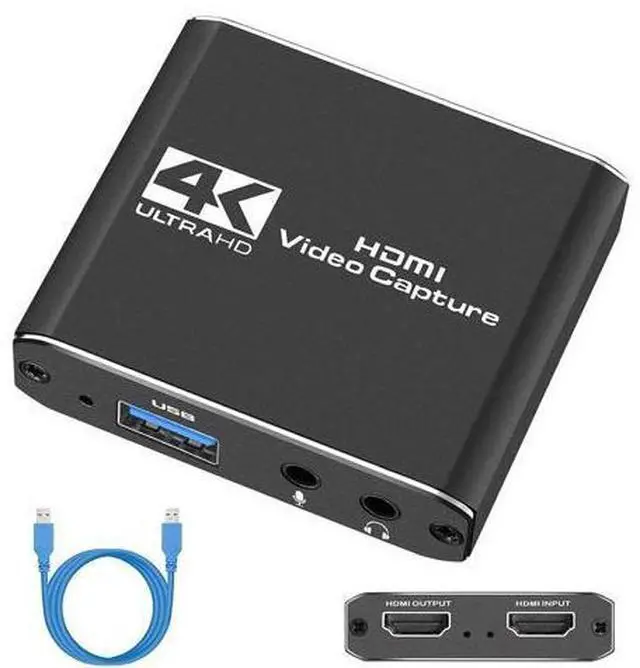

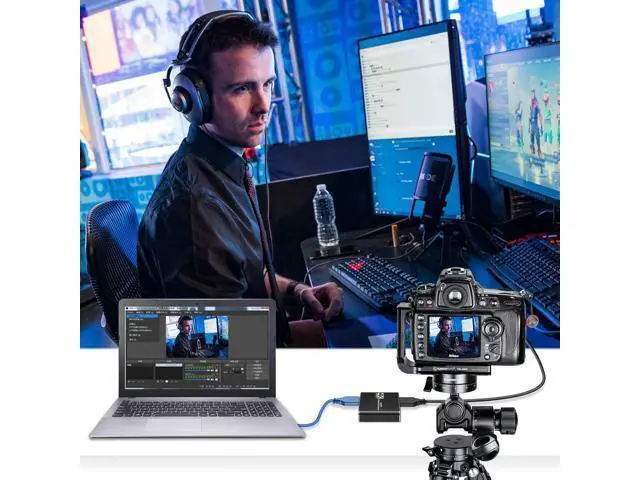
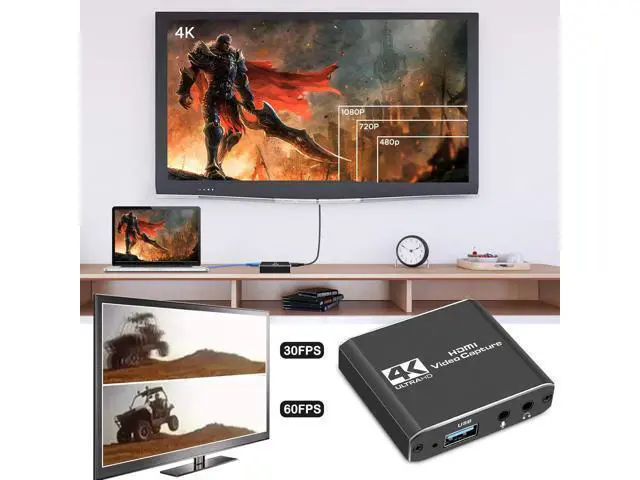


Capture Card, Audio Video Capture Card with Microphone 4K HDMI Loop-Out, 1080p 60fps Video Recorder for Gaming/Live Streaming/Video Conference, Works for Camera/PC
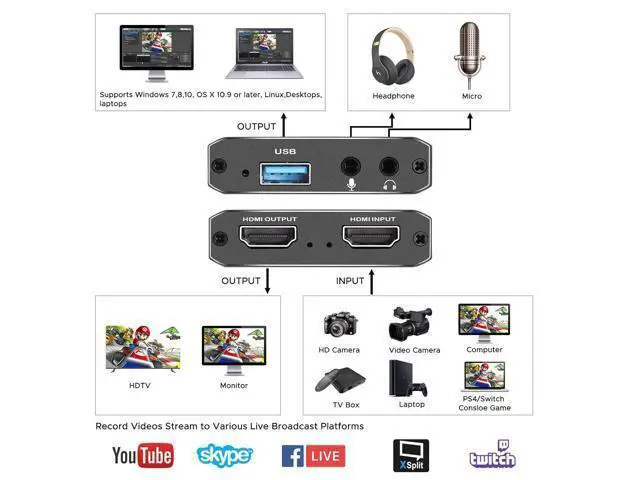
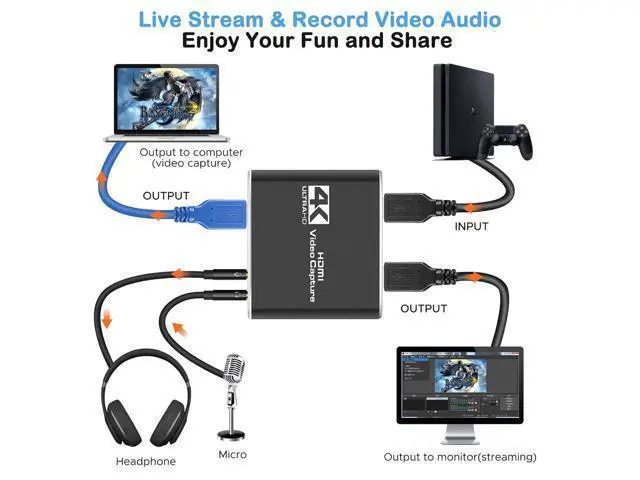
- 4K HDMI Game Capture Card: TKHIN game video capture card is designed with high-end smart chip, stylish and compact by decent Aluminum Alloy shell.; HD 1080P 60fps Signal Loop Out: This HDMI capture card for Nintendo Switch has maximum HDMI output resolution up to 4K@30fps, and streams 1080p@60fps video signal through USB 3.0 port.; 3.5mm Microphone and Audio Input/Output Port: You can connect the audio video capture device with your earphone with 3.5.mm audio out port, you can also connect the video capture device with 3.5mm Microphone so that you can stream your voice and record your voice by the ports easily.; Wide Compatible with Multiple Systems: 4K PC capture card is suitable for Windows 7/ 8/ 10, Mac OS X 10.9 or above, Linux and many other systems.; Quality service and Notice: You will get 1xHDMI capture card, 1xUSB 3.0 cable, and 1xuser manual. Please note that the OBS Studio software needs to be restarted after audio settings are completed.
+
+
Overview
Specs
Reviews

Any questions? Our AI mode will help you find out quickly.
Try me now
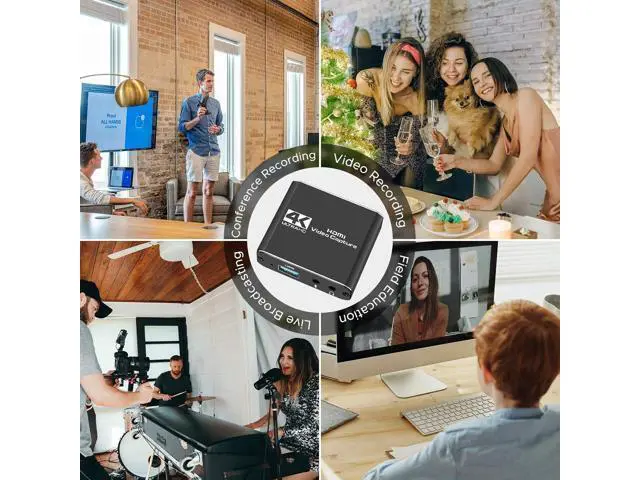
High Performance Chip Super Performance Chip makes video conferencing, game live broadcasting, etc. clearer and smoother. No delay, no blue screen 1 Ult-HD 1080P Clear Image Full HD 1080P video capture, 60Fps video recording and live broadcast. High-intensity reproduction of video delicate colors, clear, vivid picture quality Wide Compatibility for Muti APP/devices Works well with most mainstream game consoles, Camera, DSLR; OBS Studio, QuickTime Broadcaster (OS X), etc. Select the Capture Card 1-1 In the red arrow column, select "USB Video" and the current audio and video capture.
As shown in Figure 1-1 Select the Capture Card 2-1 A.
Custom Resolution: The Resolution/FPS Type column is set to custom. As shown by the white arrow in Figure 2-1. B.
Set Resolution: Select the appropriate resolution at the up and down arrows on the far right of this column. As shown by the yellow arrow in Figure 2-1. C.
Set FPS: Select the appropriate frame rate at the up and down arrows on the far right of this column. As shown by the red arrow in Figure 2-1. Drag the drop-down bar on the far right to set the desktop audio and MIC mixing. 3-1 A. Select the "Output Desktop Audio" item at the up and down arrows on the far right of the "Audio Output Mode" column. As shown by the red arrow in Figure 3-1. B. Mark the "" in the red box.
As shown below: C. Select the MIC input of the collector at the up and down arrows on the far right of the "Audio Device" column. As shown by the yellow arrow in Figure 3-1. The OBS is set up and it can be used normally.
As shown in Figure 1-1 Select the Capture Card 2-1 A.
Custom Resolution: The Resolution/FPS Type column is set to custom. As shown by the white arrow in Figure 2-1. B.
Set Resolution: Select the appropriate resolution at the up and down arrows on the far right of this column. As shown by the yellow arrow in Figure 2-1. C.
Set FPS: Select the appropriate frame rate at the up and down arrows on the far right of this column. As shown by the red arrow in Figure 2-1. Drag the drop-down bar on the far right to set the desktop audio and MIC mixing. 3-1 A. Select the "Output Desktop Audio" item at the up and down arrows on the far right of the "Audio Output Mode" column. As shown by the red arrow in Figure 3-1. B. Mark the "" in the red box.
As shown below: C. Select the MIC input of the collector at the up and down arrows on the far right of the "Audio Device" column. As shown by the yellow arrow in Figure 3-1. The OBS is set up and it can be used normally.
Warranty & Returns
Warranty, Returns, And Additional Information
Warranty
- Please contact the Seller directly for warranty information. Warranty information may also be found on the Manufacturer's website.
- CONTACT
Return Policies
- Return for refund within: 30 days
- Return for replacement within: 30 days
- This item is covered by Nexlly Return Policy
Manufacturer Contact Info
- For a directory of all our manufacturers, please click below.
- Manufacturers Directory
LOADING...