Your Browsing History
Meet Your Seller
SSD Enclosure USB-C USB3.1 Type-C to Dual 2 Port MSATA SSD Raid Hard Disk Box Shell
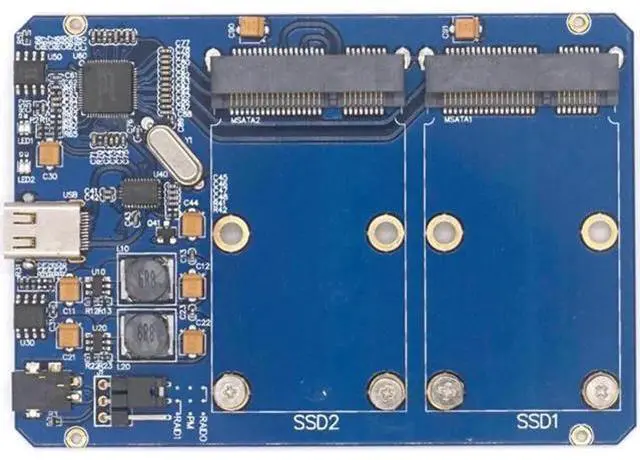
- Transmission speed: USB3.1 maximum transfer rate up to 10Gbps, downward compatible with USB3.0 and USB2.0.; Support mode: Raid0, Raid1, PM.RAID mode is switched by jumper.; Compatible with SSD specifications: Compatible with SSD MSATA interface. At present, MSATA SSDs in the market are divided into two types according to their sizes 3030 and 5030 SSDs are fixed in copper poles (the default setting is 3050) and are perfectly compatible with 3030 or 3050 SSD hard disk drives.
+
+
Overview
Specs
Reviews
Any questions? Our AI beta will help you find out quickly.
Try me now
Features:
Name: USB 3.1 Type C to 2Ports MSATA SSD Raid
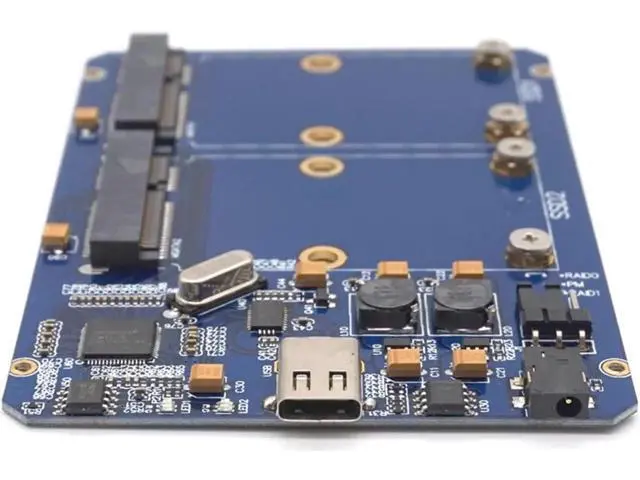
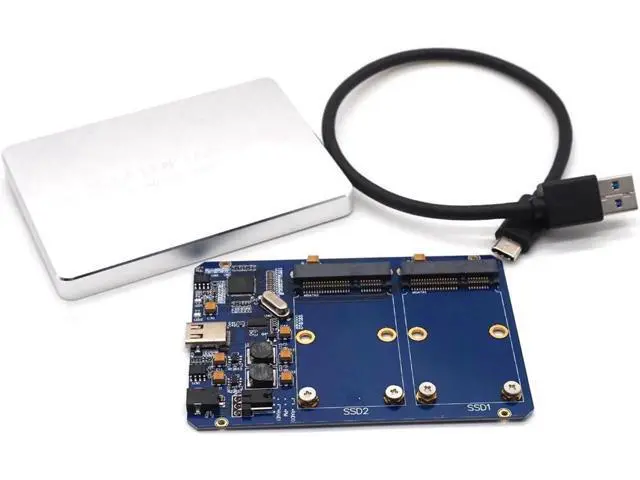
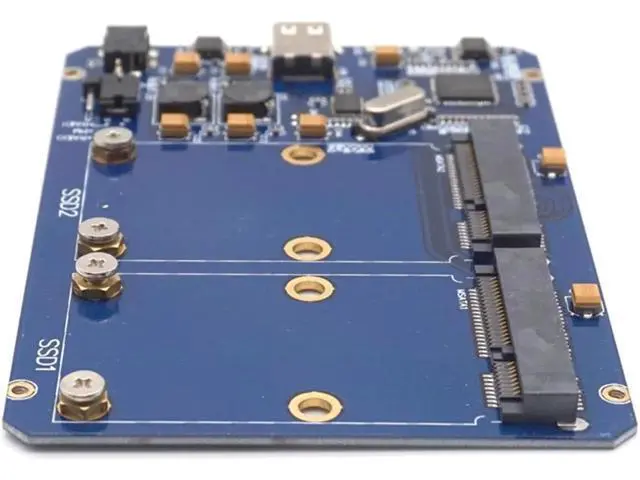
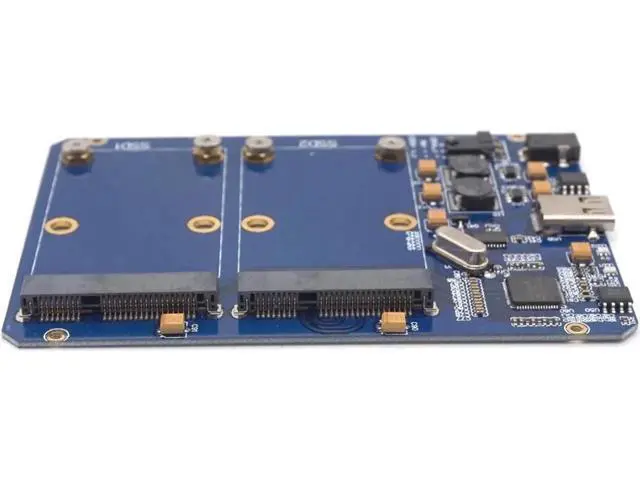
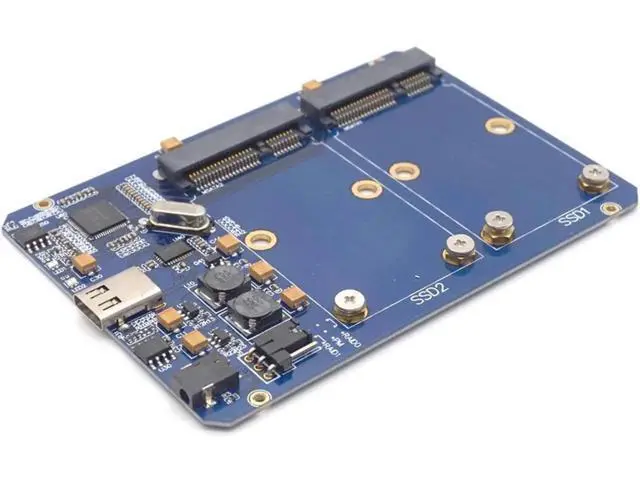
HDD Enclosure Function: Through the USB 3.1 Type-C interface, two MSATA interfaces are simultaneously extended. Two MSATA interfaces can simultaneously connect two 3030 or 3050 SSDs. Between two SSDs can be formed Raid0, Raid1 or PM mode
Product parameters: -
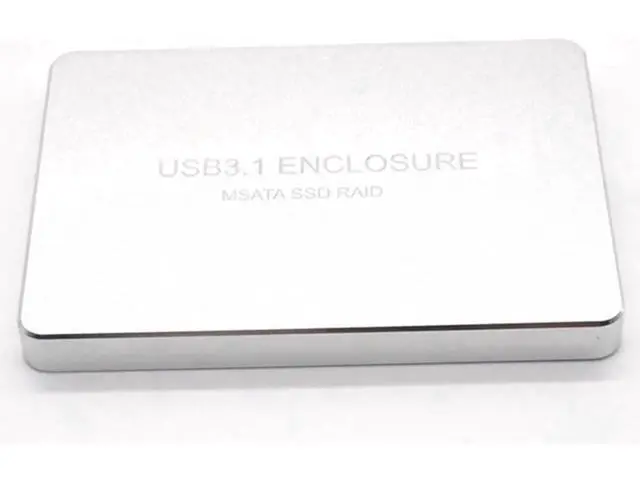
Product Name: USB 3.1 Type C to 2Ports MSATA SSD Raid HDD
Enclosure - Color: Silver -
Size: 100mm * 70mm * 9mm -
Transmission Interface: USB 3.1 Type-C 10Gbps -
Built-in interface: MSATA * 2 -
Housing Material: Aluminum Magnesium Alloy -
Transmission speed: USB 3.1 maximum transfer rate up to 10Gbps, downward compatible with USB 3.0 and USB 2.0 -
Support mode: Raid0, Raid1, PM. RAID mode is switched by jumper -
Support System: All WINDOWS / Linux / Mac (free driver) -
SSD working mode settings: Supports Raid0, Raid1 and PM three operating modes, the default is Raid0. RAID mode is switched by jumper. - USB 3.1 Type-C interface, support forward and reverse insertion, transmission speed. - USB 3.1 standard power supply is 20V / 5A / 100W -
Maximum continuous reading: 800MB/s -
Maximum continuous write: 800MB/s - Compatible with
SSD specifications: Compatible with SSD MSATA interface. At present, MSATA SSDs in the market are divided into two types according to their sizes 3030 and 5030 SSDs are fixed in copper poles (the default setting is 3050) and are perfectly compatible with 3030 or 3050 SSD hard disk drives.
Package included: 1 x USB 3.1 Type C to 2-port MSATA SSD RAID Enclosure RAID1 hard disk initialization partition and RAID0 operation steps are the same
PM: Also called disk array, each disk is independent. When two SSDs are connected at the same time, the capacity between the two hard disks is unchanged and the speed remains unchanged. The procedure for initializing the partition of the PM hard disk and RAID 0 is the same The RAID0 setup procedure is as follows: Insert the hard disk with RAID 0 for the first time into the computer. When the computer detects the hard disk hardware, the hard disk drive is automatically installed. After about 10 seconds, the automatic installation is completed. For initial use, we first initialize and partition the hard disk: Move the mouse to the top of my computer, right-click
and select: Manage - Disk Management. We can see that the computer has a disk that is not initialized. Move the mouse over the uninitialized disk, right-click
and select: Initialize Disk Enter the initialization disk interface, select the need to set the choice, generally here is the default, directly select OK After the initialization is complete, the following partition, mouse over the unpartitioned hard disk above, and then right-click, select: New disk volume, here is generally also directly select the next step, until completed After clicking Finish, we can see that there is one more disk in the computer. We can store it, copy the data, etc.

Name: USB 3.1 Type C to 2Ports MSATA SSD Raid
HDD Enclosure Function: Through the USB 3.1 Type-C interface, two MSATA interfaces are simultaneously extended. Two MSATA interfaces can simultaneously connect two 3030 or 3050 SSDs. Between two SSDs can be formed Raid0, Raid1 or PM mode
Product parameters: -
Product Name: USB 3.1 Type C to 2Ports MSATA SSD Raid HDD
Enclosure - Color: Silver -
Size: 100mm * 70mm * 9mm -
Transmission Interface: USB 3.1 Type-C 10Gbps -
Built-in interface: MSATA * 2 -
Housing Material: Aluminum Magnesium Alloy -
Transmission speed: USB 3.1 maximum transfer rate up to 10Gbps, downward compatible with USB 3.0 and USB 2.0 -
Support mode: Raid0, Raid1, PM. RAID mode is switched by jumper -
Support System: All WINDOWS / Linux / Mac (free driver) -
SSD working mode settings: Supports Raid0, Raid1 and PM three operating modes, the default is Raid0. RAID mode is switched by jumper. - USB 3.1 Type-C interface, support forward and reverse insertion, transmission speed. - USB 3.1 standard power supply is 20V / 5A / 100W -
Maximum continuous reading: 800MB/s -
Maximum continuous write: 800MB/s - Compatible with
SSD specifications: Compatible with SSD MSATA interface. At present, MSATA SSDs in the market are divided into two types according to their sizes 3030 and 5030 SSDs are fixed in copper poles (the default setting is 3050) and are perfectly compatible with 3030 or 3050 SSD hard disk drives.
Package included: 1 x USB 3.1 Type C to 2-port MSATA SSD RAID Enclosure RAID1 hard disk initialization partition and RAID0 operation steps are the same
PM: Also called disk array, each disk is independent. When two SSDs are connected at the same time, the capacity between the two hard disks is unchanged and the speed remains unchanged. The procedure for initializing the partition of the PM hard disk and RAID 0 is the same The RAID0 setup procedure is as follows: Insert the hard disk with RAID 0 for the first time into the computer. When the computer detects the hard disk hardware, the hard disk drive is automatically installed. After about 10 seconds, the automatic installation is completed. For initial use, we first initialize and partition the hard disk: Move the mouse to the top of my computer, right-click
and select: Manage - Disk Management. We can see that the computer has a disk that is not initialized. Move the mouse over the uninitialized disk, right-click
and select: Initialize Disk Enter the initialization disk interface, select the need to set the choice, generally here is the default, directly select OK After the initialization is complete, the following partition, mouse over the unpartitioned hard disk above, and then right-click, select: New disk volume, here is generally also directly select the next step, until completed After clicking Finish, we can see that there is one more disk in the computer. We can store it, copy the data, etc.
Warranty & Returns
Warranty, Returns, And Additional Information
Warranty
- Please contact the Seller directly for warranty information. Warranty information may also be found on the Manufacturer's website.
- CONTACT
Return Policies
- Return for refund within: 30 days
- Return for replacement within: 30 days
- This item is covered by LUOYIMAN Return Policy
Manufacturer Contact Info
- For a directory of all our manufacturers, please click below.
- Manufacturers Directory
LOADING...