





About Us
Focused on Bluetooth and automotive accessories.
We are committed to creating reliable, innovative, and easy-to-use products.
Our mission is to enhance convenience, performance, and everyday experiences through quality-driven solutions.
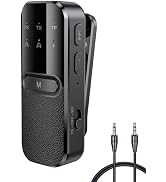
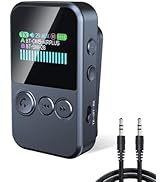
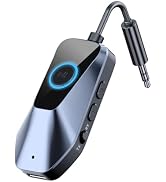
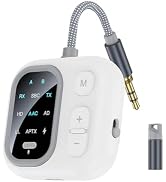
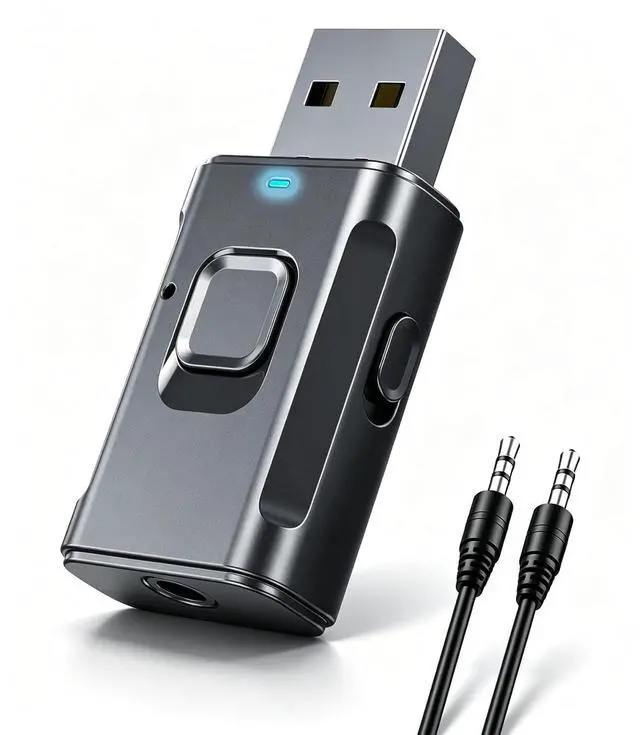
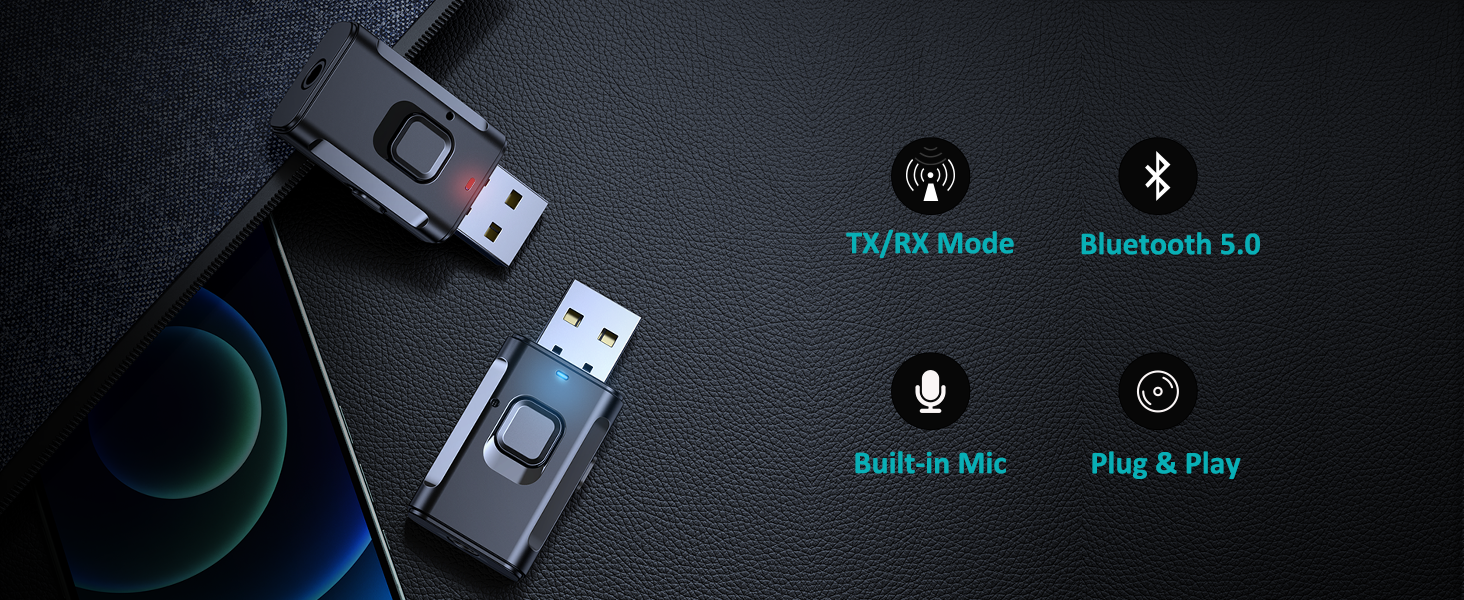
Bluetooth Transmitter Receiver
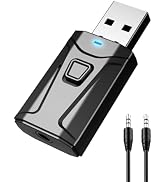
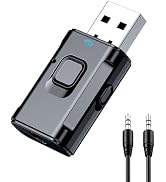
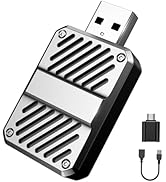
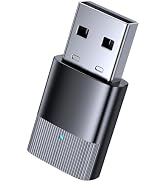
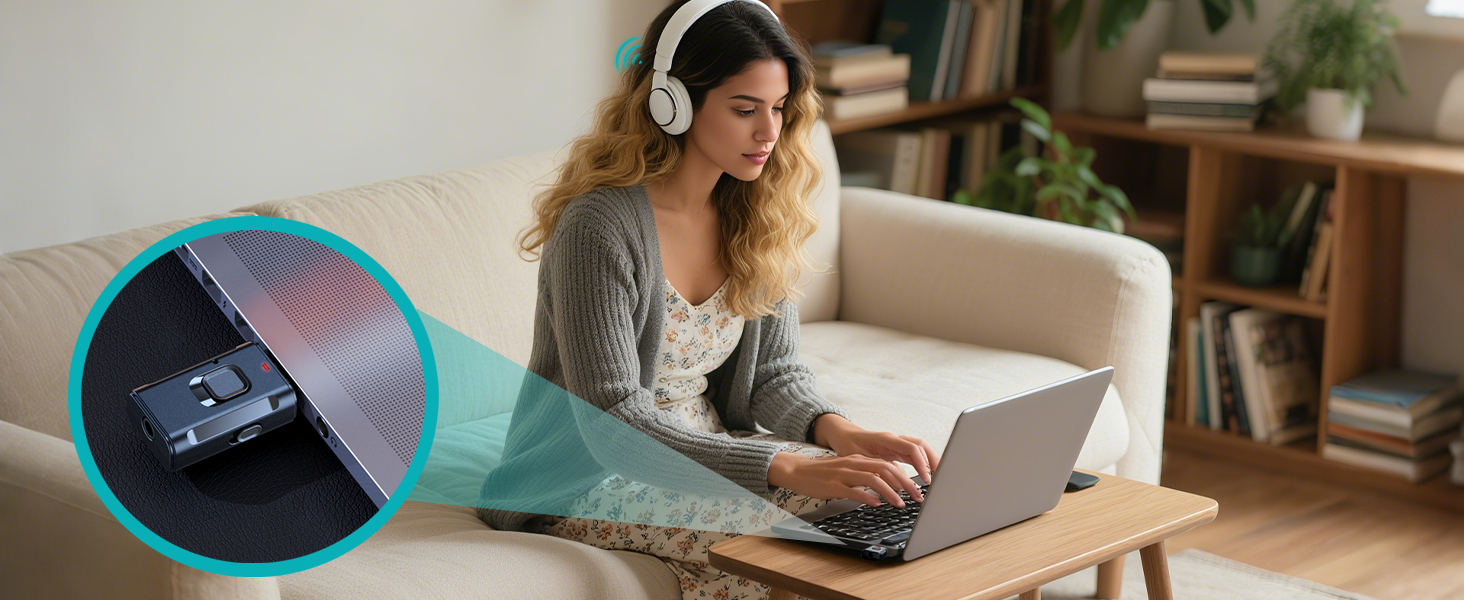
USB kits
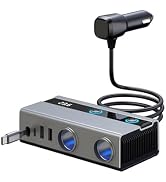
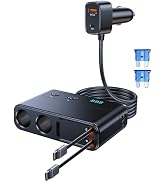
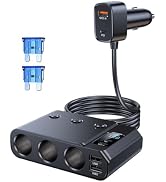
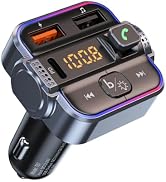
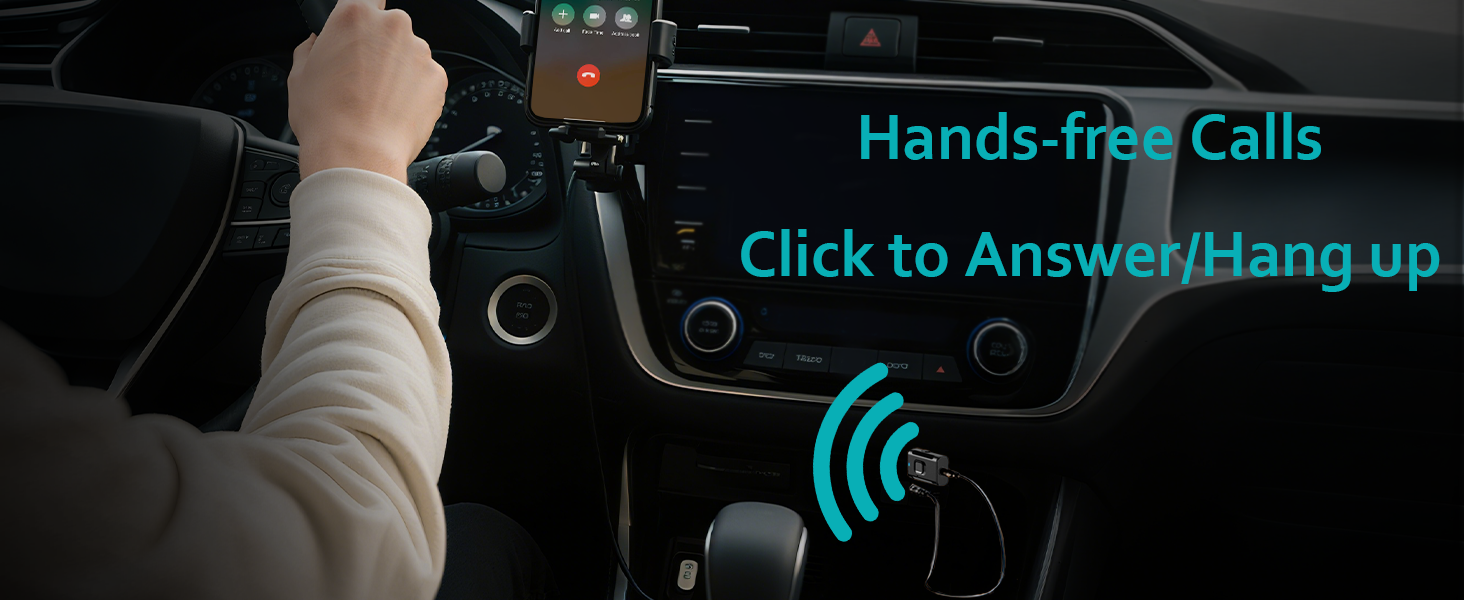
Car Kits

Quality, reliability, and user experience are at the heart of everything we do.
We are committed to providing a positive experience from purchase through everyday use.
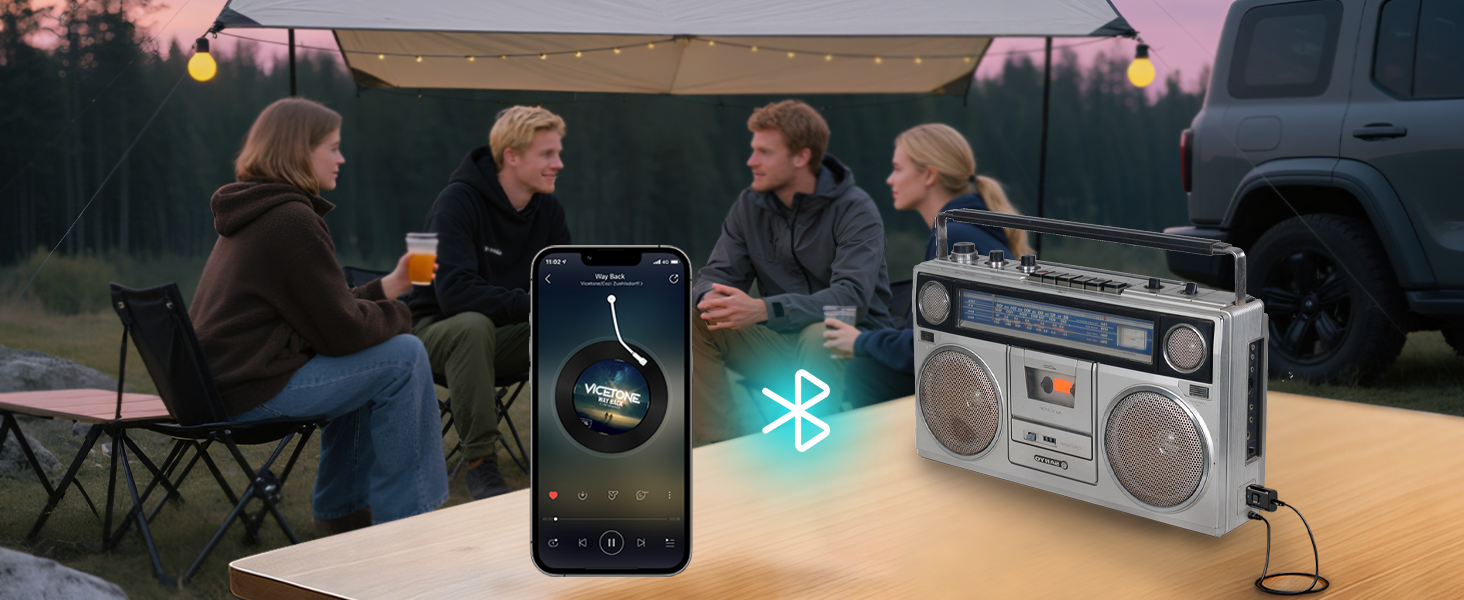
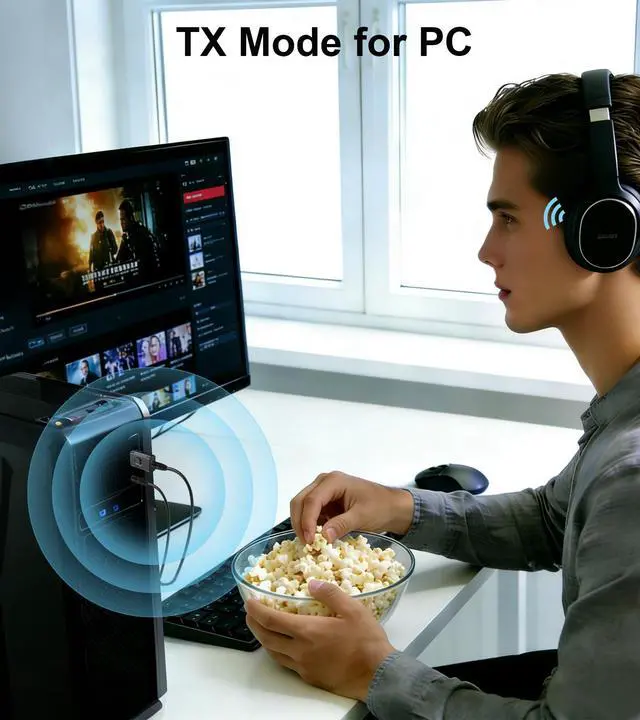
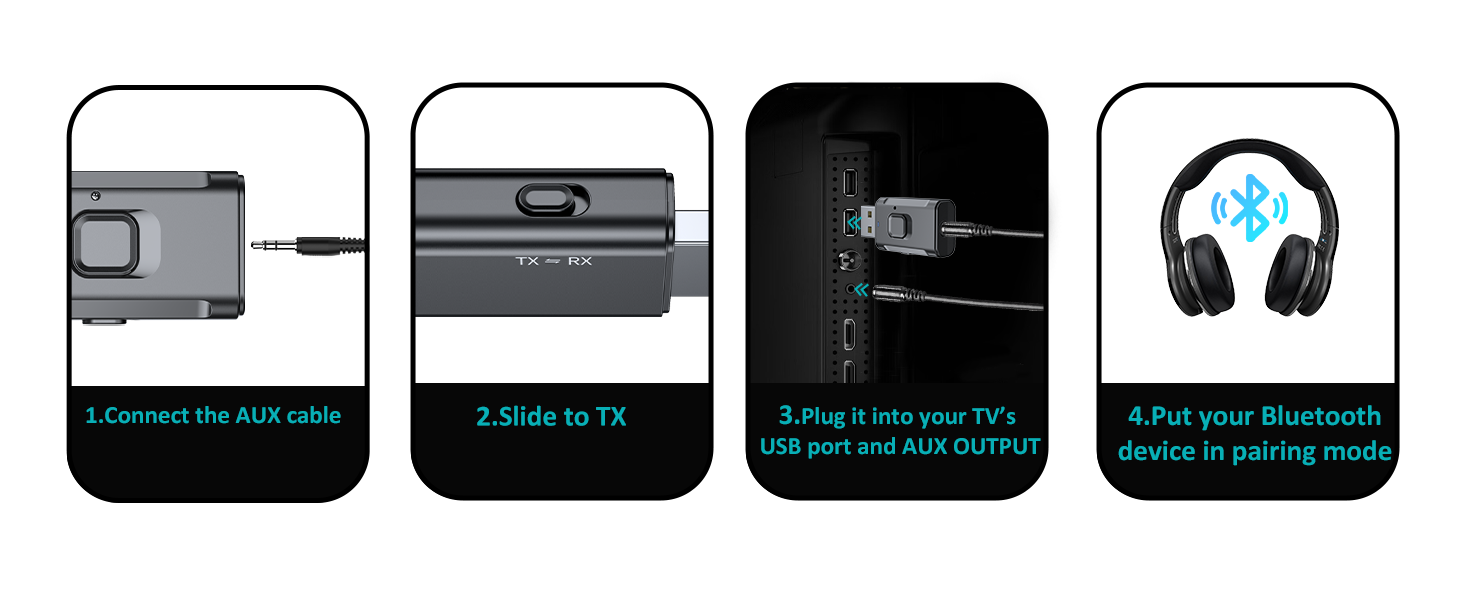
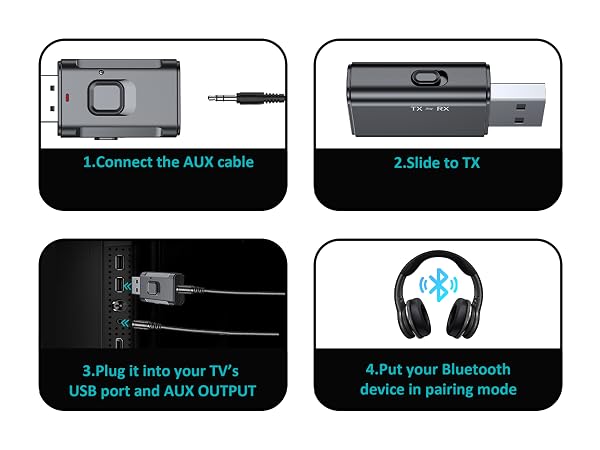
How to pair TX mode?
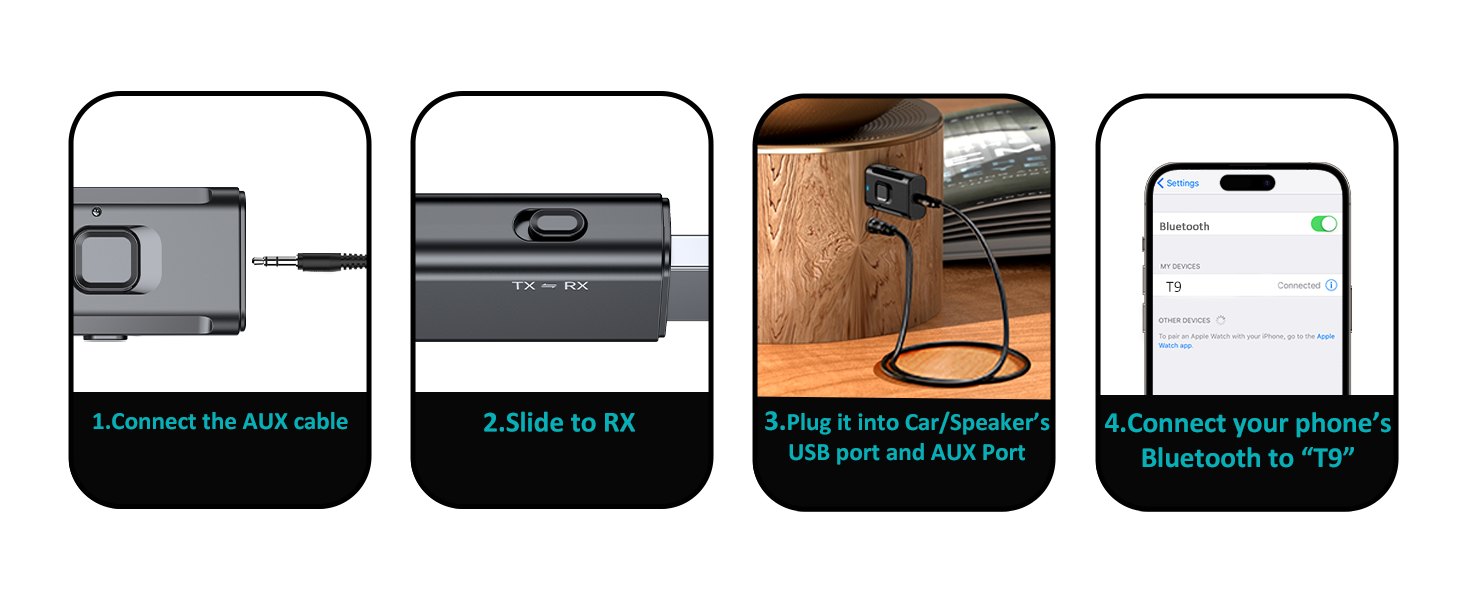
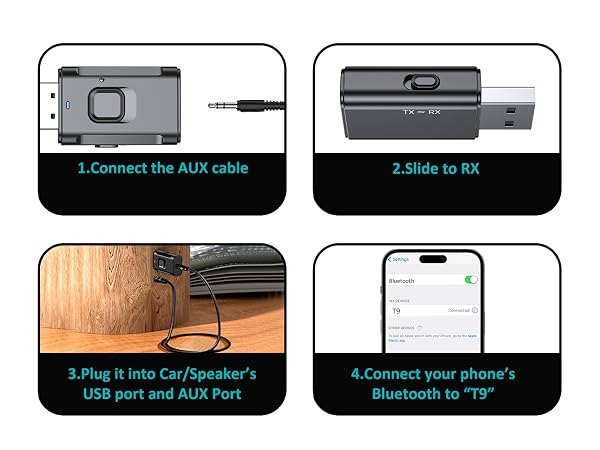
How to pair RX mode?
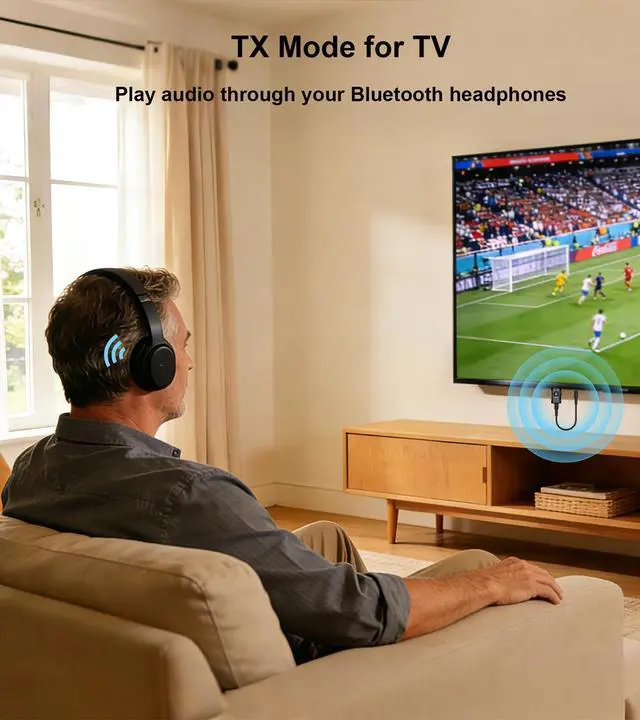
HOW TO PAIR WITH TV
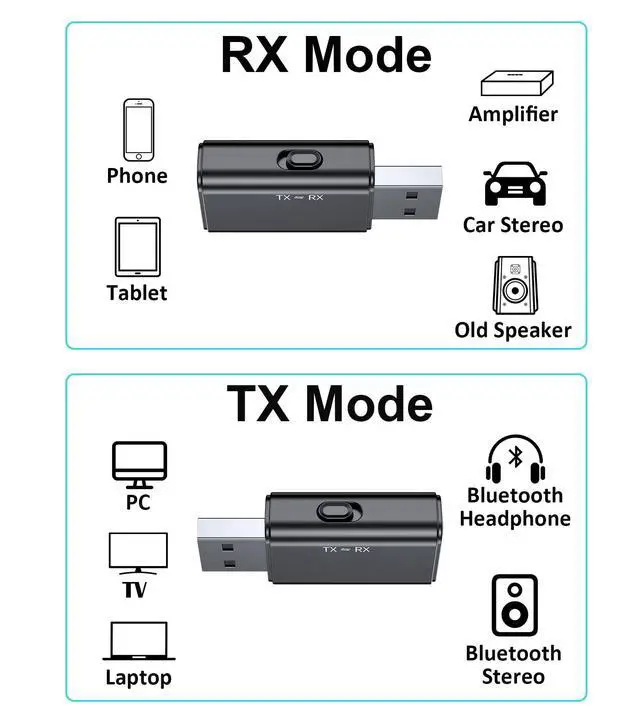
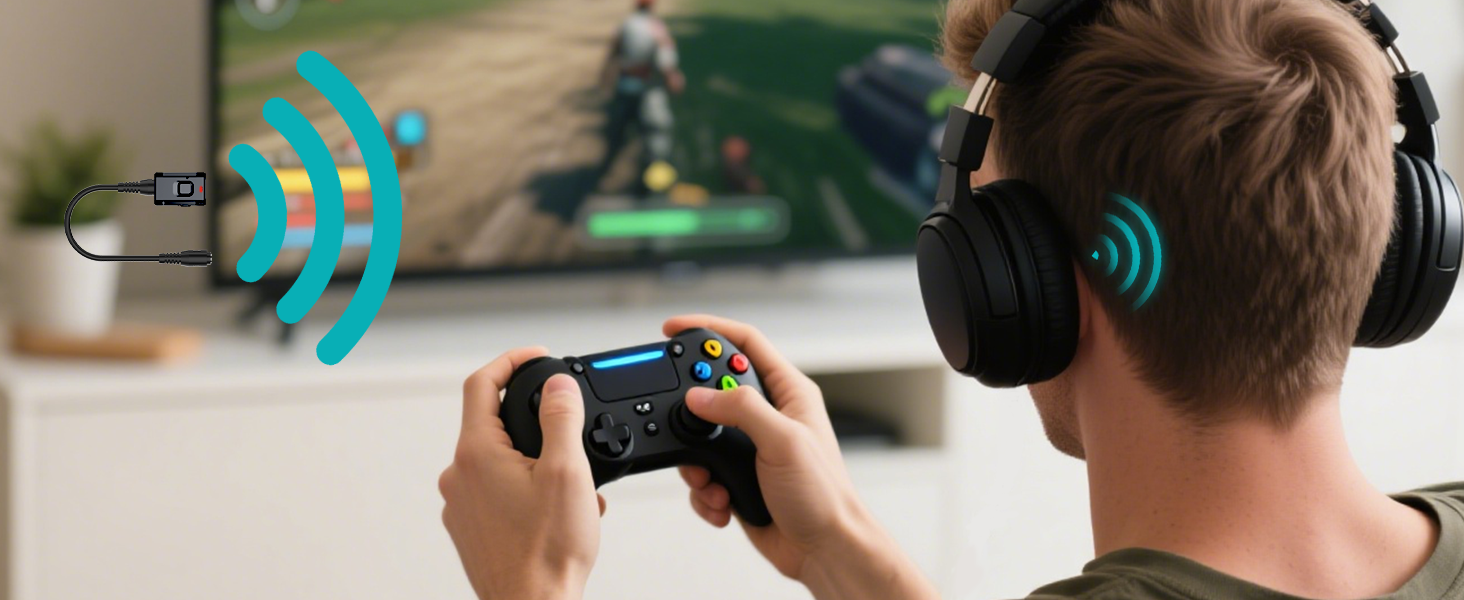
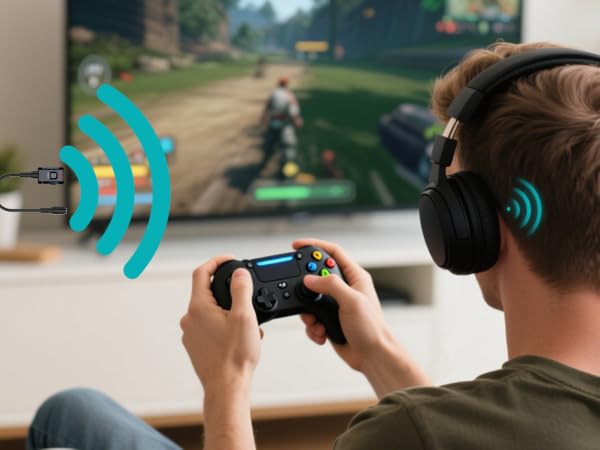
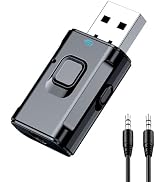
- Plug the device into your TV’s USB port for power, then select TX mode. The Bluetooth adapter will turn on automatically, with a flashing RED light indicating it’s in wireless search mode.
- Connect the 3.5mm aux cable to the adapter’s 3.5mm port, then plug the other end into your TV's "AUDIO OUT" or headphone jack.
- Put your Bluetooth headphones in pairing mode. The adapter will pair automatically—once successful, the red light stays solid.
- If you can't hear the sound of the TV, make sure the headphones are paired successfully. Then, change the TV sound settings from "TV speaker" to "Audio out".
- To switch to another wireless audio device, quickly press the adapter’s function button. For a fast connection, make sure no other Bluetooth devices are nearby.
How to pair TX mode?
How to pair RX mode?
HOW TO PAIR WITH TV
- Plug the device into your TV’s USB port for power, then select TX mode. The Bluetooth adapter will turn on automatically, with a flashing RED light indicating it’s in wireless search mode.
- Connect the 3.5mm aux cable to the adapter’s 3.5mm port, then plug the other end into your TV's "AUDIO OUT" or headphone jack.
- Put your Bluetooth headphones in pairing mode. The adapter will pair automatically—once successful, the red light stays solid.
- If you can't hear the sound of the TV, make sure the headphones are paired successfully. Then, change the TV sound settings from "TV speaker" to "Audio out".
- To switch to another wireless audio device, quickly press the adapter’s function button. For a fast connection, make sure no other Bluetooth devices are nearby.
About Us
Focused on Bluetooth and automotive accessories.
We are committed to creating reliable, innovative, and easy-to-use products.
Our mission is to enhance convenience, performance, and everyday experiences through quality-driven solutions.
Bluetooth Transmitter Receiver
USB kits
Car Kits
Quality, reliability, and user experience are at the heart of everything we do.
We are committed to providing a positive experience from purchase through everyday use.
