






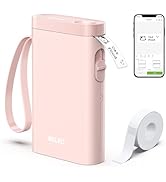
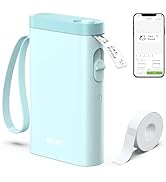
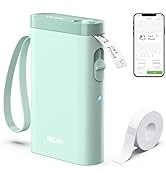
Nelko Label Printer
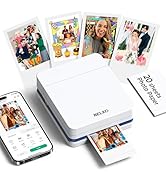
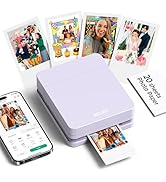
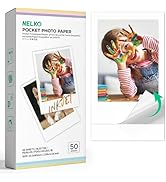
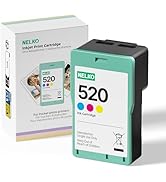
Nelko PP01 Photo Printer
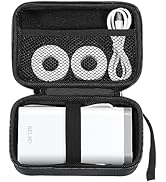
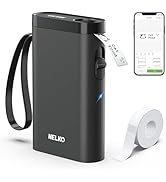
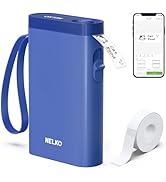
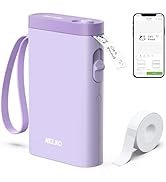
Nelko Label Printer
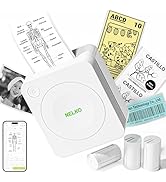
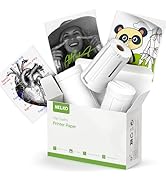
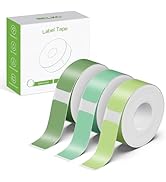
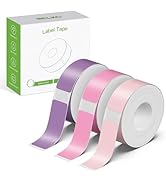
PM230 Sticker Printer
NELKO
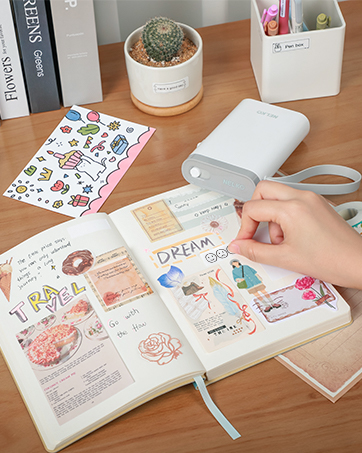
NELKO
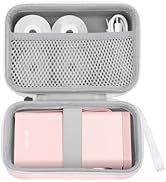
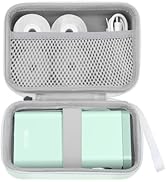
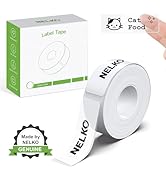
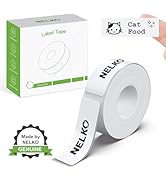
Nelko P21 Label Maker Case
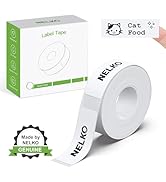
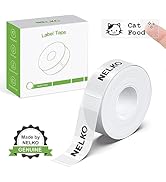
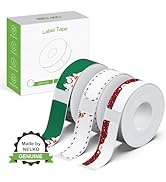
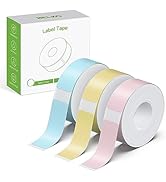
Nelko Label Printer
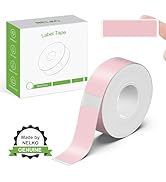
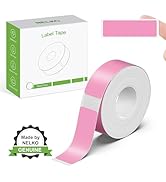
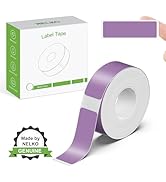
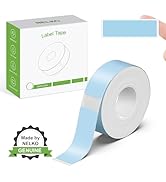
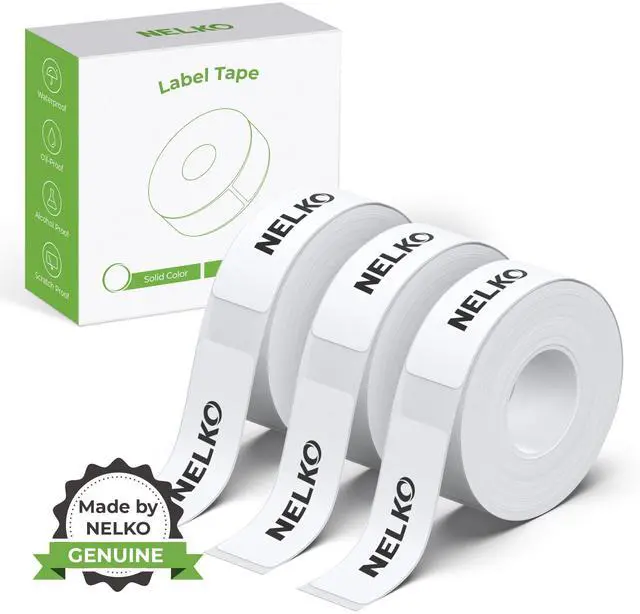
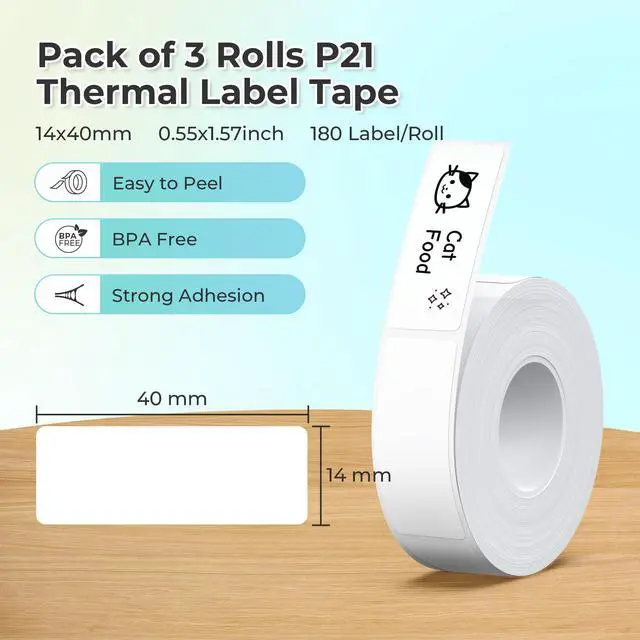
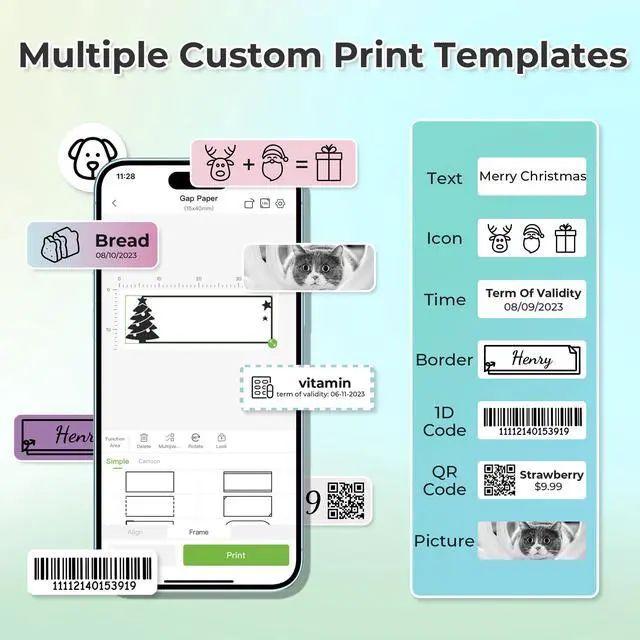
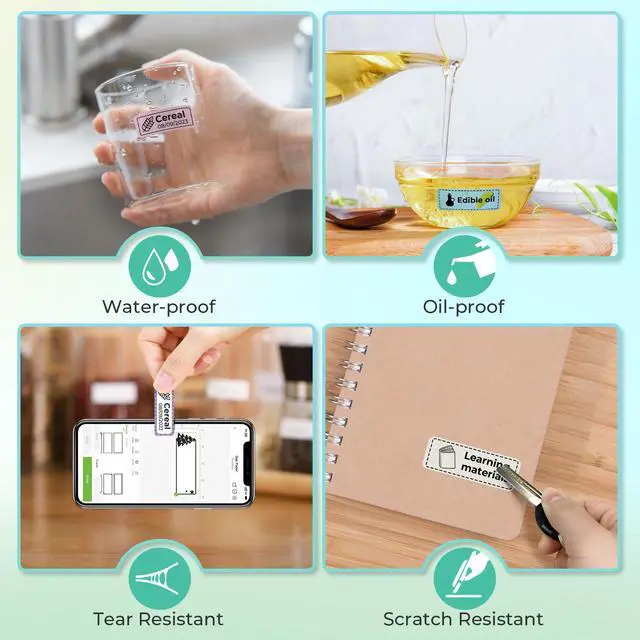
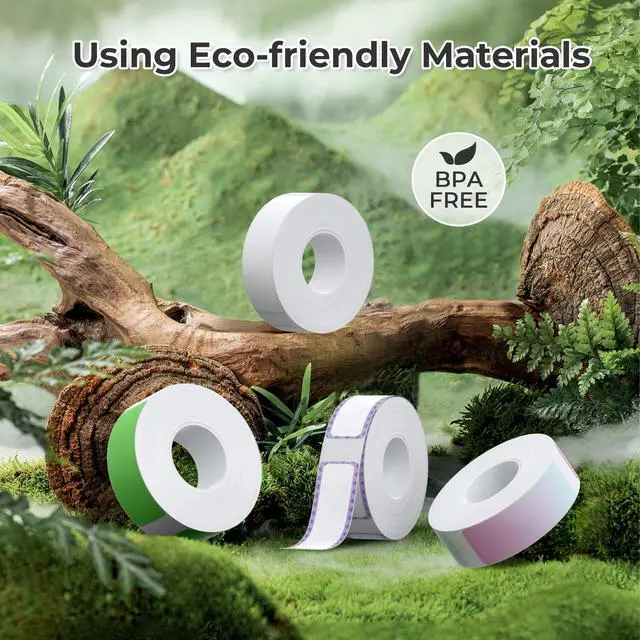
Nelko P21 Label Maker Tape
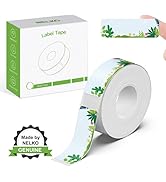
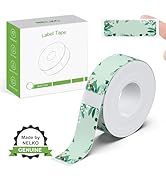
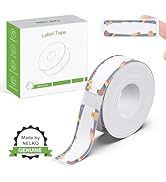
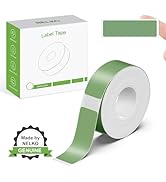
Nelko P21 Label Maker Tape
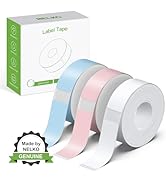
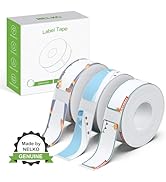
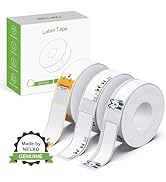
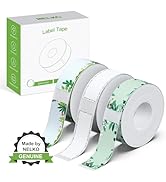
Nelko P21 Label Maker Tape
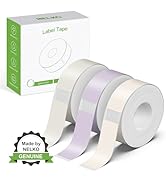
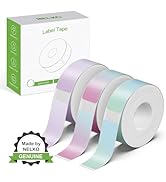
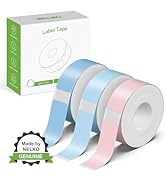
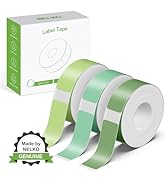
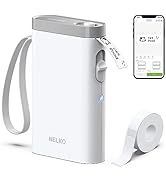
Nelko P21 Label Maker
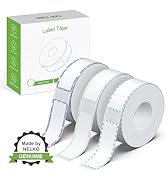
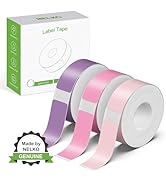
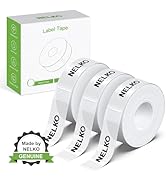
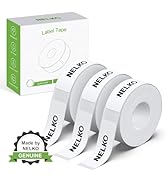
Nelko P21 Label Maker Tape
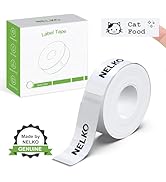
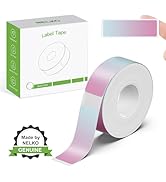
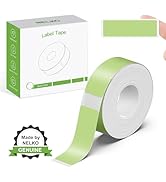
Nelko P21 Label Maker Tape
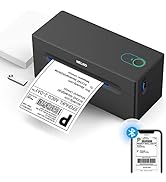

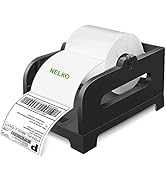
Nelko Bluetooth Label Printer
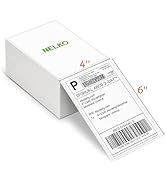
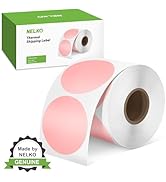
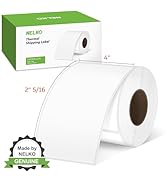
Nelko
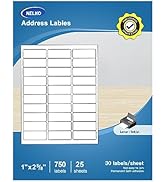
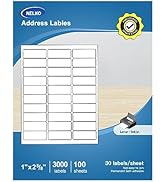
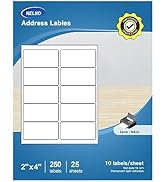
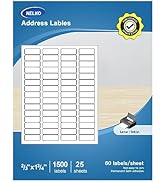
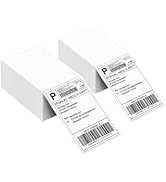
Nelko Shipping Address Labels
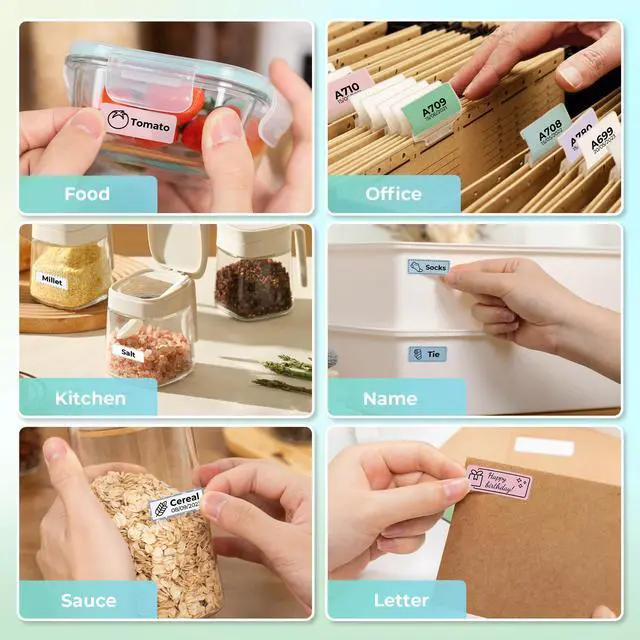
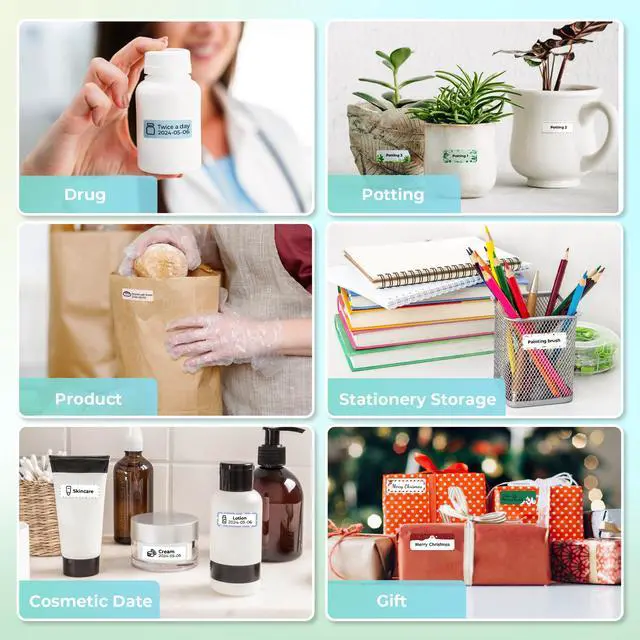
NEKLO is committed to the development of office products, improving product quality and providing consumers with a good sense of experience.
We adhere to the happy concept, committed to producing high-quality office supplies. We will provide consumers with high-quality, products at a reasonable cost.
We hope to bring convenience to your small business and work.

Work with NELKO P21 Labal Maker Machine
 P21 Label Maker-White |  P21 Label Maker-Pink |  P21 Label Maker-Green |  P110 Label Maker-Black |  15x40mm White Label Tape |  15x40mm Clear Label Tape |  Label Maker Case | |
|---|---|---|---|---|---|---|---|
Customer Reviews | — | — | — | — | — | — | — |
Price | — | — | — | — | — | — | — |
Pack | 1 | 1 | 1 | 1 | 180 Labels | 180 Labels | 1 |
Color | White | Pink | Green | Black | White | Transparent | Black |
Work with | Work with P21 Label Tape | Work with P21 Label Tape | Work with P21 Label Tape | Work with P21 Label Tape | Work with NELKO P21 | Work with NELKO P21 | Work with Label Maker |
Advantage | Portable, Clear Printing | Clear Printing, Waterproof | Clear Printing, Hight Quality | Clear Printing, Hight Quality | Clear Printing, Waterproof | Clear Printing, Waterproof | Powerful Compatibility |
Support | Android and IOS phones | Android and IOS phones | Android and IOS phones | Android and IOS phones | NELKO P21 Label Maker | NELKO P21 Label Maker | Mini label printer |
High Quality | ? | ? | ? | ? | ? | ? | ? |
NELKO P21 Label Maker Tape
Nelko P21 label maker
Merchant Video

How to connect Bluetooth?
1. Connecting to Bluetooth through the "Nelko" APP.
2. Download the App "Nelko" from the Apple Store/Google Play.
3. Turn on Bluetooth on your phone, long press to turn on the P21 labelmaker machine, and open the "Nelko" app to link to Bluetooth.
What system does this label machine support?
This mini portable Bluetooth printer supports iOS and Android mobile systems.
Why is the printing unclear?
Please use genuine label paper, otherwise it may result in poor printing quality or mismatches.
Note: Please do not remove the green sticker from the original label paper.
And the size of the label tape can be 12x40mm, 15X30mm, 15x40mm or 15X50mm.
How to use the label makers best sellers with tape correctly?
1. Long press the power on button, indicator light will display green.
2. Successfully connected to Bluetooth, indicator light displayed in blue.
3. Press the button twice to adjust the paper position.
4. Press the button once to print the test page.
Why can I search for P21 label maker but not connect to Bluetooth?
1. Press the power button to start the label maker.
2. Open the paper bin cover of the label maker.
3. Press the power button 3 times in a row.
4. After about 2s, the label maker beeps 4 times, "Didi Didi", which means the reset is successful.


Work with NELKO P21 Labal Maker Machine
P21 Label Maker-White | P21 Label Maker-Pink | P21 Label Maker-Green | P110 Label Maker-Black | 15x40mm White Label Tape | 15x40mm Clear Label Tape | Label Maker Case |
|---|---|---|---|---|---|---|
| Customer Reviews | ||||||
| — | — | — | — | — | — | — |
| Price | ||||||
| — | — | — | — | — | — | — |
| Pack | ||||||
| 1 | 1 | 1 | 1 | 180 Labels | 180 Labels | 1 |
| Color | ||||||
| White | Pink | Green | Black | White | Transparent | Black |
| Work with | ||||||
| Work with P21 Label Tape | Work with P21 Label Tape | Work with P21 Label Tape | Work with P21 Label Tape | Work with NELKO P21 | Work with NELKO P21 | Work with Label Maker |
| Advantage | ||||||
| Portable, Clear Printing | Clear Printing, Waterproof | Clear Printing, Hight Quality | Clear Printing, Hight Quality | Clear Printing, Waterproof | Clear Printing, Waterproof | Powerful Compatibility |
| Support | ||||||
| Android and IOS phones | Android and IOS phones | Android and IOS phones | Android and IOS phones | NELKO P21 Label Maker | NELKO P21 Label Maker | Mini label printer |
| High Quality | ||||||
| ? | ? | ? | ? | ? | ? | ? |
NELKO P21 Label Maker Tape
Nelko P21 label maker
Merchant Video

How to connect Bluetooth?
1. Connecting to Bluetooth through the "Nelko" APP.
2. Download the App "Nelko" from the Apple Store/Google Play.
3. Turn on Bluetooth on your phone, long press to turn on the P21 labelmaker machine, and open the "Nelko" app to link to Bluetooth.
What system does this label machine support?
This mini portable Bluetooth printer supports iOS and Android mobile systems.
Why is the printing unclear?
Please use genuine label paper, otherwise it may result in poor printing quality or mismatches.
Note: Please do not remove the green sticker from the original label paper.
And the size of the label tape can be 12x40mm, 15X30mm, 15x40mm or 15X50mm.
How to use the label makers best sellers with tape correctly?
1. Long press the power on button, indicator light will display green.
2. Successfully connected to Bluetooth, indicator light displayed in blue.
3. Press the button twice to adjust the paper position.
4. Press the button once to print the test page.
Why can I search for P21 label maker but not connect to Bluetooth?
1. Press the power button to start the label maker.
2. Open the paper bin cover of the label maker.
3. Press the power button 3 times in a row.
4. After about 2s, the label maker beeps 4 times, "Didi Didi", which means the reset is successful.


Nelko Label Printer
Nelko PP01 Photo Printer
Nelko Label Printer
PM230 Sticker Printer
NELKO
NELKO
Nelko P21 Label Maker Case
Nelko Label Printer
Nelko P21 Label Maker Tape
Nelko P21 Label Maker Tape
Nelko P21 Label Maker Tape
Nelko P21 Label Maker
Nelko P21 Label Maker Tape
Nelko P21 Label Maker Tape
Nelko Bluetooth Label Printer
Nelko
Nelko Shipping Address Labels
NEKLO is committed to the development of office products, improving product quality and providing consumers with a good sense of experience.
We adhere to the happy concept, committed to producing high-quality office supplies. We will provide consumers with high-quality, products at a reasonable cost.
We hope to bring convenience to your small business and work.