




 here!
here!
I’m your shopping assistant for PC builds, upgrades, and everything tech.
Got questions? Ask away!
Start a conversation
here!
I’m your shopping assistant for PC builds, upgrades, and everything tech.
Got questions? Ask away!
Start a conversation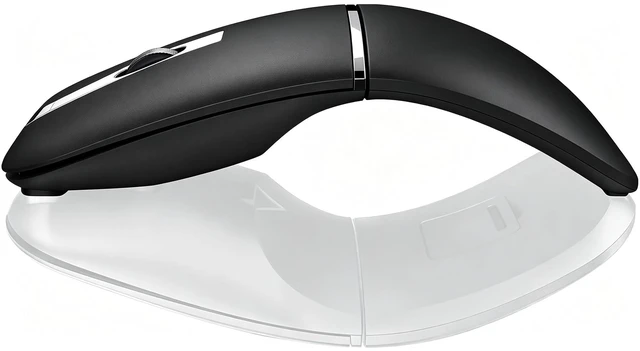
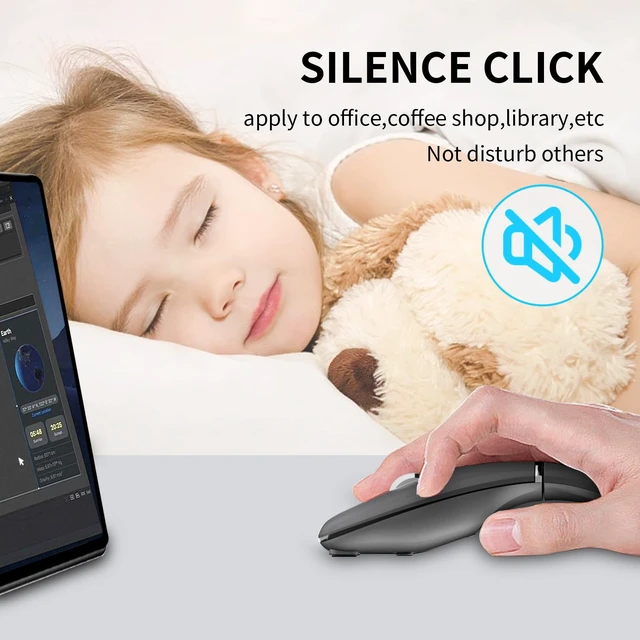
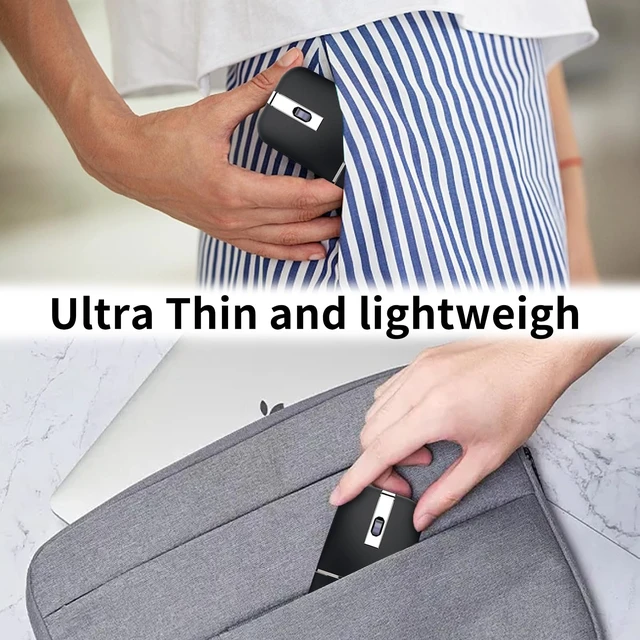
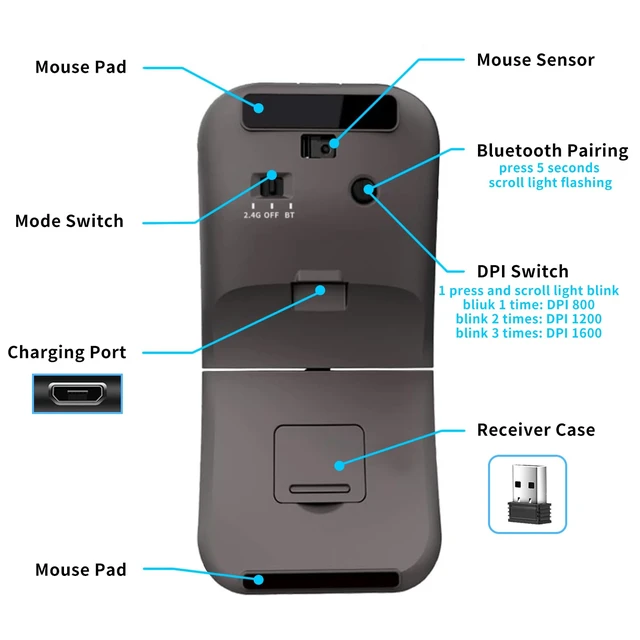



Any questions? Ask CelesteSM will help you find out quickly.
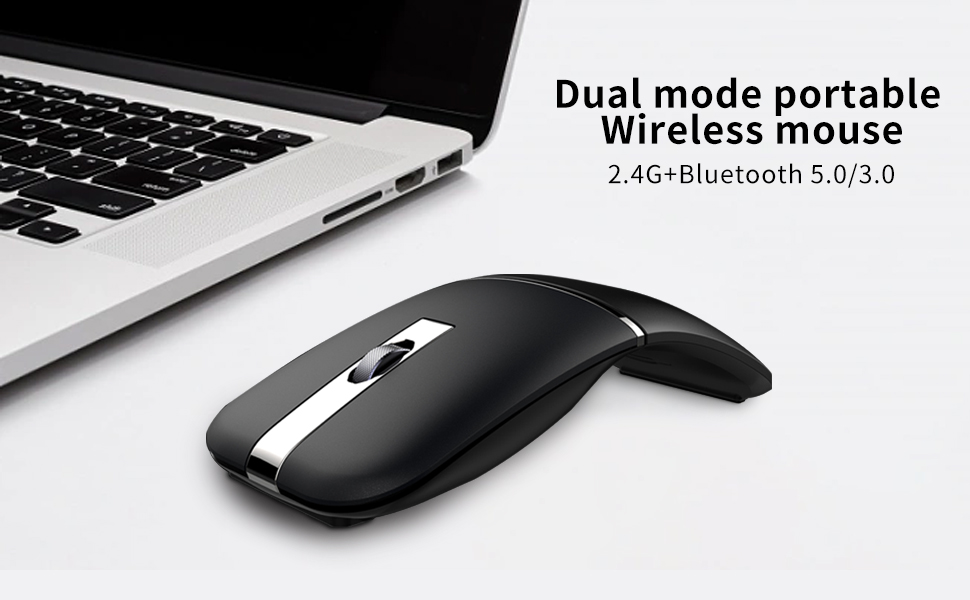

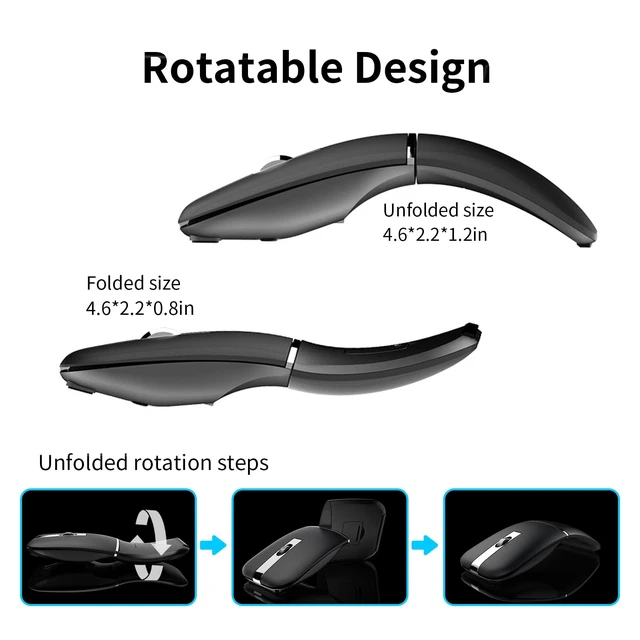
Places your hand in a natural relax position using a unique raised design, preventing hand fatigue and reducing muscular strain.
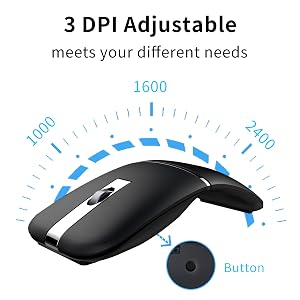
1 press and scroll light blink
blink 1 time: DPI 1000
blink 2 times: DPI 1600
blink 3 times: DPI 2400
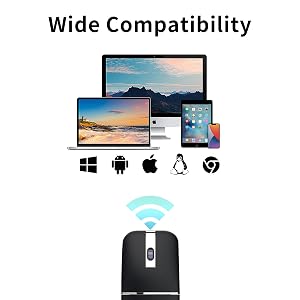
This quiet mouse can be used for PC, Mac, Chromebook, Notebook, Laptop,Tablet, desktop, Computer, Cell Phone and other device.
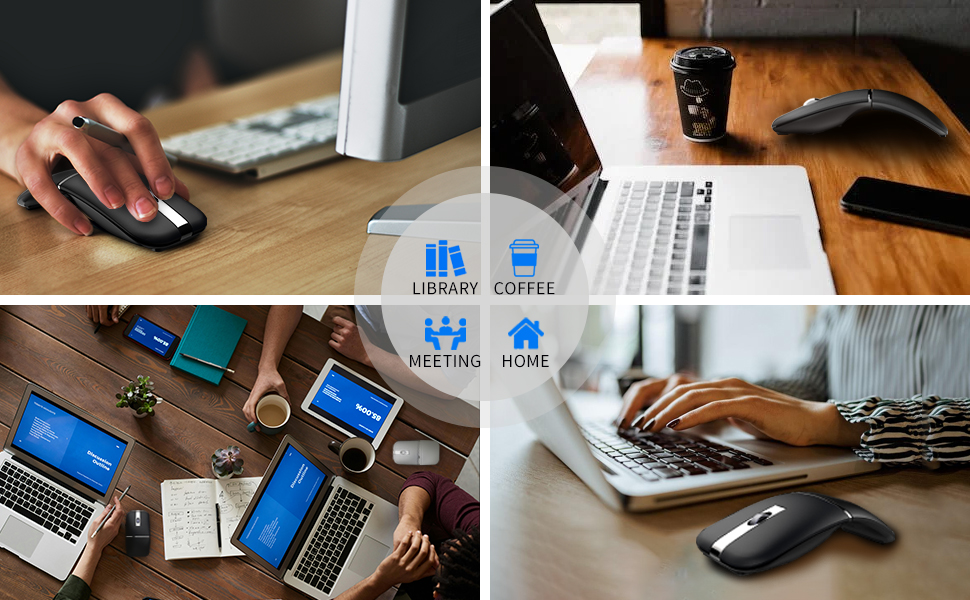
How to connect?
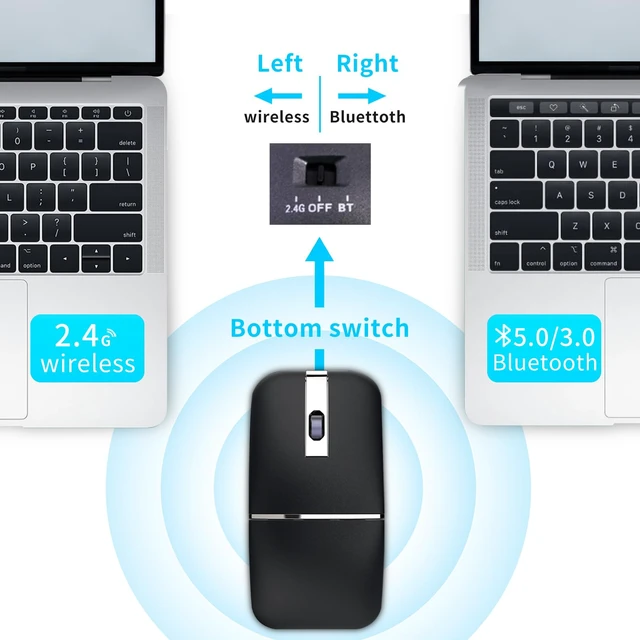
2.4GHz wireless mode:
1. Remove the USB receiver from the USB storage compartment at the bottom of the mouse and insert it into the USB port of your computer.
2. Turn on the power switch to 2.4G mode on the left, and the mouse can be used normally.
Bluetooth mode:
1.Turn on the power switch to Bluetooth mode on the right.
2. Press the Bluetooth pairing button for about three seconds, Mouse wheel indicator flashes blue.
3. Search for "BT5.0 Mouse" or "BT3.0 Mouse" through your devices, and then click to match. The mouse wheel indicator light will go out after pairing and the mouse can be used normally.
How to adjust the mouse DPI?
DPI can switch between 1000-1600-2400 by lightly pressing the 'DPI/Pairing' button at the bottom of the mouse.
The mouse wheel indicator flashes once to 1000 DPI, twice to 1600 DPI, and three times to 2400 DPI.
NOTE: DPI can only be switched after the mouse is connected to the device.
Turn off the mouse:
If you are not using the mouse temporarily, you can switch the toggle switch to the middle 'OFF' position to turn off the mouse power, which can save power and prevent misuse.

Places your hand in a natural relax position using a unique raised design, preventing hand fatigue and reducing muscular strain.
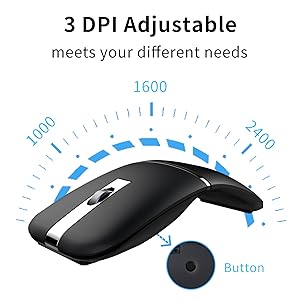
1 press and scroll light blink
blink 1 time: DPI 1000
blink 2 times: DPI 1600
blink 3 times: DPI 2400
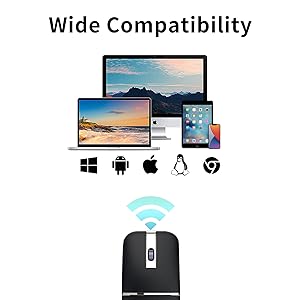
This quiet mouse can be used for PC, Mac, Chromebook, Notebook, Laptop,Tablet, desktop, Computer, Cell Phone and other device.
How to connect?
2.4GHz wireless mode:
1. Remove the USB receiver from the USB storage compartment at the bottom of the mouse and insert it into the USB port of your computer.
2. Turn on the power switch to 2.4G mode on the left, and the mouse can be used normally.
Bluetooth mode:
1.Turn on the power switch to Bluetooth mode on the right.
2. Press the Bluetooth pairing button for about three seconds, Mouse wheel indicator flashes blue.
3. Search for "BT5.0 Mouse" or "BT3.0 Mouse" through your devices, and then click to match. The mouse wheel indicator light will go out after pairing and the mouse can be used normally.
How to adjust the mouse DPI?
DPI can switch between 1000-1600-2400 by lightly pressing the 'DPI/Pairing' button at the bottom of the mouse.
The mouse wheel indicator flashes once to 1000 DPI, twice to 1600 DPI, and three times to 2400 DPI.
NOTE: DPI can only be switched after the mouse is connected to the device.
Turn off the mouse:
If you are not using the mouse temporarily, you can switch the toggle switch to the middle 'OFF' position to turn off the mouse power, which can save power and prevent misuse.



