




 here!
here!
I’m your shopping assistant for PC builds, upgrades, and everything tech.
Got questions? Ask away!
Start a conversation
here!
I’m your shopping assistant for PC builds, upgrades, and everything tech.
Got questions? Ask away!
Start a conversation



Any questions? Ask CelesteSM will help you find out quickly.


 X68 HE Black |  X68 HE White Contour |  X68 HE Black Contour |  X68 HE Moonlight |  X60 HE Black Red |  X60 HE Moonlight |  X60 HE Star White | |
|---|---|---|---|---|---|---|---|
Customer Reviews | — | — | — | — | — | — | — |
Price | — | — | — | — | — | — | — |
Polling Rate | 8000Hz | 8000Hz | 8000Hz | 8000Hz | 8000hz wired, 1000hz wireless | 8000hz wired, 1000hz wireless | 8000hz wired, 1000hz wireless |
Switches | Outemu Magnetic Amber Switch | Outemu Magnetic Amber Switch | Outemu Magnetic Amber Switch | Outemu Magnetic Amber Switch | Outemu Magnetic Amber Switch | Outemu Magnetic Amber Switch | Outemu Magnetic Amber Switch |
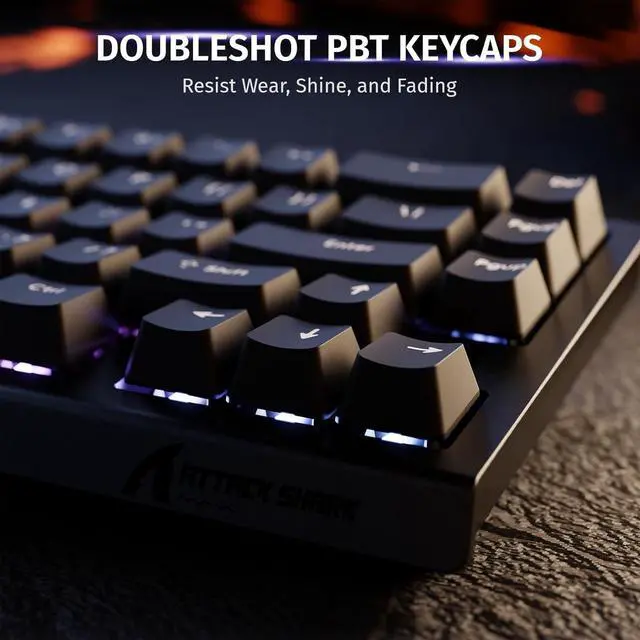
Keycaps | Double Shot PBT Keycaps | Side Printed PBT Keycaps | Side Printed PBT Keycaps | Side Printed PBT Keycaps | Double Shot PBT Keycaps | Double Shot PBT Keycaps | Double Shot PBT Keycaps |
Number of Keys | 66 | 66 | 66 | 66 | 61 | 61 | 61 |
Backlight | 20+ lighting modes and 9 color | 20+ lighting modes and 9 color | 20+ lighting modes and 9 color | 20+ lighting modes and 9 color | 20+ lighting modes and 9 color | 20+ lighting modes and 9 color | 20+ lighting modes and 9 color |
Connection Method | Type-c Wired | Type-c Wired | Type-c Wired | Type-c Wired | Tri Mode: Wired, 2.4Ghz, BT | Tri Mode: Wired, 2.4Ghz, BT | Tri Mode: Wired, 2.4Ghz, BT |
How to restore the keyboard to factory settings?
Press and hold the key combination "FN+Caps Lock" for 3 seconds to restore the keyboard to factory settings
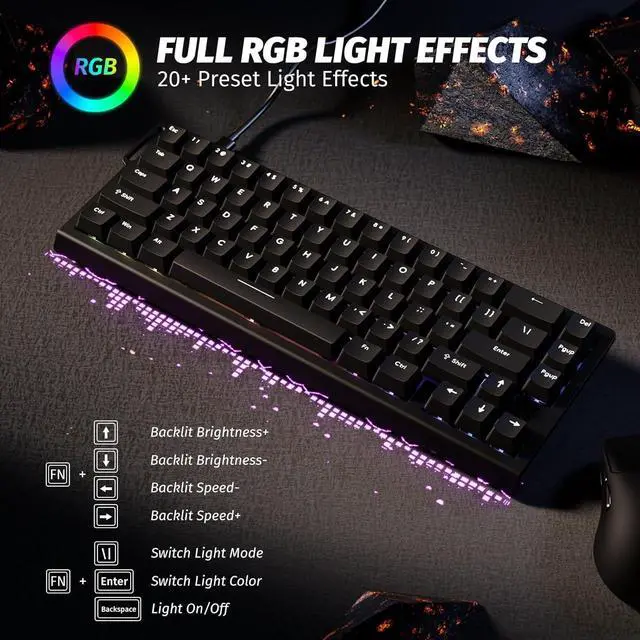
Key combination for adjusting the keyboard light (can also be adjusted in the software)
FN+\|: Switch Light Mode
FN+Enter: Switch Light Color
FN+Backspace: Light On/Off
FN+Tab: All key lights turn white
Is the X68 HE automatically on 8k polling or is there somewhere to set it?
The X68 HE is set to 8k polling rate by default, so you don’t need to make any adjustments
Do I need to calibrate the keyboard before using it?
We recommend running a quick calibration before first use. This helps the keyboard detect keystrokes more accurately and ensures the best typing experience.
How do I switch between the F-keys (F1–F12) and the number keys on the top row?
You can toggle between them by pressing FN + Right Shift. This allows you to choose whether the top row functions as number keys or as F-keys, depending on your needs.


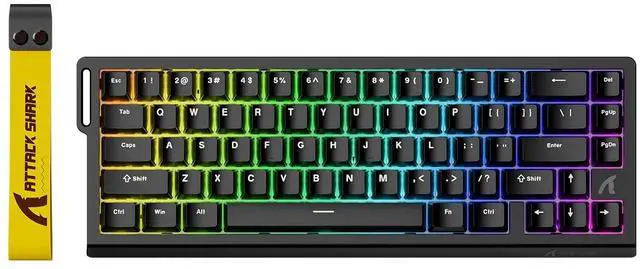
| Number of Keys | 66 Keys(Arrow keys included) |
|---|---|
| Supported Connections | Type-C Wired |
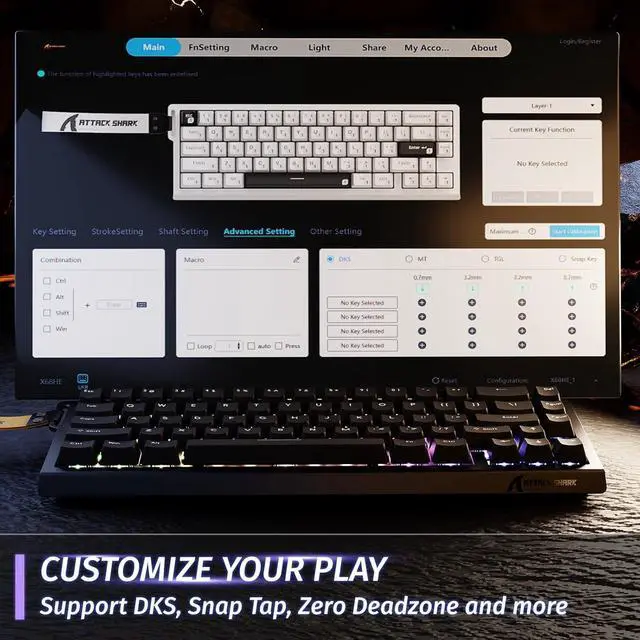
| Software Link | www.qmk.top |
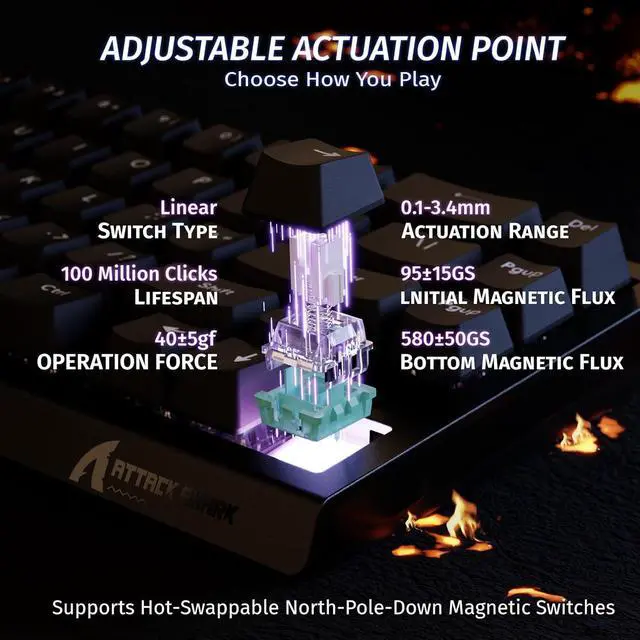
| Switches Type | Outemu Magnetic Amber Switch |
| Backlit | 16.8 Million Chroma RGB South Facing Light |
| Keycap Materials | Cherry Profile PBT Keycap |
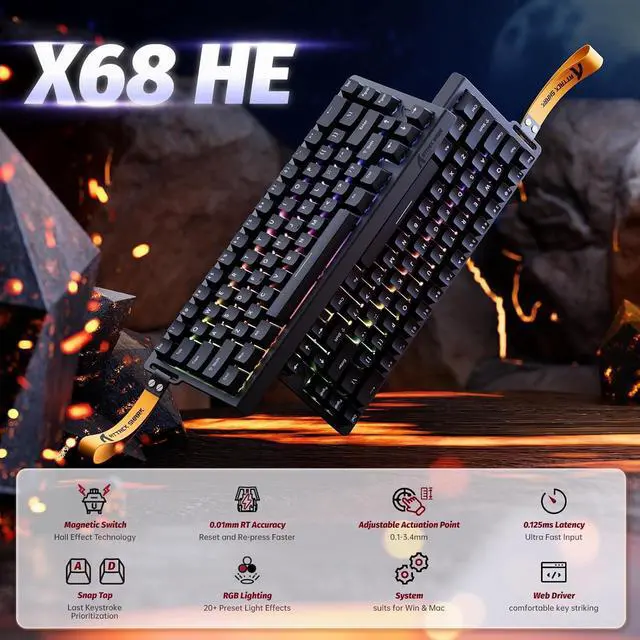
| Actuation Point | from 0.1mm to 3.4mm |
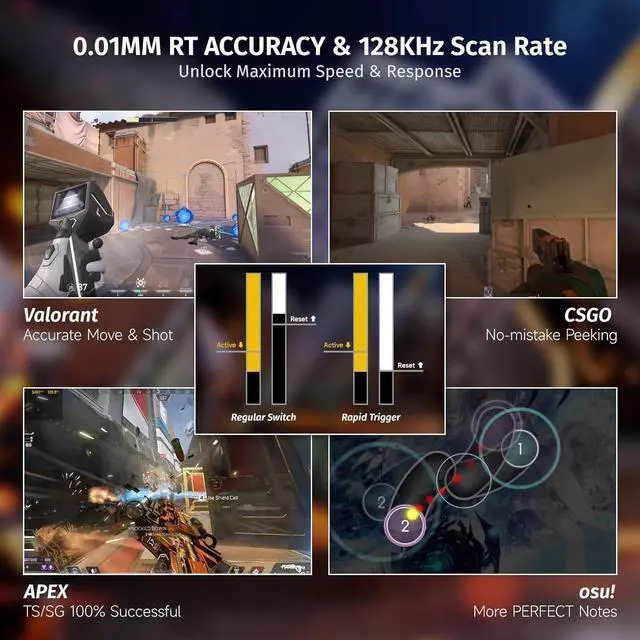
| RT Accuracy | 0.01mm |
| Polling Rate | 8000HZ |
| Scan Rate | 128KHZ |
X68 HE Black | X68 HE White Contour | X68 HE Black Contour | X68 HE Moonlight | X60 HE Black Red | X60 HE Moonlight | X60 HE Star White |
|---|---|---|---|---|---|---|
| Customer Reviews | ||||||
| — | — | — | — | — | — | — |
| Price | ||||||
| — | — | — | — | — | — | — |
| Polling Rate | ||||||
| 8000Hz | 8000Hz | 8000Hz | 8000Hz | 8000hz wired, 1000hz wireless | 8000hz wired, 1000hz wireless | 8000hz wired, 1000hz wireless |
| Switches | ||||||
| Outemu Magnetic Amber Switch | Outemu Magnetic Amber Switch | Outemu Magnetic Amber Switch | Outemu Magnetic Amber Switch | Outemu Magnetic Amber Switch | Outemu Magnetic Amber Switch | Outemu Magnetic Amber Switch |
| Keycaps | ||||||
| Double Shot PBT Keycaps | Side Printed PBT Keycaps | Side Printed PBT Keycaps | Side Printed PBT Keycaps | Double Shot PBT Keycaps | Double Shot PBT Keycaps | Double Shot PBT Keycaps |
| Number of Keys | ||||||
| 66 | 66 | 66 | 66 | 61 | 61 | 61 |
| Backlight | ||||||
| 20+ lighting modes and 9 color | 20+ lighting modes and 9 color | 20+ lighting modes and 9 color | 20+ lighting modes and 9 color | 20+ lighting modes and 9 color | 20+ lighting modes and 9 color | 20+ lighting modes and 9 color |
| Connection Method | ||||||
| Type-c Wired | Type-c Wired | Type-c Wired | Type-c Wired | Tri Mode: Wired, 2.4Ghz, BT | Tri Mode: Wired, 2.4Ghz, BT | Tri Mode: Wired, 2.4Ghz, BT |
How to restore the keyboard to factory settings?
Press and hold the key combination "FN+Caps Lock" for 3 seconds to restore the keyboard to factory settings
Key combination for adjusting the keyboard light (can also be adjusted in the software)
FN+\|: Switch Light Mode
FN+Enter: Switch Light Color
FN+Backspace: Light On/Off
FN+Tab: All key lights turn white
Is the X68 HE automatically on 8k polling or is there somewhere to set it?
The X68 HE is set to 8k polling rate by default, so you don’t need to make any adjustments
Do I need to calibrate the keyboard before using it?
We recommend running a quick calibration before first use. This helps the keyboard detect keystrokes more accurately and ensures the best typing experience.
How do I switch between the F-keys (F1–F12) and the number keys on the top row?
You can toggle between them by pressing FN + Right Shift. This allows you to choose whether the top row functions as number keys or as F-keys, depending on your needs.
| Brand | ATTACK SHARK |
| Compatible Devices | PC/MAC |
| Connectivity Technology | USB-C |
| Keyboard Description | Mechanical |
| Recommended Uses For Product | Multimedia, Video Editing, Everyday Use, Gifts for gamers or computer workers, Personal, Education, Competitive Gaming, Daily office working, Programming, Student, Business |
| Special Feature | Hall Effect Magnetic Switch, 0.01mm RT Accuracy, Rapid Trigger&Adjustable Actuation, 8K Hz Polling Rate, Programmable Web Driver, Top Mounted |
| Color | Black |
| Keyboard backlighting color support | RGB |
| Style | Classic |
| Material | Aluminum, Polybutylene Terephthalate |
| Package Dimensions | 14.09 x 6.22 x 2.01 inches |
| Item Weight | 1.98 pounds |
| Manufacturer | ATTACK SHARK |
| Item model number | ATTACK SHARK X68 HE |
| Date First Available | December 19, 2024 |


