








How to Adjust Lighting and Disable Sleep Mode via the Driver?
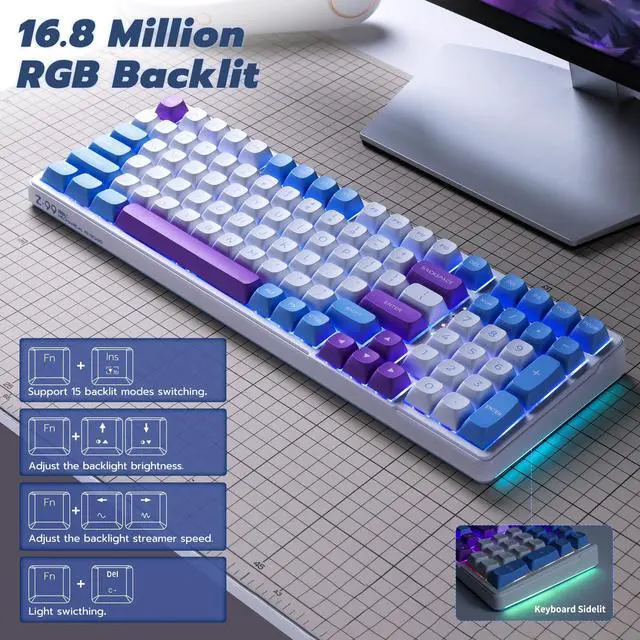
- Click on the lighting effect option. There are 15 preset lighting effects and one custom lighting effect option available here. After selecting and switching to your desired effect, save the settings and the keyboard will display the chosen lighting effect.
- Find the sleep mode option in the settings menu. You can adjust the duration before the keyboard enters sleep mode or disable the sleep mode entirely.
E-YOOSO Keyboard Driver Basic Tutorial
Merchant Video
PBT Keycaps
Comfortable touch, wear-resistant, and fade-proof.

Ergonomic Design
Two-stage stand adjusts to your posture; relieves wrist strain for enhanced comfort during long hours of use.

Side-Function Keys
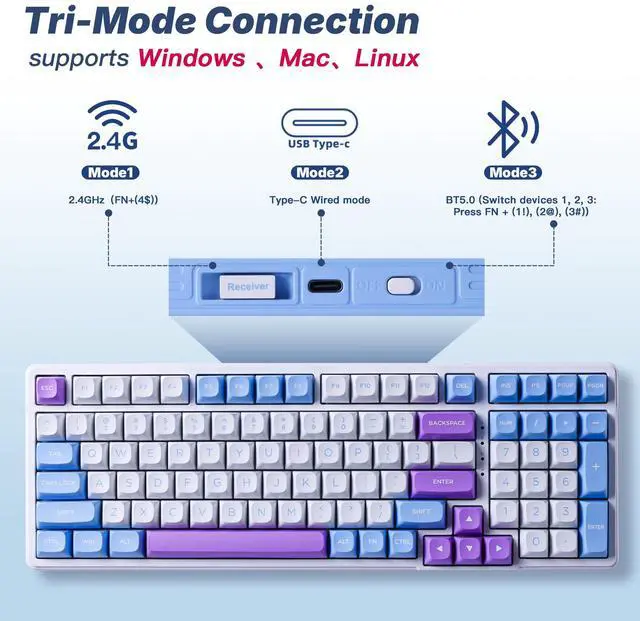
2.4G Receiver Storage
Type-C Port: Wired mode
Power Switch: Enables BT/2.4G

Hot-Swappable
Solder-free switch replacement; easy to DIY (try different switches) or maintain.
How do I download and use the driver?
Visit the official E-YOOSO website and download the driver for your keyboard model. Open the driver on a Windows system and connect the keyboard to your computer in wired mode before using it.
The wireless keyboard enters sleep mode after 30 minutes of inactivity. How do I configure this setting?
Go to the “Sleep” option in the driver and adjust or disable the setting.
I clicked to switch the RGB lighting effects in the driver, but nothing happened. Why?
After selecting the lighting effect, you need to click the “Save” button in the bottom right corner to apply the changes.
How to Switch Between BT and 2.4G Connection
BT: Press and hold FN + (1!)/(2@)/(3#) for 3 seconds to enter the corresponding BT channel pairing mode.
2.4G: Press and hold FN + (4$) for 3 seconds to enter the 2.4G pairing mode, and the M indicator light will flash yellow.
Can it connect to 5 devices simultaneously and receive input?
No. The wireless gaming keyboard can only send input to one active device at a time. However, you can instantly switch between multiple paired devices.


About E-YOOSO
E-YOOSO was founded in 1996 as a high-tech enterprise combining research and development, production, sales, and brand development. We specialize in designing and manufacturing high-quality keyboards and mice. Our mission is to provide high-performance, personalized products for gamers worldwide, ensuring a great experience for both daily use and gaming. E-YOOSO's diverse product range provides you with precise operation, comfort, and durability.
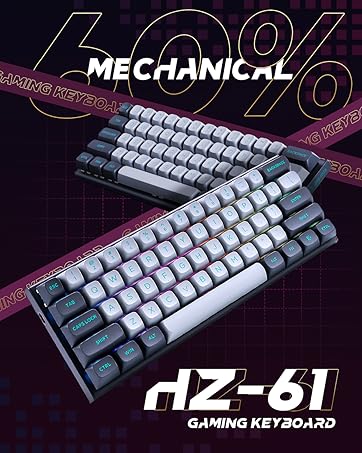
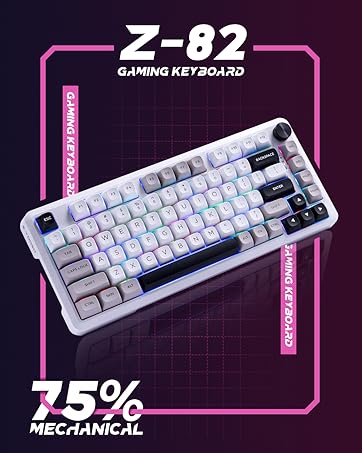
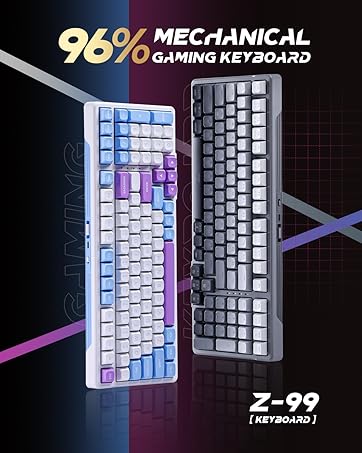
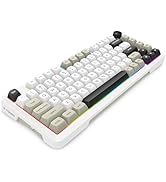
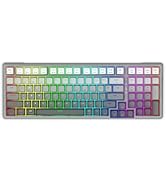
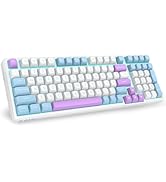
Gaming Mechanical Keyboard


E-YOOSO Keyboard Driver Basic Tutorial
Merchant VideoHow to Adjust Lighting and Disable Sleep Mode via the Driver?
- Click on the lighting effect option. There are 15 preset lighting effects and one custom lighting effect option available here. After selecting and switching to your desired effect, save the settings and the keyboard will display the chosen lighting effect.
- Find the sleep mode option in the settings menu. You can adjust the duration before the keyboard enters sleep mode or disable the sleep mode entirely.
PBT Keycaps
Comfortable touch, wear-resistant, and fade-proof.
Ergonomic Design
Two-stage stand adjusts to your posture; relieves wrist strain for enhanced comfort during long hours of use.
Side-Function Keys
2.4G Receiver Storage
Type-C Port: Wired mode
Power Switch: Enables BT/2.4G
Hot-Swappable
Solder-free switch replacement; easy to DIY (try different switches) or maintain.
How do I download and use the driver?
Visit the official E-YOOSO website and download the driver for your keyboard model. Open the driver on a Windows system and connect the keyboard to your computer in wired mode before using it.
The wireless keyboard enters sleep mode after 30 minutes of inactivity. How do I configure this setting?
Go to the “Sleep” option in the driver and adjust or disable the setting.
I clicked to switch the RGB lighting effects in the driver, but nothing happened. Why?
After selecting the lighting effect, you need to click the “Save” button in the bottom right corner to apply the changes.
How to Switch Between BT and 2.4G Connection
BT: Press and hold FN + (1!)/(2@)/(3#) for 3 seconds to enter the corresponding BT channel pairing mode.
2.4G: Press and hold FN + (4$) for 3 seconds to enter the 2.4G pairing mode, and the M indicator light will flash yellow.
Can it connect to 5 devices simultaneously and receive input?
No. The wireless gaming keyboard can only send input to one active device at a time. However, you can instantly switch between multiple paired devices.
About E-YOOSO
E-YOOSO was founded in 1996 as a high-tech enterprise combining research and development, production, sales, and brand development. We specialize in designing and manufacturing high-quality keyboards and mice. Our mission is to provide high-performance, personalized products for gamers worldwide, ensuring a great experience for both daily use and gaming. E-YOOSO's diverse product range provides you with precise operation, comfort, and durability.
Gaming Mechanical Keyboard