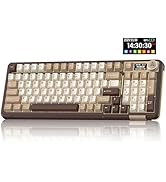
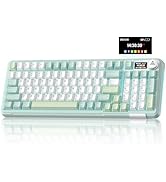
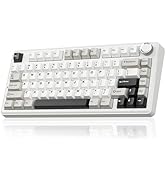
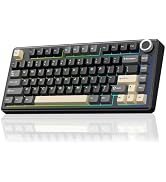
here!
here!
I’m your shopping assistant for PC builds, upgrades, and everything tech.
Got questions? Ask away!
Start a conversation
here!
I’m your shopping assistant for PC builds, upgrades, and everything tech.
Got questions? Ask away!
Start a conversation




Any questions? Ask CelesteSM will help you find out quickly.
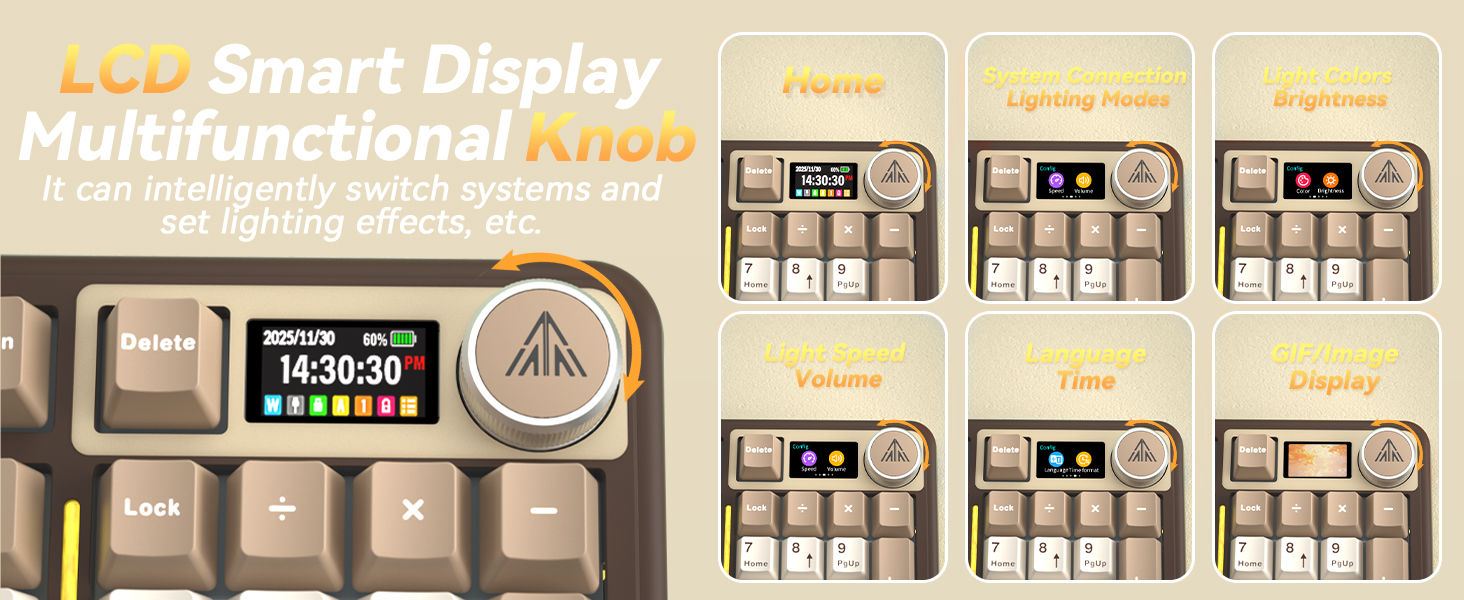
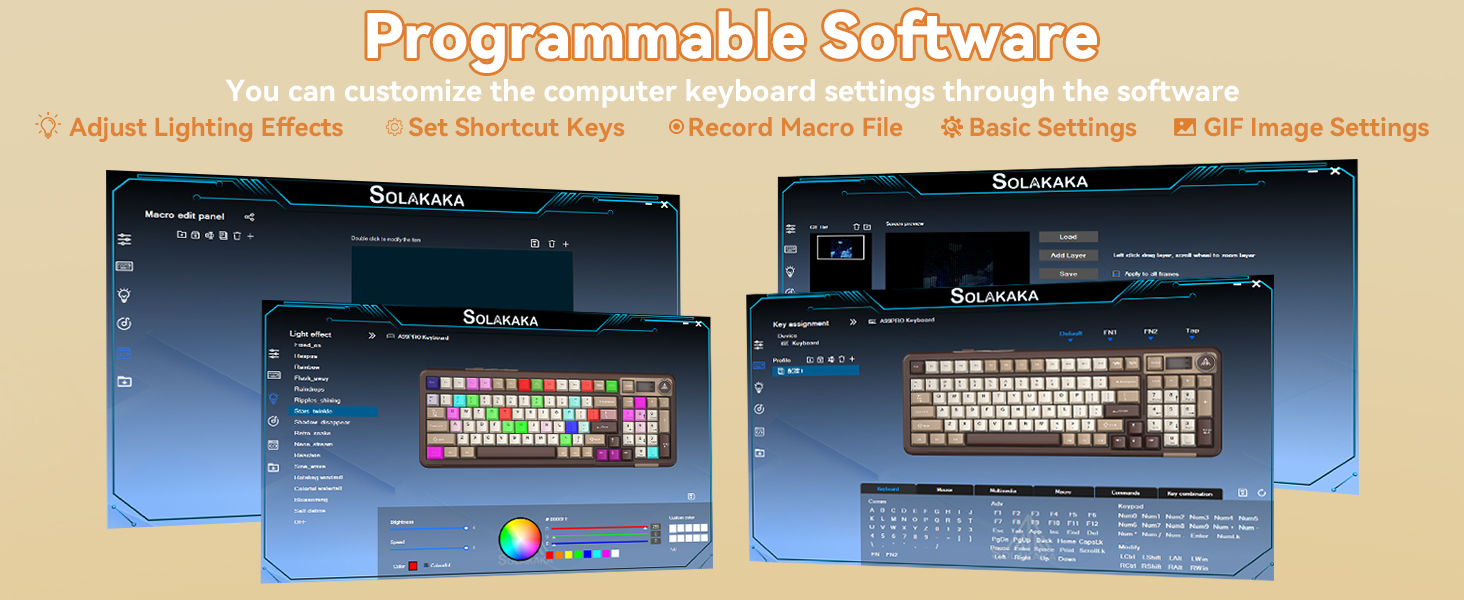
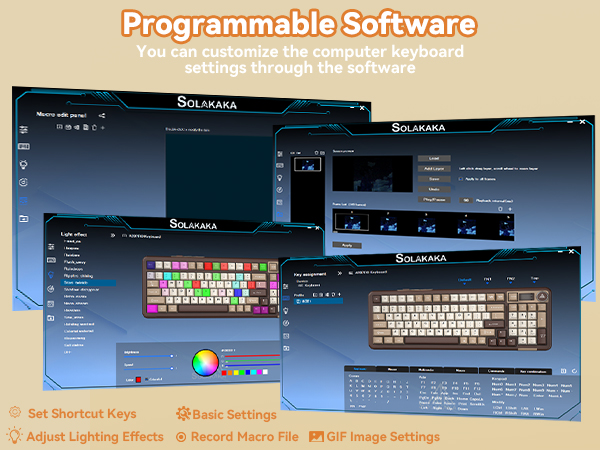
Web Driver: solakakadriver.com (Note: Please access this webpage using a wired connection.)
What should I do if the plastic covering on the screen has scratches or curled edges?
The plastic covering on the screen's surface protects it during transportation. If the plastic covering has scratches or curled edges, it can be peeled off without affecting the screen's use.
How to set the time on the screen?
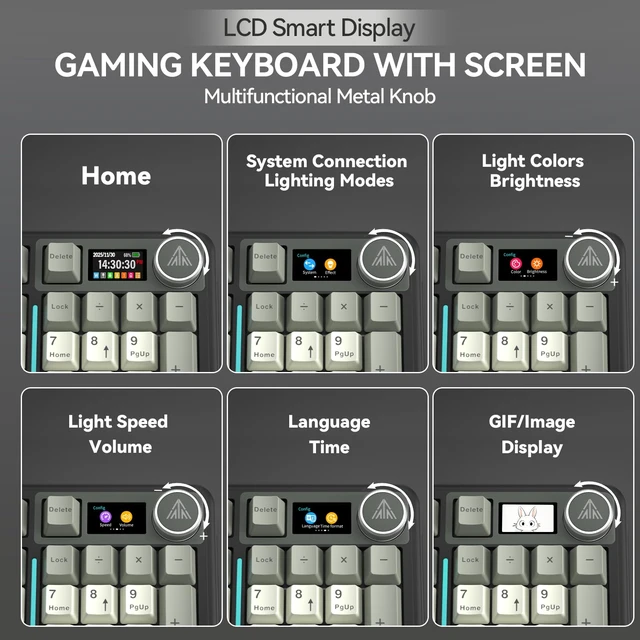
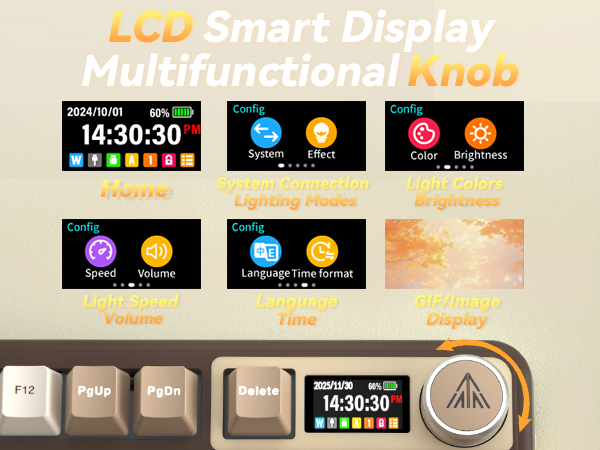
1. Locate the time settings page on the screen and enter it.
2. Set the year, month, day, hour one by one. Rotate the knob to select, and press the knob briefly to confirm. (For detailed instructions, please refer to the uploaded video)
How do I set up the GIF image?
You need to run the driver software in USB-C wired mode. And click the file download button to access the GIF image management page. Click "Upload" to upload the pre-downloaded GIF image. Click "Apply". The GIF image will appear on the screen.
How can I prevent the GIF image on the screen from switching back to the home page after entering the sleep mode?
Please download and install the firmware of A99 Pro in wired mode. Download address: solakakadriver.com (please download the firmware for the corresponding keyboard). After the application, please reopen the mode switch and reconnect the keyboard.
How to Switch Systems?
How to Switch Systems?
1. Locate the“System”settings on the screen, rotate the knob to select it, then press the knob to confirm.
2. Shortcut Keys for Switching Systems. Press "Fn+W" to switch to Windows; Press "Fn+M" to switch to Mac.
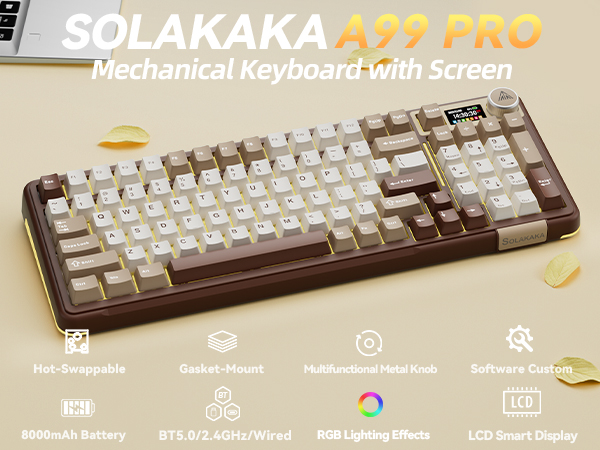
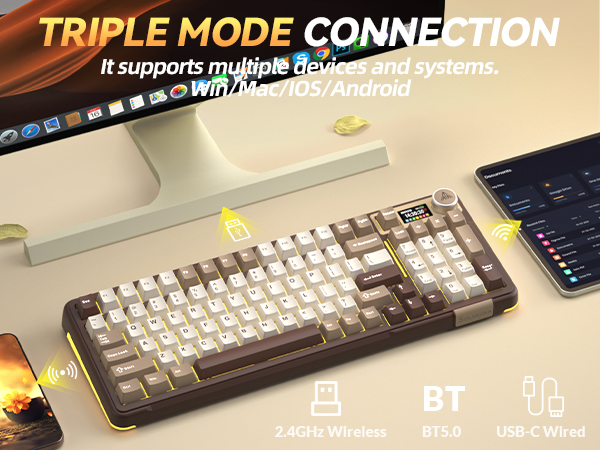
Web Driver: solakakadriver.com (Note: Please access this webpage using a wired connection.)
What should I do if the plastic covering on the screen has scratches or curled edges?
The plastic covering on the screen's surface protects it during transportation. If the plastic covering has scratches or curled edges, it can be peeled off without affecting the screen's use.
How to set the time on the screen?
1. Locate the time settings page on the screen and enter it.
2. Set the year, month, day, hour one by one. Rotate the knob to select, and press the knob briefly to confirm. (For detailed instructions, please refer to the uploaded video)
How do I set up the GIF image?
You need to run the driver software in USB-C wired mode. And click the file download button to access the GIF image management page. Click "Upload" to upload the pre-downloaded GIF image. Click "Apply". The GIF image will appear on the screen.
How can I prevent the GIF image on the screen from switching back to the home page after entering the sleep mode?
Please download and install the firmware of A99 Pro in wired mode. Download address: solakakadriver.com (please download the firmware for the corresponding keyboard). After the application, please reopen the mode switch and reconnect the keyboard.
How to Switch Systems?
How to Switch Systems?
1. Locate the“System”settings on the screen, rotate the knob to select it, then press the knob to confirm.
2. Shortcut Keys for Switching Systems. Press "Fn+W" to switch to Windows; Press "Fn+M" to switch to Mac.