here!
here!
I’m your shopping assistant for PC builds, upgrades, and everything tech.
Got questions? Ask away!
Start a conversation
here!
I’m your shopping assistant for PC builds, upgrades, and everything tech.
Got questions? Ask away!
Start a conversation



Any questions? Ask CelesteSM will help you find out quickly.


Mission
At ProtoArc, our mission is to deliver innovative workspace solutions that enhance comfort, boost productivity, and foster overall wellness.
Vision
We believe that everyone deserves a workspace that not only meets their functional needs but also empowers them to thrive. Our vision is a world where work environments promote health, happiness, and high performance.

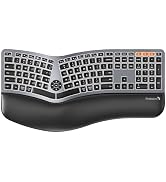
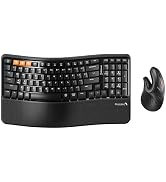
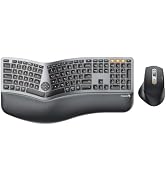
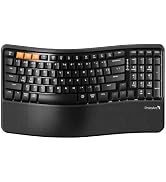
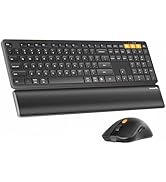
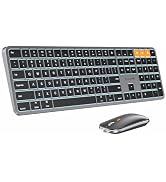
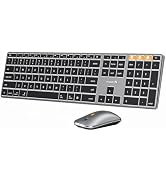

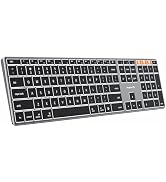


Note: KM100-A Keyboard is designed primarily for macOS and may not be fully compatible with Windows. The media keys and function keys don't work on Windows
Because the "Mouse Keys" feature is enabled, to disable this feature on MacBook, iMac, and Mac Mini, follow these steps:
? Go to Settings > Accessibility > Pointer Control > Mouse Keys.
? Toggle the Mouse Keys switch to the off position.
Is KM100-A Bluetooth Keyboard compatible with Windows PCs?
No. This KM100-A keyboard and mouse set is designed exclusively for macOS 10.12 and above, iOS & iPadOS 13.0 and above. Macs before 2013, Windows, Linux are not compatible
The keyboard/mouse cannot connect to your device
1.Ensure that the keyboard/mouse is fully charged.
2.Confirm that the keyboard/mouse is in the correct mode.
3.Delete the keyboard/mouse's Bluetooth pairing from your device's Bluetooth listing.
4.Repair the keyboard/mouse with your device
Some keyboard keys do not work / Keyboard keys have typing delay / Keyboard keys repeat typing:
1. Ensure that the keyboard is fully charged.
2. Delete the keyboard's Bluetooth connection from your computer's Bluetooth connection history. After deleting the Bluetooth connection, restart your computer.
3. Re-pair the keyboard with your computer
How to Use Multimedia or F1-F12 function?
The Bluetooth keyboard comes preconfigured with multimedia functions. The F1-F12 functions need to be activated by pressing Fn + F1-F12 keys. Or you can set the keyboard to the F1-F12 functions by default on your Mac
After the device restart that required login, the keyboard and mouse wouldn't reconnect?
The reason is FileVault On Mac. To disable FileVault:
1. Go to System Settings/System Preferences 2. Click Privacy & Security 3. Click FileVault 4. Click the lock icon in the bottom left and enter your password. 5. Click Turn Off Encryption
 KM100-A Full-Size Combo | 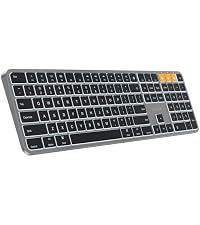 K100-A Full-Size Keyboard |  K110-A Aluminum Keyboard |  K90-A Compact Keyboard |  KM110-A Aluminum Combo |  KM90-A Small Combo | |
|---|---|---|---|---|---|---|
Customer Reviews | — | — | — | — | — | — |
Price | — | — | — | — | — | — |
Version | Mid-Range Model | Mid-Range Model | Flagship Model | Entry Level | Flagship Model | Entry Level |
Material | Plastic | Plastic | Aluminum | Metallic | Aluminum | Metallic |
Connection Type | 3 * Bluetooth 5.1 | 3 * Bluetooth 5.1 | 3 * Bluetooth 5.1 | 3 * Bluetooth 5.1 | 3 * Bluetooth 5.1 | 3 * Bluetooth 5.1 |
Operating System | Mac OS X 10.12 and above | Mac OS X 10.12 and above | Mac OS X 10.12 and above | Mac OS X 10.12 and above | Mac OS X 10.12 and above | Mac OS X 10.12 and above |
Compatible Devices | MacBook Pro/Air, iMac, iPad | MacBook Pro/Air, iMac, iPad | MacBook Pro/Air, iMac, iPad | MacBook Pro/Air, iMac, iPad | MacBook Pro/Air, iMac, iPad | MacBook Pro/Air, iMac, iPad |
Layout | Full Size layout, with numpad | Full Size layout, with numpad | Full Size layout, with numpad | Compact layout, no numpad | Full Size layout, with numpad | Compact layout, no numpad |
Keyboard Dimensions L x W | 16.7"L x 4.7"W | 16.7"L x 4.8"W | 16.7"L x 4.4"W | 11.2"L x 4.7"W | 16.7"L x 4.4"W | 11.2"L x 4.7"W |
Number of Keys | 109 | 109 | 110 | 78 | 110 | 78 |
Backlight | ? | ? | ? | ? | ? | ? |
Ergonomic Titing Feet | ? | ? | ? | ? | ? | ? |
Numeric Keypad | ? | ? | ? | ? | ? | ? |
Windows Compatible | ? | ? | ? | ? | ? | ? |
Note: KM100-A Keyboard is designed primarily for macOS and may not be fully compatible with Windows. The media keys and function keys don't work on Windows


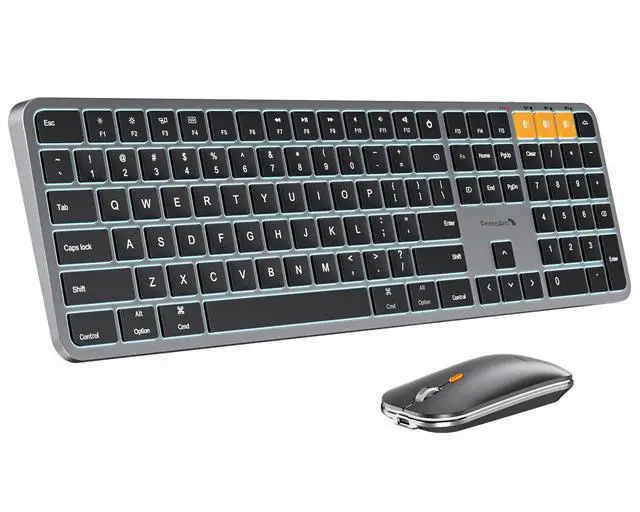
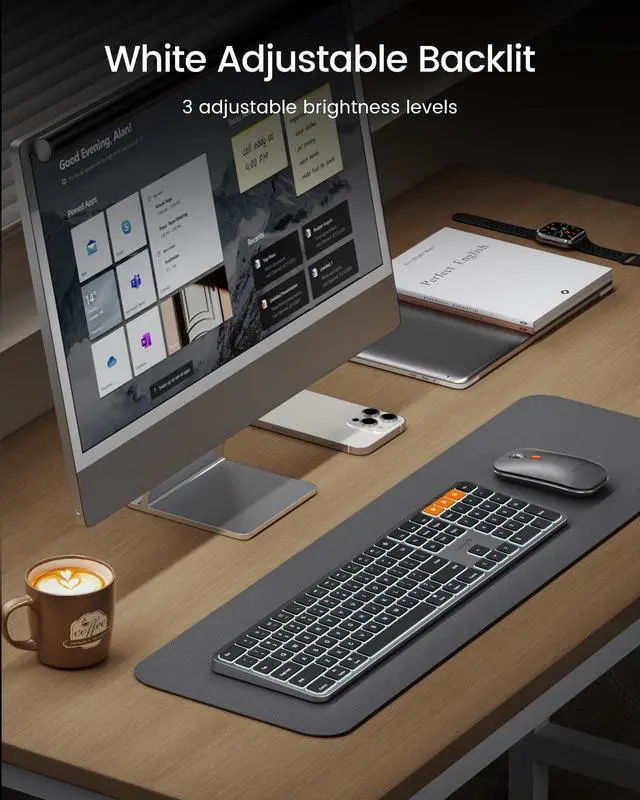
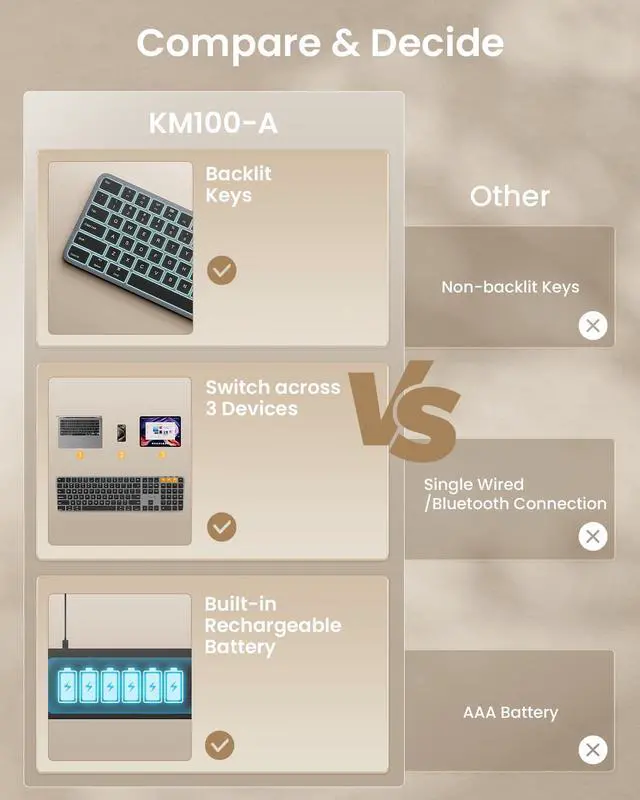
Built for the way you work on Mac. Enjoy a familiar full-size layout with a dedicated numeric keypad, plus 3-level white backlighting that keeps every key easy to see - even in low-light environments

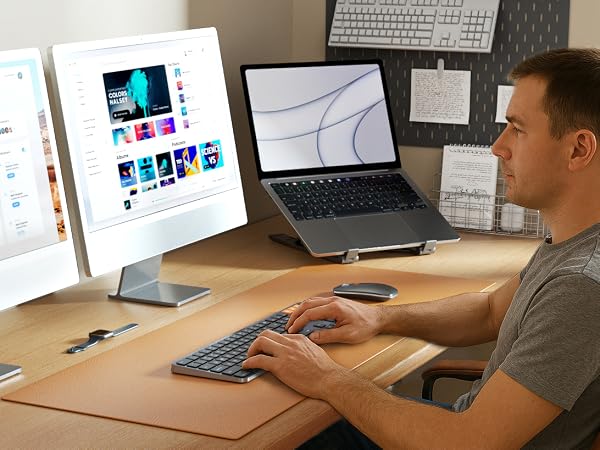

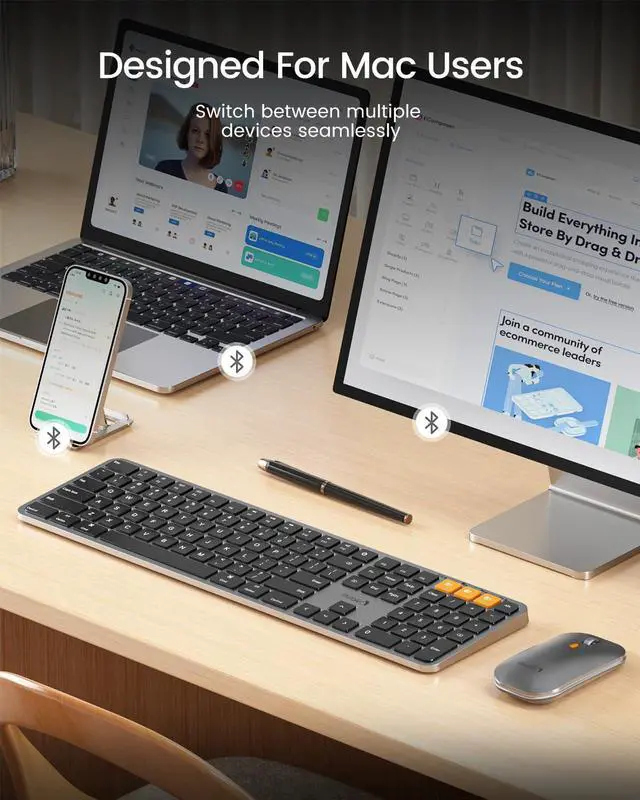
Move between up to 3 devices and access essential multimedia controls at a touch, keeping everyday tasks simple and your workflow uninterrupted


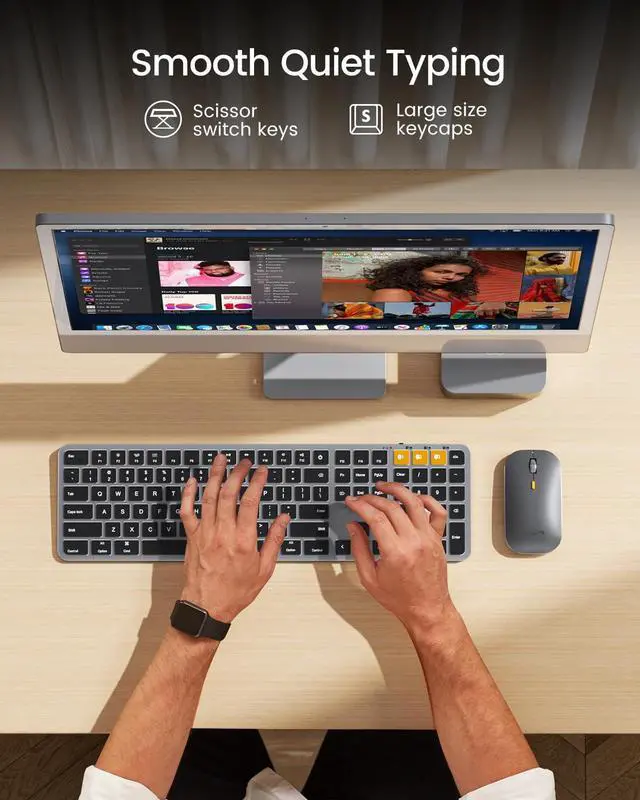
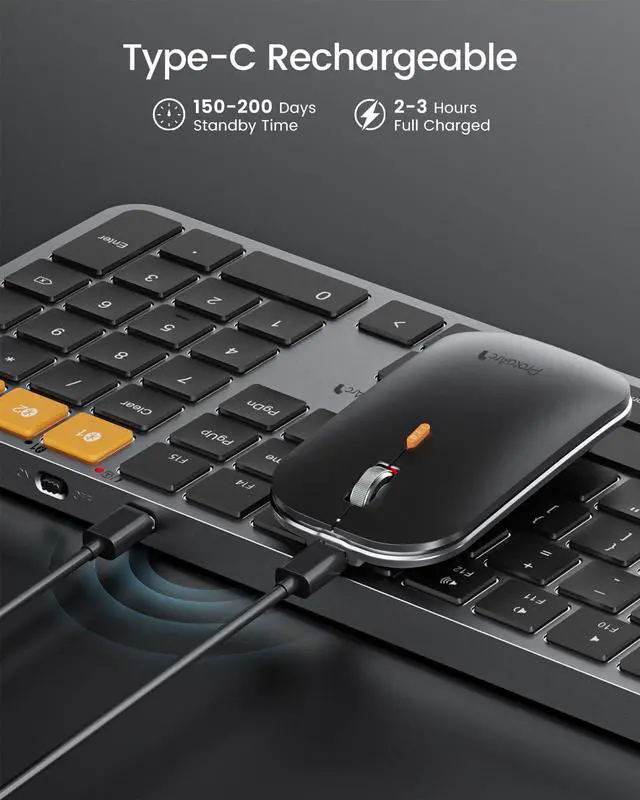
From its full-size mac layout and low-profile keys to backlit keys and rechargeable convenience, KM100-A is designed for a polished, productive desktop experience
Because the "Mouse Keys" feature is enabled, to disable this feature on MacBook, iMac, and Mac Mini, follow these steps:
? Go to Settings > Accessibility > Pointer Control > Mouse Keys.
? Toggle the Mouse Keys switch to the off position.
Is KM100-A Bluetooth Keyboard compatible with Windows PCs?
No. This KM100-A keyboard and mouse set is designed exclusively for macOS 10.12 and above, iOS & iPadOS 13.0 and above. Macs before 2013, Windows, Linux are not compatible
The keyboard/mouse cannot connect to your device
1.Ensure that the keyboard/mouse is fully charged.
2.Confirm that the keyboard/mouse is in the correct mode.
3.Delete the keyboard/mouse's Bluetooth pairing from your device's Bluetooth listing.
4.Repair the keyboard/mouse with your device
Some keyboard keys do not work / Keyboard keys have typing delay / Keyboard keys repeat typing:
1. Ensure that the keyboard is fully charged.
2. Delete the keyboard's Bluetooth connection from your computer's Bluetooth connection history. After deleting the Bluetooth connection, restart your computer.
3. Re-pair the keyboard with your computer
How to Use Multimedia or F1-F12 function?
The Bluetooth keyboard comes preconfigured with multimedia functions. The F1-F12 functions need to be activated by pressing Fn + F1-F12 keys. Or you can set the keyboard to the F1-F12 functions by default on your Mac
After the device restart that required login, the keyboard and mouse wouldn't reconnect?
The reason is FileVault On Mac. To disable FileVault:
1. Go to System Settings/System Preferences 2. Click Privacy & Security 3. Click FileVault 4. Click the lock icon in the bottom left and enter your password. 5. Click Turn Off Encryption
KM100-A Full-Size Combo | K100-A Full-Size Keyboard | K110-A Aluminum Keyboard | K90-A Compact Keyboard | KM110-A Aluminum Combo | KM90-A Small Combo |
|---|---|---|---|---|---|
| Customer Reviews | |||||
| — | — | — | — | — | — |
| Price | |||||
| — | — | — | — | — | — |
| Version | |||||
| Mid-Range Model | Mid-Range Model | Flagship Model | Entry Level | Flagship Model | Entry Level |
| Material | |||||
| Plastic | Plastic | Aluminum | Metallic | Aluminum | Metallic |
| Connection Type | |||||
| 3 * Bluetooth 5.1 | 3 * Bluetooth 5.1 | 3 * Bluetooth 5.1 | 3 * Bluetooth 5.1 | 3 * Bluetooth 5.1 | 3 * Bluetooth 5.1 |
| Operating System | |||||
| Mac OS X 10.12 and above | Mac OS X 10.12 and above | Mac OS X 10.12 and above | Mac OS X 10.12 and above | Mac OS X 10.12 and above | Mac OS X 10.12 and above |
| Compatible Devices | |||||
| MacBook Pro/Air, iMac, iPad | MacBook Pro/Air, iMac, iPad | MacBook Pro/Air, iMac, iPad | MacBook Pro/Air, iMac, iPad | MacBook Pro/Air, iMac, iPad | MacBook Pro/Air, iMac, iPad |
| Layout | |||||
| Full Size layout, with numpad | Full Size layout, with numpad | Full Size layout, with numpad | Compact layout, no numpad | Full Size layout, with numpad | Compact layout, no numpad |
| Keyboard Dimensions L x W | |||||
| 16.7"L x 4.7"W | 16.7"L x 4.8"W | 16.7"L x 4.4"W | 11.2"L x 4.7"W | 16.7"L x 4.4"W | 11.2"L x 4.7"W |
| Number of Keys | |||||
| 109 | 109 | 110 | 78 | 110 | 78 |
| Backlight | |||||
| ? | ? | ? | ? | ? | ? |
| Ergonomic Titing Feet | |||||
| ? | ? | ? | ? | ? | ? |
| Numeric Keypad | |||||
| ? | ? | ? | ? | ? | ? |
| Windows Compatible | |||||
| ? | ? | ? | ? | ? | ? |
Mission
At ProtoArc, our mission is to deliver innovative workspace solutions that enhance comfort, boost productivity, and foster overall wellness.
Vision
We believe that everyone deserves a workspace that not only meets their functional needs but also empowers them to thrive. Our vision is a world where work environments promote health, happiness, and high performance.